avatarElvie Lins

Free AI web copilot to create summaries, insights and extended knowledge, download it at here

2337

Abstract

v2/resize:fit:800/1*eVNHFNYm1H2tv1aEnVx1VA.png"><figcaption>Screenshot by the Author</figcaption></figure><p id="8740">Because you activated the 2 plugins I mentioned above, you can go to click on <b>Manage</b> inline with coinbase.</p><p id="4a42"><b>Login into coinbase to get your credentials</b></p><p id="e101">Inside coinbase e-commerce dashboards, go to settings. Activate all cryptocurrencies available.</p><figure id="9592"><img src="https://cdn-images-1.readmedium.com/v2/resize:fit:800/1*uB1JnYZ9bTphBV5X-g0ApA.png"><figcaption>Screenshot by the Author</figcaption></figure><p id="0073">Scroll down further. to see your credentials which you will need all this information to add to your WordPress Dashboards under Woocommerce payment settings:</p><p id="bac6">See the image below. You can create an API Key. Under Webhook subscriptions- enter your website address.</p><figure id="13fd"><img src="https://cdn-images-1.readmedium.com/v2/resize:fit:800/1*1Zh5YsbAM_lafneAAmilOA.png"><figcaption>Screenshot by the Author</figcaption></figure><p id="b41b">Copy those API keys and go back to the WP dashboard to enter the API.</p><p id="055a">It looks like this on the image below.</p><p id="66a2">(I am hiding my API for my own protection). See the image below. API Key and Webhook Shared Secret</p><figure id="1933"><img src="https://cdn-images-1.readmedium.com/v2/resize:fit:800/1*fbPbuGlgu910XL11_2tKsg.png"><figcaption>Screenshot by the Author</figcaption></figure><p id="92b9">Once you are done adding that information. <b>Click on Save</b></p><p id="aea5">Payments should now appear when your customer's checkout to proceed to pay for their orders.</p><p id="18ef">Your customers have now the option of paying you with Cryptocurrencies.</p><figure id="fcf1"><img src="https://cdn-images-1.readmedium.com/v2/resize:fit:800/1*jJ7mzIE0ey9PX58pGxNPuQ.png"><figcaption>Screenshot by the Author</figcaption></figure><h1 id="a21c">Conclusion</h1><p id="2ab3">Tesla is now accepting cryptocurrencies as payment. We may as well follow the trend.</p><p id="287d">Hope this helps you.</p><div id="eabf" class="link-block"> <a href="https://readmedium.com/how-to-install-ssl-certificate-for-beginners-b5147ac8fc32"> <div> <div> <h2>How to Install SSL Certificate For Beginners</h2>

Options

         <div><h3>SSL is so important for all websites. This is your step-by-step fast and easy on how the installation works even if you…</h3></div>
            <div><p>medium.com</p></div>
          </div>
          <div>
            <div style="background-image: url(https://miro.readmedium.com/v2/resize:fit:320/1*q9Pmr2ROd-OjucLr2jHGyQ.jpeg)"></div>
          </div>
        </div>
      </a>
    </div><p id="acac"><b>More:</b></p><div id="b83a" class="link-block">
      <a href="https://readmedium.com/why-are-central-banks-trying-to-create-their-cryptocurrencies-5d333476da20">
        <div>
          <div>
            <h2>Why Are Central Banks Trying To Create Their Cryptocurrencies?</h2>
            <div><h3>The coronavirus outbreak has accelerated the cryptocurrency’s exit from the marginal state and pushed it to the center…</h3></div>
            <div><p>medium.com</p></div>
          </div>
          <div>
            <div style="background-image: url(https://miro.readmedium.com/v2/resize:fit:320/0*c30LVyKT_NAsmpL0)"></div>
          </div>
        </div>
      </a>
    </div><div id="c4d3" class="link-block">
      <a href="https://readmedium.com/c39bc1168ab5">
        <div>
          <div>
            <h2>What Is a Bitcoin Halving?</h2>
            <div><h3>Why does it matter</h3></div>
            <div><p>medium.com</p></div>
          </div>
          <div>
            <div style="background-image: url(https://miro.readmedium.com/v2/resize:fit:320/1*8hzP9jRhiyFxbQ6bWr4sKg.jpeg)"></div>
          </div>
        </div>
      </a>
    </div><div id="ccee" class="link-block">
      <a href="https://readmedium.com/open-banking-ii-psd2-7e8f67a6e290">
        <div>
          <div>
            <h2>Open Banking II — PSD2</h2>
            <div><h3>Part 2: Discussing the Payment Services Directive 2 and open banking regulations.</h3></div>
            <div><p>medium.com</p></div>
          </div>
          <div>
            <div style="background-image: url(https://miro.readmedium.com/v2/resize:fit:320/1*C8AzMwpMqDMvXyCL84mzaA.png)"></div>
          </div>
        </div>
      </a>
    </div></article></body>

How To Give Your Customers A Payment Option With Cryptocurrency In 2021

Simple step by step with images to install payment with cryptocurrency to your woo-commerce so that you can start accepting payment.

Image copy from Google and edited by the Author

The Images below will guide you on how to set up a cryptocurrency payment.

There are 2 plugins you need to install on your website.

I am assuming you are using WordPress.

To run an online store, you need the Woocommerce plugin. Login to your WordPress dashboards.
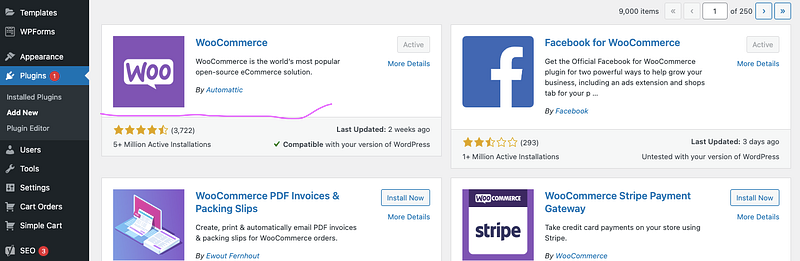
Screenshot by the Author

Add new plugins. Look for the logo I highlighted above. That is what you need to install and then activate.
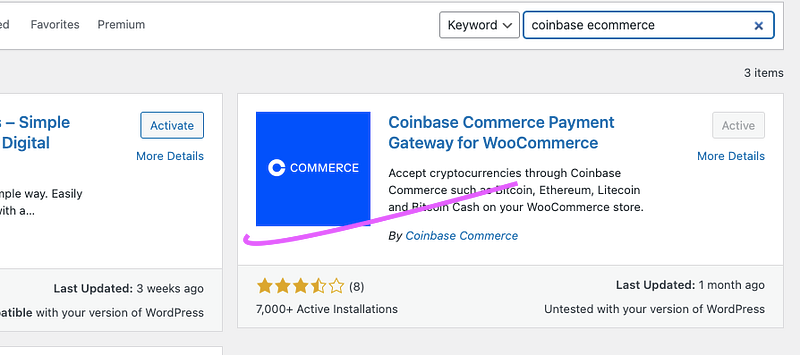
Coinbase plugin to download and install to your WP site — Image by the Author

You need to add another plugin called “COINBASE E-COMMERCE” Click on the link and it will guide you to the correct website. Create an account first if you have not done so. (No, it is not an affiliate).

Activate both Woocommerce and Coinbase plugin

Now that you have both plugins installed. Let’s go set this up.
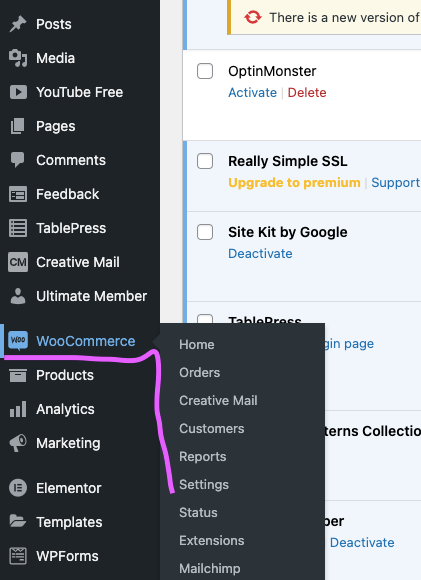
Screenshot by the Author

Go back to your WP dashboards. The image is shown above. On the left side of your WP dashboard, WooCommerce is seen. Go to settings.
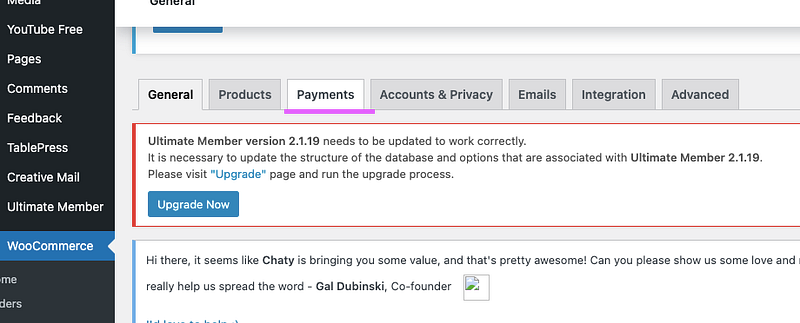
Screenshot by the Author

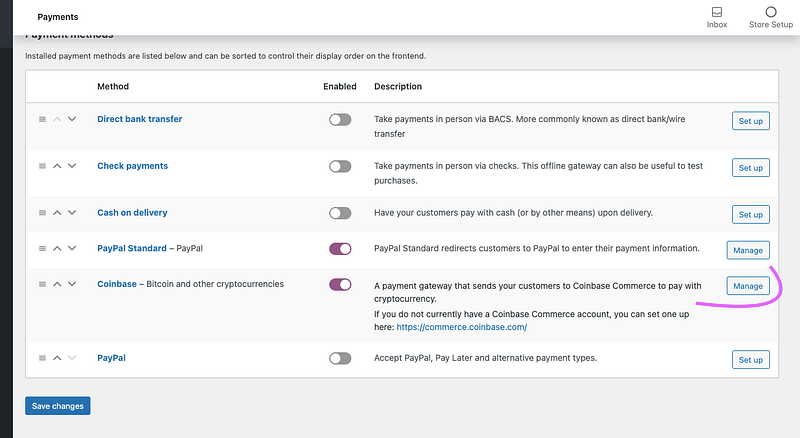
Go to Payments. See the image highlighted above.
Screenshot by the Author

Because you activated the 2 plugins I mentioned above, you can go to click on Manage inline with coinbase.

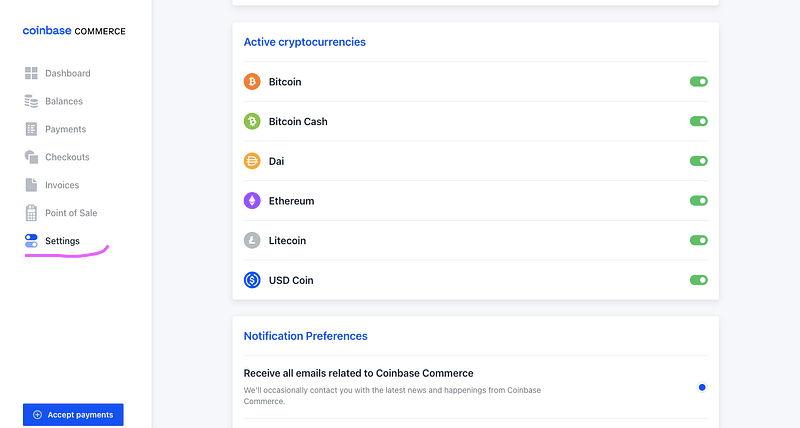
Login into coinbase to get your credentials

Inside coinbase e-commerce dashboards, go to settings. Activate all cryptocurrencies available.
Screenshot by the Author

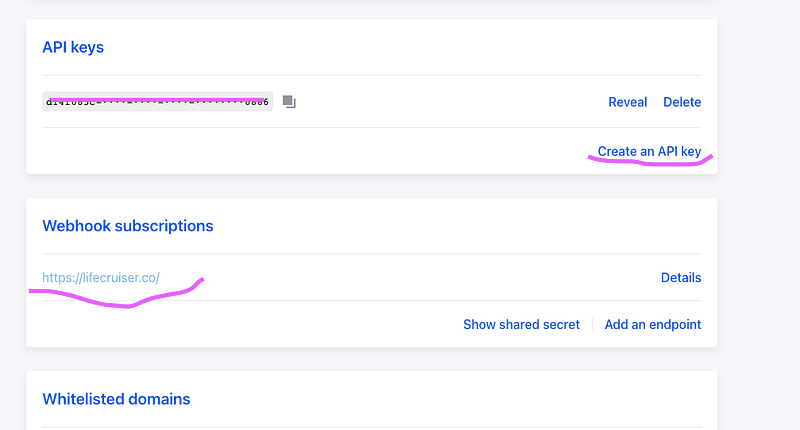
Scroll down further. to see your credentials which you will need all this information to add to your WordPress Dashboards under Woocommerce payment settings:

See the image below. You can create an API Key. Under Webhook subscriptions- enter your website address.
Screenshot by the Author

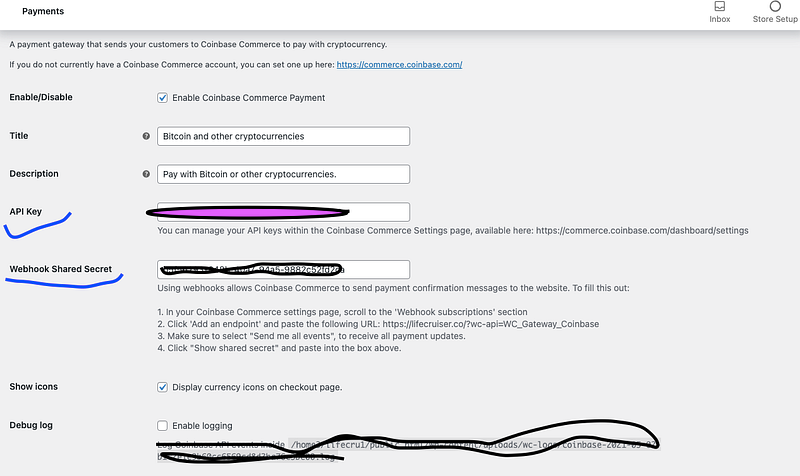
Copy those API keys and go back to the WP dashboard to enter the API.

It looks like this on the image below.

(I am hiding my API for my own protection). See the image below. API Key and Webhook Shared Secret
Screenshot by the Author

Once you are done adding that information. Click on Save

Payments should now appear when your customer's checkout to proceed to pay for their orders.

Your customers have now the option of paying you with Cryptocurrencies.
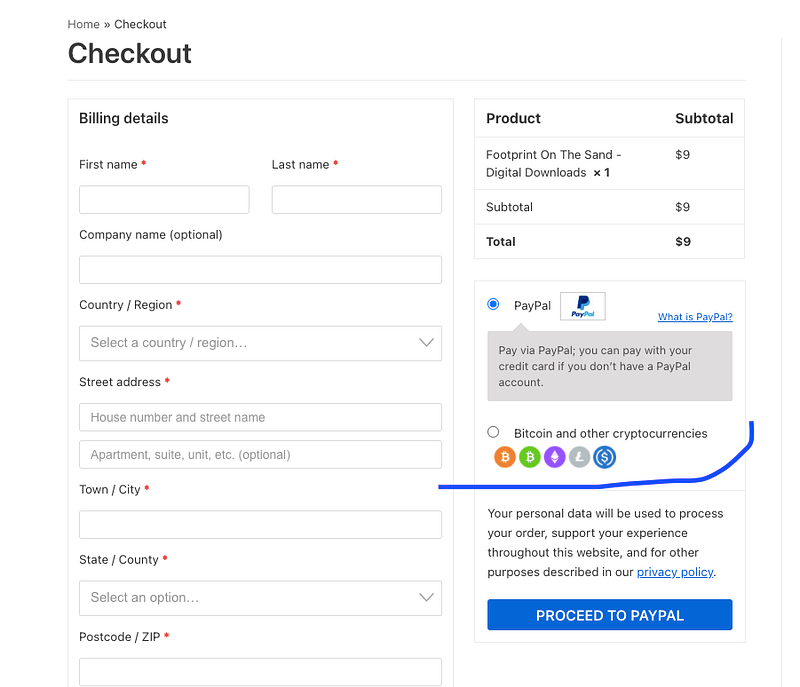
Screenshot by the Author

Conclusion

Tesla is now accepting cryptocurrencies as payment. We may as well follow the trend.

Hope this helps you.

More:

Cryptocurrency
Online Payment Solutions
Woocommerce Plugins
Technology Trends
Blockchain
Recommended from ReadMedium