
Write Simpler, Use Scrivener
Export Metadata from Scrivener to Excel
Using the Story Grid Spreadsheet information as an example.
I have been using Scrivener for over seven years to write edit books and I think it’s a great platform. I often speak with authors that use it as a word processor and that’s it, but Scrivener has so much more to offer, and two of those things are metadata and exporting metadata to excel or numbers.
I’m also a Certified Story Grid Editor, trained by Shawn Coyne the author of The Story Grid. I use the Story Grid spreadsheet on every book sent to me for editing in order to determine if the story works and if the scenes work. Then, by looking at the details of the spreadsheet, I can give actionable advice to the author on changes that would probably make the manuscript more compelling and interesting.
Shawn Coyne describes his Story Grid Spreadsheet as:
“invaluable in pinpointing places where you went off course, missed a crucial scene or beat and/or made minor continuity mistakes”.
If you are already familiar with the Story Grid method, the spreadsheet is the meat and potatoes of the Story Grid where everything is laid out before your eyes. If not, you can check out the Story Grid webpage for free articles and videos.
This article explains how to export information in the metadata section of Scrivener into a Microsoft Excel spreadsheet, and it assumes you already have the metadata set up. For information on how to use metadata, see my article here.
Let’s get started!
Warning: these tips and techniques work best with a Mac computer loaded with Scrivener 3.0 or higher; most of this can be done on a Windows machine, but there are some advanced functions that are not currently available on the windows version.
How to Export Scrivener Metadata to Excel
Once you have all the data for your scenes listed in the metadata in Scrivener, you can export. So far, Scrivener exports cleanly to Numbers only, I’ve tried a number of times to get excel to cooperate, but no dice. So, I export to numbers, then copy over to excel and it looks pretty clean.
To do this, follow these steps:
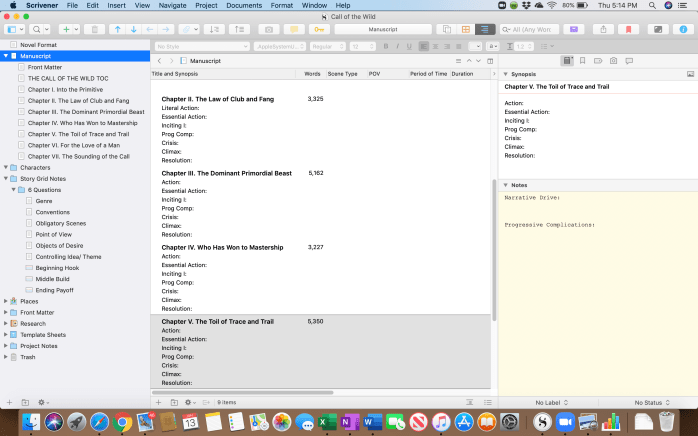
1.Click on outliner, it’s an icon at the top middle that has blue lines on it next to the corkboard icon. It should look like this:
2. Select the arrow at the right top of the outliner, it should look like this:
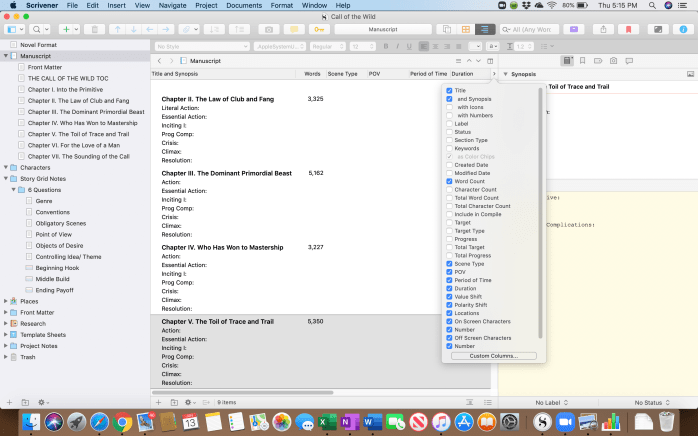
Now, select the subjects you want on the spreadsheet — I selected the title and synopsis — this will include the 5 commandments, the literal action, and the essential action — these items aren’t on the original spreadsheet that Shawn Coyne created, so if you don’t want them then don’t select them, but as I will show you they come up pretty clean on the spreadsheet and I think having them on the spreadsheet can add to your analysis. Also, I added word count and all the metadata that we created.
3. Select file/export/Outliner contents as CSV. Change your file name and where you want it saved then push export. The window will look like this:
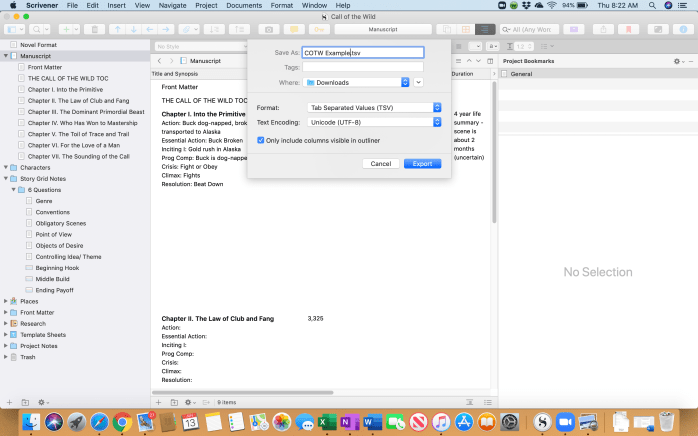
4. Once you select the location and then click Export, this will make a Mac Numbers spreadsheet that looks like this:
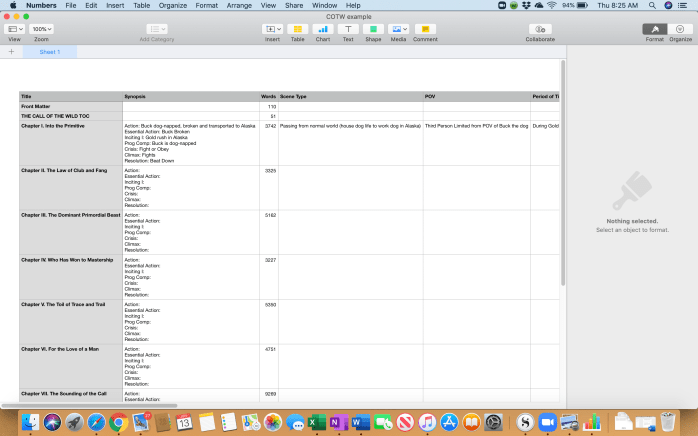
Very clean. Then I copy this to an empty excel spreadsheet, and this is what I ended up with:
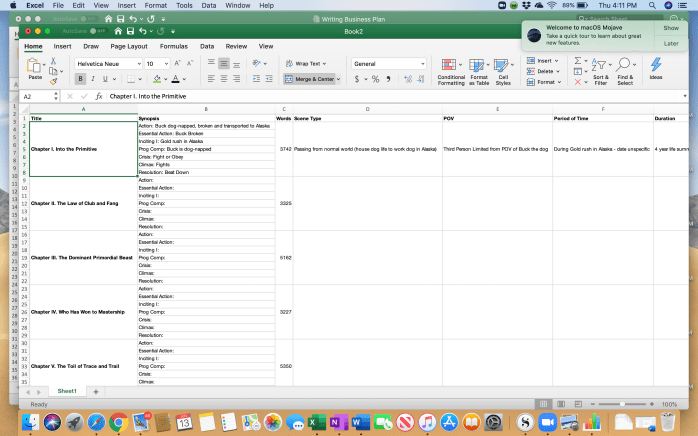
And there you have it, the Story Grid Spreadsheet from your Scrivener document.
Pretty cool, huh?
Check out my ‘How to self-edit using Scrivener and the Story Grid article series for more information:
- Part 1: The Set-Up
- Part 2: Using and setting up metadata
- Part 3: Using Collections and Keywords
- How to import files into Scrivener (the easy way!)
If you want to learn more about how to use Scrivener, I took an online class from Joseph Michael called Learn Scrivener Fast (affiliate link). If you are interested, Michael also offers free Scrivener instructional videos on his webpage, and free seminars a few times a year.