
Write Simpler, Use Scrivener
How to Self-Edit your Novel using Scrivener and the Story Grid: Part 3
Part 3 of 3: Collections and Keywords

This is part 3 of 3 articles that will show you how I set up Scrivener when I edit a client’s book for developmental editing using the Story Grid method developed by Shawn Coyne. This article will cover three things: using collections to track character arcs and common themes, using Keywords to track storylines, and using Synopsis to track your story beats.
Here is what the three articles contain:
Part 1 — The Set-Up
- How I set up Scrivener to edit or write a new manuscript — My Way
- How I incorporate the Story Grid guidance inside Scrivener
- How I incorporate other writings methods
- Using a Global Value Tracker
Part 2 — Using and setting up MetaData
- A new way to use MetaData to track the Story Grid 5 Commandments for each scene
- Using MetaData to Track the Literal and Essential Action as well as Value shifts
- Review of tracking Story Grid Spreadsheet Data using Meta Data
- And We’ll review the export feature that allows you to export all your metadata into an excel spreadsheet that resembles the Story Grid Spreadsheet Shawn Coyne uses
Part 3 — Collections and Keywords
- Using Keywords to track Sub-Plots
- Using Collections to Track Main Characters, Locations, and Unique Elements
- Using synopsis to Track Beats
These topics have been the most frequently asked questions about my method.
What are collections?
In Scrivener, they appear just like search results, but they are much more than that. First things first, how do you make a collection?
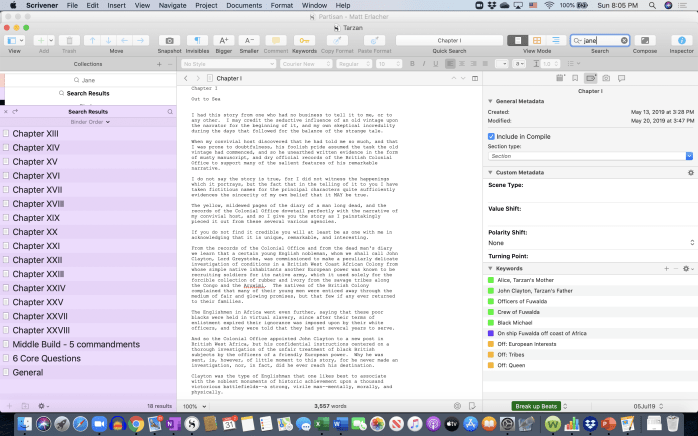
In the binder, make sure you highlight where you want to search. In this case, I want to search the whole manuscript.
Type in the search parameter in the search box at the top right of your Scrivener screen (the one with the magnifying glass in it). In this case, I typed in Jane (this is the book Tarzan of the Apes by Edgar Rice Burroughs). On your binder now, you have all the scenes highlighted in a collection where the word Jane appears.
Why would you want to do this in your novel? If you are following the Story Grid Spreadsheet, you have all this info in your spreadsheet. This is true, but with collections, you can find all the scenes where Jane is mentioned, and it’s dynamic, so every scene you add to this will be added to your collection. The purpose of tracking on-stage and off-stage characters is multi-fold, but one reason is to track the continuity of relationships and timelines. Now that you have a list of all the scenes where the word Jane appears, you can open those scenes and her name will be highlighted everywhere that she is mentioned. This will make it very easy to track her relationships with the king of the apes and make sure the timeline for the characters makes sense.
So how do you make this search a collection?
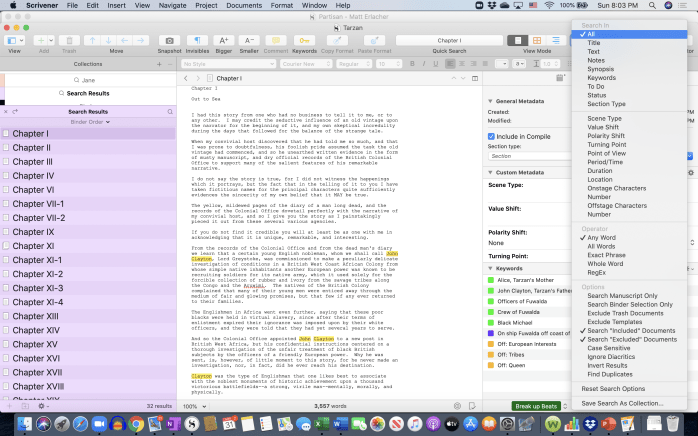
So you have the search results in the binder on the left, but it still isn’t a collection. You have to click on the tiny carrot in the search box (beside the magnifying glass). This shows a long drop-down list of where you can choose to search (in Metadata, notes, everything, etc). At the bottom of the list, it gives you the option to save the search as a collection, click there. As you can see at the top left in the binder section there is now a collection called Jane. This collection will exist until you delete it. You can hide it by clicking the view button in the top left (above the binder) and selecting show/ hide collection/ binder.
You can make as many collections as your want and give them different colors. I often use this to track major and minor characters, but also themes and items. For instance, in Raiders of the Lost Ark, I might use collections to make a scene collection for every time the Ark is mentioned just so I can check for continuity when I finish the draft.
Using Keywords to Track Storylines
Sometimes the collections won’t cut it. You can search for all the scenes with Tarzan and Jane, but maybe you are writing a Thriller or Crime plot and you want to track all of the red herrings or all of the clues you have left the reader to solve the crime, then what do you do? This is where using keywords can come in handy.
Keywords are located in the inspector, directly below the Metadata. You can also add a shortcut to the top of the screen. If you hit the gear button in the keyword block, a pop-up window will open up in the middle of the screen and you can add your own keywords, in addition to seeing the current keywords. All you have to do is drag the appropriate keyword into the keyword section and it’s added (you can even color-code them if you want).
As I mentioned, I use this to track nebulous things that I can’t track in collections because they aren’t easy to search for. If I have a worldview maturation plot, or a worldview education plot, I might have a keyword to help me track the character’s move from ignorance to wisdom, the specific points where that occurred in the story. I also might track relationships between characters, because it’s hard to see a search that shows the time the two characters are together or every time one character does something that influences their relationship together, but if you identify those scenes as you write them or as you are reviewing your first draft, you can mark them and then review to make sure the changes are strong enough/ fast enough/ clear enough.
Using Synopsis to track the story beats
The last thing I want to mention is using the synapsis to track your story beats. In part two of this article series, I mentioned how I track story beats using Metadata. However, when I’m finished, I also copy the beat info from the MetaData into the synopsis. I do this so that I can find the scene I want by using the corkboard view (this is located at the top of the screen beside the outline button). Using the corkboard view, you can see index cards with the synopsis printed on them, so if you are looking for a specific beat/ scene, it’s really easy to glance through the index cards in the corkboard and find it. I usually don’t do this until I’m finished with the first draft. For visual aids, I talk about using the corkboard in this way in my post about tracking the 5 commandments using the corkboard and synopsis (use this link if you have a windows computer).
Summary
There it is. These three articles describe my process for breaking down the first draft using the Story Grid method and the Scrivener platform and giving actionable feedback to the author. It may seem like a lot of work, but it really only takes about 10–14 days of steady work and when it’s finished you can actually see if the story worked or didn’t work and know where to focus your attention.
If you want to learn more about how to use Scrivener, I took an online class from Joseph Michael called Learn Scrivener Fast (affiliate link). If you are interested, Michael also offers free Scrivener instructional videos on his webpage, and free seminars a few times a year.
For more information on the Story Grid, you can find a log of free articles, podcast episodes, and video tutorials, in addition to some paid courses and books on their webpage.
Good Luck!!