avatarRandall Surles

Free AI web copilot to create summaries, insights and extended knowledge, download it at here

1430

Abstract

f the document, use another symbol.</p><figure id="fe24"><img src="https://cdn-images-1.readmedium.com/v2/resize:fit:800/0*X18vNTW8VszYphZT.png"><figcaption>Image provided by author’s screenshot inside Scrivener Platform</figcaption></figure><p id="776f">Next, open a blank Scrivener project. Make sure to highlight the location you want the document copied, usually the <i>Manuscript</i> folder in the binder. Then go to <b>file>import>import and split</b> — this will bring a pop-up window that looks like this:</p><figure id="4d73"><img src="https://cdn-images-1.readmedium.com/v2/resize:fit:800/1*SWEEexZbHypwcOIUNCgE9Q.png"><figcaption>Image provided by author’s screenshot inside Scrivener Platform</figcaption></figure><p id="8c1b">Make sure you have the symbol that you used before each chapter heading entered in the <b>“Sections are separated by:”</b> box (As I said, I used the hashtag or <b>‘#’</b> symbol). <b>Browse</b> for the file you will import and then click <b>OK.</b></p><p id="2ba2">I downloaded a text version of the book Tarzan of the Apes by Edgar Rice Burroughs from the Gutenberg website, copied it into word, inserted ‘#’ before each chapter heading, and then imported the document into scrivener. It looked like the below screenshot, with all the chapters separated into text sections in the binder on the left and labeled by chapter name.</p><figure id="cb13"><img src="https://cdn-images-1.read

Options

medium.com/v2/resize:fit:800/0*JkeEGMY0f9sowS6-.png"><figcaption>Image provided by author’s screenshot inside Scrivener Platform</figcaption></figure><h1 id="ff0d">Unsupported File Types (PDF and others)</h1><p id="8722">If you have another type of file that you want to move into Scrivener, use the following method.</p><p id="1cb6">Copy the text or manuscript you want to move. Select the folder in the binder you want to move the manuscript (usually the <i>Manuscript</i> folder). Use the <b>‘Paste and Match Style Function’</b><b>Edit>Paste and Match Style </b>— to copy the text into Scrivener. Then scroll down to where you want the chapter split and select <b>Document>Split>At Selection</b>. If you highlight the chapter name and select <b>Document>Split>At Selection as Title</b> then Scrivener will split the selection as a new text file and put the section selected as the title. You can continue to do this throughout the novel to separate all the chapters.</p><p id="2d74">If you want to learn more about how to use Scrivener, I took an online class from Joseph Michael called <a href="https://scrivenercoach.kartra.com/page/NHn44#_tfd45ycdb">Learn Scrivener Fast</a> (affiliate link). If you are interested, Michael also offers free Scrivener instructional videos on his <a href="https://www.learnscrivenerfast.com/#_nn3ctlv3q">webpage</a>, and free seminars a few times a year.</p></article></body>

Write Simpler, Use Scrivener

Importing Files into Scrivener

Using TXT, RTF, DOC, DOCX, PDF
Image created by Author

If you have some manuscripts that are still in a Microsoft Word or a TXT file then there is a very easy way to transfer them into Scrivener and organize them into individual chapters. If you have them in another format that you can copy, the second part of this article is dedicated to transferring these documents into Scrivener.

The Import and Split

This process is only supported by TXT, RTF, DOC, DOCX file types.

Take your manuscript and put a symbol, for instance, a hashtag(#, in front of each chapter, heading.

For instance, if your first chapter heading is: ‘Chapter 1: The End is Near’

Then you would type: ‘#Chapter 1: The End is Near’

An easy way to do this is by using the replace function and replace ‘Chapter’ with ‘#Chapter’. After you insert the symbol, run a find function on the document for the symbol (in this case the hashtag) to make sure the symbol isn’t used elsewhere in your document. Obviously, if this symbol is in other parts of the document, use another symbol.
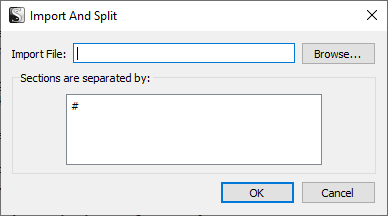
Image provided by author’s screenshot inside Scrivener Platform

Next, open a blank Scrivener project. Make sure to highlight the location you want the document copied, usually the Manuscript folder in the binder. Then go to file>import>import and split — this will bring a pop-up window that looks like this:
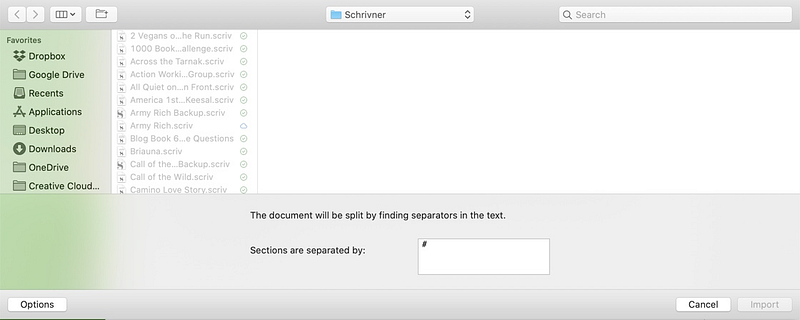
Image provided by author’s screenshot inside Scrivener Platform

Make sure you have the symbol that you used before each chapter heading entered in the “Sections are separated by:” box (As I said, I used the hashtag or ‘#’ symbol). Browse for the file you will import and then click OK.

I downloaded a text version of the book Tarzan of the Apes by Edgar Rice Burroughs from the Gutenberg website, copied it into word, inserted ‘#’ before each chapter heading, and then imported the document into scrivener. It looked like the below screenshot, with all the chapters separated into text sections in the binder on the left and labeled by chapter name.
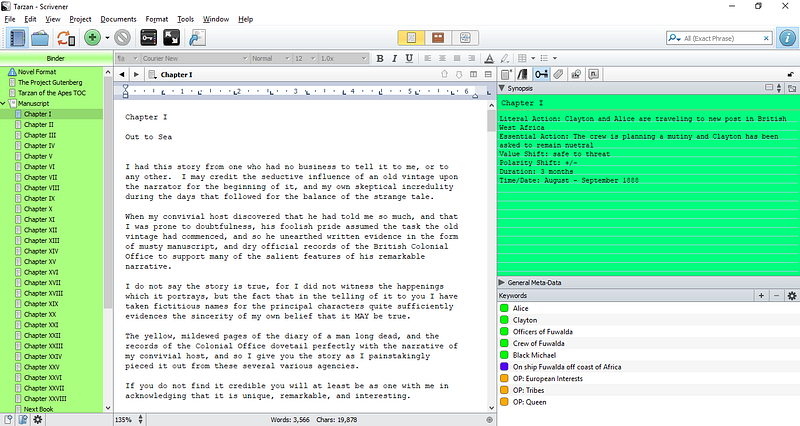
Image provided by author’s screenshot inside Scrivener Platform

Unsupported File Types (PDF and others)

If you have another type of file that you want to move into Scrivener, use the following method.

Copy the text or manuscript you want to move. Select the folder in the binder you want to move the manuscript (usually the Manuscript folder). Use the ‘Paste and Match Style Function’Edit>Paste and Match Style — to copy the text into Scrivener. Then scroll down to where you want the chapter split and select Document>Split>At Selection. If you highlight the chapter name and select Document>Split>At Selection as Title then Scrivener will split the selection as a new text file and put the section selected as the title. You can continue to do this throughout the novel to separate all the chapters.

If you want to learn more about how to use Scrivener, I took an online class from Joseph Michael called Learn Scrivener Fast (affiliate link). If you are interested, Michael also offers free Scrivener instructional videos on his webpage, and free seminars a few times a year.

Scrivener
Importing
Documents
Editor
Writer
Recommended from ReadMedium