Free AI web copilot to create summaries, insights and extended knowledge, download it at here
2461
Abstract
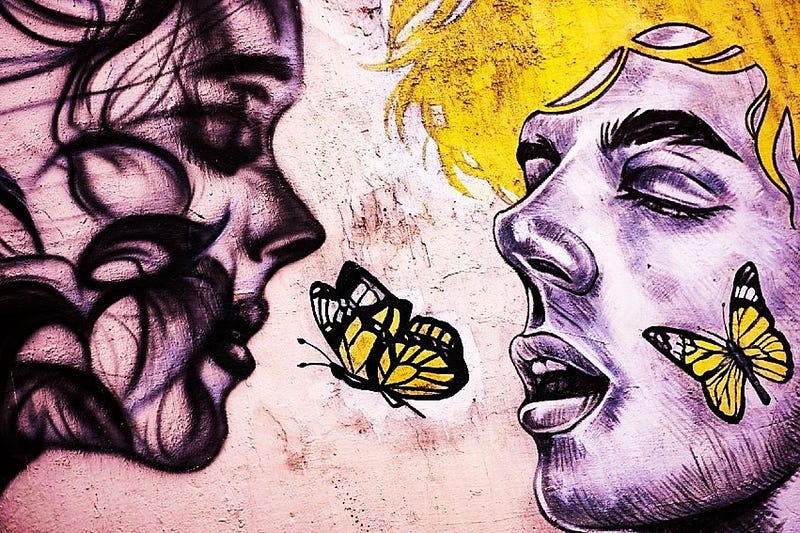
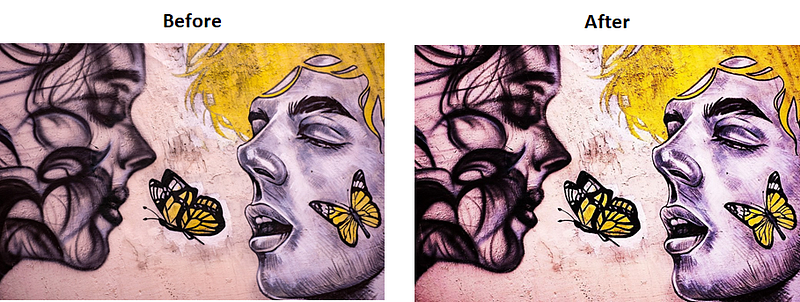
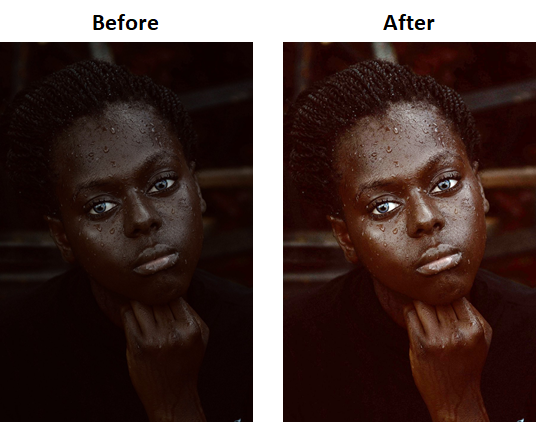
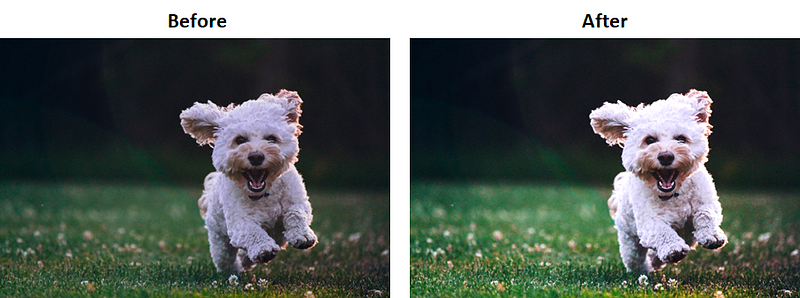
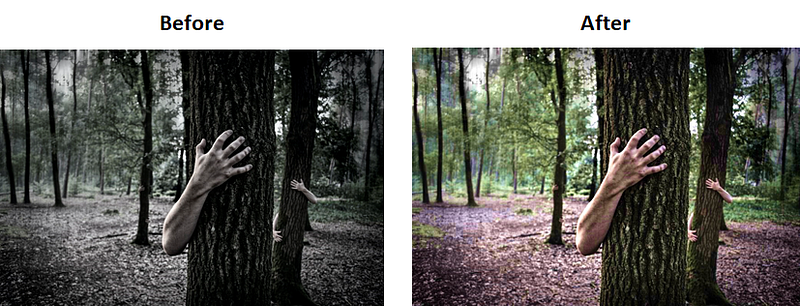
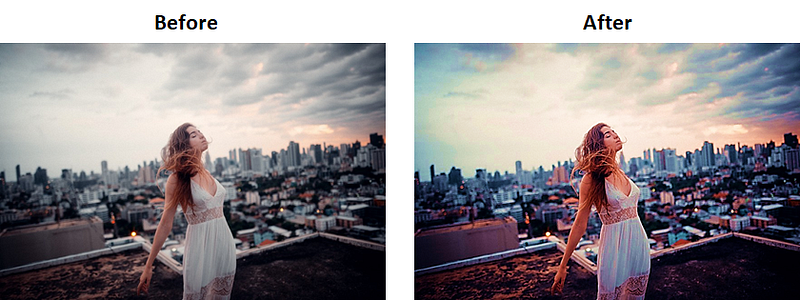
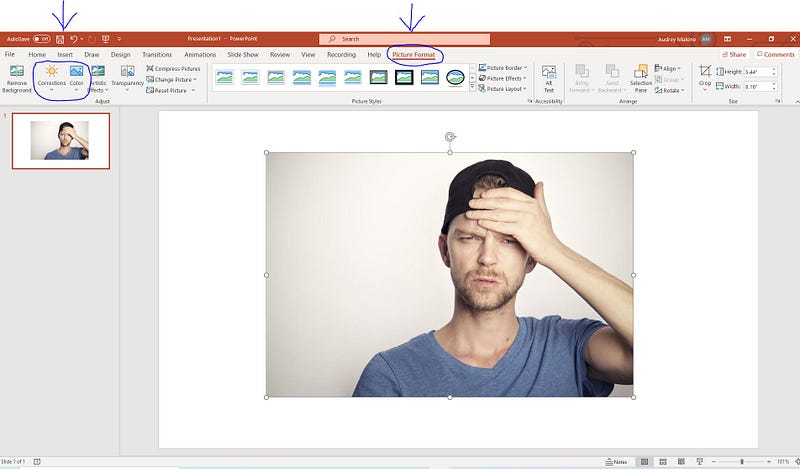
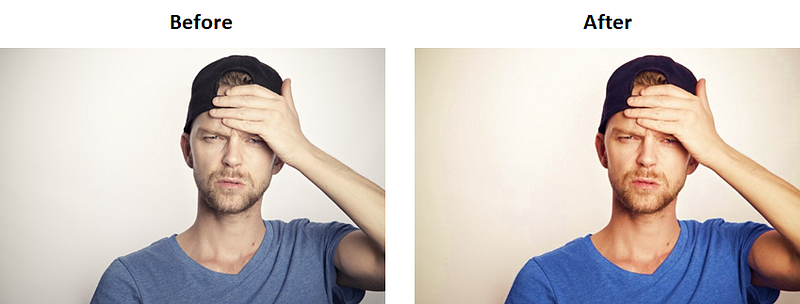
-images-1.readmedium.com/v2/resize:fit:800/1*xv55pshSNnzX3ruIvYLf6Q.png"><figcaption>Photo by <a href="https://unsplash.com/@simonwijers?utm_source=medium&utm_medium=referral">Simon Wijers</a> on <a href="https://unsplash.com?utm_source=medium&utm_medium=referral">Unsplash</a></figcaption></figure><figure id="76c3"><img src="https://cdn-images-1.readmedium.com/v2/resize:fit:800/1*ha8ZGOfSLOoR3IgcGpWzHA.png"><figcaption>Photo by <a href="https://unsplash.com/@joshrh19?utm_source=medium&utm_medium=referral">Joshua Rawson-Harris</a> on <a href="https://unsplash.com?utm_source=medium&utm_medium=referral">Unsplash</a></figcaption></figure><h1 id="de2c">How to Do It</h1><figure id="b041"><img src="https://cdn-images-1.readmedium.com/v2/resize:fit:800/1*yF-kcwTZCbrngcr9Izwsmg.jpeg"><figcaption>Photo by <a href="https://unsplash.com/@sammywilliams?utm_source=medium&utm_medium=referral">Sammy Williams</a> on <a href="https://unsplash.com/?utm_source=medium&utm_medium=referral">Unsplash</a></figcaption></figure><ol><li>Copy & paste your image into a blank PowerPoint document. (Be sure to keep the author’s attribution because you will need to copy & paste that back under the adjusted image.)</li><li>Click on the image that you just pasted into PowerPoint.</li><li>Click “Picture Format” at the top.</li><li>Then, click on “Corrections” and/or “Color” and play around with the choices until you adjust the image to your liking.</li><li>Then, copy & paste the adjusted image from PowerPoint back into your story, and also copy & paste the author’s attribution back under the image.</li></ol><figure id="9c0e"><img src="https://cdn-images-1.readmedium.com/v2/resize:fit:800/1*4-OlniqvETsoit8siJfjtw.png"><figcaption></figcaption></figure><h1 id="af14">The Takeaway</h1><p id="d7c5"><a href="https://www.shiftelearning.com/blog/bid/350326/studies-confirm-the-power-of-visuals-in-elearning">Research studies</a> confirm the power of visuals when it comes to engaging an audience. This is not surprising given that 9<a href="https://www.t-sciences.com/news/humans-process-visual-data-better">0% of information transmitted to the human brain is visual</a>, in people who can see. So, it only makes sense to spend some time making sure your image is as eye-catching as it can be.</p><p id="9f1e">If your image can quickly grab someone’s attention, then they may be more likely drawn to your story, click on it, and read i
Options
t. Think about it. Did the image on this story play a role in your interest besides just the title and subtitle?</p><p id="dfaa">The thing is not to skimp on the images you use for and in your stories. Take time to choose them with care so that they represent your story well and look stunning in the process.</p><h2 id="0364">Related stories by the author you may find helpful</h2><div id="d4a4" class="link-block">
<a href="https://readmedium.com/30-sites-to-find-free-images-and-videos-for-your-stories-and-articles-9bf3f2c7942e">
<div>
<div>
<h2>30 Sites to Find Free Images and Videos for Your Stories and Articles</h2>
<div><h3>These sites are authorized for both personal and commercial use</h3></div>
<div><p>medium.com</p></div>
</div>
<div>
<div style="background-image: url(https://miro.readmedium.com/v2/resize:fit:320/0*cSk0gLR-UKfrfxVh)"></div>
</div>
</div>
</a>
</div><div id="be19" class="link-block">
<a href="https://readmedium.com/7-ways-to-make-your-medium-articles-more-attractive-a-cheat-sheet-with-formatting-tips-fca886a928ab">
<div>
<div>
<h2>7 Ways to Make Your Medium Articles More Attractive — Formatting Tips for New Writers</h2>
<div><h3>Make your Medium stories pop!</h3></div>
<div><p>medium.com</p></div>
</div>
<div>
<div style="background-image: url(https://miro.readmedium.com/v2/resize:fit:320/0*eyTUSL2C-n5Q55xb)"></div>
</div>
</div>
</a>
</div><h2 id="a37c">Thank you for subscribing to my content.</h2><div id="dd4f" class="link-block">
<a href="https://audreysdesk.medium.com/membership">
<div>
<div>
<h2>Join Medium with my referral link — Audrey Malone</h2>
<div><h3>Read every story from Audrey Malone. (You can also earn from your own stories!) Your membership fee directly supports…</h3></div>
<div><p>audreysdesk.medium.com</p></div>
</div>
<div>
<div style="background-image: url(https://miro.readmedium.com/v2/resize:fit:320/0*iCOnS1SgFWbwOE2Y)"></div>
</div>
</div>
</a>
</div></article></body>