
7 Ways to Make Your Medium Stories More Attractive — Formatting Tips for New Writers
Make your Medium stories pop!

You can turn a plain looking article into an eye-catching story
A quick and dirty cheat sheet is all you need for enhancing the look and feel of your Medium articles. There are more comprehensive articles out here for more in-depth formatting tips, but there are some nuggets for you here!
Already, there are seven format-enhancing elements used thus far in this article: 1) Image, 2) Heading, 3) Drop-down Capital Letter, 4) Three-dot divider — ellipses), 5) Numbering — or Bullets, 6) Italics, and 7) Bold.
Let’s take a look.
- THE IMAGE. There are a few ways that you can ADD an IMAGE or GIF to your Medium article. The easiest is to simply copy and paste into your article. But to upload/embed from a source, you will use the article tool below.


To use an image (or gif) already saved on your computer: After you add your title hit ENTER, click the + or x. Then click the first icon (the camera) and choose an image or gif on your computer. Type in a caption if you so choose.
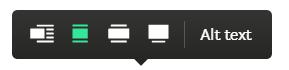
With this method, sometimes you only get the option to center or left justify the image. But normally, the tool looks like it does below with the option of sizing your image to two larger versions.
The next way to add an image is to follow the same steps, except instead of clicking the camera icon, click the magnifying glass icon.
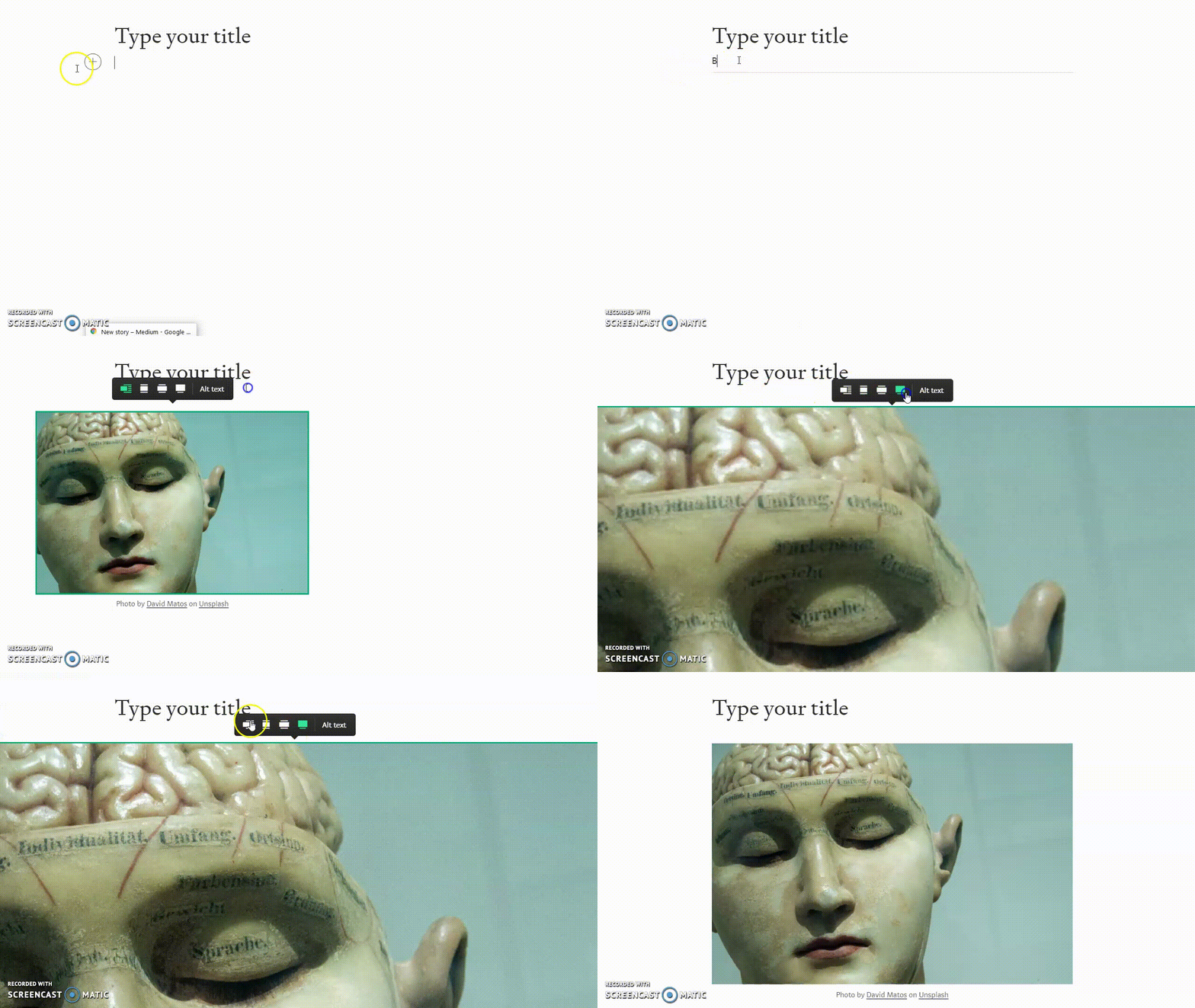
Then type in a keyword of the type of image you want.
Choose an image from the options.
Then size accordingly.
Similarly, you can ADD A VIDEO by clicking the triangle icon. You will see the following:

Similarly again, you can ADD AN ANIMATED GIF by clicking the camera icon. If you have a link to a gif from a website such as Giphy.com, then you can add it as a video.
Note: Any image, gif, or video must have it’s source named in your article, either under the image or at the bottom of the article. That’s what’s cool about uploading the Unsplash videos because they automatically have the source.
2. HEADINGS AND SUBHEADINGS: To enlarge and bold text for headings and subheadings do the following:

You can do this anywhere in the document whenever you want to add headings or subheadings or just use it to enhance text to draw attention to something.
It’s up to you.
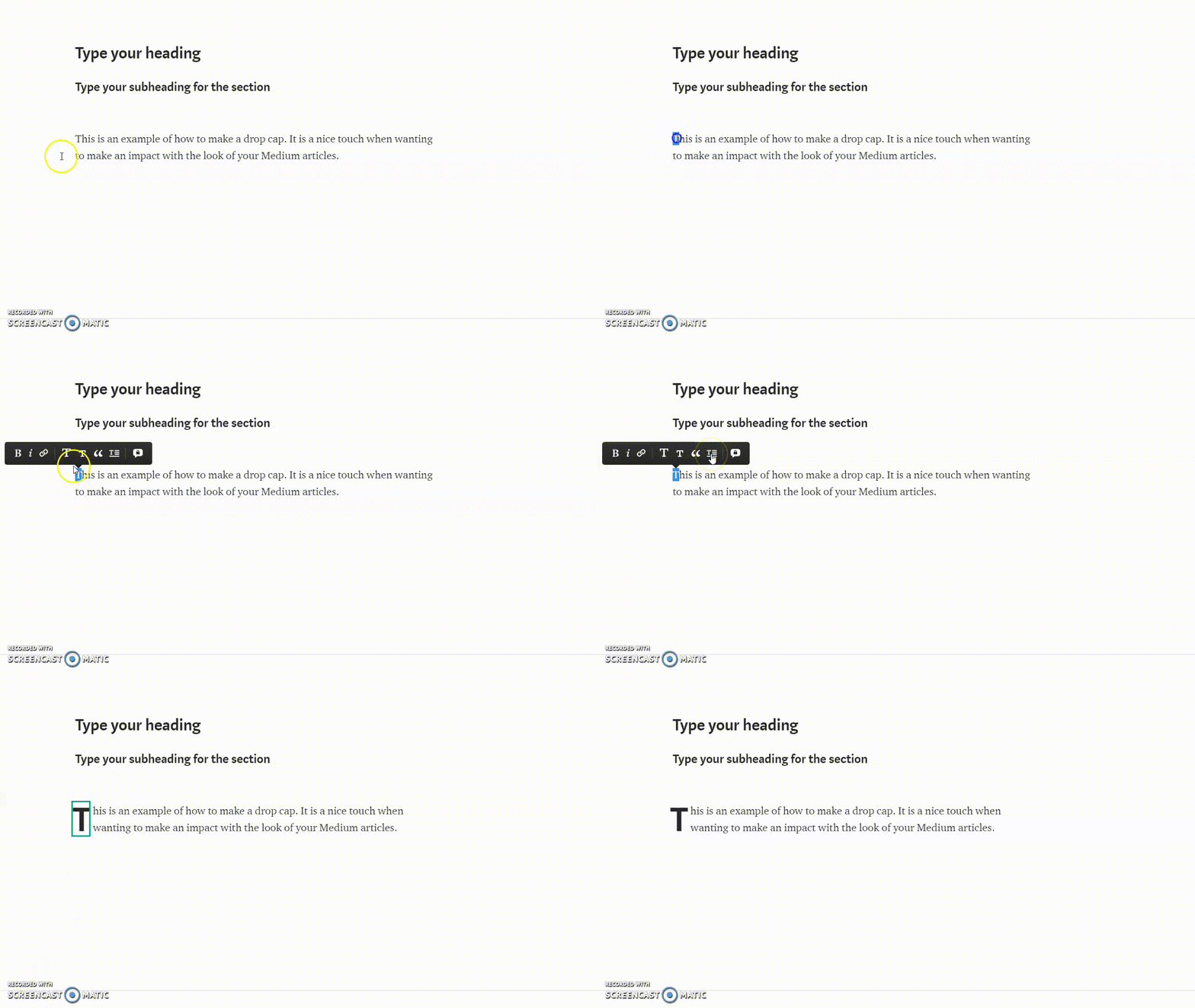
3. DROP-DOWN CAPITAL LETTER: To do this, simply select the letter and choose the drop-down icon to apply it.
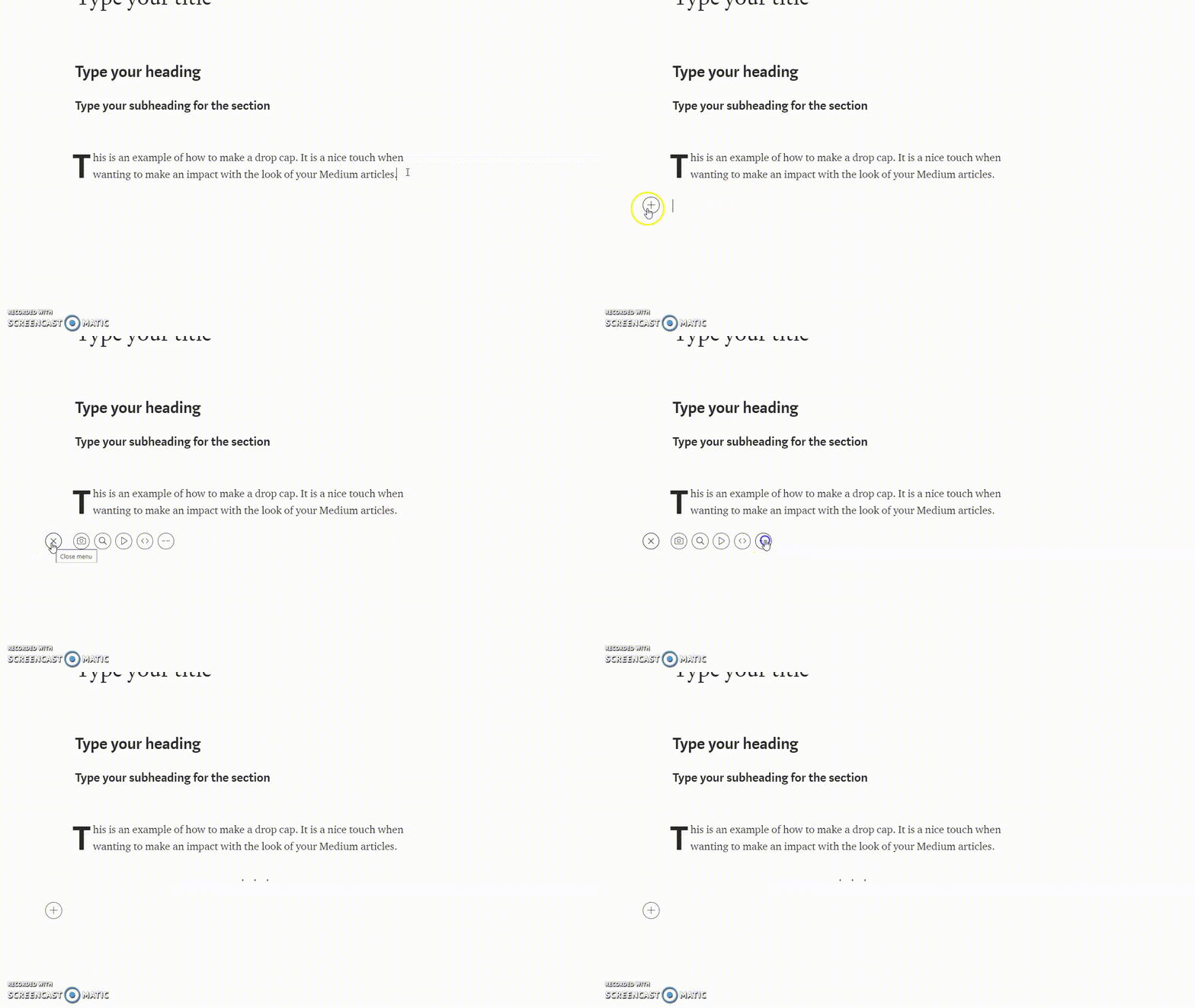
4. THREE-DOT DIVIDER: To get the three dots, hit RETURN, click the + and choose the last icon.
5. NUMBERING (or BULLETS)
6. ITALICS
7. BOLD
Hit RETURN to start on new line.
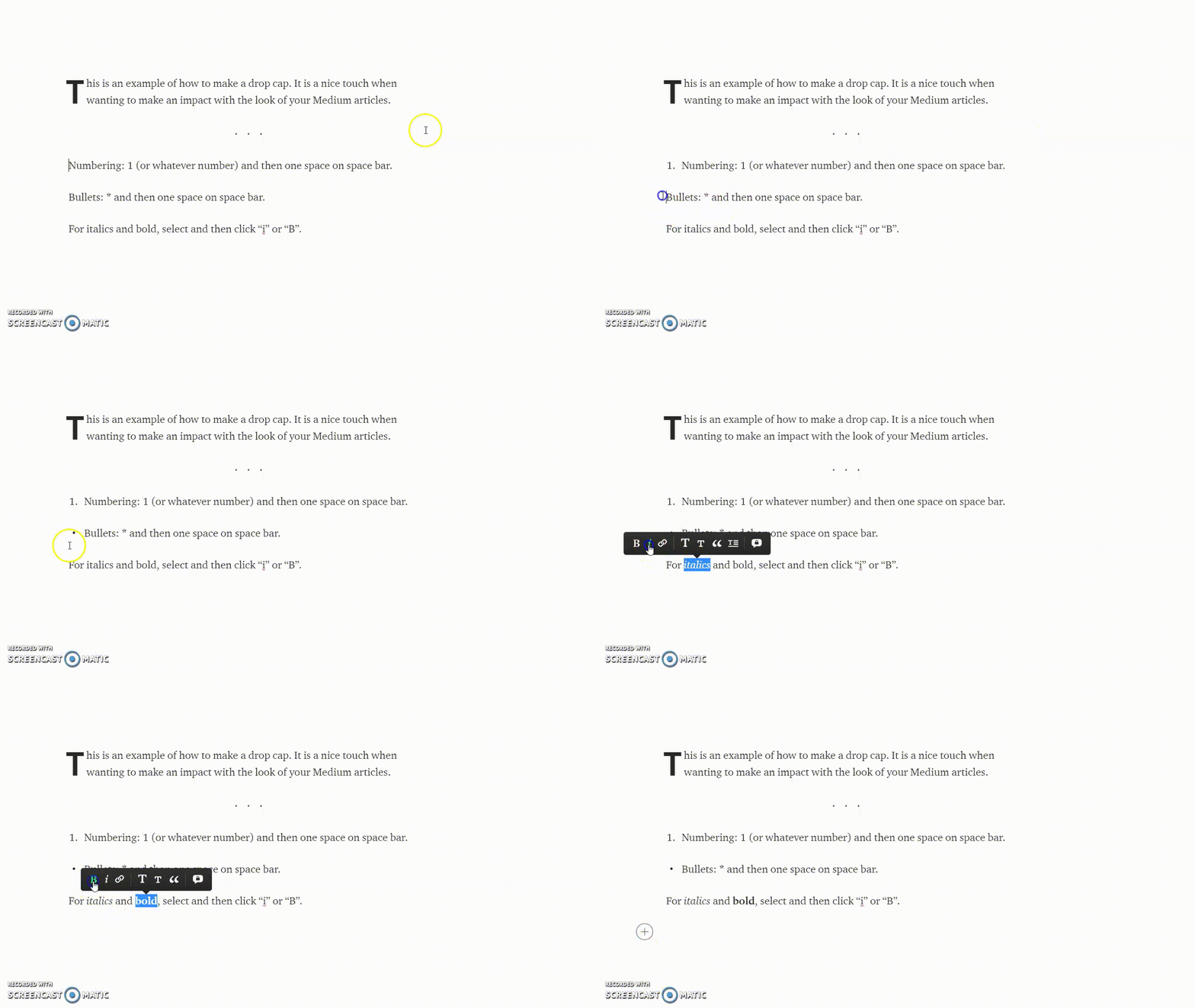
To do a Numbered List, type the number and hit SPACE. For Bullets, type an asterisk and hit SPACE.
For Italics and Bold, highlight text and choose “I” or “B”.
Examples of how to do all three of these are as follows:
And that’s it!
Hopefully, these tips will save you some time and help you make your Medium articles more attractive.
More useful tips for new writers


