
How to Build a Backend with NestJS and Prisma — Part 2
Learn how to add field validations to a NestJS backend application, hash your passwords before storing them in the database, and automate repetitive actions with NodeJS scripts.

In our previous article, we created a NestJS backend application. We configured Prisma as the ORM and set up a PostgreSQL database in a Docker container.
In this article, we will enhance our NestJS backend by:
- adding field validations
- hashing the password before storing it in the database
- creating scripts to automate repetitive actions, such as PostgreSQL restart and Prisma migrations
Let’s get started!
Adding Field Validations to NestJS Backend
Recall that our AuthController looks like this:
@Controller('auth')
export class AuthController {
  constructor(private authService: AuthService) {}

  @HttpCode(HttpStatus.CREATED)
  @Post('register')
  register(@Body() dto: RegisterDTO) {
    return this.authService.register(dto);
  }
}
We could write if blocks inside the register method to validate each property in the DTO, but that becomes tedious and verbose quickly.
The official documentation states:
To automatically validate incoming requests, Nest provides several pipes available right out-of-the-box […].
Like in Angular, pipes in NestJS are functions that transform your data.
To use the built-in ValidationPipe we need the class-transformer and class-validator packages.
To install them, run:
npm install class-validator class-transformer
Also, if you defined your DTO as an interface, you will have to convert it into a class. Simply replace the keyword interface with class.
Next, we need to decorate the properties of the DTO accordingly:
import { IsEmail, IsNotEmpty, IsString } from 'class-validator';

export class RegisterDTO {
  @IsEmail()
  @IsNotEmpty()
  email: string;

  @IsString()
  @IsNotEmpty()
  password: string;

  @IsString()
  @IsNotEmpty()
  firstName: string;

  @IsString()
  @IsNotEmpty()
  lastName: string;
}
The decorators we used are pretty self-explanatory.
But class-validator provides a lot of such decorators. Here is the full list of decorators and what each one does.
As a last step, we need to tell Nest to use the ValidationPipe globally. To do so, we need to call the useGlobalPipes and pass an instance in main.ts:
import { ValidationPipe } from '@nestjs/common';

async function bootstrap() {
  const app = await NestFactory.create(AppModule);
  // ...
  app.useGlobalPipes(
    new ValidationPipe({
      whitelist: true,
    }),
  );
  await app.listen(3000);
}
Note that you need to call this method before the app.listen(3000), otherwise it won’t work as expected.
The whitelist: true option tells the validator to strip any properties without a decorator. This is to remove any extra properties passed in the request’s payload.
Try it out with an invalid email address:
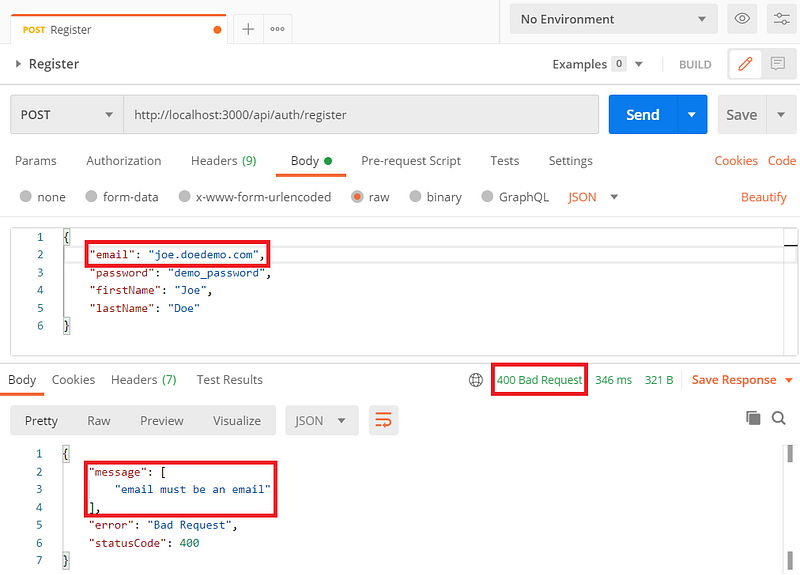
We get an error Bad Request with an informative message.
Hashing the Password Before Storing It
So far, our NestJS backend application stores the password as plain text in the database.
That is a terrible idea that’s asking for trouble.
Let’s fix this!
There are plenty of hashing solutions out there like bcrypt and argon2. We will use the latter.
To install it, run:
npm install argon2
In the AuthService, instead of passing the password straight from the DTO, we first hash it:
@Injectable()
export class AuthService {
  constructor(private prisma: PrismaService) {}

  async register(dto: RegisterDTO) {
    try {
      const hash = await argon.hash(dto.password);
      const user = await this.prisma.user.create({
        data: {
          email: dto.email,
          hash,
          firstName: dto.firstName,
          lastName: dto.lastName,
        },
        select: {
          id: true,
          email: true,
          createdAt: true,
        }
      });
      return user;
    } catch (error) {
      // ...
    }
  }

}
We use the select block to return only specific properties of the user. So it’s safe to return the user. Let’s do that instead of printing the information to the console.
Hit the /register endpoint and inspect the row in the database using Prisma Studio:

Now the password is hashed!
Automating Postgres Restart & Prisma Migrations
During development, you may have to reset or restart the database. And then you will also need to run the migrations.
It’s much easier and handy if we have scripts that automate all those actions. These scripts will save you a lot of time.
Firstly, we want to remove the container:
docker compose rm dev-db -s -f -vOption -f is for forced, -s is for stopping the container before removing, and -v is to also remove anonymous volumes attached to the container.
Then, we need to recreate the container:
docker compose up dev-db -d
Option -d means run in the background.
Finally, we want to run the migrations:
prisma migrate deploy
Let’s put these commands in the package.json file, in the scripts block:
scripts": {
  "prisma:deploy": "prisma migrate deploy",
  "dev-db:rm": "docker compose rm dev-db -s -f -v",
  "dev-db:up": "docker compose up dev-db -d",
  "dev-db:restart": "npm run dev-db:rm && npm run dev-db:up && sleep 1 && npm run prisma:deploy",
  // ... Other scripts ...
}
Notice that we have an extra line (dev-db:restart) that combines all previous commands.
Disclaimer: The added
sleep 1is there for concurrency reasons. However, if you are using Windows, sleep won’t be recognized in the PowerShell. Either run this from a Git Bash or remove the sleep and try to run it.
Next time you wish to rebuild your database from scratch, run:
npm run dev-db:restart
You can find the source code of the demo in this GitHub repository.
Conclusion
In this article, we enhanced our NestJS backend application.
We added field validations by using the built-in ValidationPipe. We hashed the password with argon2 before storing it in the database.
Lastly, we automated repetitive actions by creating script commands.
That’s all for now.
Subscribe to my newsletter and stay tuned for more content like this!
Thank you for reading!


