Angular Custom Pipes | Performance Optimization
Custom Pipes in Angular — The Ultimate Guide
How to create custom pipes in Angular, what are pure and impure pipes, and how to use pure pipes to improve an application’s performance.

Pipes in Angular are functions used in component template expressions to transform values into another display format. Angular has several built-in pipes, such as the date pipe, the async pipe, and others. But, if these pipes don’t cover our needs, we can create our own.
In this article, we’re going to study:
- how to create custom pipes in Angular (manually/using Angular CLI)
- how to use pipes and pass extra arguments
- what pure and impure pipes are
- how to improve performance with pure pipes and memoization
So, let’s get started!
Creating Custom Pipes in Angular
To create a custom pipe we need to follow 3 simple steps:
1. Create a class and decorate it with the @Pipe decorator. The decorator must include the name we are going to use to call the pipe.
2. Implement the PipeTransform interface. This interface has a single method we need to implement: the transform method.
The value is the parameter the pipe is applied on. The ...args is called “rest parameters”. It is treated as an infinite number of optional parameters (zero or more). If we don’t need to pass any extra arguments, we only pass the first parameter. Finally, we return the transformed value.
3. Add the custom pipe in a module’s declaration array.
As of Angular v14, we may also add the pipe to the imports array of any standalone component using it in its template.
This concludes the manual way of creating and registering custom pipes in Angular.
Using the Angular CLI
If this seems like a lot of work to you, don’t worry. We’ve got you covered!
The Angular CLI provides a quick way to generate a draft pipe class. It also registers the pipe in the AppModule. The command is:
ng generate pipe <path-to-directory>/<pipe-name>or for short:
ng g p <path-to-directory>/<pipe-name>For example, we created the mark pipe by running:
ng g p pipes/markThe CLI generated the following draft pipe class, ready to put whatever logic we want inside the transform method.
Using Pipes
The syntax for using a pipe is:
<value> | <pipe-name>For example, the gender pipe receives the sex of a panda and returns a bootstrap icon class.
Bonus — We may also chain pipes. The order of execution is left to right.
<value> | <pipe-name1> | <pipe-name2> |...Passing Extra Arguments
The syntax for passing extra arguments is:
<value> | <pipe-name>: <arg1>, <arg2>, ..., <argN>In our demo, the mark pipe receives two string values: the value to transform and a search term. If the value contains the search term, the term is underlined and turns red.
We also create the CSS class to define the styling.
Lastly, we use the pipe in the template.
Now, if we search for a panda:

Pure Pipes
By default, pipes are defined as pure. For clarity, we can explicitly set the pure property like this:
The pure property being true informs Angular that the transform method is pure.
A method is called pure if it always returns the same result for the same arguments, and has no side effects like modifying an argument, a global variable, or anything else other than its return value.
Angular knows that under these conditions, the result of the transform method won’t change unless the input value changes. So, it will execute the pipe only when it detects a change to the input value.
Impure Pipes
On the contrary, by setting the pure property to false we declare an impure pipe. Angular will execute an impure pipe every time it detects a change with every keystroke or mouse movement.
Why would anyone want to use an impure pipe then?
Impure pipes are typically used when we want to detect impure changes in composite objects.
When passing an object to a pipe, Angular checks only the reference for changes. If any change occurs internally to a property of the object, Angular won’t be able to tell.
In any case, use impure pipes with extreme caution. The official documentation states that “a long-running impure pipe could dramatically slow down your application”.
Improving Application Performance
Notice the big lag when we clear the search input field towards the end of the previous GIF? Let’s see what causes this problem and how we can solve this with a custom pipe.
The Problem
The cause of the problem is in the PandaComponent template file, which calls the calculatePopularity method.
In the component’s class file, the calculatePopularity method uses the year of birth of the current panda to calculate its popularity. For demonstration purposes, we use the Fibonacci sequence and an unoptimized recursive implementation.
Why calling a method in the template causes a performance issue?
To answer this question we need to understand the basics of Angular’s change detection mechanism. Angular runs change detection to figure out which parts of the UI need to be re-rendered when a change occurs. The result of the called method is part of the UI.
How can Angular know if the result of a method has changed?
It can’t! There is only one way to know: by executing it again. In other words, it will run the method each time it detects a change, even if the change is irrelevant.
This is going to degrade the performance of the application. How much depends on what the called method does. In our demo, we do a heavy, repetitive, unoptimized computation, hence the delay we observed previously.
You could also tell that something’s wrong just by the loading time. We run Lighthouse and it yielded the following score.
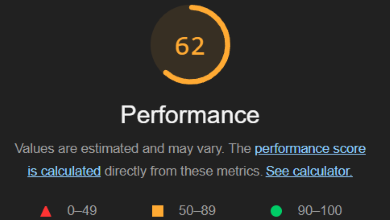
Note: The Lighthouse report scores are based on the loading time of the page, not while interacting with it.
First Improvements
As a first step, we change the component’s changeDetection strategy to OnPush. This means that change detection inside the PandaComponent will now be triggered only when its @Input properties change.
This reduced the loading time significantly. Running Lighthouse confirmed the improvement.
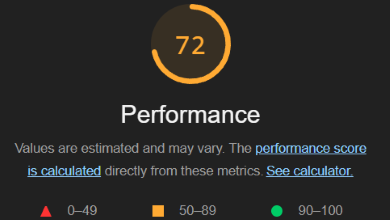
This improved the loading time, but not the interaction time of the application.

That’s because every time we type something, we’re performing a search, which changes the reference of the filteredPandas.
And so do the input properties of the panda components.
As a result, the calculatePopularity method in their template is called again.
Pure Pipes to the Rescue
Here is where pure pipes come into play. We create a pure custom pipe to perform the required calculation only when the pipe’s input changes.
We then use the pipe instead of calling the method. Now unless the value passed to the pipe changes, the popularity won’t be recalculated. Simply put, we no longer calculate the popularity of pandas that remain visible in the results.
This reduced the interaction time and made the application work smoothly, for the most part. Because the loading time didn’t change, the Lighthouse score didn’t change as well.

Pure Pipes & Memoization
The previous improvements were something, but why is the application still lagging at the end?
When we clear the search field, all pandas become visible. So, pandas that were previously hidden are now re-rendered and their popularity must be recalculated.
Can we do better? Yes, we can!
How? Enter memoization!
The popularity pipe is pure because Fibonacci is a pure function. Since this is the case, we can cache the calculations instead of recalculating them from scratch. To do this, we install the memo-decorator package by running:
npm install memo-decoratorWe then decorate our fibonacci method with the @memo decorator.
Is that one-liner enough to do the difference? Well, see for yourself!
The application loaded much faster and this was also reflected in the Lighthouse score.
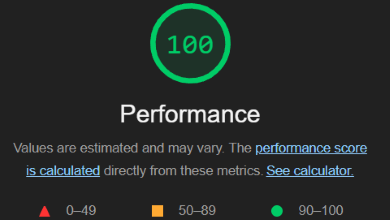
Moreover, the interactions became as smooth as they can be, without any lag taking place.

If you’re getting Lighthouse scores that are ~50 points lower than ours, it’s probably because you’re running the application in dev mode. You need to serve the application as a production build. To do this:
- Install http-server:
npm install http-server -g - Build the application:
ng build - Serve the production build:
http-server dist/ng-custom-pipe-demo
As always, you can find a StackBlitz demo below.
Conclusions
In this article, we studied custom pipes in Angular. We explained how to create, use, and pass extra arguments. We saw the differences between pure and impure pipes. Finally, we combined pure pipes and memoization to improve the performance of our application.
Thanks for reading! I hope that you liked this article. Don’t forget to subscribe to my newsletter for more content like this!
Happy coding!
More content at PlainEnglish.io. Sign up for our free weekly newsletter. Follow us on Twitter, LinkedIn, YouTube, and Discord.