
Home Network Diagram
Options and considerations for configuring your home network
~~~~~~~~~~~~~~~~~~~~~~~~~~~~~~~~~~~~~~~~~~~~~~~~~~~~~~~~~
⚙️ Check out my series on Automating Cybersecurity Metrics. The Code.
🔒 Related Stories: Unifi | Dream Machine Pro | Ubiquiti | pfSense | Network Security
💻 Free Content on Jobs in Cybersecurity | ✉️ Sign up for the Email List
~~~~~~~~~~~~~~~~~~~~~~~~~~~~~~~~~~~~~~~~~~~~~~~~~~~~~~~~~
I’ve been jumping around working on a lot of different things as always and I usually forget what I did the last time I come back to configuring my home network. That’s why it’s a good idea to document what you did so you can refer to it later.
If you’re just starting out you might have something like this:
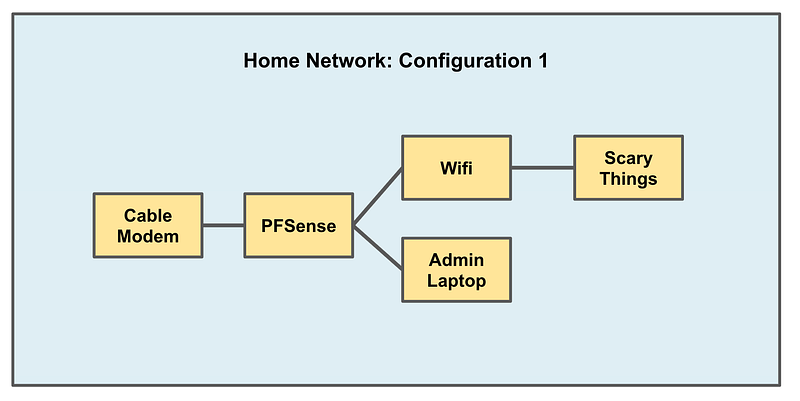
Note that I do NOT use the device provided by the cable company for many reasons. Like this, although I think this is not longer an issue.
The devices provided by cable companies are often a source of compromise on home networks, as are devices people purchase but fail to properly update and configure.
I buy a device directly from a local electronics store generally, not shipped over the Internet, if I can find it. A cable modem does not have a wifi router incorporated into it. It simply translates what you get from the cable company to something PFSense can understand.
Next you can configure your ports on your PFSense to handle different types of traffic. In the picture above, I’ve set up rules to only allow the admin interface to reach the firewall IP address for managing firewall rules.
I connect WIFI to the other port and make sure that network can’t reach the administrative interface for the firewall. So if someone hacks my TV they can’t get into my firewall and start changing rules. Presuming PFSense software or Netgate hardware doesn’t have a vulnerability.
Getting visibility into Wifi traffic
Now, when you configure the above, you’ll see all traffic coming from the Wifi device as the IP address of the Wifi router in PFSense. Also, I’ve been using some pretty weak wifi devices to get by in the past.
So let’s say I want better control of my traffic within the wifi network. Let’s say I want a separate wifi device from my husband’s scary things and my own laptop when I want to connect to wifi.
I also want to see what traffic each device is sending. For example scary device 1 has a local IP address of 10.20.20.5 and scary device 2 has a local IP address of 10.20.20.6. I want to see each devices traffic on the network and what remote IP addresses each device connects to and on what port, instead of just seeing all traffic as coming from the Wifi router.
For this, I can insert a UDM Pro as I’ve been writing about in other posts and review the traffic from each device using the UDM Pro. The UDM Pro has network traffic monitoring features other WiFi devices do not have. In addition, you can buy different WiFi routers and connect them to the UDM Pro and they alls work together. So I can have a configuration something like this (in theory, I’m still working on it):
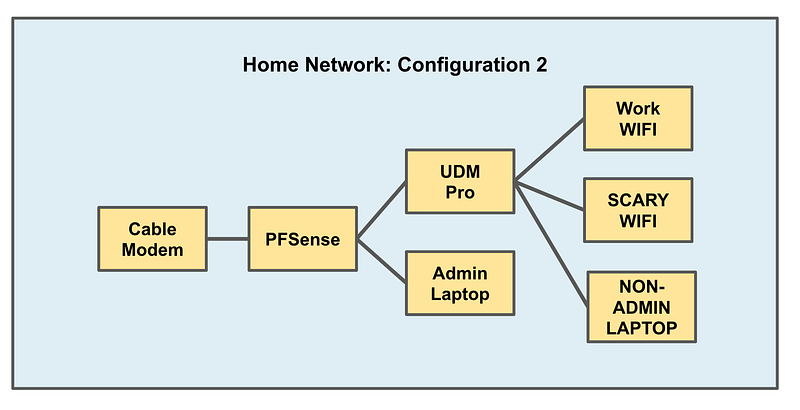
With the above configuration, I can ensure that only the Admin Laptop can configure the PFSense firewall. I am never sending the password for the PFSense through my UDM Pro. I can have separate WIFI networks for scary and scarier traffic.
Now one problem I’m goign to have with the above is that I need to fix some routing and firewall rules on the UDM Pro to get traffic to route correctly. If I try to do that through the Admin Laptop I won’t be able to because out of the box I won’t be able to reach the administrative Interface on the UDM Pro. So for initial setup I’ll need to have an Admin Laptop for the UDM Pro as well.
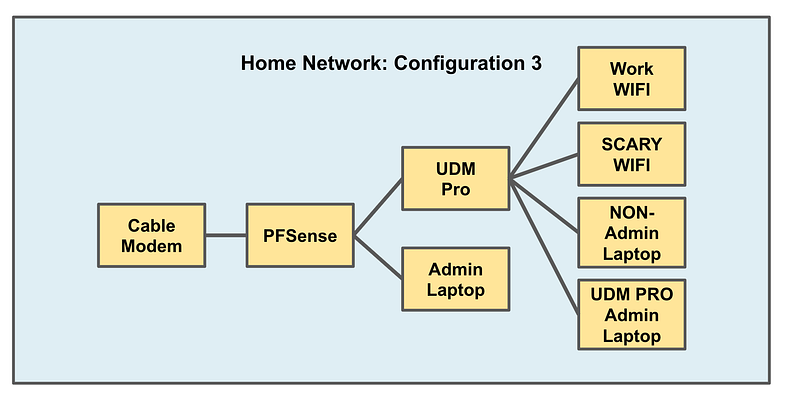
If you never want the password for your UDM Pro to pass through the PFSense you can use the above configuration which, in theory, should keep that traffic between your UDM Pro admin laptop and the UDM Pro. I’ll explain some caveats in the next post.
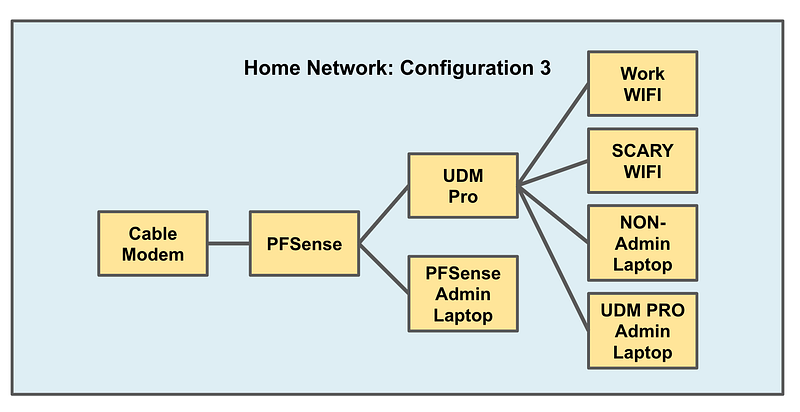
Remember, when you plug in your laptop to a particular port, traffic may or may not be restricted from other devices plugged into the same network appliance. Additionally, traffic may or may not be restricted to the management interface (administrative website) on your network device. You may need to explicitly create the appropriate rules, as explained in this post:
There’s one other thing I can do if I have more devices than ports available on my UDM Pro. I can plug in a switch and connect devices to the switch and then the UDM Pro. The switch handles getting traffic from the devices to the UDM Pro. It expands my network capacity but doesn’t have all the management capabilities and routing on the UDM Pro. Switch considerations is a topic for another post, potentially.
Ok, now I want to connect to all these devices and administer them.
Follow for updates.
Teri Radichel | © 2nd Sight Lab 2023
About Teri Radichel:
~~~~~~~~~~~~~~~~~~~~
⭐️ Author: Cybersecurity Books
⭐️ Presentations: Presentations by Teri Radichel
⭐️ Recognition: SANS Award, AWS Security Hero, IANS Faculty
⭐️ Certifications: SANS ~ GSE 240
⭐️ Education: BA Business, Master of Software Engineering, Master of Infosec
⭐️ Company: Penetration Tests, Assessments, Phone Consulting ~ 2nd Sight Lab
Need Help With Cybersecurity, Cloud, or Application Security?
~~~~~~~~~~~~~~~~~~~~~~~~~~~~~~~~~~~~~~~~~~~~~~~~~~~~~~~~~~~~~
🔒 Request a penetration test or security assessment
🔒 Schedule a consulting call
🔒 Cybersecurity Speaker for PresentationFollow for more stories like this:
~~~~~~~~~~~~~~~~~~~~~~~~~~~~~~~~~~~~~~~~~~~~~~~~~~~~~~~~~~~~~
❤️ Sign Up my Medium Email List
❤️ Twitter: @teriradichel
❤️ LinkedIn: https://www.linkedin.com/in/teriradichel
❤️ Mastodon: @teriradichel@infosec.exchange
❤️ Facebook: 2nd Sight Lab
❤️ YouTube: @2ndsightlab


