
CREATIVE COMPOSITION
Getting Used to Thinking of Pictures in Portrait Format Rather than Landscape Format for New Medium
And how to crop them if necessary
The question I was asked was about programs to use for cropping pictures. This is because of the recent changes in the picture formats available on Medium.
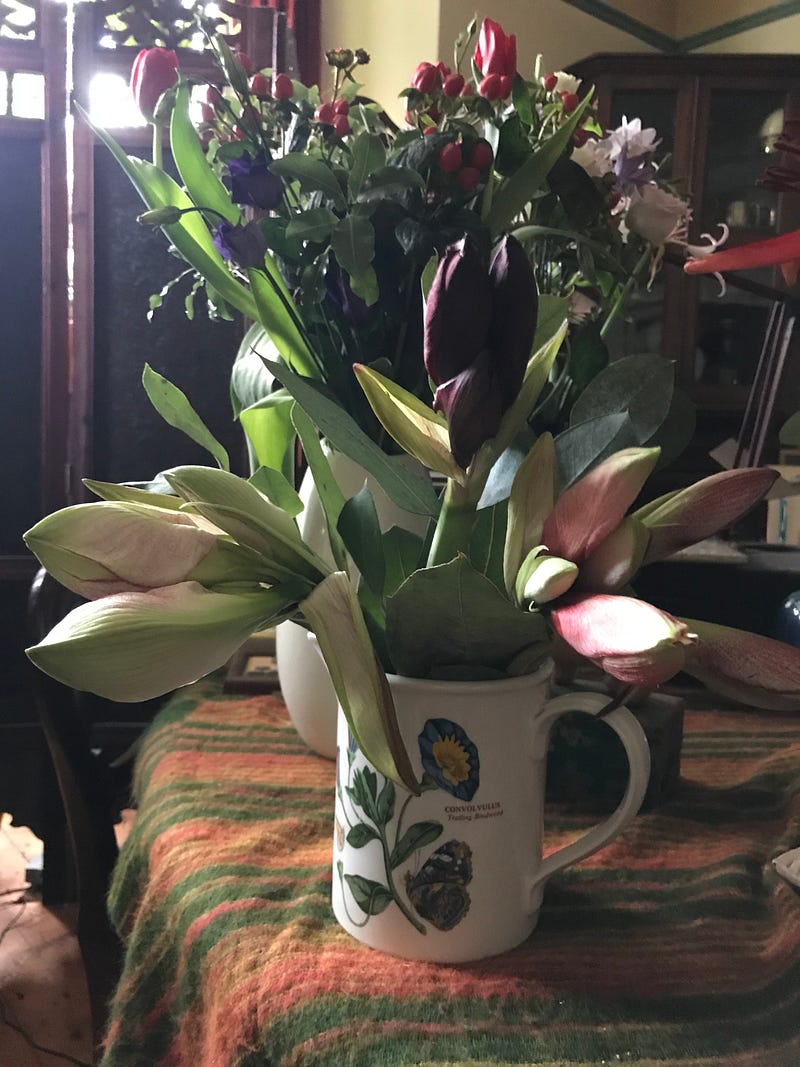
Before getting to that stage, though, life can be made a lot easier by taking the initial photo in portrait format rather than landscape — this will save any messing about later and will get the subject of the photo to be the right ‘weight’ in the overall picture.
I’m not great with phones although I use an iphone to take all my photos, so I’m unaware of the facilities there might be on there — for example — maybe you can flick a switch to make the default setting a portrait format rather than the landscape one that is on my phone.
At the moment, I simply turn my phone the other way up if I want to take a portrait picture. I will continue to do that even if it is possible to flick a switch so that I keep the flexibility of it.
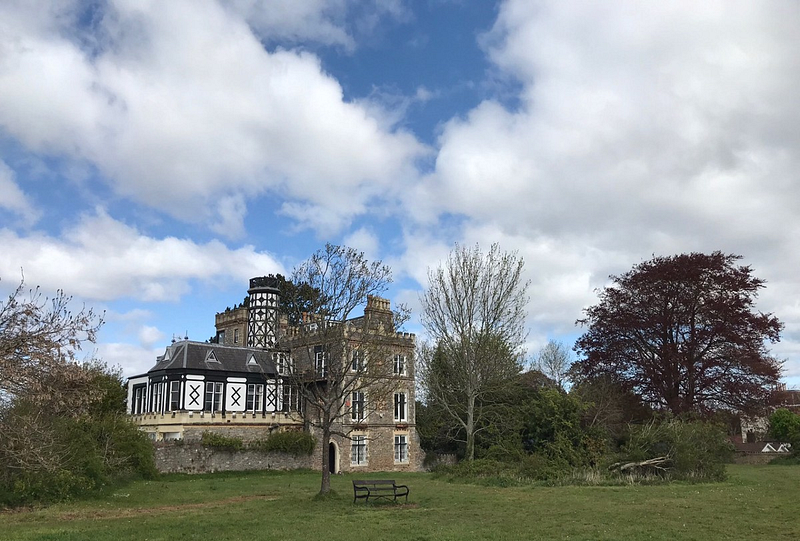
So, I took this picture of the house overlooking the Avon Gorge (Bristol, South West UK) in landscape format. It looks pleasant enough.
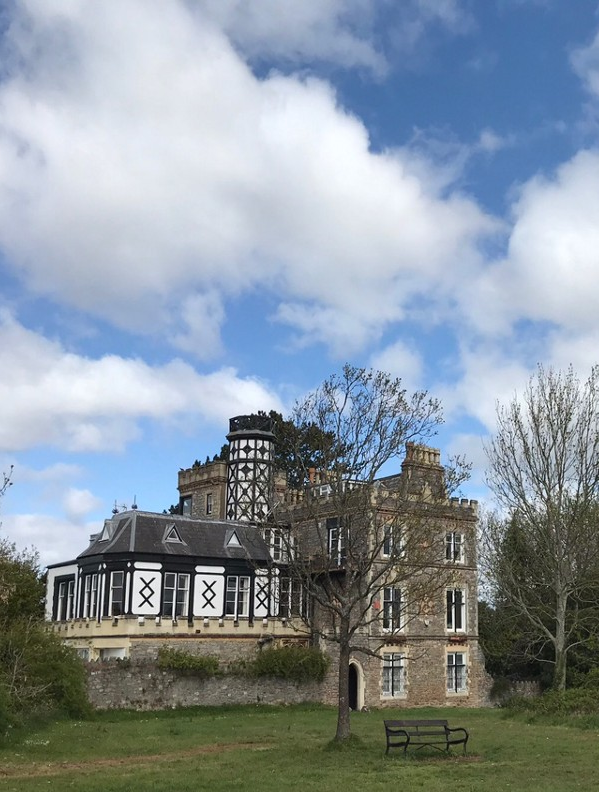
But if I’d taken it in portrait format it would immediately have been a much more dramatic picture. And I wouldn’t have had to mess with it before uploading it to Medium.
I am finding it annoying, though, that what I’m seeing, as I write my article and place my pictures, is not the same as it’s going to appear on the Medium page. This picture above is currently looks as if it goes beyond the width that will actually show when this article is published.
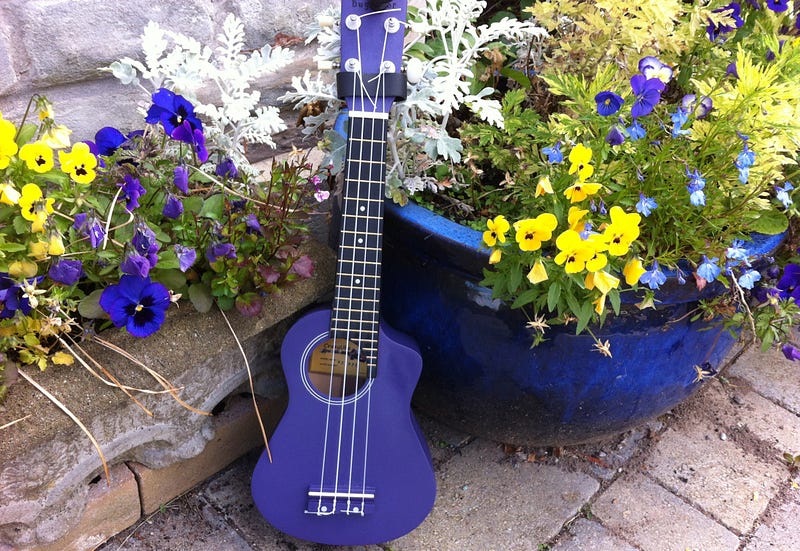
It’s my ukulele!
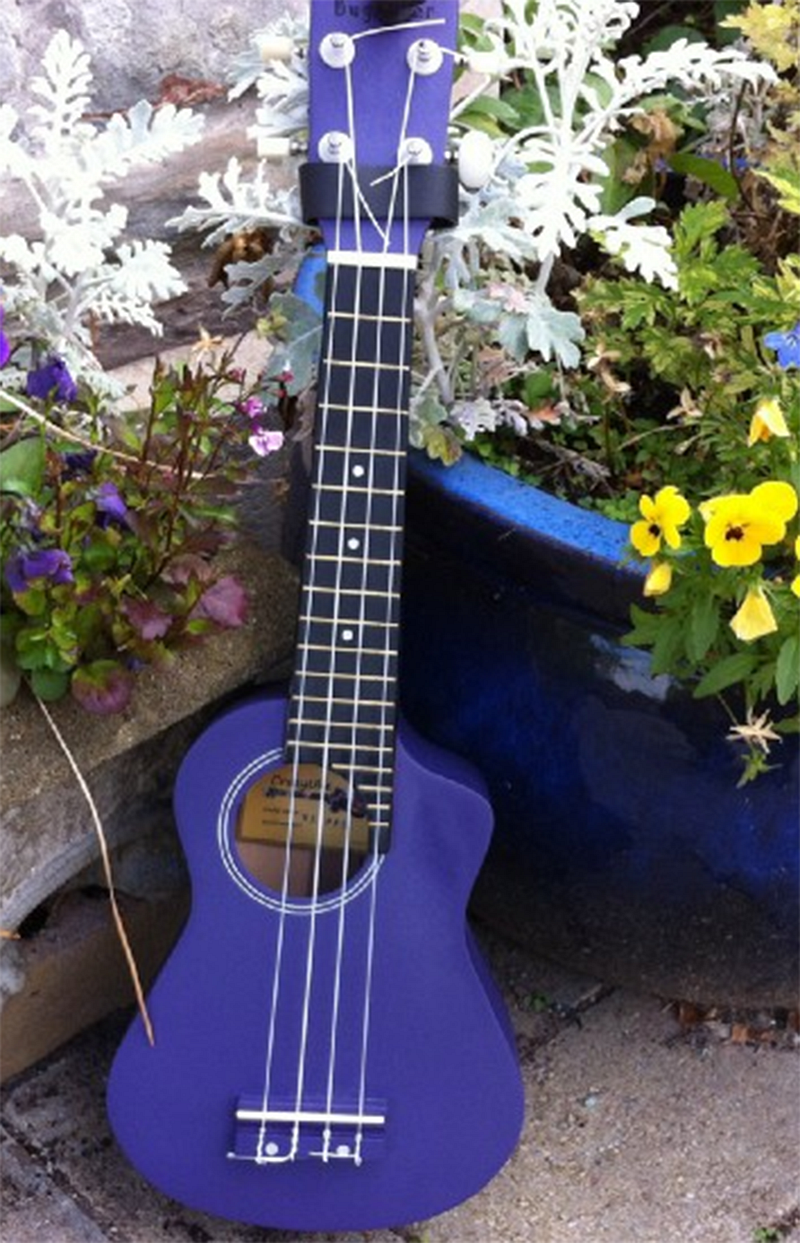
My ukulele feels much more important in a portrait format photo.
I need to say upfront that someone has mentioned to me that portrait pictures take a long time to load on phones — I don’t know about the specific problems to do with viewing Medium on a phone. I use larger devices.
Don’t forget that Medium has provided the magnifying glass to enable enlarging of the picture on screen — this might solve the problem without the need for any other messing about.
I might be in danger of stating the obvious — except that I’ve seen a lot of people who have missed the existence of the magnifying glass. It is easy to do if it’s an icon one is not used to using.
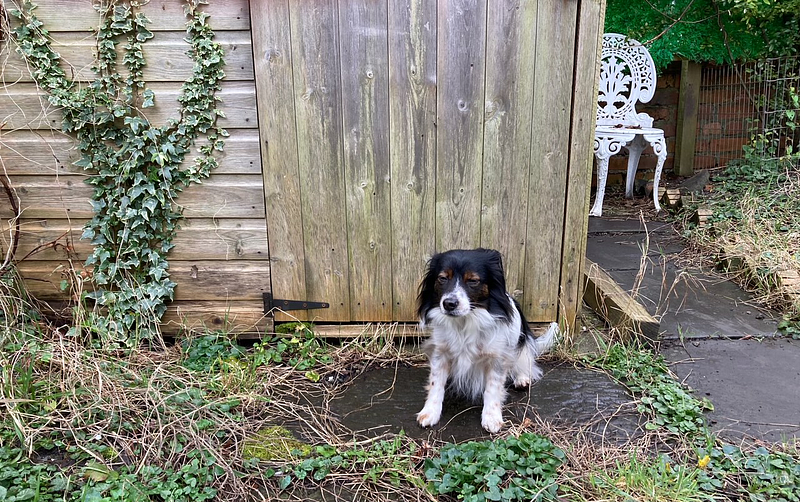
This is where PupperJack said I needed an example of wildlife photography and he offered to pose.
I did say I wanted him to stand tall like a stork on one leg, not small and dumpy like a PupperJack, but he completely ignored me so here he is in landscape format. Frowning.
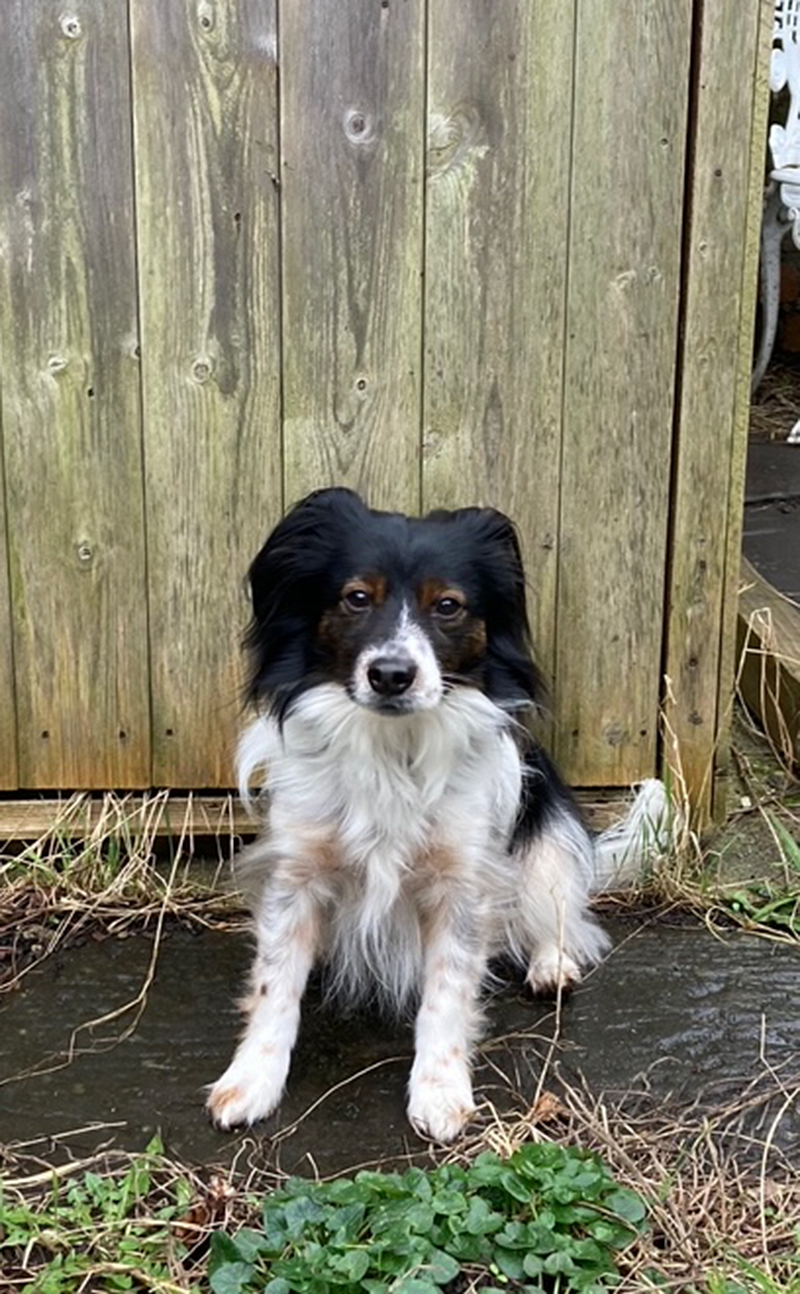
And here he is in portrait format being a little more approving. And looking much less dumpy — all because it’s a portrait format photo!
We are so used to thinking in landscape format that portrait format seems a little alien. It’s only another way of viewing things, though, so a bit of practice and it’ll become second-nature, just as landscape used to be.
I’ve waffled on a bit about the whole portrait/landscape thing and haven’t got to programs in which to crop pictures, so I’ll have a quick look at the Google Photo Editor. If anyone wants me to go through it in other (free) picture editors, let me know.
I’ve not used Google Photo Editor before, but, as it was mentioned I shall do so now.
I type photos.google.com in to the address bar; click ‘upload’ top right of page; click ‘computer’ — all my pics are on my computer — choose the pic I want, click on it, click ‘upload’; double click the pic I want until it fills the screen.
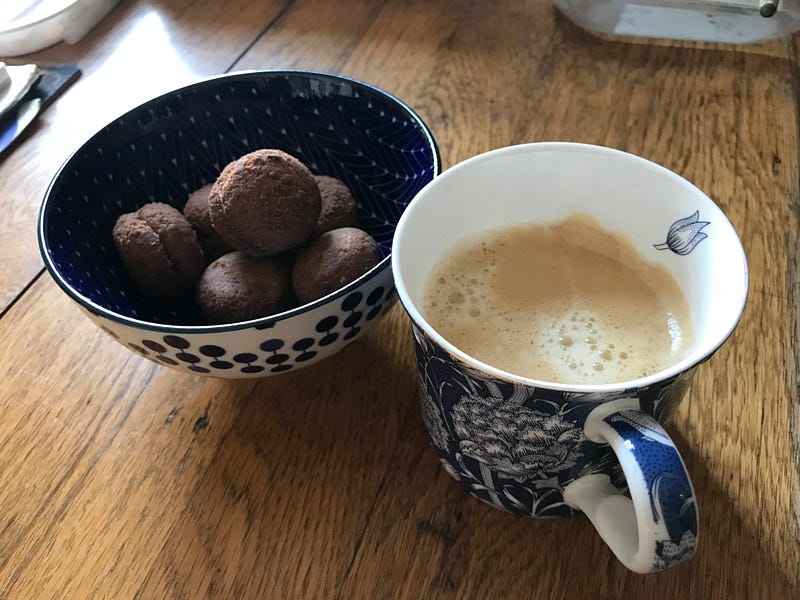
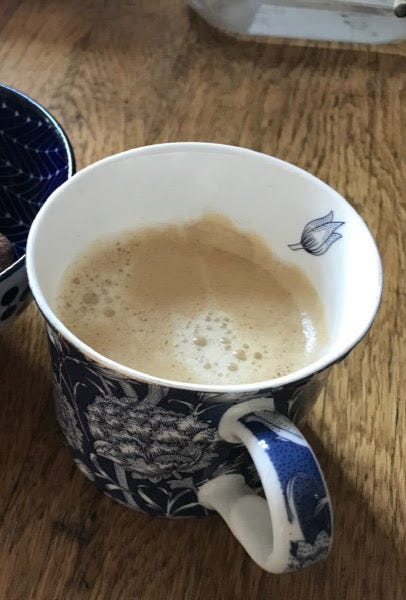
I chose a picture that reflects one of my favourite things — coffee. I also very much like Italian Baci Di Dama cookies but I can live without them. I can’t live without coffee.
The icons top right of the page have edit as the second one in — the first one is a ‘share’ icon.
Click on ‘edit’; click on the far right of the three icons
Although the white circles on the corners are enticing, I simply want to cut off the cookies and stick with the coffee so I hover the cursor over the left-hand edge of the picture until it changes to a two-headed arrow like this (except it’s white):
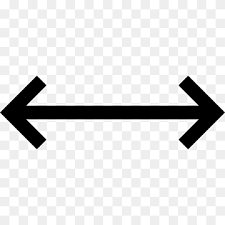
which means I can click on that line and pull it in as far as I want it to go without changing the ‘ratio’, or the ‘proportions’ of the picture.
I’m going to pull in the right-hand edge a little, too.
Sorry if this is very obvious to some but, again, it won’t be to all. I’ve seen some try to do this without realising they’re pulling the picture itself out of shape.
Top right — click ‘done’. And then there’s another ‘done’ on-screen so I’ve clicked that one, too.
Place your cursor over your cropped pic, right-click, click on ‘copy image’, move over to your open draft for Medium, click on the page where you want your cropped pic to be, control-V to paste into your document.
And there is it! Yay for coffee!!!
Let me know if you have any questions about any of this. Or if I can make anything clearer.
Other useful articles:
Susan’s Amazon Page / Susan’s Etsy Store/ newsletter sign-up
Read more from me: © Susan Alison 2022