
Digital Art, Creativity & Design
Get a grip on your Wacom: A guide for AI artists
How a retro gaming trick became my secret to digital dexterity
I’ve got a confession to make. I had a Wacom Intuos gathering dust in my desk drawer for the better part of a year. I purchased it after a digital art course last year. It was an impulse buy in a wave of enthusiasm. “I’m going to be able to edit incredible digital images using this,” I promised myself.
It would be exactly the device I needed to elevate my AI generated artwork, especially for the times when I need a fine-touch to make animated effects:
Fast forward to its arrival: I enthusiastically ripped open the packaging, binge-watched a dozen YouTube tutorials, downloaded the drivers, and then… gave up within days. Even though I was acutely aware of the Wacom’s potential, my lack of dexterity with it was disheartening.
The cruel irony was that the very images I dreamed of perfecting with the fine-touch of the Wacom pen were too important for my clumsy practice attempts. Each time I tried, I ended up triggering a chain of mistakes and hitting undo desperately (thankfully the Wacom has ExpressKeys you can customize, so Undo was easy). But still, it was too frustrating to learn a new habit. Finally, the Wacom tablet was shoved to the back of my desk drawer.
How retro gaming got me to dust off the drawing tablet and use it!
However, recently, my work started veering towards more image editing tasks, especially for clients. Any time that I struggled with my Apple Mouse, my Wacom started banging in my drawer to be released, pulsing with a strange green glow, and thumping like Jumanji drums sounding a call:

Okay, maybe that’s an exaggeration, but the point is, my thoughts kept returning to “Why aren’t I getting more use from this marvelous tool?”
Because I knew the Wacom was a gem. My instructor had recommended it. Friends swore by it. But I just hadn’t spent the time getting accustomed to the pen and getting my brain wrapped around the hand-eye coordination.
Suddenly I had an idea, and it’s such a good hack that I have to share it. It will work for any tool where you have to practice getting used to intuitively knowing how to hold and use it (which can take hours) without botching what you’re working on. Here’s the secret: play a point-and-click game.
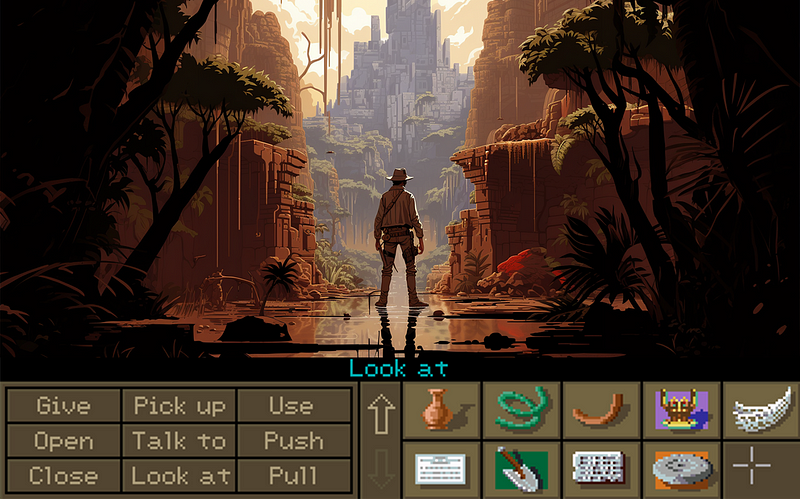
Why a game, you ask? Because games are fantastic for practicing dragging, dropping, clicking, double-clicking, and enhancing hand-eye coordination, without having to worry about image editor or illustrator software. Not to mention, it helps you to memorize the spatial placement of the tablet to screen (your Wacom corresponds to your screen. Top left is top left, and bottom right is bottom right. This seems basic but can be hard to learn).
My hard drive is filled with old LucasArt games I can never justify finding the time to replay. This made a guilty pleasure something practical: I could use my Wacom instead of a mouse or touchpad. Then I would be training my hand to become familiar with the Wacom, all the while I was playing!
Learn dexterity while playing with your Wacom Tablet
Play is the way we learned fine motor skills as kids. We forget these intuitive learning strategies as adults, don’t we? But they’re especially important when were getting accustomed to learning tools that require ergonomic hand positions, multi-touch gestures and natural navigation.
So, my advice? Forget the high-stakes project that’s holding you hostage. It’s too intimidating to try out new tools on. Instead, whip out an old game (like Indiana Jones and the Fate of Atlantis) and let your inner child guide your hand. You’ll not only rekindle memories but master your Wacom Intuos.
There’s always time for play. You might just learn a new skill or two!
What is the Wacom Intuos Pro?
The Wacom Intuos Pro is a top-tier creative pen tablet. It’s an essential tool for artists, graphic designers, photographers and digital illustrators. What truly sets this device apart is the ultra-responsive Wacom Pro Pen 2. It’s designed to be a natural extension of your hand, offering exceptional sensitivity and responsiveness that connects you to the digital canvas.
The pen boasts a remarkable 8192 levels of pressure sensitivity, natural tilt support, virtually no lag, complete with built-in Bluetooth connectivity for a clutter-free workspace, and the pen requires no batteries or recharging!
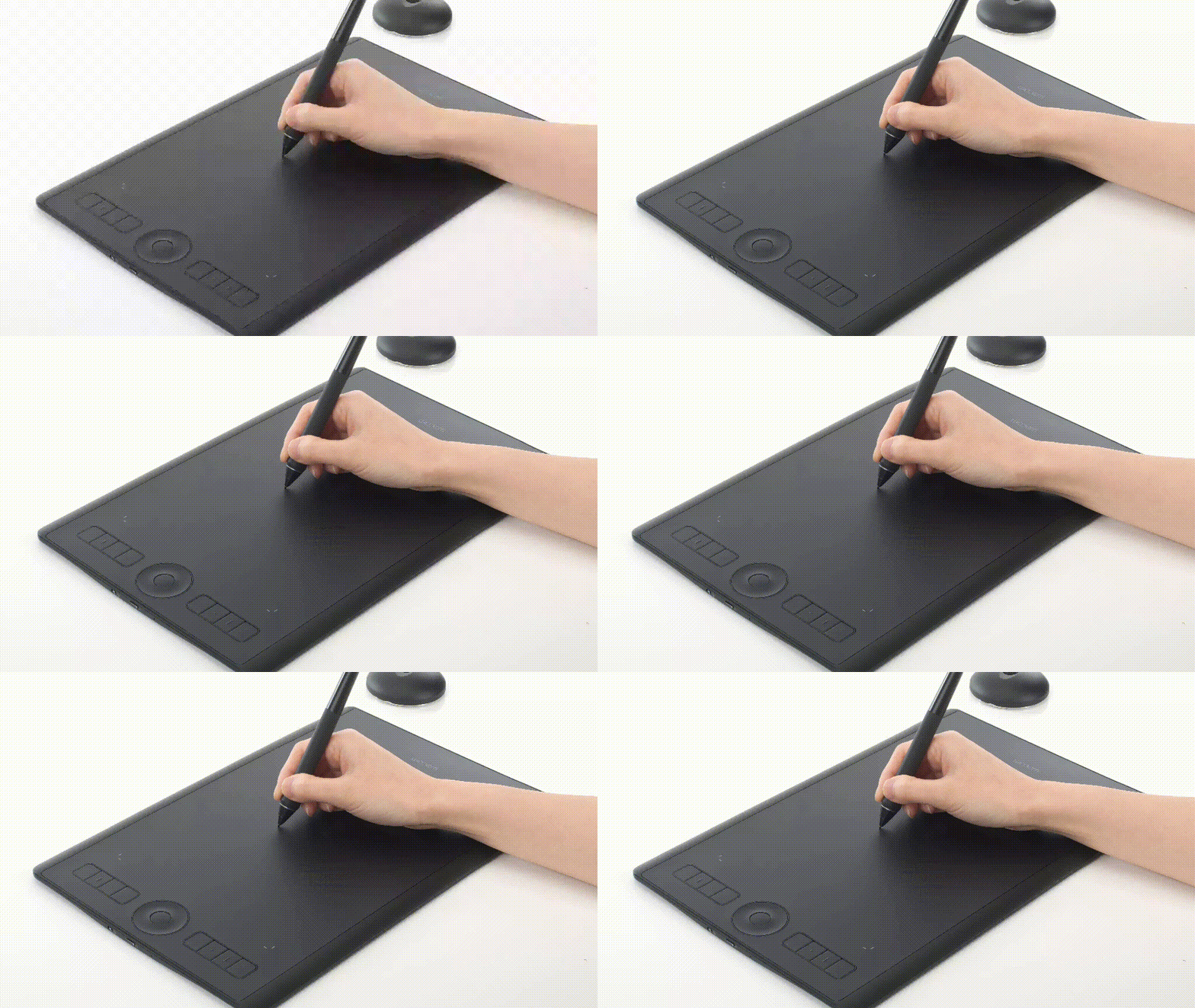
But the Wacom Intuos Pro doesn’t stop at the pen. It also provides a customizable workspace to fit your unique work style. This includes customizable ExpressKeys and a Touch Ring for easy shortcuts, and multi-touch gestures for simple navigation (much like using your smartphone).
In a nutshell, the Wacom Intuos Pro is an exceptional tool that can refine your digital creativity. I highly recommend it not only for its advanced features but also for the flexibility and freedom it brings to your work.
Why is a Wacom Intuos Pro useful for AI artists?
Generating AI art is only the first step. You should always treat your Midjourney creations as raw material: it’s the sculptor’s clay. Editing images allows you to perfect your creations, remove the 15 telltale signs of AI art, add a personal touch, and bring out the true essence of the artwork.
The Wacom Intuos Pro offers a high resolution of 5080 lpi, enabling you to create detailed and precise artwork. This is particularly important when working with AI art, as these often involve intricate patterns and textures.
If you’re not already upscaling images, you should! Start with Topaz Labs. It offers a full suite for experts, but also a one-click solution for beginners (or experts in a hurry! Trust me, you’ll be happy with the results). Not only will it increase the size of your images, but its AI technology will improve the resolution by reducing noise, sharpening, enhancing and restoring faces.
Once you’ve got your upscaled image, you’re ready to edit in your favorite software like Adobe Illustrator, Photoshop, and many others. Don’t have image editing software? Depending on your location when you register your Wacom and the model you purchase, you may be eligible for 3 free months of Shapr3D or other drawing and painting software. I received Corel Painter Essentials 7 (90-day license) and Corel AfterShot Pro 3.
By offering high precision and a seamless workflow, a Wacom can help AI artists bring out the best in their creations. It’s not just a tool: it’s a coartist.
If you’re interested, please use my links at no added cost. This article contains affiliate links to products I use in my profession. Yes, I get a commission, but it keeps the lights on and helps fund my guides to creating AI art. So it’s win win!
Who is Jim the AI Whisperer?
Jim the AI Whisperer offers private training in how to use AI generators to create stunning visuals, as well as how to write original and compelling content. If you’re interested in discovering more, feel free to contact me.
I’m also available for podcasts, interviews, fine-tuning AI prompts, and creating prompt libraries and professional AI images for companies.
You might enjoy these related articles from Jim the AI Whisperer:


