Flutter and Google Maps…
Flutter and Google Maps
All in one Flutter Resource: https://flatteredwithflutter.com/google-maps-in-flutter/
Free AI web copilot to create summaries, insights and extended knowledge, download it at here
2901
Abstract
*L2hLRG6c8Afz4GIRFs4dnQ.png"><figcaption>GoogleMap widget…</figcaption></figure><p id="34dc"><b>onMapCreated</b> : Callback which takes <b>GoogleMapController…</b>initialized as</p><blockquote id="7a9a"><p>GoogleMapController mapController;</p></blockquote><p id="a155"><b>options</b> : An optional widget, can be used for customizing the Google Maps UI configurations..Takes in <b>GoogleMapOptions, </b>some properties such as</p><figure id="7d23"><img src="https://cdn-images-1.readmedium.com/v2/resize:fit:800/1*iAQECW3qx09kSSaJQYPiDQ.png"><figcaption>Google Map Options…</figcaption></figure><p id="7ae5"><b>scrollGesturesEnabled</b> : if the map should respond to scroll gestures, <b>tiltGesturesEnabled</b> : if the map should respond to tilt gestures,</p><p id="84bf"><b>rotateGesturesEnabled</b> : if the map should respond to tilt gestures,</p><p id="dc0f"><b>myLocationEnabled</b> : if a “My Location” layer should be shown on the map,</p><p id="5786">This layer includes a location indicator at the current device location, as well as a <b>My Location </b>button. Enabling this feature requires adding location permissions to both native platforms of your app.</p><p id="a704"><b>compassEnabled</b> : if the map should show a compass when rotated,</p><p id="3803"><b>mapType</b> :type of map tiles to be rendered,</p><p id="32c5"><b>zoomGesturesEnabled</b> : if the map view should respond to zoom gestures,</p><p id="65e1"><b>cameraPosition</b> : used to indicate initial camera position and to update that position programmatically along with other changes to the map user interface,</p><figure id="4722"><img src="https://cdn-images-1.readmedium.com/v2/resize:fit:800/1*ov_QJSmYZKYcoXnQU5tx7w.png"><figcaption>Satellite View…</figcaption></figure><p id="96ec">Changing to the different map types is achieved by mapController’s <b>updateMapOptions </b>and setting to <b>MapType.satellite</b></p><figure id="a731"><img src="https://cdn-images-1.readmedium.com/v2/resize:fit:800/1*cMlo3Sntau2lwWuNHImDJA.png"><figcaption>MapType.satellite…</figcaption></figure><figure id="60f2"><img src="https://cdn-images-1.readmedium.com/v2/resize:fit:800/1*r0fu6DhJ1BNN6lzpbGvsaA.png"><figcaption>Current Location..</figcaption></figure><p id="425c">Using mapController’s <b>cameraPosition</b> we can extract the current location.</p><blockquote id="5b0b"><p>mapPosition.target.latitude. || mapPosition.target.longitude</p></blockquote><figure id="84f1"><img src="https://cdn-images-1.readmedium.com/v2/resize:fit:800/1*HB7nRcPMqr0xgr37Lyu2NA.png"><figcaption>Flutter and Google Maps…</figcaption></figure><p id="80c3">Using mapController’s <b>addMarker, </b>passing the position to be marked.</p><figure id="401d"><img src="https://cdn-images-1.readmedium.com/v2/resize:fit:800/1*MLAQltJjAJCA5yScZDp7kA.png"><figcaption>Marking Places…</figcaption></figure><p id="dbe2"><b>infoWindowText</b> : Content
Options
s to be displayed in the marked location,</p><p id="d9fa"><b>icon</b> : description of the bitmap used to draw the marker icon</p><blockquote id="c648"><p><b>That’s all folks!!!!!</b></p></blockquote><p id="fdfb">Articles related to Flutter:</p><div id="0162" class="link-block"> <a href="https://readmedium.com/firebase-firestore-and-flutter-f516a3025da7"> <div> <div> <h2>Firebase, Firestore and Flutter</h2> <div><h3>Aspire to inspire…..</h3></div> <div><p>medium.com</p></div> </div> <div> <div style="background-image: url(https://miro.readmedium.com/v2/resize:fit:320/1*7dzhxvCinTdRzi84Is4H2g.png)"></div> </div> </div> </a> </div><div id="96a9" class="link-block"> <a href="https://readmedium.com/flutter-stripe-firebase-d6299e6f76ef"> <div> <div> <h2>Flutter + Stripe + Firebase</h2> <div><h3>Flutter + Stripe + Firebase. Using Stripe in Flutter</h3></div> <div><p>medium.com</p></div> </div> <div> <div style="background-image: url(https://miro.readmedium.com/v2/resize:fit:320/1*9qSmfi5TyqN5VPhjTXr4yQ.png)"></div> </div> </div> </a> </div><p id="7838">For complete source code, visit :</p><div id="406b" class="link-block"> <a href="https://github.com/AseemWangoo/flutter_programs/blob/master/GoogleMaps.dart"> <div> <div> <h2>AseemWangoo/flutter_programs</h2> <div><h3>Samples for flutter programs. Contribute to AseemWangoo/flutter_programs development by creating an account on GitHub.</h3></div> <div><p>github.com</p></div> </div> <div> <div style="background-image: url(https://miro.readmedium.com/v2/resize:fit:320/0*3YzCrAGl242bMqx_)"></div> </div> </div> </a> </div><p id="fa58">The <a href="https://medium.com/flutterpub"><b>Flutter Pub</b></a> is a medium publication to bring you the latest and amazing resources such as articles, videos, codes, podcasts etc. about this great technology to teach you how to build beautiful apps with it. You can find us on <a href="https://www.facebook.com/FlutterPub">Facebook</a>, <a href="https://twitter.com/FlutterPub">Twitter</a>, and <a href="https://medium.com/flutterpub">Medium</a> or learn more about us <a href="https://readmedium.com/welcome-to-flutter-pub-8480678ed212">here</a>. We’d love to connect! And if you are a writer interested in writing for us, then you can do so <a href="https://readmedium.com/how-to-submit-your-article-s-on-flutterpub-7b6bf37dfc43">through these guidelines</a>.</p></article></body>
Flutter and Google Maps
All in one Flutter Resource: https://flatteredwithflutter.com/google-maps-in-flutter/

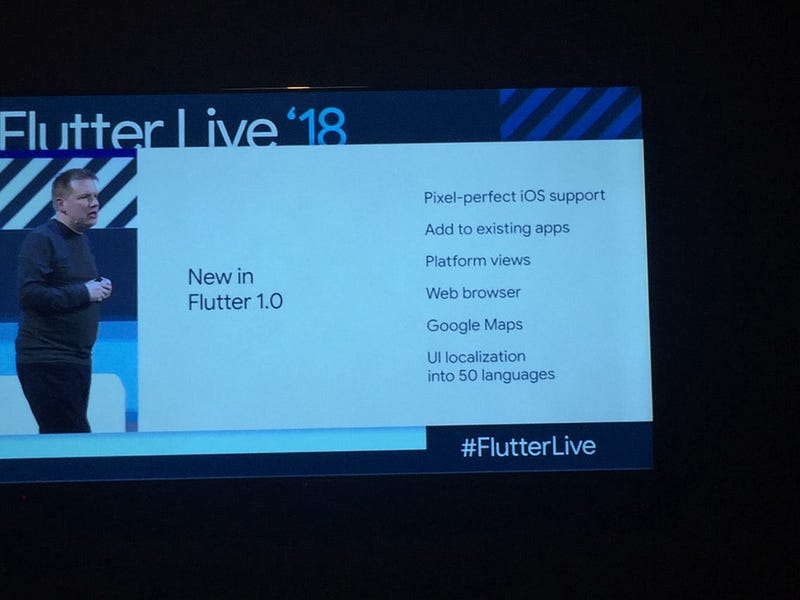
There was everything special in the Flutter event (this year)..Choosing one out of them, I decided to explore Google Maps…
Asked by developers, delivered by Flutter….
android/app/src/main/AndroidManifest.xml

For iOS : Specify your API key in the application delegate ios/Runner/AppDelegate.m:
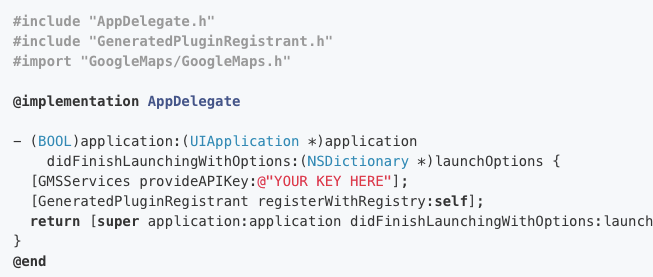
Important lines :
#import “GoogleMaps/GoogleMaps.h”
[GMSServices provideAPIKey:@”YOUR KEY HERE”]
3. Add import ‘package:google_maps_flutter/google_maps_flutter.dart’; in your main.dart
All geared up….
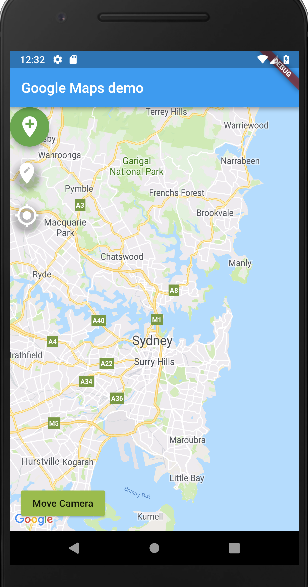
Start with initializing the GoogleMap (a widget)
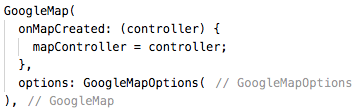
onMapCreated : Callback which takes GoogleMapController…initialized as
GoogleMapController mapController;
options : An optional widget, can be used for customizing the Google Maps UI configurations..Takes in GoogleMapOptions, some properties such as
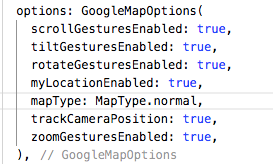
scrollGesturesEnabled : if the map should respond to scroll gestures, tiltGesturesEnabled : if the map should respond to tilt gestures,
rotateGesturesEnabled : if the map should respond to tilt gestures,
myLocationEnabled : if a “My Location” layer should be shown on the map,
This layer includes a location indicator at the current device location, as well as a My Location button. Enabling this feature requires adding location permissions to both native platforms of your app.
compassEnabled : if the map should show a compass when rotated,
mapType :type of map tiles to be rendered,
zoomGesturesEnabled : if the map view should respond to zoom gestures,
cameraPosition : used to indicate initial camera position and to update that position programmatically along with other changes to the map user interface,
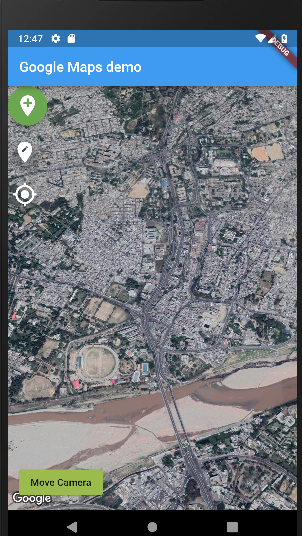
Changing to the different map types is achieved by mapController’s updateMapOptions and setting to MapType.satellite

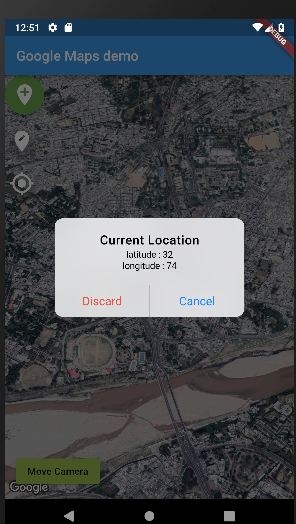
Using mapController’s cameraPosition we can extract the current location.
mapPosition.target.latitude. || mapPosition.target.longitude
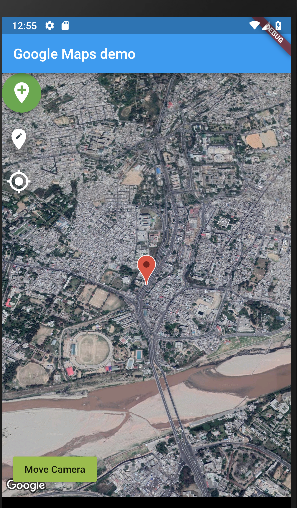
Using mapController’s addMarker, passing the position to be marked.
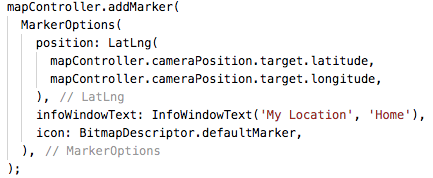
infoWindowText : Contents to be displayed in the marked location,
icon : description of the bitmap used to draw the marker icon
That’s all folks!!!!!
Articles related to Flutter:
For complete source code, visit :
The Flutter Pub is a medium publication to bring you the latest and amazing resources such as articles, videos, codes, podcasts etc. about this great technology to teach you how to build beautiful apps with it. You can find us on Facebook, Twitter, and Medium or learn more about us here. We’d love to connect! And if you are a writer interested in writing for us, then you can do so through these guidelines.