
Extend your MacBook’s Life with These 6 Battery Saver Apps
Better install these apps right now if you just bought a Mac and never uninstall
Battery is often the most underlooked part of the Mac experience. Most people only worry about their Mac’s speed, variety of apps for utility, and beautiful customisations.
But it gets too late by the time they realise their battery health dropped to 80s within a short span of time.
I take battery health very seriously, seriously.
So here are 6 macOS apps I personally use to stay frugal with my battery, while not compromising any of my Mac’s experience.
Apps included in this article
1 — Aldente Pro: Set battery charging limits 2 — Endurance: Extend your battery life 3 — App Tamer: Reduce CPU usage 4 — QuitAll: Speed up Mac by quitting all apps 5 — TripMode: Save internet data 6 — CleanMyMac X: Speed up and declutter Mac
#1. Aldente Pro
($10.5 a year. Or $22.1 for lifetime. Available on Setapp)
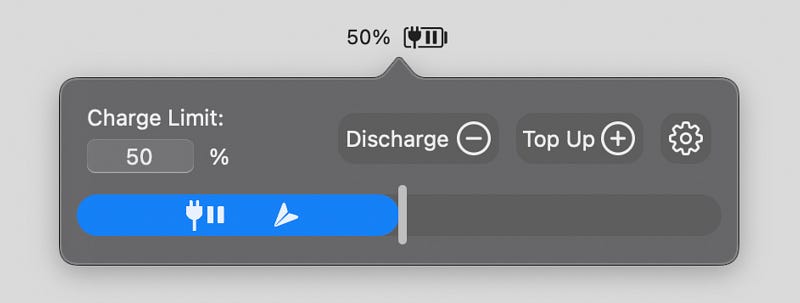
Aldente Pro is a great battery management tool I wish I knew earlier. You might be knowing this — Battery experts suggest not to charge your Mac past 80% for longevity.
However, Apple’s own ‘Optimised Battery Charging’ doesn’t cut off charging past 80%, it only slows it down past it. Thereby, your Mac can often accidentally charge till 100% even before your realise.
Aldente Pro prevents it. You can set a specific level to cut charging off past it. Also, if your Mac currently has higher charge level then set, you can activate Discharge to let it utilise battery (even while it’s plugged in) to let down the charge level.
How does this help save battery?
Apple uses Lithium ion batteries for all its devices, and let’s face it, they’re not immortal. They naturally degrade over time. And the main culprits that accelerate the process: Charge Cycles & Heat.
Charge cycles… we can’t help — coz we use our Macs day in and day out, inevitably. (More on charge cycles later in the article)
But regarding heat, we can do something. By limiting charging to 80%, we can reduce the amount of heat generated — which can help our batteries last longer.
#2. Endurance
($20 for lifetime | Available on Setapp)
Endurance is a battery saver app that claims to make your Mac run for 20% longer. It can only do six things… better than anyone else:
- Slow down processor
- Pause web browsers when in background
- Pause services — (Wi-Fi, Bluetooth, Spotlight)
- Monitor expensive apps and reload them if they’re taking too much CPU.
- Hide background (inactive) apps
- Dim screen to a preset brightness.
Simply preset what you wanna have while on Endurance mode, and turn it on to make it happen.
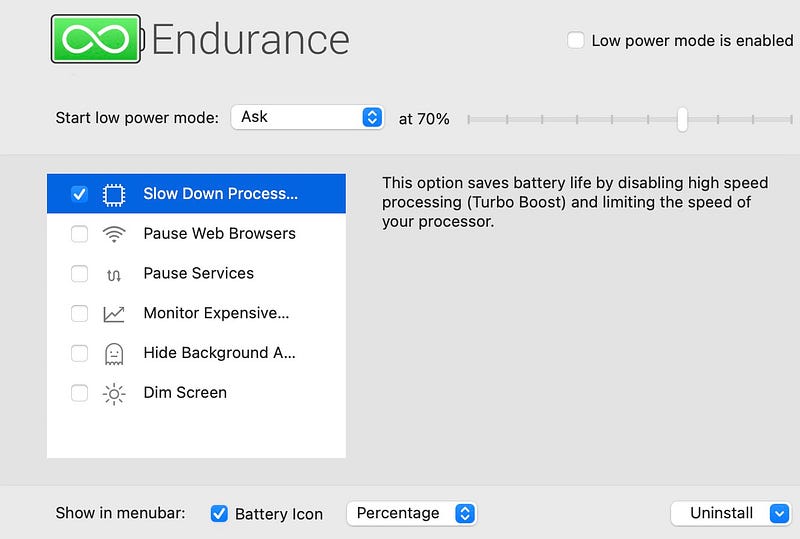
Best part, you can choose to
- ask or automatically start Endurance mode once battery falls to a certain percentage.
- show your battery percentage or time left on the menu bar.

Cool, right?
#3. App Tamer
(14.95 for lifetime | Available on Setapp)
Just as a trained dog listens to your words, unlike an untamed one, a tamed app acts as you intend, unlike unruly ones.
This might be confusing & you might ask me “HTF do I tame apps?”.
Simple. Use App Tamer.
Let’s try it out live. Last Jan, I’ve told in #1 of this article →
to consider ditching Chrome as it’s a big battery-hogger. So let’s (deliberately) try it out on Chrome.
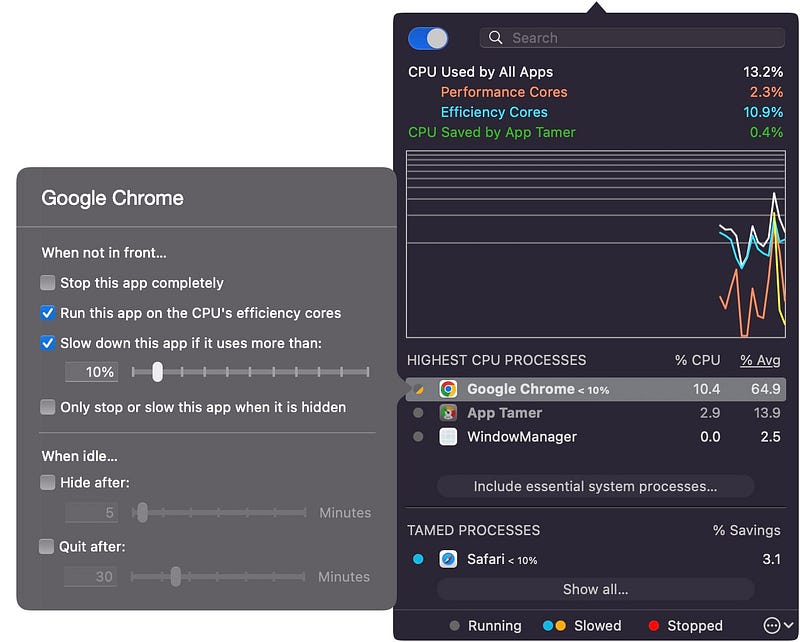
See. When an app is taking lots of CPU power, you can check one or multiple of the given options to tame it (zoom in if it’s too tiny).
Best part, you can
- Set the app to auto-start at login — to enforce your taming settings on unruly apps right when you start.
- See the live CPU usage on the menu bar.
- Choose to ignore your configs if your Mac is plugged in.
- Get notifications when an app exceeds a certain CPU % for a specific time.
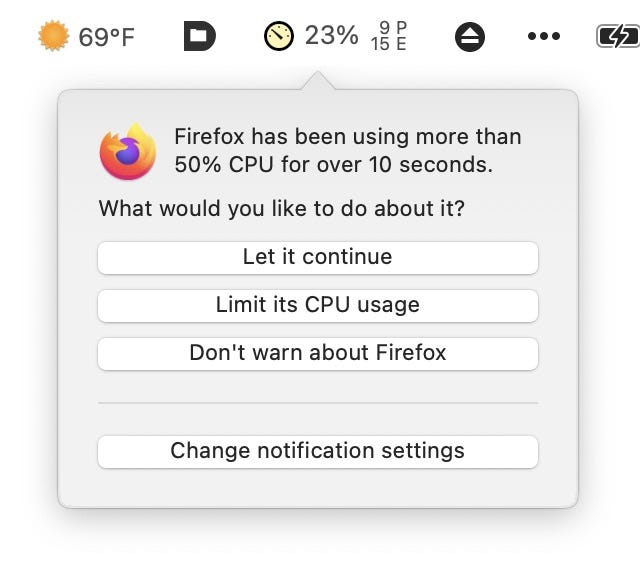
- Change how frequently CPU stats and avg. CPU updates.
- Accelerate your Time Machine backups (by reducing priority for other apps when your Mac’s backing itself up).
#4. QuitAll
($10 for lifetime | Available on Setapp)
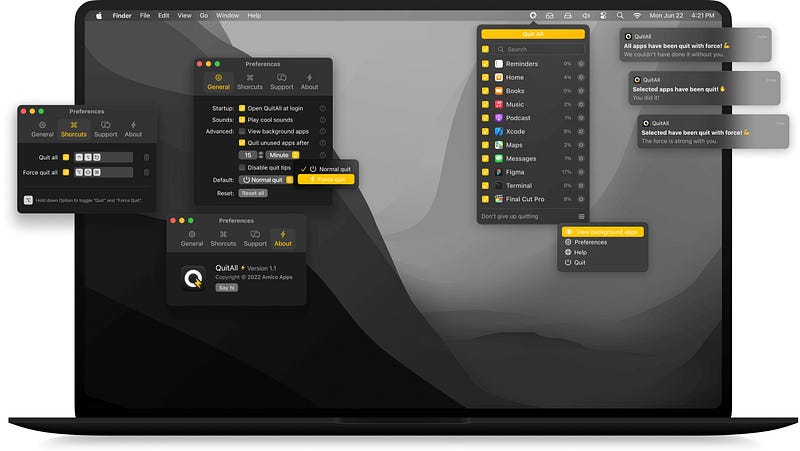
I hate people with messy windows on Zoom screenshares. If you’re unknowingly one of them, consider using CleanPresenter (#1 of this article →)
If you don’t prefer hiding your windows but prefer quitting them (like me), use QuitAll to close all of them instantly before the Zoom.
This way you escape the need to repeatedly press ⌘+Q to quit every open app window like a hasty.
Simply use the preset hotkeys to Quit (or Force Quit) every open app in a snap. Don’t worry, you can always uncheck apps on the menu bar to prevent closing important ones.
Best part,
- Quitting (unused) apps saves CPU power and makes your Mac instantly faster — also saving a ton of battery by reducing the burden of keeping unused apps open.
- QuitAll shows the % of CPU usage for every open app so you’d decide whether to close it or not.

- Use ⌥ in the hotkey to toggle ‘Quit’ or ‘Force Quit’.
- View background apps too — if you wanna.
- You can config to auto-quit apps if they’re inactive for a preset time.
- You’re prompted to save any unsaved info before quitting :)
Bonus — Quit Finder using ⌘+Q
Okay, try this → Use ⌘+Q on a Finder window. <Boop sound> It doesn’t quit! Why?
macOS disallows you from doing that coz your desktop itself is a Finder window. So if it quits, your Desktop files disappear.
But if you still wanna enable quitting Finder that way, refer to #2 of this article →
#5. TripMode
($17 for lifetime | Available on Setapp)
TripMode is one of the most useful apps I’ve seen in recent times.
It’s a data-saving app that helps control your Mac’s data usage & reduce your internet bills by curbing access to internet for those apps you don’t want accessing internet.
Keeping TripMode always on and limiting apps that access internet actually saves a ton of battery, at least in the long run.
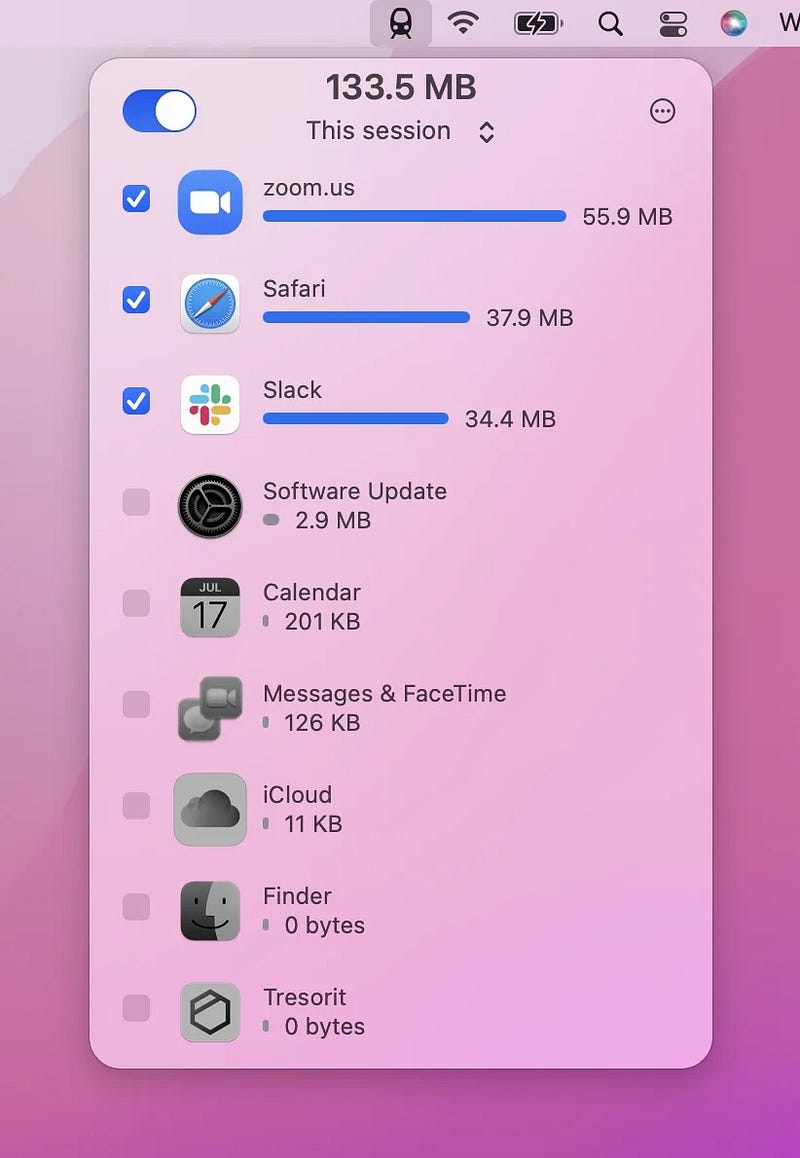
As shown, simply uncheck an app and it will instantly lose internet access until you check it back, or close TripMode.
You can also use the app to focus internet bandwidth only on certain important apps when the connection is slow.
Best part,
- TripMode remembers the networks you previously activated it on — and auto-activates itself so you don’t have to :)
- The window is detachable, so you can always view live stats of your internet usage.
- You can set data limits and TripMode warns before you reach the limit, & cuts everything off once you reach it,
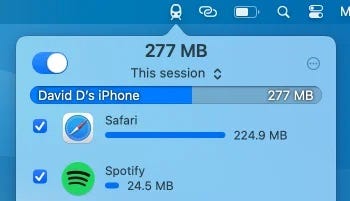
- It also displays live upload and download speeds an app’s using currently, so you can quickly spot the data-hungry ones.
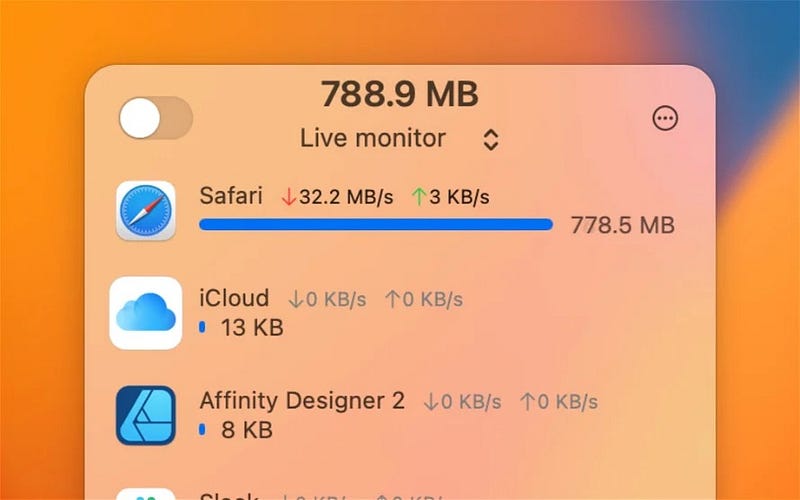
Now the best feature of all:
You can create profiles like work, gaming, studying etc., and TripMode automatically switches to a profile when it’s time — and allows only preset apps to use internet.
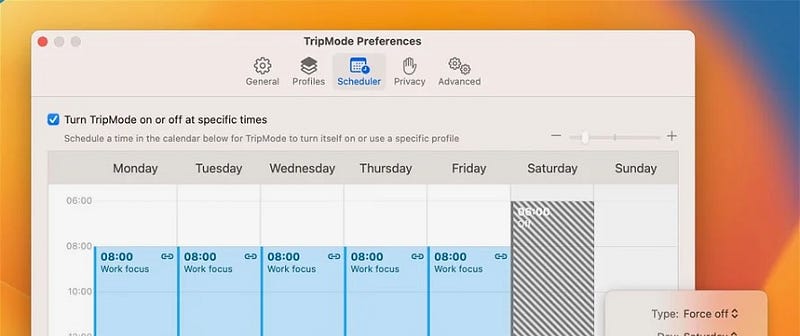
This can be really helpful when you’re often on some serious work that tolerates no distractions.
#6. CleanMyMac X
($39.95 a year | Available on Setapp)
CleanMyMac X could be awarded with the title — “The king of all macOS utility apps”. And that’s for a real reason.
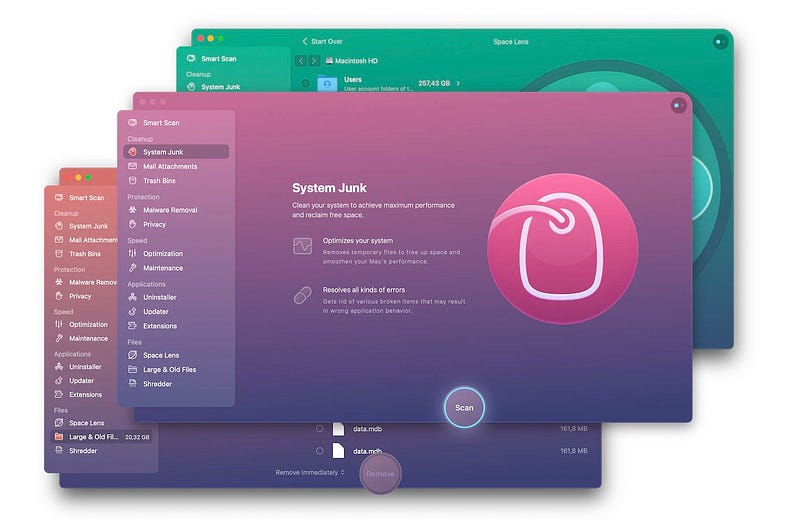
The app’s been there on my Mac almost since the day I bought it. I was such loyal to it, just like it’s been to me.
It helps
- Clean up my Mac: Clean system junk, large hidden files, and also features a space lens — an interactive visual map of my entire drive.
- Speed up my Mac: Offers tools to clear RAM, flush DNS cache, run maintenance scripts, remove background apps, etc.
- Remove malware: Holds a real-time, “Gold” level shield against trojans, data miners, and browser hijackers.
It features an Assistant that gives real-time battery health, temperature and CPU alerts — which are crucial metrics for battery longevity.
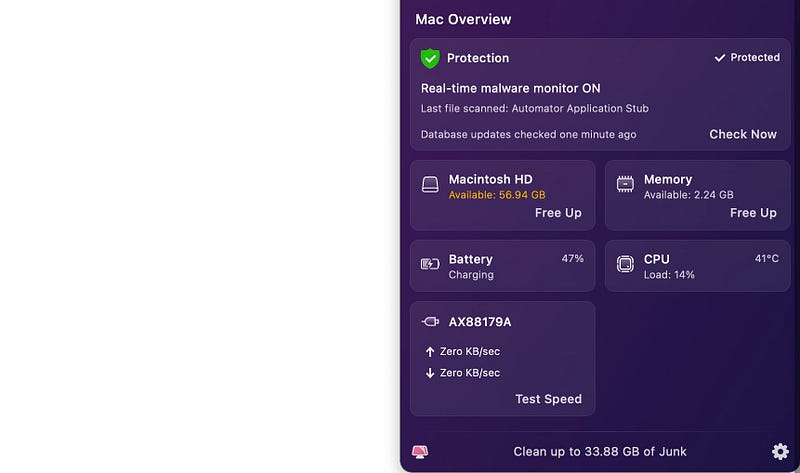
Best part, it also displays my battery’s live Charge Cycle count.
A charge cycle is when a battery discharges level equivalent to 100% — FYI.
I use a MacBook Air 2020, and according to Apple, my battery is considered consumed once it reaches 1000 charge cycles. Here’s my current charge cycle count:
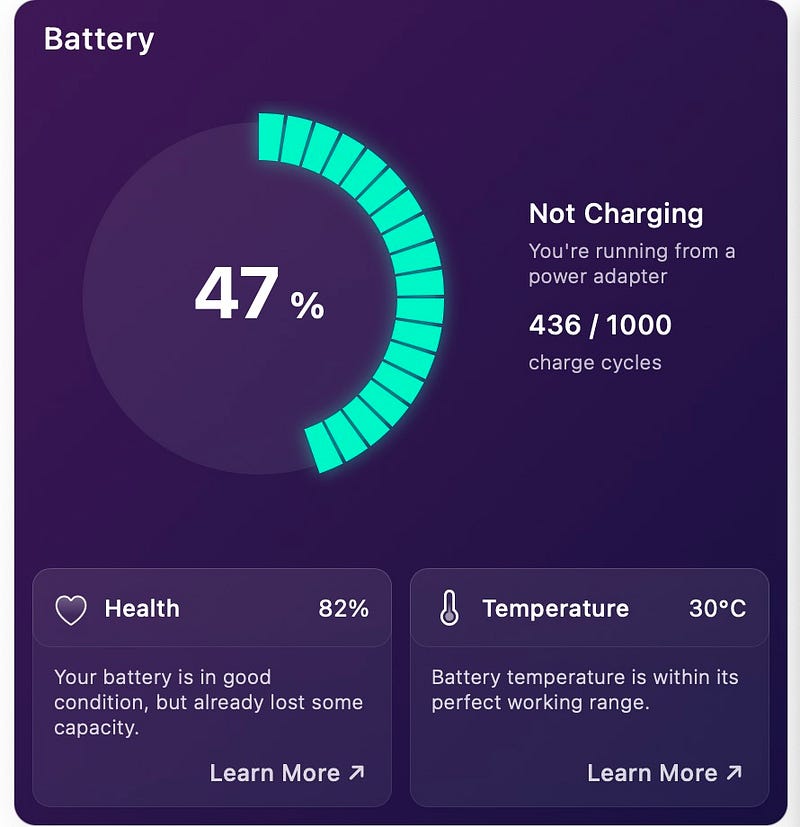
Almost half way there to get my battery replaced.
Thanks for reaching the end. If you own a Mac, there’s a 97% chance you own an iPhone (I guess).
So check out this article for 12 tips on saving iPhone battery (tips exclusive to iOS 17) →
For more a’macOS’zing apps, read these
Finally,
If you love exploring new iOS & Mac apps (like me), consider subscribing to Setapp. You’ll get access to a curated collection of 240+ amazing apps for just $9.99 a month, which rather cost hundreds of dollars if purchased individually.
- Use my affiliate link to start your Setapp journey! (It’s free for 30 days)
- Get my free list of 70+ Ultimate macOS Apps on Setapp here.
If you enjoyed this story, join 420+ others to get notified whenever I publish a new story.


