
7 Battery Mistakes You’ve Been Making With your MacBook All The Time
The simple secrets to a juicier MacBook
Battery care is the most underrated concept by Mac users.
Often, I see people boast about how fast their new MacBook works, or how productive their paid softwares are, but I’ve never seen them talk about how they care for their battery.
The default settings they still preserved, the hungry softwares they used, and the practices they obtusely followed eventually killed their batteries. So,
Here are 10 of the most done battery mistakes that slowly and surely downgrade your MacBook’s battery life.
#1. Using Google Chrome (or any other third-party browser)

Chrome is a notorious hog when it comes to RAM consumption.
It always tops my Activity Monitor list, chomping away lots of resources. I don’t understand why this happens with the popular browser.
On the brighter side, Safari is a browser integrated deep into macOS, and is improving with every update. It’s lightweight, and consumes notably lesser resources and battery than Chrome and other third-party browsers do.
An experiment revealed Chrome uses up to 24x more RAM as Safari on MacOS, with each tab using up to 1 GB of RAM, compared to mere 80 Mb on Safari.
Additionally, Safari can also sync your web pages, history, and passwords among all your devices. Isn’t this the greatest we can expect out of an internet browser?
- Speed,
- RAM management,
- Sync.
(Verdict)
So it’s highly recommended you use Safari as your default browser.
In case any webpage (like Teams) isn’t compatible with it, you can use Brave browser as a backup. It’s Chromium based… so just works like Chrome, with more speed and less resource-hunger.
It’s the second best browser, in my opinion. 🦁
#2. Shutting down MacBook right after work
Shutting down laptops after work is a typical thing we all do thoughtlessly. While this feels like a harmless practice, in reality, it does harm your MacBook. Why?
Two reasons
I. Your MacBook always allots you maximum RAM to give you the best user experience. This results in postponement of vital tasks like disk defragmentation, updates, search indexing etc… But if you’re shutting it down straight after your work, your lappy simply doesn’t have time to do these. This shows bad impact on performance and battery in the long-term.
2. Apple uses Li-ion batteries. These batteries theoretically need their electrons constantly moving for a maximum lifespan. But if you shut your MacBook down often, this doesn’t happen, eventually reducing its maximum capacity.
(Verdict)
Don’t shut down your MacBook often. Instead, just close your MacBook’s lid to make it sleep after your work. Experts recommend not to shut down your MacBook unless you experience lag or bugs.
#3. Using “Hey, Siri!” 🎙

MacBooks support hands-free Siri. Meaning: you can get your virtual assistant active just by saying “Hey, Siri!”.
Most of us keep this feature on, not paying heed to what high it’s demanding. This keeps your MacBook always actively waiting for your command every single moment, which drains precious CPU resources and battery.
(Verdict)
It’s recommend that you turn it off. Alternatively, you can click on Siri icon on menu bar or press and hold F5 to use Siri anytime you want.
#4. Keeping Location services and Analytics on 📍
Apple is clever. It keeps location services and analytics turned on by default on all its devices. Fortunately, a handful of people choose to leave them on to help Apple collect data and improve their services.
Another handful don’t have any idea of what it is, and they don’t disturb the default settings, again helping Apple collect nice data.
However, if you think you work long time daily with your MacBook unplugged, and your battery is dying fast, it’s time you turn off those unnecessary location services and analytics.
Now, what can you turn off?
In System location services:
Go to System Preferences ⚙️ < Security and Privacy 🏠 < Location Services 📍
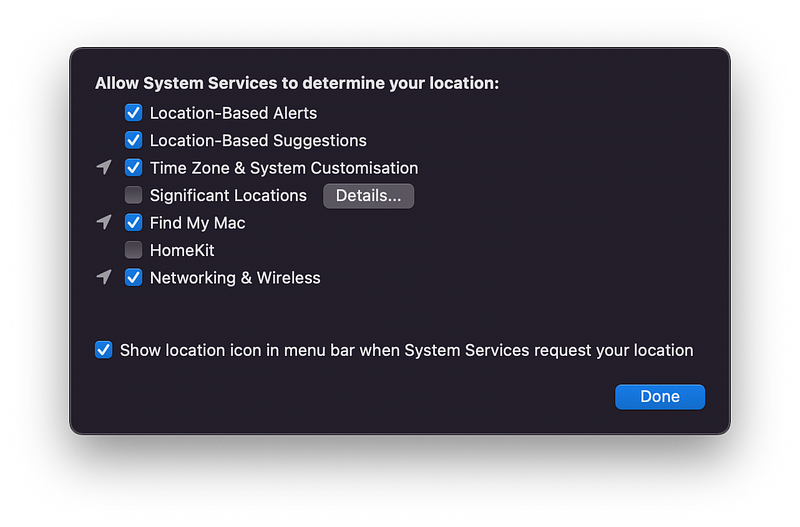
- Location-Based Alerts and Suggestions: If you don’t use commands like “Remind me when I reach office”, you can gleefully disable it.
- Time Zone & System Customisation: 🗺 If you don’t travel to other time zones often, you can turn it off.
- Significant Locations: Turning this on means giving Apple your location data to improve its services. If your battery is draining fast, nevermind, turn it off.
- Find My Mac: Always keep this option turned on. It could help you find your MacBook if you lose it.
- HomeKit: 🏠 If you don’t use HomeKit enabled IoT devices in your house or office, you can turn it off.
In Analytics & Improvements:
Go to System Preferences ⚙️ < Security and Privacy 🏠 < Analytics & Improvements 📊
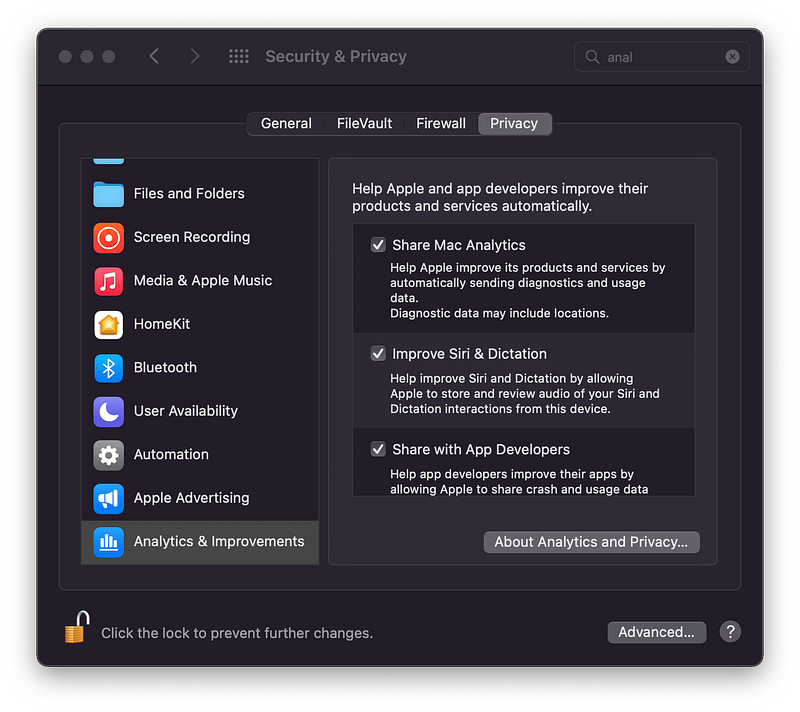
If you want to help Apple improve its services by automatically sending a copy of diagnostic data, your voice commands, location data and others, you’re much appreciated.
Howbeit, if you feel like your battery is draining fast, you can consider turning all of them off.
Don’t worry. Apple has billions of other devices to get data.
#5. Closing apps the traditional way ❌
How do you quit apps on Mac? By clicking that red X button at the top-left corner of the app?
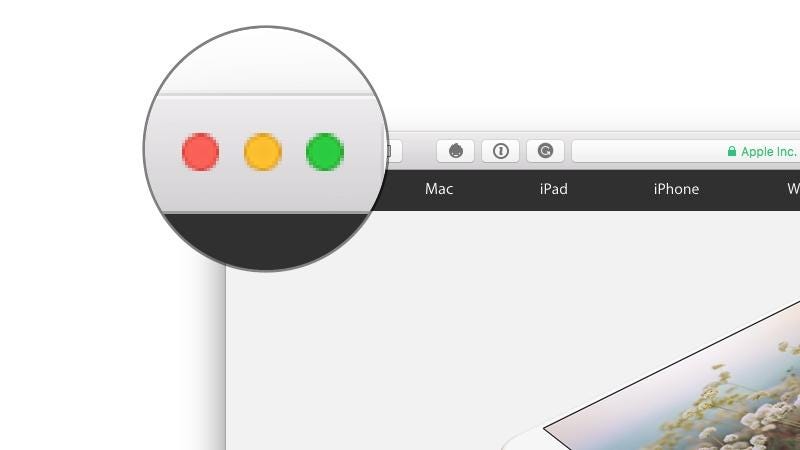
Now, are you still able to observe a dot below the app in the dock? Yes? It means the app is still running, taking up space and battery, and you haven’t closed the app yet.
Here’s how you fully quit an app: Right click on the app in the dock, and press ’Quit’ . This way, the app is terminated.
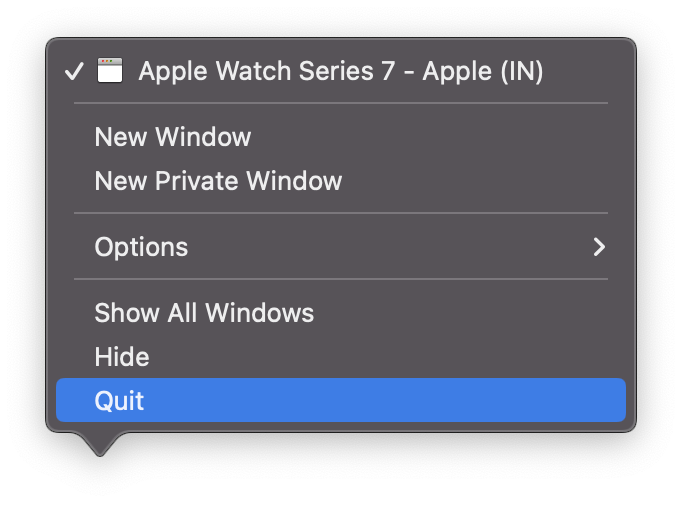
Feels difficult? For an easier way, just press Command + Q , and now the app is fully closed!
This could help you avoid feeding unnecessary apps and work longer without your MacBook plugged in.
One more thing…
It’s also recommended you don’t close an app you think you need later. Because, opening an app puts stress on battery as it needs to load and fully equip itself for work.
So, don’t make closing apps a habit. Think before you close.
#6. Keeping seemingly little things turned on 📶
As the old saying goes, even a mighty serpent can get killed by ants. And MacBook’s no exception. It can very quickly get killed by seemingly little things. For example:
1. Keyboard Backlight
This feature is designed exclusively for people working in low-light rooms. However, I see many people leaving their backlight turned on always, regardless of room light. This costs them great battery.
Better, you can choose to auto-adjust based on ambient light, or to turn it off after specific period of inactivity, or still better, you can completely turn it off in preferences.
2. AirDrop
Unless you want someone in the cafeteria send you virus-filled Python codes, you don’t need AirDrop turned on all the time.
AirDrop demands Wi-Fi and Bluetooth to be kept turned on. And your MacBook futilely keeps checking nearby active devices for no reason.
So it’s suggested you turn off AirDrop right now, and turn it on only for its purpose.
3. Startup apps
You might have some apps that you need as soon as you log in to your MacBook. However, not everytime you use them just after boot. Startup apps delay the boot process, tax CPU and battery, and consume RAM.
While this might be convenient in some cases, keeping too many apps in the startup list isn’t advised.
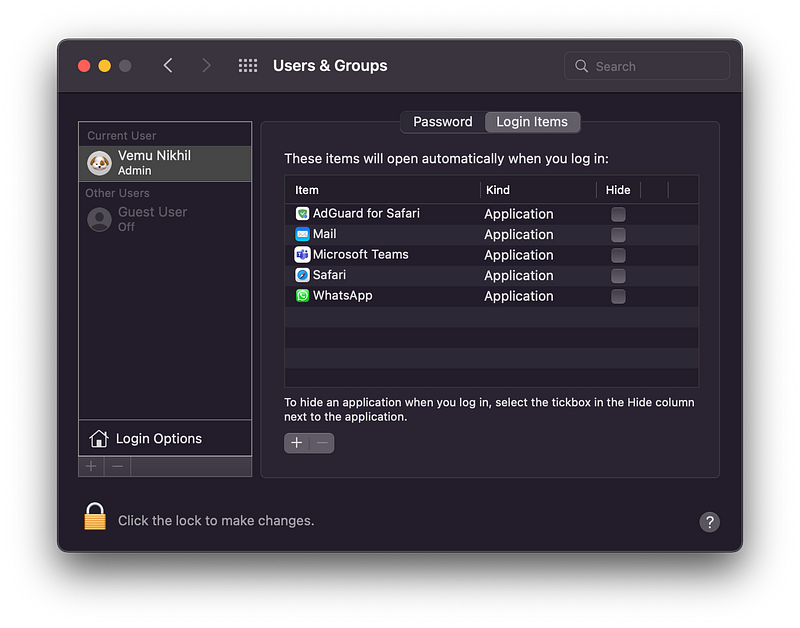
Go to System Preferences ⚙️ < Users & Groups 👨👦 < Login Items , and check if you really need all the apps to be startup. If not, check them and click on - to remove them from the list.
#7. Update 🔺
Apple optimises your MacBook to eke the minimum possible battery with every update. So staying in the latest update helps you have the best possible battery life.
I advise you not to keep auto-updates turned on, as checking for updates every now and then could use countable battery juices. Instead, try checking for updates manually every week or so.
If nothing helps…
Even after trying all the tips mentioned above, if you still feel your MacBook didn’t get any battery improvement, your battery might be on its verge.
Go to System Preferences ⚙️ < Battery 🔋 < Battery (again) 🔋 < Battery Health . It should say “Normal”, and the maximum capacity has to be >80. If not, it’s time you replace your battery. And make sure you follow these tips after you replace it, huh?
If you liked this story, you might also like:
Get notified via email whenever I publish!
Not a Medium member yet? Me too. But if you consider signing up for it, Sign up now!
(It’s an affiliate link so I receive a portion of your payment, with zero extra cost for you.)


