
Even Computer Idiots Can Use Canva to Create Great Graphics For Free
Canva is a fantastic tool that lets you create images and graphics to make you articles really stand out.
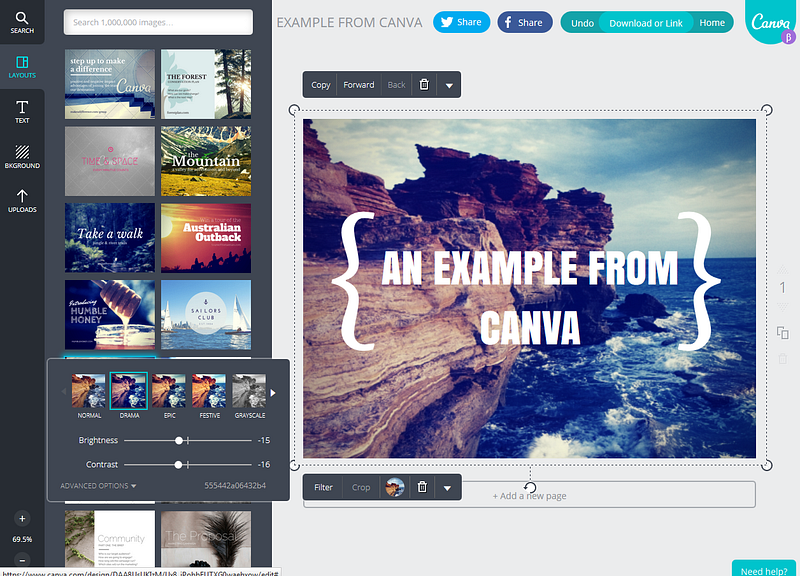
Images are one of the most important features of your content for gaining views. The initial image, in particular, has a lot to do with whether someone scrolls down to begin reading your article. So it is important to make sure you have an image that grabs a readers attention.
Many of us share a common frustration when it comes to selecting images however. We can only use images and photos that in the public domain under a Creative Commons license that allows you to share them and use them commercially.
When searching for images, I usually start with Google and filter for usage rights. If that doesn’t give me something I can use I start going to the individual sites that have a large supply of Creative Commons photos like Pixabay and Unsplash.
Sometimes I cannot find an image that I like or I can’t find one at all that matches the content of my article. I can spend hours trying different search terms to find an image that works which may end in my using something I am less than thrilled with. This time is time I could be spending on writing other articles instead of spinning my wheels searching for something that I may not be able to find.
Instead of wasting a lot of time searching, I have begun to use Canva to create my own Images. While this also takes time, I can design exactly what I want that fits my article instead of settling for one that’s so so at best. You can also use Canva for publications to design a fantastic image for your homepage and to create a logo.
Canva For Beginners
I’m not going to cover every part of Canva, just the features I use most regularly to create images which should give you enough information to create your own. It is very easy to use, and once you get the basics down, you can explore some of the other ways to combine features to create more complex graphics. I’m going to present features in the order I follow for creating new images.
Set Image Dimensions
When you go to your home tab, under create a design, there are a number of preset options you can use. Hover your cursor over each to see the dimensions. I generally never use these, as I want specific dimensions based either on smaller photos or other design elements I want to include or wanting to set it large enough to ensure I can use it full width for my Medium articles.
Canva gives you the ability to set your own dimensions. If you look directly to the right of “Create a Design” in smaller type you’ll see, “Custom Dimensions.” If you click this you can enter the width and height you want for you image.
Background
Unless I’m choosing to use an image I upload either as the background or as the entire image that I am altering in some way, I’ll first decide on a background. To the left you will see several options. Click background and you will be able to choose either a patterned background, a stock image, or simply a basic color background. I have also uploaded my own backgrounds to use.
Adding an Image
Canva has over a million images in their library that you can use. Click on Elements, then Free Photos. There is a search bar you can use to find specific types of images. I usually search for images through Google as there seem to be more there per category searched. I then upload them and use them in my designs.
To upload an image simply click on Uploads then Upload Your Own Images. You can then choose an image you’ve saved to your hard drive and upload it into the program. It will save it there so you can use it in the future as well. Once the image is uploaded you can click or drag it to include it on the page you are working on. So for example, here is the beginning of an image that I designed with just the background and photo of a blank sheet of paper for a story that I needed a threatening note for which would match my text.
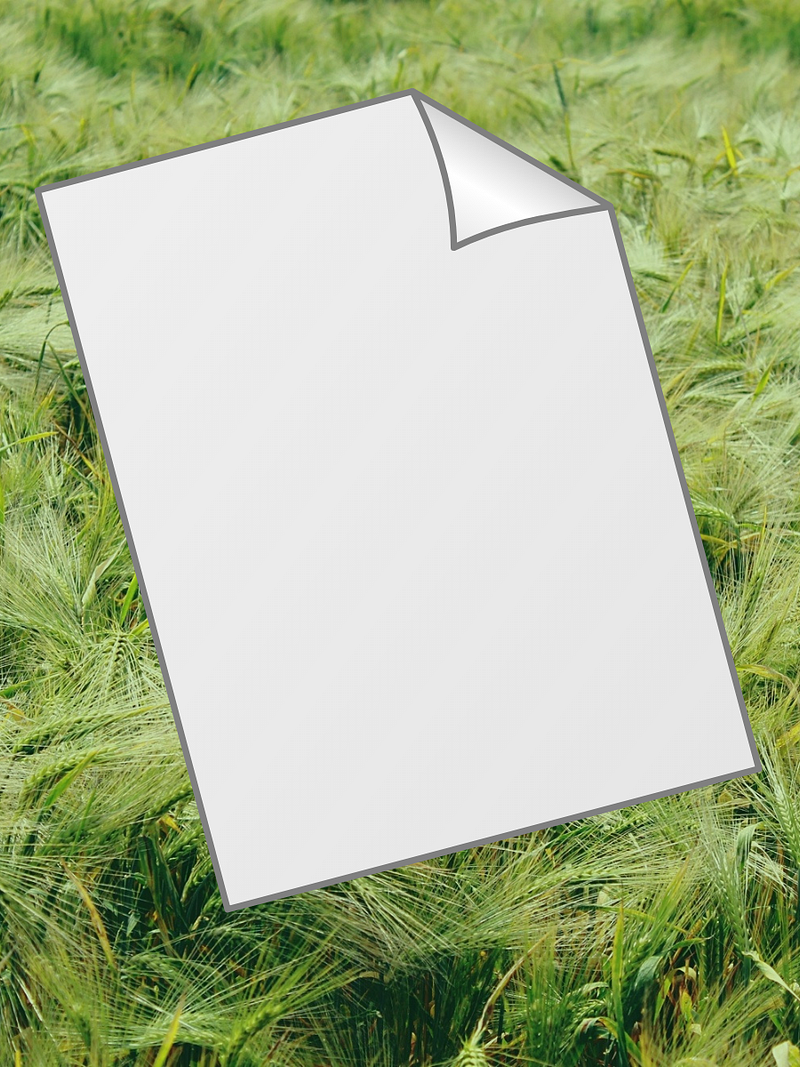
If you click on the photo, you can change the size of it as well as the orientation. When you click you’ll see a couple of rounded arrows at the bottom. Use this to reorient your picture. You can also use this if you want to straighten a picture that is slightly out of alignment. For this photo, once I placed it over the background, I tilted it 15° make it more interesting.
Adding Text
You may not need to add text if you just want to create an image using different photos you have uploaded. However, if you want to highlight text in your article, or present some particularly information like statistics in a more appealing manner you may want to use the text function. In my psychology articles, I often use this function to create slide like images for diagnostic criteria or comparing symptoms in different disorders.
To add text, click on Text. I typically ignore most of what is there except for the top three options, Add a Heading, Add a Subheading and Add a Little Bit of Body Text. It doesn’t much matter which you click on because you can always change the font, size and color once you have added it.
When you click Text you will see a text box pop up on your design which can be moved anywhere you want it. Type the text you want then use the menu above the image to change text, size and color as desired. I also use the spacing tool to either make the text and lines closer together or farther apart to either fit or fill the space. Sometimes I use the transparency function which looks like a checkerboard when the image is too bold and I can’t get the text to show up properly.
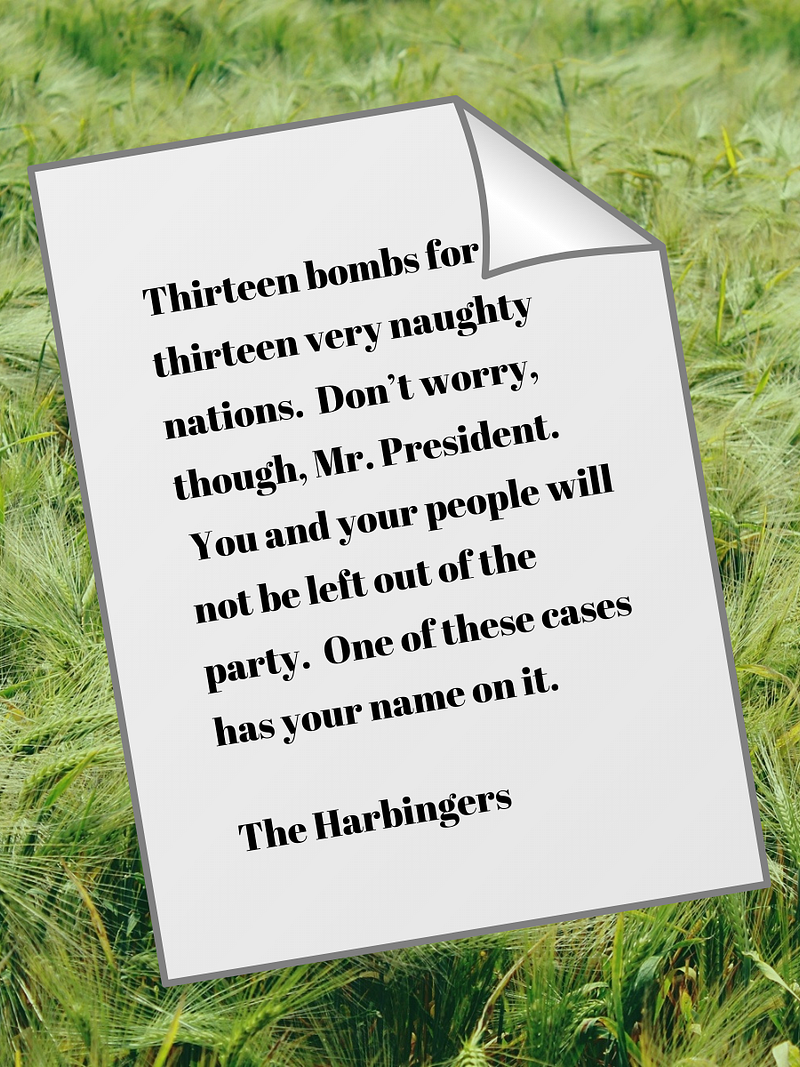
For the example I gave above, I type in what I wanted, changed the size and font and then tilted it 15° to match the orientation of the paper.
Using Canva for Publications
One of the main places I’ve found Canva really useful, is with publications. Canva can be used to create your background image for your home page, for announcements to your followers or creating an image for your newsletter.
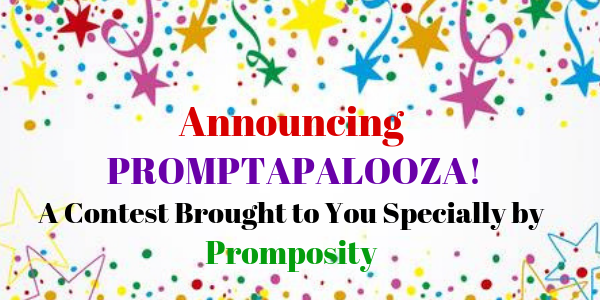
For example, for the PROMPTAPALOOZA! Contest being thrown by Promposity, I created this graphic to announce it in the newsletter.
I created this simple graphic to use at the top of the regular newsletter for Mental Gecko.

Creating a Logo for Medium Publication
I did this by creating the logo first with a free logo designer. I went to Canva and created the logo for the size required which is a minimum of 600 X 72. I then uploaded and added the logo to the left side.
The problem with Canva though, is you can’t download it with a transparent background, a requirement of Medium, without paying first. Here’s a trick you can use to manage it.
Download the logo as a png. Then go to Lunapic which is a free transparency program. Click on upload then select the file for your logo. When it opens all you have to do is click on the white space that is the background and it will become transparent. Make sure to save it as a png to keep the transparency.
Take Away
You don’t have to spend hours searching for the right image or graphic for you article or settle for one that isn’t great. You can use Canva quickly and easily to create the exact image that you want at the top of your article that will draw in viewers and get them reading. You can also use Canva in a variety of ways for your publication including using it along with Lunapic to create the perfect logo.
If you enjoyed reading this article, you might also like these:
You can find links to my other work on Medium and follow me here. Thanks for reading!