
Enabling Cost and Usage
ACM.204 Monitoring for security issues by watching account spending
Part of my series on Automating Cybersecurity Metrics. Cloud Governance. AWS Organizations. The Code.
Free Content on Jobs in Cybersecurity | Sign up for the Email List
In the last post I wrote about using incremental rollouts to prevent issues with Service Control Policy deployments. Service Control Policies (SCPs) in an AWS cloud environment help you maintain cloud governance.
Let’s do something now that you should do in your AWS Organizations account if you haven’t already.
I always recommend that security teams monitor costs in cloud accounts. Monitoring will allow you to see a spike in cost that may be indicative of cryptominers, for example, spinning up massive instance sizes to have your resources mine crypt on their behalf.
There are a couple of things we can do to monitor costs. The first thing we need to do is enable AWS Cost Management.
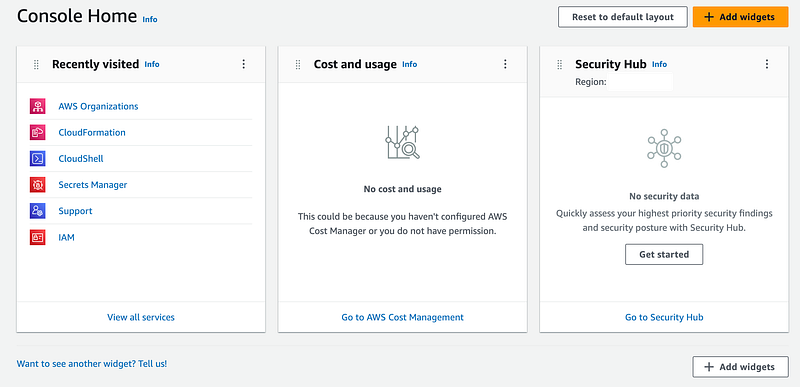
If you’ve been following along you know we set up our organizational root account and an OrgRoot user for initial deployment. While logged into my AWS account as my OrgRoot user, I see that there is a Cost and Usage widget but no cost and usage available here:
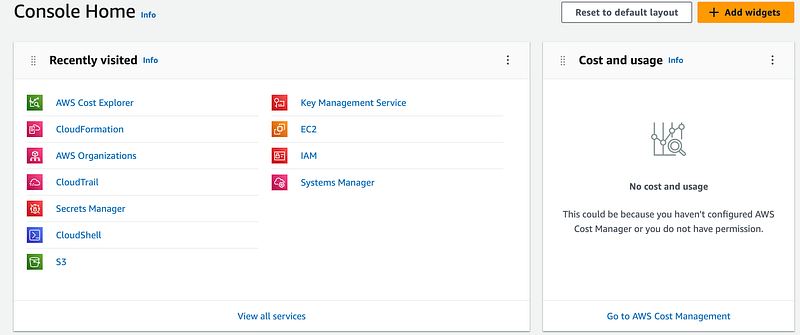
We need to enable cost and usage in our account. The interesting thing is that although this user is an admin in this account, this functionality is not available. Navigate to Cost Management using the link at the bottom of the widget. You’ll see this:

You can find the documentation for AWS Cost Explorer here:
This functionality can only be enabled manually and currently my OrgRoot user does not have access to it so I’ll need to login as the Root User for the account. Given these factors, I probably should have told you to do this first when you set up your account before even creating the OrgRoot user. If I ever summarize everything I’ve done I’ll try to remember to fix that.
Enable Cost Explorer
Login is as the root user.
Search for Cost Explorer and click on it.
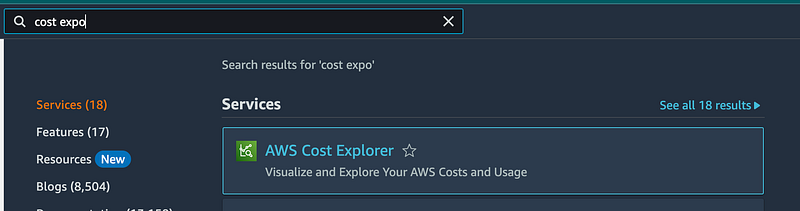
Note the message — AWS Is now populating your cost data. You’ll be able to come back here later and see details about cost and usage in your account.

Granting access to Cost Explorer
Now we want the OrgRoot user to have access to Cost Explorer. Here’s the documentation for granting access to this service.
Enabling Cost Explorer at the management account level enables Cost Explorer for all of your organization accounts. All accounts in the organization are granted access, and you can’t grant or deny access individually.
We have a couple of options for access to billing data.
Account access — you can allow any account to have access to the billing data. You cannot specific only certain accounts. If you enable this it will apply to all accounts and all accounts will have access. We can’t do this just yet if we wanted to because we need to wait for the data processing to complete.
IAM access — you can grant access to specific IAM users. To do that we need to enable access for IAM users to billing data, which apparently can also only be done manually.
Enable Find Grained Billing
Alternative subheading: Fun with clouds
I mentioned in another post when I navigated over to the AWS IAM screen that there’s a bit red warning sign but nothing you can do about it. It tells you to update your policies to align with the upcoming billing change. However, there are no policies to update in a new account.
It’s different now. Cloud platforms are constantly changing and why I hesitate to write a book on this subject. Now when I click on View affected policies:
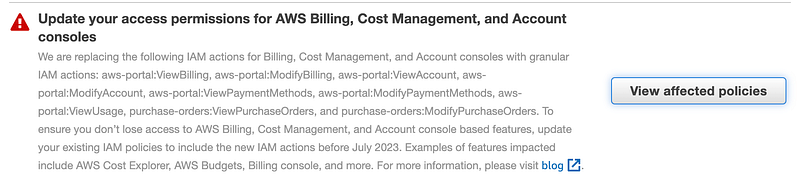
Something new appears. I still have no policies listed that need to be updated because I believe I created the new policies to align with the changes. (We still need to test them.) But now I also see these options.
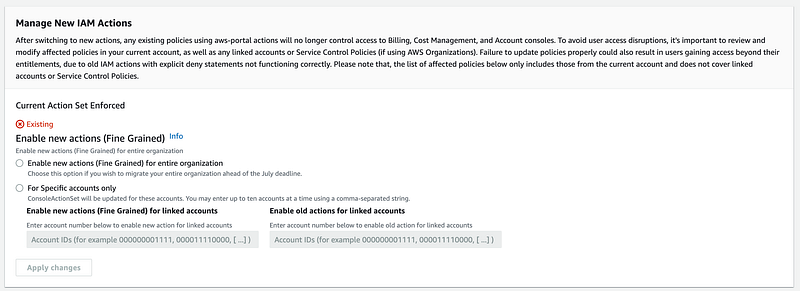
I’m going to go ahead click on the first radio button to allow the fine grained access for all accounts and then Apply changes.
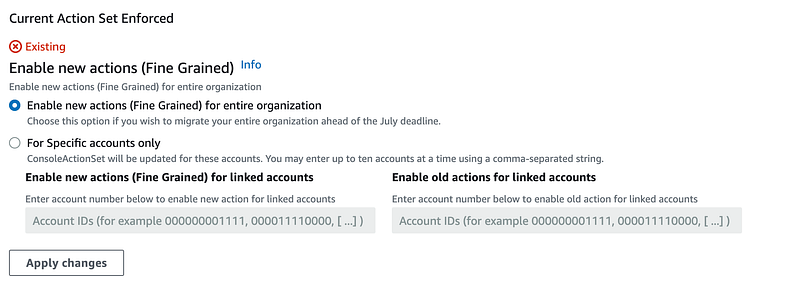
To ensure you do not break existing functionality in a large organization, you could choose the second option and only enable a single account, test it, and roll the change out incrementally as I described in this post.
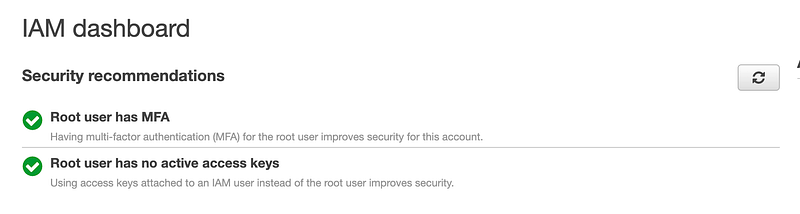
Finally the big red warning is gone!
Enable IAM Access to Billing
Now you need to change one other setting to allow IAM users access to billing that exists neither under IAM or under Billing.
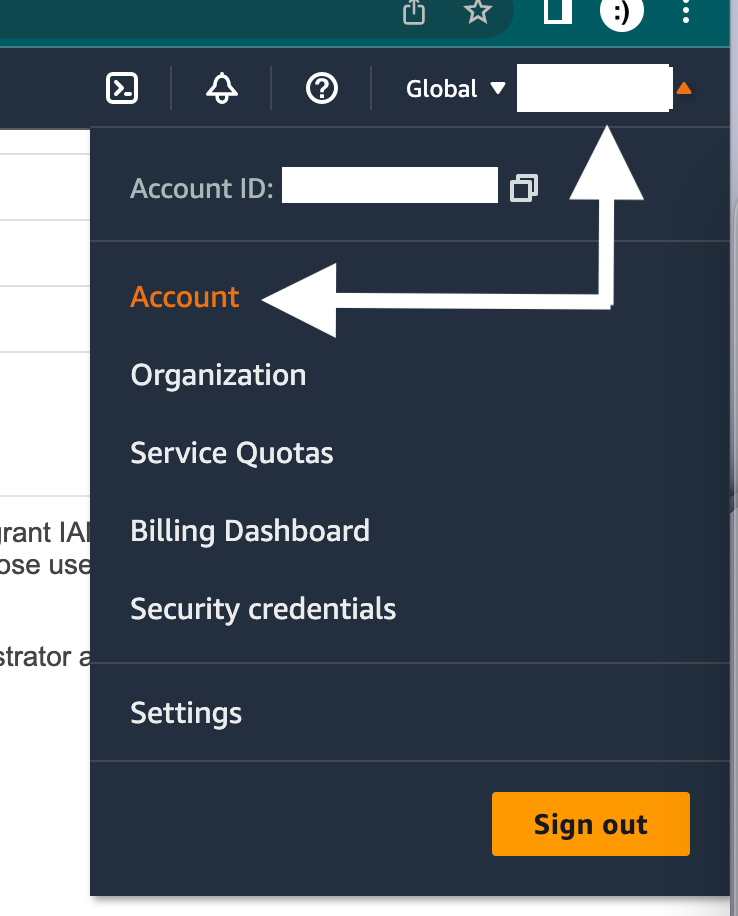
While logged into the root account, click on your account name in the top right of the console.
In the crop down menu click on Account.
Scroll down to the following section labeled IAM User and Role Access to Billing Information. Note that it is deactivated (if you’re following along in this series.)
Click edit:
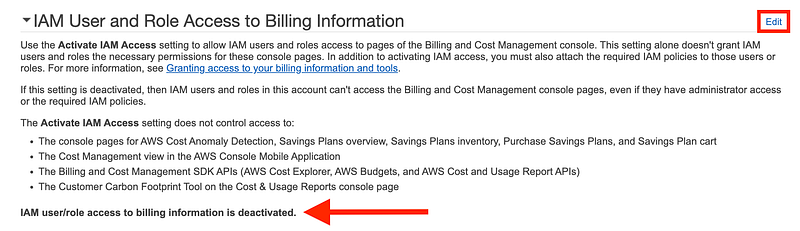
Check the box next to Activate IAM Access
Click Update
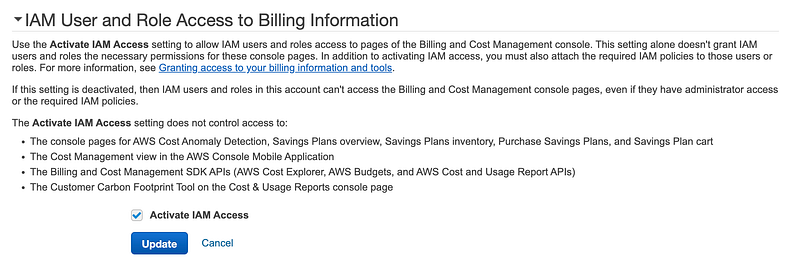
Now Billing is Activated for IAM users.
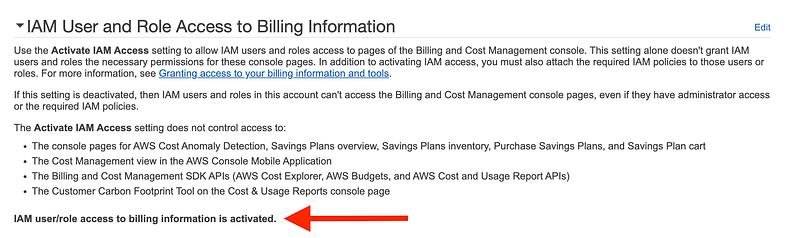
Now the OrgRoot user will be able to see the Cost Management functions because that user is an administrator in the account.
Customize the Main Dashboard
Note that you can change the size of the widgets on the home screen and add and remove the widgets you want to see. By removing widgets you may also potentially reduce some of the logs in CloudTrail as well but no guarantees.
The AWS console seems to generate a lot of noisy logs so by removing things from this screen I had hoped to reduce the amount of traffic in the logs, but I still saw a lot of traffic for AWS Health, for example. In any case you can rearrange the dashboard to see what interests you most.
Once the cost data populates you’ll see something like this:
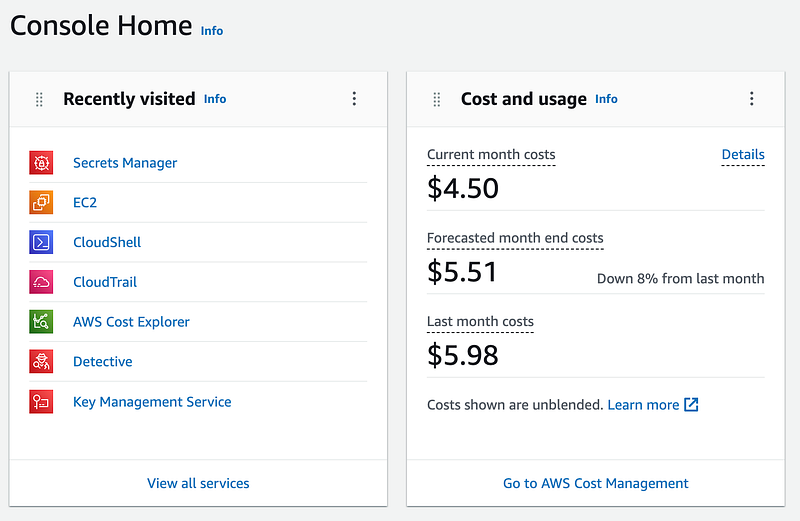
Then you can click into Cost Management using the link at the bottom and make changes as needed.
There’s a lot more we can do with Cost Explorer and other AWS tools to help manage costs, but I’m going to be jumping around a bit in the next few posts trying to get things done.
As fate would have it, right after I published this, I saw Jeff Bar, Chief Evangelest for AWS, posted a conference they are holding on this topic. If this is a topic that interests you, check it out!
https://aws24hoursofcostoptimization.splashthat.com
Follow for updates.
Teri Radichel | © 2nd Sight Lab 2023
About Teri Radichel:
~~~~~~~~~~~~~~~~~~~~
⭐️ Author: Cybersecurity Books
⭐️ Presentations: Presentations by Teri Radichel
⭐️ Recognition: SANS Award, AWS Security Hero, IANS Faculty
⭐️ Certifications: SANS ~ GSE 240
⭐️ Education: BA Business, Master of Software Engineering, Master of Infosec
⭐️ Company: Penetration Tests, Assessments, Phone Consulting ~ 2nd Sight Lab
Need Help With Cybersecurity, Cloud, or Application Security?
~~~~~~~~~~~~~~~~~~~~~~~~~~~~~~~~~~~~~~~~~~~~~~~~~~~~~~~~~~~~~
🔒 Request a penetration test or security assessment
🔒 Schedule a consulting call
🔒 Cybersecurity Speaker for PresentationFollow for more stories like this:
~~~~~~~~~~~~~~~~~~~~~~~~~~~~~~~~~~~~~~~~~~~~~~~~~~~~~~~~~~~~~
❤️ Sign Up my Medium Email List
❤️ Twitter: @teriradichel
❤️ LinkedIn: https://www.linkedin.com/in/teriradichel
❤️ Mastodon: @teriradichel@infosec.exchange
❤️ Facebook: 2nd Sight Lab
❤️ YouTube: @2ndsightlab


