
Disable IPv6 on pfSense
If you don’t need IPv6 you can disable it to simplify network management
~~~~~~~~~~~~~~~~~~~~~~~~~~~~~~~~~~~~~~~~~~~~~~~~~~~~~~~
⚙️ Check out my series on Automating Cybersecurity Metrics | Code.
🔒 Related Stories: Network Security | IPV6 | PFSense | Netgate
💻 Free Content on Jobs in Cybersecurity | ✉️ Sign up for the Email List
~~~~~~~~~~~~~~~~~~~~~~~~~~~~~~~~~~~~~~~~~~~~~~~~~~~~~~~
Note that this works on a Netgate 3100 but later models seem to perform differently. You can still block the traffic but for some reason it’s still appearing in my network on newer devices even after taking these steps.
I got around this by enabling IPv6 and then blocking it everywhere in the logs. Then I could choose not to log those firewall rules.
~~~
In my last post in this series I wrote about backing up and restoring PFSense aliases.
This post shows you how to “disable” IPv6 on PFSense and then resolve the issue with IPv6 traffic that still appears in logs even after you “disable” IPv6 on PFSense.
Whenever I post something about disabling IPv6 I get slammed by a bunch of IPv6 fans so bracing for it with this post. I’ve already written that IPv6 can be implemented securely and if you need it, you can use it. Do you need IPv6? I wrote about that. I also have written about how disabling it can simplify network management on a home network here:
Now let’s say you want to disable IPv6 on PFSense. You might think that just uncheck the “Allow IPv6” checkbox and be done with it. Well. Kind of.
On PFSense, navigate to:
System > Advanced > Networking
Uncheck the first checkbox in the below.
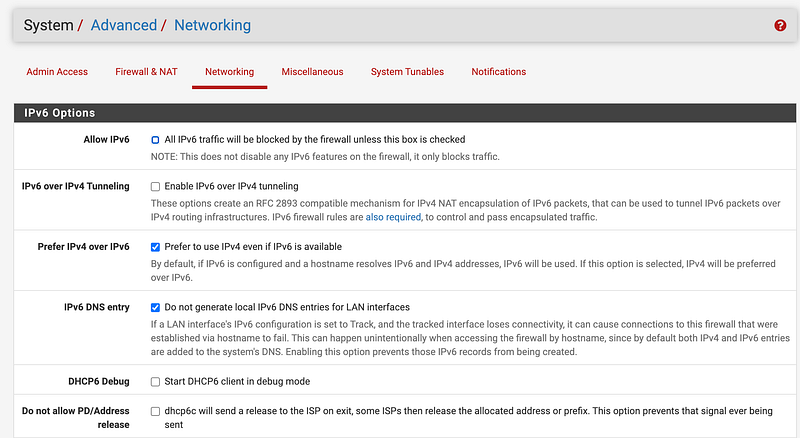
It appears that checkbox sets up some firewall rules behind the scenes, but it does not stop pfsense from generating IPv6 traffic.
Turn on logging for PFSense default blocks
There are some logs you can turn on to see traffic blocked by rules set up by pfsense behind the scenes that you can’t really see. Navigate to:
> Firewall > Rules
Click the icon to view the logs on the top right (where arrow points below.)

Click Settings. Then check the boxes next to Log firewall default blocks.
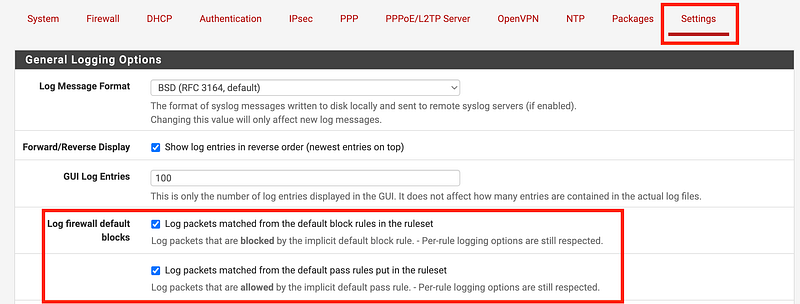
That will cause traffic blocked to show up in the logs and you’ll start seeing IPv6 traffic, even though you’ve “disabled” IPv6 with the prior setting.
The firewall itself generates some of this IPv6 traffic and you can turn it off as follows.
Disable DHCP6 Relay
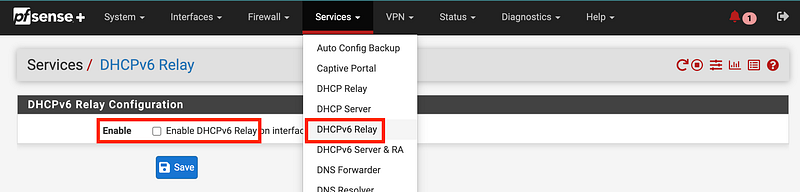
Make sure DHCPv6 Relay is disabled.
> Services > DHCPv6 Relay > uncheck Enable, save and apply.
Disable IPv6 on each interface
Navigate to Interfaces to see a list of the interfaces on your firewall (the list under Assignments and Switches.) Start with the WAN interface.
> Interfaces > WAN
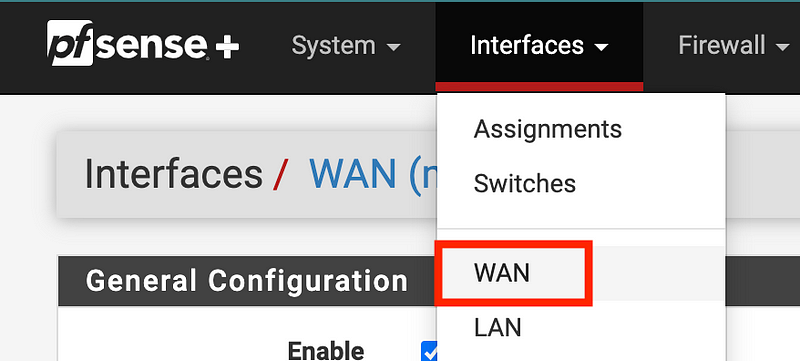
Set the configuration type for each interface to “None.” Save and apply.
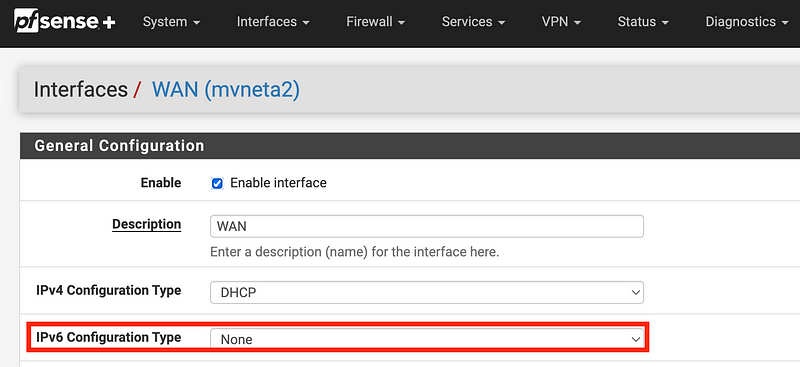
Repeat for each of the interfaces.
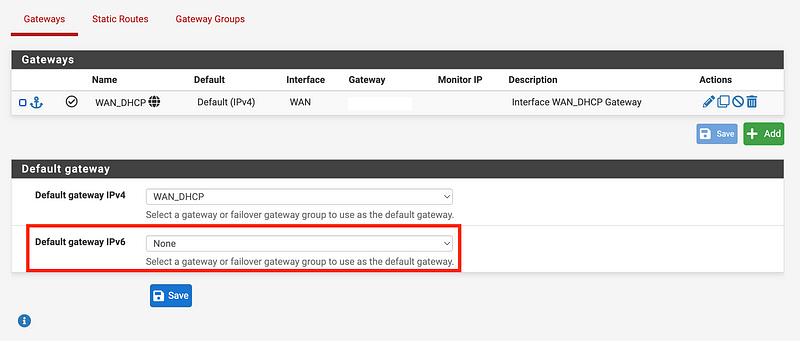
Disable the Default gateway for IPv6
Disable the default IPv6 gateway by navigating to:
> System > Routing
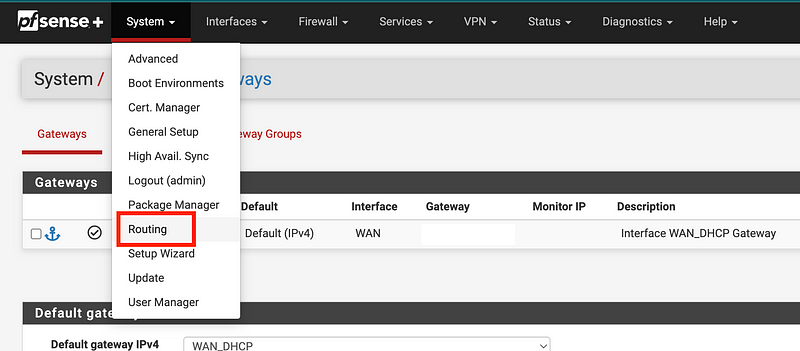
Set Default gateway IPv6 to none. Save and Apply.
Create rules to block IPv6
You probably don’t need this as well but I also create firewall rules to block IPv6 so I can tell if something isn’t working or gets misconfigured.
No more IPv6 traffic
After changing these settings you shouldn’t see any more IPv6 traffic in your logs.
Follow for updates.
Teri Radichel | © 2nd Sight Lab 2022
About Teri Radichel:
~~~~~~~~~~~~~~~~~~~~
⭐️ Author: Cybersecurity Books
⭐️ Presentations: Presentations by Teri Radichel
⭐️ Recognition: SANS Award, AWS Security Hero, IANS Faculty
⭐️ Certifications: SANS ~ GSE 240
⭐️ Education: BA Business, Master of Software Engineering, Master of Infosec
⭐️ Company: Penetration Tests, Assessments, Phone Consulting ~ 2nd Sight Lab
Need Help With Cybersecurity, Cloud, or Application Security?
~~~~~~~~~~~~~~~~~~~~~~~~~~~~~~~~~~~~~~~~~~~~~~~~~~~~~~~~~~~~~
🔒 Request a penetration test or security assessment
🔒 Schedule a consulting call
🔒 Cybersecurity Speaker for PresentationFollow for more stories like this:
~~~~~~~~~~~~~~~~~~~~~~~~~~~~~~~~~~~~~~~~~~~~~~~~~~~~~~~~~~~~~
❤️ Sign Up my Medium Email List
❤️ Twitter: @teriradichel
❤️ LinkedIn: https://www.linkedin.com/in/teriradichel
❤️ Mastodon: @teriradichel@infosec.exchange
❤️ Facebook: 2nd Sight Lab
❤️ YouTube: @2ndsightlab


