avatarSudipto Chanda

Free AI web copilot to create summaries, insights and extended knowledge, download it at here

5556

Abstract

      <div style="background-image: url(https://miro.readmedium.com/v2/resize:fit:320/0*0USxeGoTI2NB-A5S)"></div>
          </div>
        </div>
      </a>
    </div><p id="e736"><b>Step 2: Reduce, reduce, reduce: </b>Now that your complete text is safe in the notes, get ready to edit your slide ruthlessly.</p><p id="f607">Start by reducing sentences to phrases and then turn phrases to words. You can play with the information to make your point by adding numbers and icons.</p><p id="d027">The Solar System slide above can be turned into a more impactful slide such as this one:</p><figure id="c487"><img src="https://cdn-images-1.readmedium.com/v2/resize:fit:800/1*V7CDxWiG3n585lSsi0lnew.png"><figcaption>Image By Author</figcaption></figure><p id="a40e">You can use the notes to prepare for your presentation. If you use the <i>presenter view</i> while connected to a large screen (TV/projector), you can have your notes show up on your laptop while you present. Or, you can go old-world and create palm cards.</p><div id="b67d" class="link-block">
      <a href="https://support.microsoft.com/en-us/office/what-is-presenter-view-98f31265-9630-41a7-a3f1-9b4736928ee3#:~:text=Presenter%20view%20lets%20you%20view,two%20monitors%20for%20a%20presentation">
        <div>
          <div>
            <h2>What is Presenter view?</h2>
            <div><h3>Presenter view lets you view your presentation with your speaker notes on one computer (your laptop, for example)…</h3></div>
            <div><p>support.microsoft.com</p></div>
          </div>
          <div>
            <div style="background-image: url(https://miro.readmedium.com/v2/resize:fit:320/0*7m4Cl_tMjylloQ1o)"></div>
          </div>
        </div>
      </a>
    </div><h1 id="ea99">2. Give Me Time to Absorb Each Slide</h1><p id="4373">After you display your next slide, give me a few seconds to scan it. As I mentioned earlier, I can’t concentrate on what you have to say while reading your slide.</p><p id="5bd1">I am here to listen to you, so let me get <i>ready</i> to hear from you.</p><p id="fa23">I am assuming that you have taken my first advice, and your slides will take less than 10 seconds to absorb.</p><p id="9983">If you have a complex diagram on the screen, give me a few seconds to scan it, then assure me that you will walk me through it. I will relax and hand over my mental reins to you.</p><p id="fe9a">If you can’t resist talking immediately, take a deep breath and count slowly from 1 .. 5 in your head and then start talking.</p><h2 id="a5b6">What can you do to prepare?</h2><p id="b3e8">Review each one of your slides and mentally note the time you took to scan it. Now multiply that by 2. Why? because it’s your slide and you know the content very well, but it is new for me. So if you take 3 seconds, give me 6. Write down this number in your notes or palm cards. While presenting, use this number as a reminder to pause.</p><figure id="200e"><img src="https://cdn-images-1.readmedium.com/v2/resize:fit:800/1*ooJ4HdAlBzeyg40bCALVFw.jpeg"><figcaption>Photo by <a href="https://www.freepik.com/mego-studio">mego-studio</a> from <a href="https://www.freepik.com/photos/business">Freepik</a></figcaption></figure><h1 id="2c65">3. Give Me a Chance to Participate</h1><p id="dc71">I have a human habit of zoning off to la-la land when the current environment doesn’t require anything more than homeostasis. A boring text-heavy slide being read out in a monotonous voice isn’t stimulus enough in a modern world of screeching YouTubers and frenzied news presenters.</p><p id="cf5e">At the end of every slide, Kenji would religiously ask, “Any questions?”, some people shook their head mildly, and others completely ignored the question. To request a question, we need to be engaged enough, or the presenter needs to prompt us to think.</p><p id="f529">“Any questions?” during a presentation takes us to our primary classroom where we wanted to disappear into thin air whenever the teacher looked at us.</p><p id="fe03">So, Kenji, please make an effort to prompt me engagingly. Say something which piques my interest and draws me into a conversation.</p><h2 id="3cef">What can you do to prepare?</h2><p id="a1c9">In your notes, add some prompts for yourself to initiate a conversation at the right moment, not just at the end of each slide. Put yourself in my shoes and imagine what could be my curiosity at that moment, or what could be a source of confusion.</p><p id="fdc8">For example, in the solar system slide, you could say, “Any questions on the differences between gas giants and ice giants?”. Or, another one — “Why do you think Venus is the hottest planet and not mercury?”.</p><h1 id="6b4e">4. Give Me a Chance to Express My Opinion</h1><p id="f598">Even if you allow us to ask questions or try to pull us into a conversation, some of us will not participate. I may not be in a mood, or I may be uncomfortable speaking up in a public forum.</p><p id="e017">I know Kenji, at this point you are giving up on half the audience. Hold on, and I will give you some excellent tools to allow everyone in the room to share their opinion, if not verbally, then with their fingers (not the middle one).</p><p id="abdf">Voting is the best way to express an opinion without being put into a spotlight. There are many <a href="https://www.g2.com/categories/audience-response">voting tools </a>available (free and paid) to gather views, or even conduct a quick quiz. Participants can use their sma

Options

rtphones to vote. A request to vote wakes everyone up and gives them a chance to use their smartphones for something other than a distraction.</p><p id="e63c">I have recently used <a href="https://ahaslides.com">AhaSlides</a> during a virtual presentation, and my audience loved it. <i>(Disclaimer: I am not affiliated with AhaSlides)</i>.</p><figure id="997f"><img src="https://cdn-images-1.readmedium.com/v2/resize:fit:800/1*lGISOibfTpVFqsloni8CdQ.gif"><figcaption></figcaption></figure><figure id="c70a"><img src="https://cdn-images-1.readmedium.com/v2/resize:fit:800/1*jEE6rIkPOyURdbKJqWfvuA.gif"><figcaption>Source: Ahaslides.com. Left: presenter tool, Right: participant view</figcaption></figure><h1 id="6555">5. Give Me a Clear Take-Away</h1><p id="a4b2">Now that I have endured your presentation until the end, please tell me what you expect me to do?</p><p id="8bdb">Kenji started with the agenda and ended with a summary. All good, but I went away with a slight increase in my knowledge, and 10 minutes later, I forgot why I even attended the presentation.</p><p id="f56a">Online marketing gurus have been harping on the need for a clear call to action for ages, and it has substantial merit. Without an explicit call to action, the participants are clueless on the next step. A call to action need not be a commitment (such as a buy button), it can be a nudge in the right direction, such as sign up for a newsletter in exchange for eBook.</p><p id="3920">Presentations in the corporate world often ignore the need for clearly identifying the expectations of the participants post-presentation. It is not always easy to come up with a precise take-away, but a summary will not cut it.</p><p id="d709">Kenji was presenting the project status. What could be the take-aways? Some examples:</p><ul><li>Project is on track, and no action needed from anyone: relax and enjoy the ride (a very rare case, be happy if this is the case)</li><li>Project is on track, but we are anticipating issues, maybe some risks may materialise: Dependent projects, stay alert! Decision-makers — some difficult decisions may come your way.</li><li>Project is delayed, we need to take corrective actions: dependent projects, you’re screwed. Decision-makers — here are the hard decisions you need to make right now.</li></ul><h2 id="b0ef">What can you do to prepare?</h2><p id="2eee">This is your opportunity to assign some tasks to your department head or dump action items on your colleagues.</p><p id="2013">On a serious note, this is the most critical aspect of your presentation, so spend some thinking time. What is it that you want your audience to do with the knowledge you just shared? How should their thinking or behaviour change?</p><p id="55da">Do you want them to apply the knowledge to their work? Do you want them to follow a new process? Do you want them to stop drinking sugary carbonated drinks (in case you were presenting the harmful effects of cola/soda)?</p><p id="ee34">Replace the ‘Thank you’ slide with the take-aways and let it stay on the screen while your audience walks out. You can verbally say thanks to your participants, but written down take-aways (as short as possible) should be the picture your audience holds in their mind for as long as possible.</p><h1 id="a25e">Final Thoughts</h1><p id="6652">A presentation is an excellent communication opportunity. The audience is held captive for an hour or so, and our goal should be to replicate an idea from our mind to the participants’ minds.</p><p id="1683">Sadly, thousands of hours are wasted every day by presenters trying to cram hundreds of lines of bulleted text into PowerPoint slides, leaving the audience bored, apathetic and clueless. The 5 tips given in the article can 10x improve the engagement of your participants.</p><h2 id="d244">Take-Aways</h2><p id="9fe2">For your next presentation, yes, the one you are working on, please consider my requests seriously and,</p><ul><li>Make your slides impactful (not teleprompter material)</li><li>Engage your audience (give time to absorb each slide, ask questions, and request votes)</li><li>Replace ‘thank you’ with a take-aways slide</li></ul><p id="6c50"><i>Thank you for reading. Here are some more articles on presentation skills:</i></p><div id="8686" class="link-block"> <a href="https://readmedium.com/how-to-avoid-death-by-powerpoint-during-a-virtual-presentation-881def65f881"> <div> <div> <h2>How to Avoid Death by PowerPoint During a Virtual Presentation</h2> <div><h3>5 ideas to get 10x engagement from your audience</h3></div> <div><p>medium.com</p></div> </div> <div> <div style="background-image: url(https://miro.readmedium.com/v2/resize:fit:320/1*MhMcQkKbZSpNki-XaqaCHA.jpeg)"></div> </div> </div> </a> </div><div id="ee72" class="link-block"> <a href="https://readmedium.com/5-ideas-to-help-you-deliver-better-presentations-512628aae883"> <div> <div> <h2>5 Ideas to Help You Deliver Better Presentations</h2> <div><h3>#3 Let your audience participate</h3></div> <div><p>medium.com</p></div> </div> <div> <div style="background-image: url(https://miro.readmedium.com/v2/resize:fit:320/1*uT63bDkqVBgvuuq7XN4mjA.jpeg)"></div> </div> </div> </a> </div></article></body>

COMMUNICATION

Dear Presenter: Don’t Kill Me With Your PowerPoint

5 tips to keep your audience alive and kicking

Photo by Pixabay from Pexels

I just came back from a heavy lunch with colleagues. The new Indian place nearby was perfect for the post-release celebration.

My phone buzzed, reminding me of the monthly status update. Kenji would be presenting. I rushed to grab a coffee to help me endure the next hour. I always dreaded the session, which drained every ounce of life from me and pulled me into the abyss of boredom.

Kenji was an expert in his domain and quite knowledgable. He planned his team’s work diligently and believed in detailed status updates. It wasn’t the information that was boring, but the way Kenji presented it pushed everyone to hide behind their laptops in the far corners of the conference room.

I should have known better and not scheduled the team lunch right before Kenji’s presentation. My co-workers rushed in to grab the least noticeable seats, as far away from the screen as possible. But no trick to staying awake could match up to the 3rd slide Kenji displayed on the screen (the first one was the title, the second one was the agenda). The slide looked something like this:
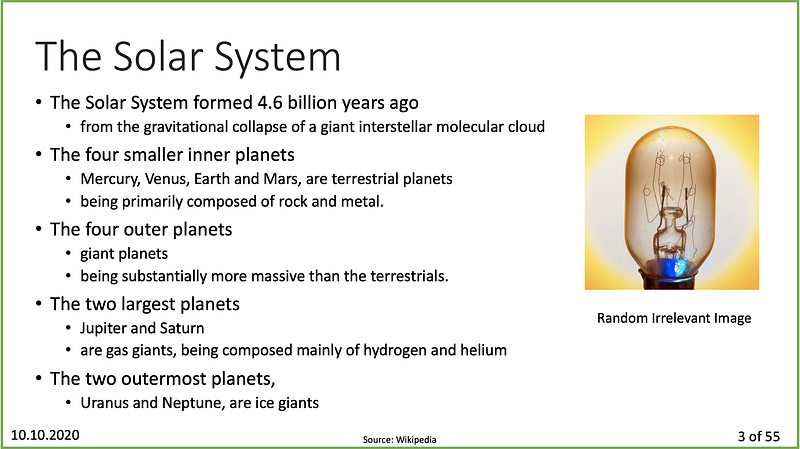
Image By Author

The audience immediately started reading the text — a natural instinct for curious humans. And then Kenji began reading, in his soft baritone voice. My tired brain struggled to focus on either reading or listening, but it was a cognitive overload. My eyes darted back to my phone screen, and I went off to Twitterland.

Randomly injected Dilbert cartoons and multiple short naps couldn’t save us from the 55 slides onslaught. We all died somewhere around slide 7 or 8. A few brave ones with caffeine overdose survived a little longer.

We remained in the semi-comatose state until the lights turned up bright, defibrillating us, and we regained consciousness. We had little recollection of the contents of the slide, and we muttered “Thanks Kenji” as we walked out of the room.

I am sure you would recall a recent encounter with a PowerPoint wielding death agent. Much has been written on the topic, but we still see the text-heavy, teleprompter ready presentations every day. And to make things worse, we now see random images and Dilbert cartoons, thrown in like pieces of pineapple on a Hawaiian pizza.

If Kenji was listening, here is what I would like to tell him:

1. Don’t Use Your Slides as a Teleprompter

If you are going to read your slides during the presentation, just send me your deck. Better still, just send me a document and save yourself the time to “design” your slides.

Our brains are always trying to reduce cognitive load. It takes effort to listen and read at the same time. We end up focussing on one or the other, and for most humans, the visual cortex takes precedence, and we pay much more attention to the text and images on a bright screen.

We also read faster than we can speak. So Kenji, by the time you read halfway through your slide, I would have finished reading the page and taken my attention elsewhere.

Why can’t we read and hear at the same time?

We can look at a picture while listening to someone. We can even read a book while listening to music. But language processing is done in a small area of our brain called the Wernicke’s area. This little region behind our left ear gets overloaded when we process written text and spoken words simultaneously.

Learn More

What can you do instead?

Here are some steps to create impactful slides:

Step 1: Move your narration to the notes section: When you prepare your slides, you may want to write down everything you will say. It is good to start with a brain dump, but breaking down sentences into bullet points won’t make things easier for your audience.

Once you have all your text written down in your slide, copy it to the presentation’s notes section.

Step 2: Reduce, reduce, reduce: Now that your complete text is safe in the notes, get ready to edit your slide ruthlessly.

Start by reducing sentences to phrases and then turn phrases to words. You can play with the information to make your point by adding numbers and icons.

The Solar System slide above can be turned into a more impactful slide such as this one:
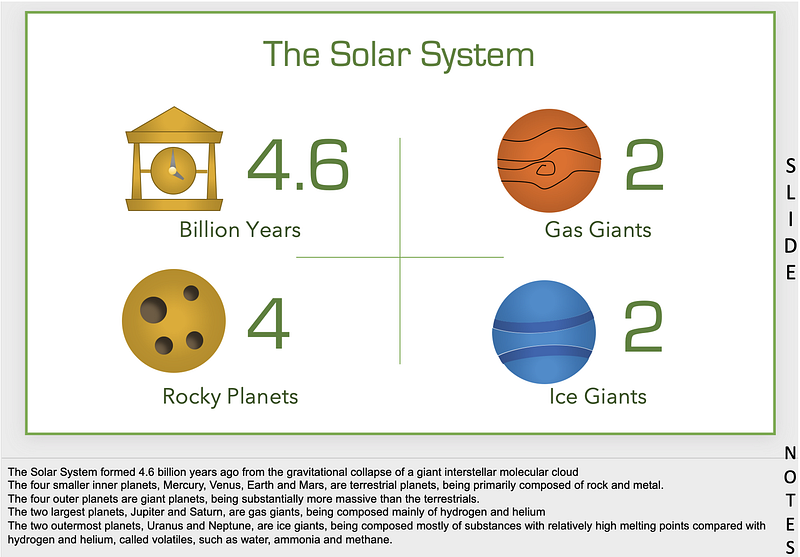
Image By Author

You can use the notes to prepare for your presentation. If you use the presenter view while connected to a large screen (TV/projector), you can have your notes show up on your laptop while you present. Or, you can go old-world and create palm cards.

2. Give Me Time to Absorb Each Slide

After you display your next slide, give me a few seconds to scan it. As I mentioned earlier, I can’t concentrate on what you have to say while reading your slide.

I am here to listen to you, so let me get ready to hear from you.

I am assuming that you have taken my first advice, and your slides will take less than 10 seconds to absorb.

If you have a complex diagram on the screen, give me a few seconds to scan it, then assure me that you will walk me through it. I will relax and hand over my mental reins to you.

If you can’t resist talking immediately, take a deep breath and count slowly from 1 .. 5 in your head and then start talking.

What can you do to prepare?

Review each one of your slides and mentally note the time you took to scan it. Now multiply that by 2. Why? because it’s your slide and you know the content very well, but it is new for me. So if you take 3 seconds, give me 6. Write down this number in your notes or palm cards. While presenting, use this number as a reminder to pause.

Photo by mego-studio from Freepik

3. Give Me a Chance to Participate

I have a human habit of zoning off to la-la land when the current environment doesn’t require anything more than homeostasis. A boring text-heavy slide being read out in a monotonous voice isn’t stimulus enough in a modern world of screeching YouTubers and frenzied news presenters.

At the end of every slide, Kenji would religiously ask, “Any questions?”, some people shook their head mildly, and others completely ignored the question. To request a question, we need to be engaged enough, or the presenter needs to prompt us to think.

“Any questions?” during a presentation takes us to our primary classroom where we wanted to disappear into thin air whenever the teacher looked at us.

So, Kenji, please make an effort to prompt me engagingly. Say something which piques my interest and draws me into a conversation.

What can you do to prepare?

In your notes, add some prompts for yourself to initiate a conversation at the right moment, not just at the end of each slide. Put yourself in my shoes and imagine what could be my curiosity at that moment, or what could be a source of confusion.

For example, in the solar system slide, you could say, “Any questions on the differences between gas giants and ice giants?”. Or, another one — “Why do you think Venus is the hottest planet and not mercury?”.

4. Give Me a Chance to Express My Opinion

Even if you allow us to ask questions or try to pull us into a conversation, some of us will not participate. I may not be in a mood, or I may be uncomfortable speaking up in a public forum.

I know Kenji, at this point you are giving up on half the audience. Hold on, and I will give you some excellent tools to allow everyone in the room to share their opinion, if not verbally, then with their fingers (not the middle one).

Voting is the best way to express an opinion without being put into a spotlight. There are many voting tools available (free and paid) to gather views, or even conduct a quick quiz. Participants can use their smartphones to vote. A request to vote wakes everyone up and gives them a chance to use their smartphones for something other than a distraction.

I have recently used AhaSlides during a virtual presentation, and my audience loved it. (Disclaimer: I am not affiliated with AhaSlides).
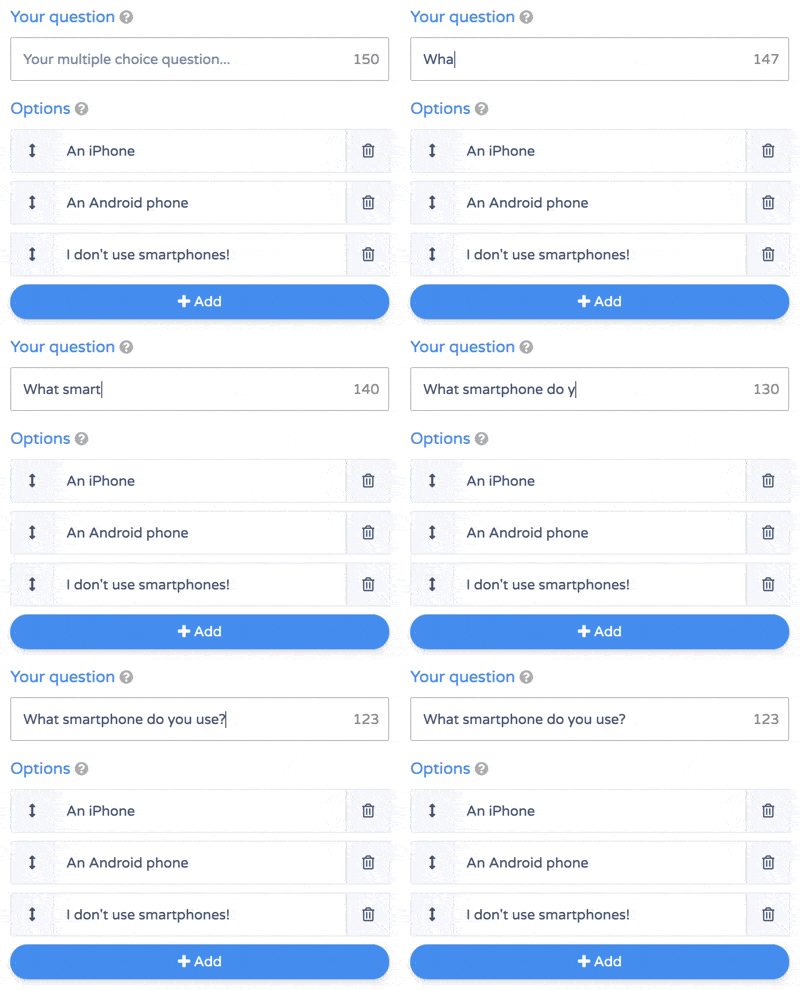
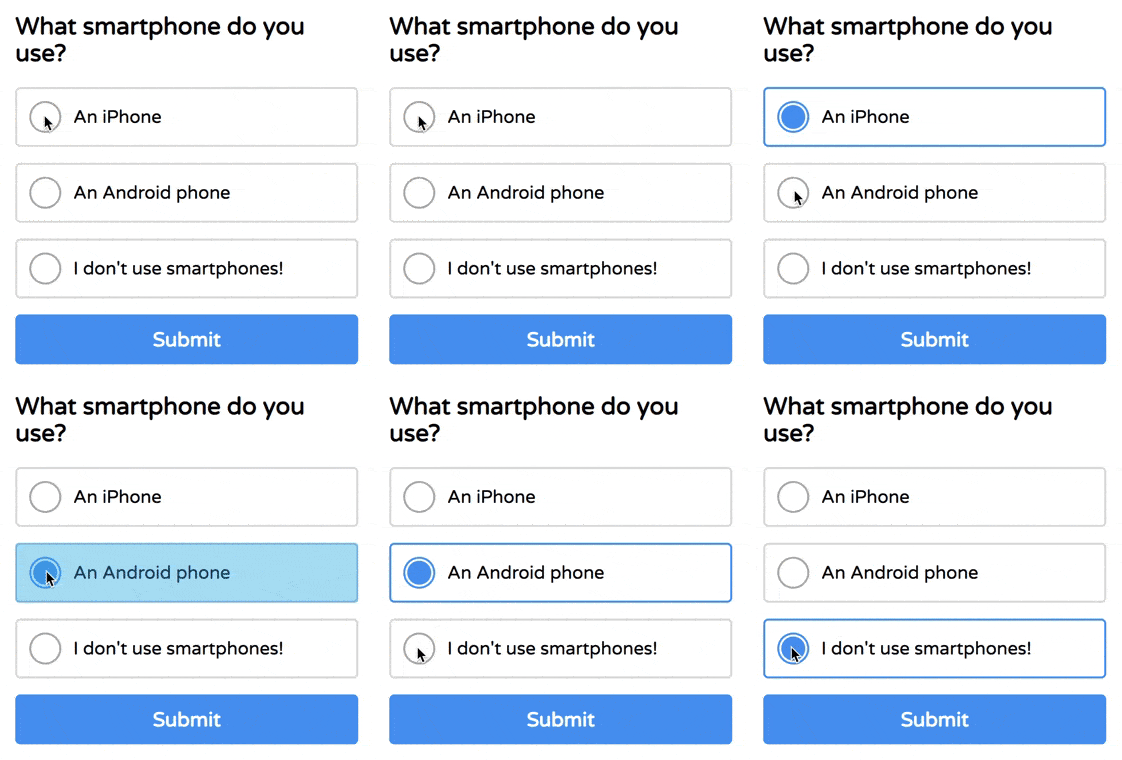
Source: Ahaslides.com. Left: presenter tool, Right: participant view

5. Give Me a Clear Take-Away

Now that I have endured your presentation until the end, please tell me what you expect me to do?

Kenji started with the agenda and ended with a summary. All good, but I went away with a slight increase in my knowledge, and 10 minutes later, I forgot why I even attended the presentation.

Online marketing gurus have been harping on the need for a clear call to action for ages, and it has substantial merit. Without an explicit call to action, the participants are clueless on the next step. A call to action need not be a commitment (such as a buy button), it can be a nudge in the right direction, such as sign up for a newsletter in exchange for eBook.

Presentations in the corporate world often ignore the need for clearly identifying the expectations of the participants post-presentation. It is not always easy to come up with a precise take-away, but a summary will not cut it.

Kenji was presenting the project status. What could be the take-aways? Some examples:

  • Project is on track, and no action needed from anyone: relax and enjoy the ride (a very rare case, be happy if this is the case)
  • Project is on track, but we are anticipating issues, maybe some risks may materialise: Dependent projects, stay alert! Decision-makers — some difficult decisions may come your way.
  • Project is delayed, we need to take corrective actions: dependent projects, you’re screwed. Decision-makers — here are the hard decisions you need to make right now.

What can you do to prepare?

This is your opportunity to assign some tasks to your department head or dump action items on your colleagues.

On a serious note, this is the most critical aspect of your presentation, so spend some thinking time. What is it that you want your audience to do with the knowledge you just shared? How should their thinking or behaviour change?

Do you want them to apply the knowledge to their work? Do you want them to follow a new process? Do you want them to stop drinking sugary carbonated drinks (in case you were presenting the harmful effects of cola/soda)?

Replace the ‘Thank you’ slide with the take-aways and let it stay on the screen while your audience walks out. You can verbally say thanks to your participants, but written down take-aways (as short as possible) should be the picture your audience holds in their mind for as long as possible.

Final Thoughts

A presentation is an excellent communication opportunity. The audience is held captive for an hour or so, and our goal should be to replicate an idea from our mind to the participants’ minds.

Sadly, thousands of hours are wasted every day by presenters trying to cram hundreds of lines of bulleted text into PowerPoint slides, leaving the audience bored, apathetic and clueless. The 5 tips given in the article can 10x improve the engagement of your participants.

Take-Aways

For your next presentation, yes, the one you are working on, please consider my requests seriously and,

  • Make your slides impactful (not teleprompter material)
  • Engage your audience (give time to absorb each slide, ask questions, and request votes)
  • Replace ‘thank you’ with a take-aways slide

Thank you for reading. Here are some more articles on presentation skills:

Presentation Skills
Communication
PowerPoint
Self Improvement
Business
Recommended from ReadMedium