
COMMUNICATION
How to Avoid Death by PowerPoint During a Virtual Presentation
5 ideas to get 10x engagement from your audience

David J Phillips, in his famous TEDx Talk, How to avoid Death by PowerPoint, says that PowerPoint is a visual aid and YOU are the presentation. He recommends simple things such as dark backgrounds, contrast, etc. which will take your PowerPoint to the next level and save your audience from imminent death by boredom.
Now, these are all fantastic ideas while presenting live in front of an audience, but for a virtual presentation, you need something more, because:
All hell breaks loose when you are presenting on video conference. The PowerPoint takes up the full screen and you are relegated to a tiny rectangle somewhere in the corner, and your audience ends up staring at the slide, forever.
Imagine the excruciating boredom of staring at the slide below for 5 minutes as the speaker reads out the bullets, one by one:
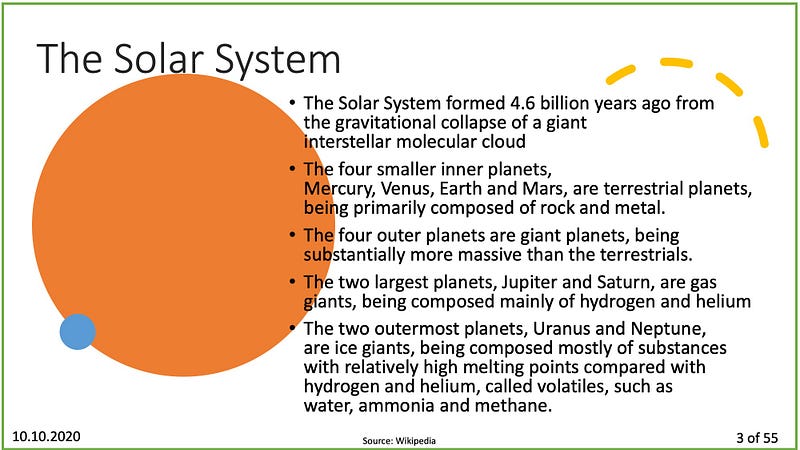
I am sure you’ve endured hours of boring presentations during this pandemic which has forced everyone to go virtual. I am also sure that you already know how to make great presentations with a few bullets and neat designs.
The same great slide becomes a challenge when you are presenting over video conference. Your slide takes up the whole screen, and you are the tiny face on the bottom right, and your expressions are barely discernible.
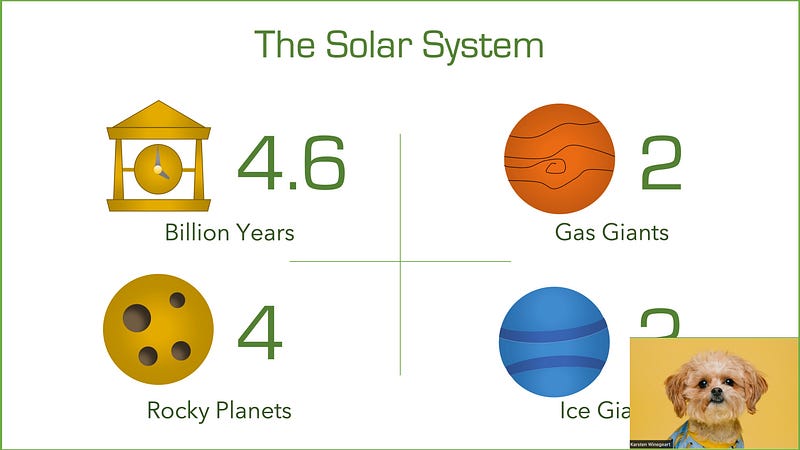
Virtual Presentations are 10x more challenging
A virtual presentation is way worse in terms of engagement compared to an in-person meeting.
When you have people in the same room, they can still be distracted, but out of courtesy, they give you some attention as you stand in front and talk.
Whereas in a virtual session, participants are looking at the source of most of their distractions — their computer/tablet/smartphone screen.
Whether they are looking at Facebook, or reading email or paying attention to your presentation, it will all look the same to you as you stare at them through their webcams.
A virtual presentation makes it so much harder to grab the scarce attention of your audience.

So what do we do?
Here are five things that have helped me gain more in-depth engagement with my audience:
1. Send a memo, not just the agenda
I know, this sounds so pre-internet. By memo, I mean some information which people can go through before they come to the meeting.
Sending a brief agenda is anyway a must, but for a virtual presentation, that’s not enough. You want your audience to have a bit of priming before jumping into your virtual world.
So, don’t just send an outline of your meeting agenda, but some background information, data, charts etc. which will set the stage for you to tell your story.
Your memo can be in the body of the calendar invite, or even an attached document. I prefer to add the details right in the email, so no extra clicks needed.
Make sure that your memo is not a blob of text, but organized in bullets and sub-bullets. Remember, your memo is also competing for attention with everything else on the reader’s mind, so make it stand out.
Your Powerpoint is not a presentation of data. It is a story, a story designed to change minds.
If I can’t figure out what your point is, you’ve merely given me data. Send that in a memo instead, please.
— Seth Godin
2. One message per slide
You get less than 10 seconds of attention after you put up each slide.
If you miss that opportunity, your audience will switch windows to scroll Twitter, or even start responding to an email.
Your audience should be able to get a brain snapshot of your slide in less than 10 seconds. You can then use idea #3 (see next idea) to continue holding the attention, but don’t rely on your slide to sustain long attention spans.
Now, a slide that is scannable in 10 seconds or fewer is a challenge for most people. We often err on the side of too much information. The role of your slide is to set the stage for you to talk, that’s all.
The one message per slide rule helps you hook your audience in the precious few seconds of attention when you show the next slide.
Don’t get alarmed; one message doesn’t mean just one bullet. Instead, the slide presents one idea, argument or piece of information.
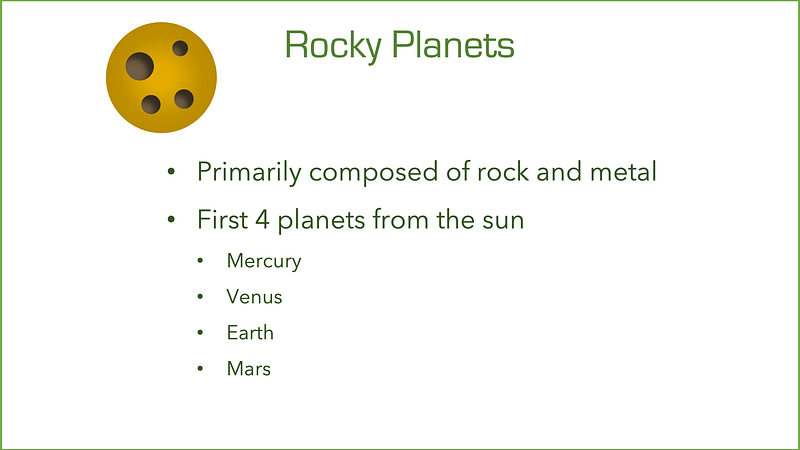
Structuring your presentation in this way will let you implement the next idea.
3. Share occasionally, show your face mostly
Most people talk for a couple of minutes on the webcam and then start sharing the slides for the next 55 minutes. Instead, alternate between slides and your webcam by choosing to share occasionally.
Show the slide for about 10 seconds as you start your explanation. Then turn off sharing and continue talking. This way, people will be able to see your expressions, and you too get to see peoples’ reactions as you ramble on.
Most of us are not comfortable showing our expressions, so we hide behind our PowerPoint slides. If your audience has shown up to your virtual living room, then you owe it to them to show your face. Otherwise, sending a copy of the PowerPoint would have sufficed.

Pay attention to people’s expressions (if you can see them clear enough) and the moment you see people’s faces turning flat, make use of idea #4.
4. Questions throughout the session
Start by asking a question. Don’t ask the generic — “am I making sense” type of question, but a more specific one related to your current topic or the topic of the next slide.

Asking a question triggers people to engage with you and also gives them a chance to ask something. You can even prompt people to share their perspective or have them ask a question by saying something like:
- “Gene, what do you think about this from the information security viewpoint?”
- “Pam, do you have any concerns from the budget side?”
Now Gene or Pam can grab the stage and carry on with their monologue for much longer than you have time for, but you are in charge here. Get back the control by the powerful later-gater approach. Say, “great point, let’s take this offline”.
5. Use voting tools
Before you present your next point, ask for people to respond to a poll. I often use directpoll.com or mentimeter.com.
You could probably ask your audience the question directly without using any tool, but you will get far better engagement with a voting tool.
The tool will provide a voice to your highly opinionated manager as well as to that new intern trying to keep himself under the radar. Without the tool, the same two annoying show-offs will take the limelight every time.
Using a voting tool, you can ask people one or more of the following things:
Preferences: if you are going to talk about coffee, you could ask people about their drink preferences and then present statistics that you have researched.
Opinions: you may ask your audience how they feel about AI assistants before jumping into your new security system to improve the privacy of the Siris and Alexas.
Experiences: for a slide on airline luggage logistics, you could ask how many people have gone through the frustration of lost luggage
Knowledge: if you are presenting a complex concept, such as the efficiencies of a solid-fuel powered rocket engine, you could ask people about their level of familiarity with the topic.
Be creative and use voting as an engagement enhancing tool. Just don’t end up proving people wrong. For example, don’t ask people if they like coffee only to prove how bad it is for their health. That wouldn’t win you any friends.

Recap
- Send a memo not just the agenda
- One message per slide
- Share occasionally, show your face mostly
- Questions throughout the session
- Use voting tools


