
Complete Guide to Seamlessly Managing Your Publication’s Twitter Account
Written by someone who has spent most of her life on this birding app
As someone who has most recently started her own publication (The Brain is a Noodle), I learned that the role of Editor in a new publication is not limited to just that. You’re the graphic designer, numbers gal and social media marketing manager all rolled into one. This is also true for a lot of roles related to starting a side hustle or project of any sort — you’re the jack of all spades for everything needed.
So how do you keep that last role from becoming an overwhelming beast to manage? It’s easy to set up a Twitter account to start promoting your writer’s articles, but how do you stop accidentally replying and liking from your personal?
Tweetdeck (with a mix of some other apps) has been my answer so far.
This post isn’t sponsored or affiliated with Tweetdeck in any way, but rather an honest discussion of the tips and tricks I have hidden up my sleeves. Starting my first Twitter account back in 2008, I’ve sunk countless hundreds if not thousands of hours testing out extensions (and amassing my 150k tweets), so you don’t have to.
In this piece, I’ll go over how to:
- seamlessly manage content across accounts
- create and manage your content
- build and engage with your community
Managing content across accounts
Consolidated vs. separate timelines
Problem: Both the Twitter mobile app and desktop allow you to be logged into multiple accounts, but there’s no way to see everything at a glance.
Solution: On Tweetdeck, you can see ALL of your timelines and ALL of your content as you choose to, in one dashboard. It makes for a more seamless transition.
For me, I’ve used this seamless dashboard to build up a regular routine of engaging with replies, retweeting from content from search, etc.
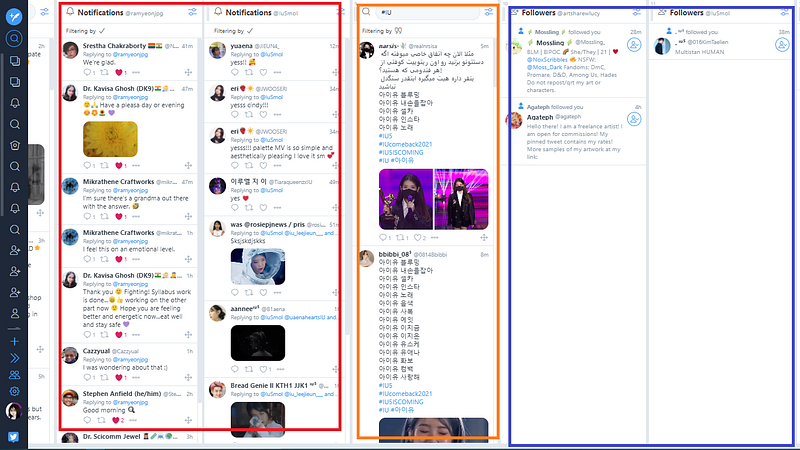
For example, I have my mentions from multiple accounts organized in the left-most (red box) so that I when I dive into my notifications, I tackle replying and engaging with people and prioritize building a community first.
In orange, I have the search tab to allow me to search for content related to the account I’m running. For my kpop (IU, a singer) account, I filter by photo posts that have the tag #IU, so that I can discover and interact with new kpop fans who post content.
In blue, I keep track of new followers so that I can welcome them to my account in some way!
For your publication, you can easily set this up to look at notifications, people tweeting under a certain hashtag (e.g., #MediumPoetry or #MediumPublications, or even your own publication tag!).
Integrated inbox for DMs
Problem: Managing notifications and DMs can be distracting if it’s something that’s peppered into your schedule throughout the day. It requires you to attention switch as these piecemeal, asynchronous discussions distract you from projects that might need more laser focus.
Solution: The integrated DM inbox can integrate messages across all of your accounts. I use this to support batch working and to set a dedicated time to answer all of my DMs in one go.
That way, I make sure that I’m not being distracted from important projects. It also has the added bonus that I can see patterns in the types of DMs I might get regularly, to set up templates for replies.
For a publication, that might look like having specific links at the ready (submission guidelines?), or to have a welcome message that you can tailor to invite new writers to submit something related to a weekly theme.
Creating and managing your content
An actually useful engagement/notification tab
Problem: The standard notifications tab on Twitter doesn’t cut it.
“All notifications” shows all the notifications so if you wanted to set a dedicated time to reply to comments, it’s all mixed in there with people who followed, retweeted, liked tweets — even profile suggestions because others have followed. There’s a lot of attention switching involved and my brain … doesn’t like that.
“Mentions” is supposed to remedy this but this only displays replies to threads and tweets. It’s an incomplete solution because another way in which people can reply to your content is to quote retweet something, where someone might add commentary as part of a retweet.
You’re missing out on half of the engagement if you rely on this mentions-only tab, and you’re wading through a lot more scrolling when you deal with the “all notifications” tab.
Solution: Having a customized notification tab with specific filters has been my saving grace. It’s similar to the notification tab that Twitter has, but Tweetdeck allows a lot more control over what you want to filter and include:
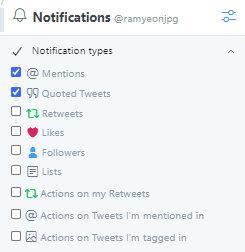
Example: I have a notification tab solely for instances where I want to reply to the action in some way, which includes both mentions and quoted tweets. You can easily customize it for your publication to include followers as well, to remind you to welcome new writers.
Building threads to communicate longer ideas
What are Twitter threads? Since each tweet can hold 280 characters, one way to express longer ideas is to create threads, in which multiple of these 280-char tweets are woven together in the form of replies.
Here’s an example of how I create a weekly thread to include a collection of pieces published each week:
Potential ideas for threads:
- You can create informational threads where you unpack a longer idea.
- Organizational threads also serve as ways to organize similar tweets in the same spot. I have a gratitude journal thread that I add to every day as well as a “thread of threads” (a mega-thread of all of the threads I’ve ever created, and fam, there are many).
Method #1 to manage threads
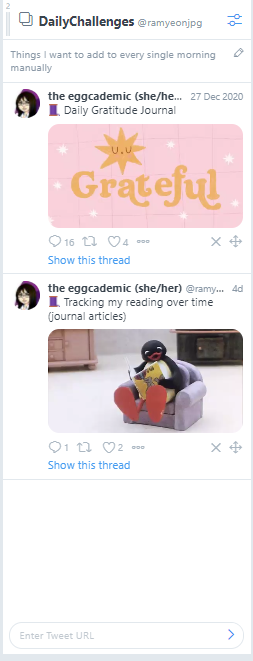
Using Tweetdeck, you can create a “collection”, where you can add specific tweets to the collection. I use this feature to “bookmark” the title card of a thread (i.e., the first tweet in a thread) so that I can just reply to the title card to add to my thread.
Method #2 to manage threads
More recently I’ve been using typefully to keep track of my weekly digest threads.
It has a seamless interface that looks like a word document (yes! a familiar way to write) that translates into what your writing might look like in a tweet in real-time, so you can be guided on how to split your thoughts into tweetable bites.
I have a more in-depth review here:
How to Create Threads Seamlessly on Twitter
A (non-sponsored) review of the Typefully App
medium.com
Engaging with the community
Managing hashtags
Problem: A lot of newbie Twitter users rely on word of mouth to engage with new writers, hoping that someone else will see their tweets if they use the right hashtags.
Mentally, I envision this like shouting into the street and hoping that the melodic beauty of your voice and the content of your shouting to attracts people to come to talk to you. It might work, but surely it is not the most effective or only way.
Solution: It turns out, a lot of people are doing this — shouting into the ether and hoping that someone will engage. These are people who tweet under tags that might overlap with your interests (e.g., #Poetry, #PoetryCommunity, #MediumPublications, #Medium, #MediumWriters … to name a few!).
I use Tweetdeck to set a specific column for hashtags that are relevant. Instead of regularly typing it into the Twitter search bar to check them out, it’s added as the next column in my routine of checking social media and all I have to do is scroll a bit to the right to check these.
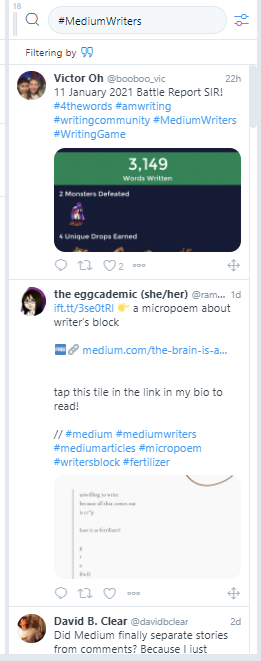
Here, what I recommend is for you to be that kind soul who walks up to all these people shouting into the ether hoping that someone will come. These are the people who are most likely to join your community and share interests with you, and beyond helping you build an audience, it’s really fun.
Bonus tip for publications: Make sure you have your own publication hashtag that you track! I track #TheBrainIsANoodle so that if a writer tweets out their own piece, I can hop on and retweet it for extra signal boosting
Thank your followers and invite them to engage with you!
Problem: Twitter defaults to sorting by algorithm boosted tweets rather than by recency. When a new follower hops on to your account, unless they immediately engage with a bunch of your tweets, it means that your tweets might not ever show up on their timeline.
Solution: Keep track of new followers and welcome them in a fun way!
Again, the Twitter notifications tab does show you new followers, or you can just hop on to your profile and search for these under “followers”, but I’m lazy and I just have these set up as side-by-side columns on my Tweetdeck:
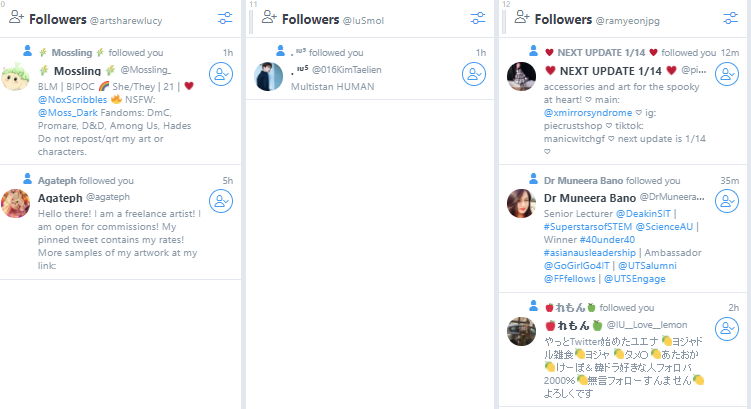
That way, if you choose to follow back everyone, you can batch this action. You can also tweet to all of your new followers to welcome and engage them in some way.
For my publication, I welcome all new writers and share their work. For example:
For my art account, I welcome new artist followers and invite them to share recent work, commission sheets or social links so I can help signal boost their work. For my kpop/IU account, I have new followers drop a gif to represent their favourite music video/ tv show that IU (singer/actress) has been in so that I can guess what it is.
Both types of welcome messages engage new followers by providing something of value (signal boosting artwork or just having some fun!), which is the key to initiating and nurturing your relationship with your community right from the beginning.
Twitter Lists
Problem: You’ve chosen to follow a bunch of different people but they fall into different groups and categories. On your timeline, it mixes everything together. For publications, this might look like following your writers and your readers, which might prompt you to engage in a different way.
For my main account, this looks like following a mishmash of writers, artists, academic-related accounts that represent who I am and what I love.
Solution: Private and public lists are available on Twitter, but I like to have these lined up side by side as columns so I can quickly go from one list to the next without clicking anything.
Private lists mean you can add people to a list without knowing that they’re part of a list. I use these to quietly add people who don’t tweet very often so they might not algorithmically show up in my timeline as much but I do want to see them more often so I make a point of specifically coming back to their account.
Public lists mean that users are notified when they’re added, and other users can also follow your list. I have a Public list for Medium writers and publications that I love, which has helped me network and build a community of writers I truly like to engage with.
This feature allows you to curate your timeline by amplifying certain users, which as a publication might mean making sure to spotlight your writers regularly outside of publishing with you.
In short, find and experiment with the tools that not only give you the features you want but set it up in a way that you can build a routine. In routines, we get the furthest with our goals, and for my publication, the main goal was engagement and being able to amplify the voices of writers to contribute.
Tweetdeck was one way of laying everything out into one dashboard, customized so that I had a regular routine of making sure all aspects mentioned here had some schedule time of its own — replying to mentions, welcoming new followers, engaging with the broader community.
If you have any lingering questions or have another platform you’d like to learn about, do let me know! I’m happy to follow up with any suggestions.
Lucy (The Eggcademic) [she/hers] spends almost all of her waking non-productive hours on this bird app. That’s it, that’s the author bio.
🌌🐰 Hop down the rabbit hole with these two pieces from me and Anangsha Alammyan


