avatarThon Ly

Free AI web copilot to create summaries, insights and extended knowledge, download it at here

15965

Abstract

or the <b><i>hexadecimal</i></b> <b>system</b>.</p><div id="03e9"><pre><span class="hljs-attribute">Base</span> <span class="hljs-number">16</span>: <span class="hljs-number">0</span> -> <span class="hljs-number">9</span> and a -> f = <span class="hljs-number">16</span> possibilities</pre></div><p id="8fb5">Using this system, we only need <b>2 digits</b> to account for all 256 possibilities:</p><div id="4105"><pre><span class="hljs-symbol">16 </span>x <span class="hljs-number">16</span> = <span class="hljs-number">256</span> possibilities </pre></div><p id="71e8">This means we only need <b>6 digits</b> total to represent any color:</p><div id="84fa"><pre>Hexadecimal <span class="hljs-keyword">System</span>:</pre></div><div id="a526"><pre>R: <span class="hljs-number">2</span> <span class="hljs-keyword">digits</span> G: <span class="hljs-number">2</span> <span class="hljs-keyword">digits</span> B: <span class="hljs-number">2</span> <span class="hljs-keyword">digits</span></pre></div><p id="2aeb" type="7">Let’s do some examples!</p><p id="8271">To get a <i>perfect</i> <b>red</b>, we write:</p><ul><li><code>ff</code> for <b>red</b> (which is 255 in the decimal system)</li><li><code>00</code> for <b>green</b> (which is 0 in the decimal system)</li><li><code>00</code> for <b>blue</b> (which is 0 in the decimal system)</li></ul><div id="fd18"><pre><span class="hljs-selector-tag">main</span> { <span class="hljs-attribute">background-color</span>: ff0000; }</pre></div><p id="c56c">To let CSS know that we’re using the <b><i>hexadecimal</i></b> <b>system</b>, we <b><i>prefix</i></b> it with the <b>pound</b> <b>symbol</b>:</p><div id="18df"><pre><span class="hljs-selector-tag">main</span> { <span class="hljs-attribute">background-color</span>: <span class="hljs-number">#ff0000</span>; }</pre></div><p id="938b">To get a <i>perfect</i> <b>blue</b>, we write <code>#</code>:</p><ul><li><code>00</code> for <b>red</b></li><li><code>00</code> for <b>green</b></li><li><code>ff</code> for <b>blue</b></li></ul><div id="dea5"><pre><span class="hljs-selector-tag">main</span> { <span class="hljs-attribute">background-color</span>: <span class="hljs-number">#0000ff</span>; }</pre></div><p id="b2a4">To get <i>pure</i> <b>black</b>, we write <code>#</code> and <code>00</code> for everything:</p><div id="4a62"><pre><span class="hljs-selector-tag">main</span> { <span class="hljs-attribute">background-color</span>: <span class="hljs-number">#000000</span>; }</pre></div><p id="22fd">To get <i>pure</i> <b>white</b>, we write <code>#</code> and <code>ff</code> for everything:</p><div id="a654"><pre><span class="hljs-selector-tag">main</span> { <span class="hljs-attribute">background-color</span>: <span class="hljs-number">#ffffff</span>; }</pre></div><p id="af7f">We can also <i>add</i> <b>transparency</b>.</p><p id="dd8e">To make a color <b><i>fully</i></b> <b>transparent</b>, add <code>00</code> at the end:</p><div id="fbac"><pre><span class="hljs-selector-tag">main</span> { <span class="hljs-attribute">background-color</span>: <span class="hljs-number">#ffffff00</span>; }</pre></div><p id="4802">To make it <b><i>50%</i></b> <b>transparent</b>, add <code>80</code> at the end:</p><div id="4075"><pre><span class="hljs-selector-tag">main</span> { <span class="hljs-attribute">background-color</span>: <span class="hljs-number">#ffffff80</span>; }</pre></div><p id="ec13">To make it have <b><i>no</i></b> <b>transparency</b>, add <code>ff</code> at the end:</p><div id="b64e"><pre><span class="hljs-selector-tag">main</span> { <span class="hljs-attribute">background-color</span>: <span class="hljs-number">#ffffffff</span>; }</pre></div><p id="6425">Finally, there’s even a shorter <b>shorthand</b> we can use!</p><p id="bbdd">If <b>both digits</b> are <i>identical</i> <i>for each value</i>, we can just <b><i>drop</i></b><i> one of them</i>:</p><div id="158c"><pre>R: <span class="hljs-function"><span class="hljs-params">ff</span> =></span> f G: <span class="hljs-function"><span class="hljs-params">ff</span> =></span> f B: <span class="hljs-function"><span class="hljs-params">ff</span> =></span> f A: <span class="hljs-function"><span class="hljs-params">ff</span> =></span> f</pre></div><p id="3ec2"><code><b>A</b></code> represents the <b>Alpha</b> <b>channel</b> which is the formal name for <b><i>transparency</i></b>.</p><div id="bb6e"><pre><span class="hljs-attribute">A</span> <span class="hljs-operator">=</span> Alpha channel <span class="hljs-operator">=</span> transparency</pre></div><p id="7bdf">In practice, we may be more <i>intuitive</i> to think of the <b>alpha channel</b> as the <b><i>opacity</i></b> instead.</p><div id="dd03"><pre><span class="hljs-attribute">A</span> <span class="hljs-operator">=</span> opacity</pre></div><p id="7056"><b>Transparency</b> and <b>opacity</b> are <i>opposite</i> terms that describe the ability to see through an object. Greater <b><i>transparency</i></b> means it is <i>easier</i> to see through something. Greater <b><i>opacity</i></b> means it is <i>harder</i> to see through it.</p><div id="c492"><pre>Low opacity (A <span class="hljs-operator">=</span> <span class="hljs-number">0</span>%) <span class="hljs-operator">=</span>> High transparency High opacity (A <span class="hljs-operator">=</span> <span class="hljs-number">100</span>%) <span class="hljs-operator">=</span>> Low transparency</pre></div><blockquote id="6dcf"><p>In other words, when something is <b>opaque</b>, light cannot pass through it easily. Hence, it is <b>not transparent</b>.</p></blockquote><p id="3d94">The <b>shorthand</b>:</p><div id="0328"><pre><span class="hljs-selector-tag">main</span> { <span class="hljs-attribute">background-color</span>: <span class="hljs-number">#ffff</span>; }</pre></div><p id="5ca6">The finished <a href="https://codepen.io/thonly/pen/BaRjYBq?editors=1100">Codepen</a>:</p> <figure id="b514"> <div> <div> <img class="ratio" src="http://placehold.it/16x9"> <iframe class="" src="https://cdn.embedly.com/widgets/media.html?src=https%3A%2F%2Fcodepen.io%2Fthonly%2Fembed%2Fpreview%2FBaRjYBq%3Fdefault-tabs%3Djs%252Cresult%26height%3D600%26host%3Dhttps%253A%252F%252Fcodepen.io%26slug-hash%3DBaRjYBq&amp;display_name=CodePen&amp;url=https%3A%2F%2Fcodepen.io%2Fthonly%2Fpen%2FBaRjYBq%3Feditors%3D1100&amp;key=a19fcc184b9711e1b4764040d3dc5c07&amp;type=text%2Fhtml&amp;schema=codepen" allowfullscreen="" frameborder="0" height="600" width="800"> </div> </div> </figure></iframe></div></div></figure><h2 id="4f40">HSL Color System</h2><p id="f8a8">Using the <b>RGB</b> color system, to change the <b>color</b> of a pixel on a computer screen, we simply <b><i>vary</i></b> <b><i>the amount</i></b> of the <b>3 primary colors of light</b>.</p><div id="2ef8"><pre><span class="hljs-built_in">Red</span> <span class="hljs-operator">+</span> <span class="hljs-built_in">Green</span> <span class="hljs-operator">+</span> <span class="hljs-built_in">Blue</span> <span class="hljs-operator">=</span> <span class="hljs-variable">Any</span> <span class="hljs-variable">Color</span></pre></div><p id="96be">On a <b>color wheel</b>:</p><figure id="f66e"><img src="https://cdn-images-1.readmedium.com/v2/resize:fit:800/0*aqq1qwtW4HY35j02.png"><figcaption><a href="https://tsh.io/wp-content/uploads/2019/12/hsl-color-wheel.png">https://tsh.io/wp-content/uploads/2019/12/hsl-color-wheel.png</a></figcaption></figure><p id="b0ac">They are located at:</p><ul><li><b>Red</b> = 0 degrees</li><li><b>Green</b> = 120 degrees</li><li><b>Blue</b> = 240 degrees</li></ul><p id="d14b">For <b>coders</b> and <b>engineers</b>, this color system is <i>simple</i> and <i>intuitive</i>.</p><div id="b9e8"><pre>Engineers: RGB <span class="hljs-keyword">Color</span> <span class="hljs-keyword">System</span></pre></div><p id="6c0d"><b>Designers</b> and <b>painters</b>, on the other hand, prefer another system that uses a <i>different</i> <i>set</i> <i>of <b>primary colors</b></i>. For them, <b>colors</b> are produced by <b><i>mixing</i></b>:</p><div id="f89a"><pre><span class="hljs-variable">Designers</span><span class="hljs-operator">:</span> <span class="hljs-built_in">Yellow</span> <span class="hljs-operator">+</span> <span class="hljs-built_in">Cyan</span> <span class="hljs-operator">+</span> <span class="hljs-built_in">Magenta</span></pre></div><p id="97e2">On the <b>color wheel</b>, they are the <b><i>complementary</i></b> <b>colors of light</b> located at:</p><ul><li><b>Yellow</b> = 60 degrees</li><li><b>Cyan</b> = 180 degrees</li><li><b>Magenta</b> = 300 degrees</li></ul><p id="6279">Using this system, to create <i>different</i> <b><i>shades</i></b> of the same <b>Hue</b>, painters can simply <b><i>vary</i></b><i> the amount</i> of <b>white</b> <b>paint</b> being added. This <b><i>amount</i></b> of <b>white</b> <b>paint</b> is referred to as the <b>Lightness</b> factor.</p><div id="74fb"><pre><span class="hljs-attribute">Lightness</span> <span class="hljs-operator">=</span> White</pre></div><p id="5d5f"><b>Computer printers</b> also use this system of colors. However, instead of using <b><i>white</i></b> to create different shades, printers use <b>black</b> instead. The <b><i>amount</i></b> of <b>black</b> <b>ink</b> being added is referred to as the <b>Saturation</b> factor.</p><div id="2498"><pre><span class="hljs-attribute">Saturation</span> <span class="hljs-operator">=</span> Black</pre></div><p id="48d4" type="7">Let’s do some examples!</p><p id="ea29">To tell CSS that we are using the <b>Hue-Saturation-Lightness</b> system of colors, we write:</p><div id="14a5"><pre><span class="hljs-selector-tag">main</span> { <span class="hljs-attribute">background-color</span>: <span class="hljs-built_in">hsl</span>(); }</pre></div><p id="5cd1">Then, to get <i>perfect</i> <b>yellow</b> for example, we write:</p><ul><li><code>60</code> degrees for the <b><i>yellow</i></b> <b>Hue</b> on the color wheel</li><li><code>100%</code> for the <b>Saturation</b> which means <i>do</i> <i>not</i> add any <i>black</i> “ink”</li><li><code>50%</code> for the <b>Lightness</b></li></ul><div id="6822"><pre><span class="hljs-selector-tag">main</span> { <span class="hljs-attribute">background-color</span>: <span class="hljs-built_in">hsl</span>(<span class="hljs-number">60deg</span>, <span class="hljs-number">100%</span>, <span class="hljs-number">50%</span>); }</pre></div><p id="c293" type="7">Why 50%?</p><p id="43ae"><b>Below</b> 50%:</p><div id="a317"><pre><span class="hljs-selector-tag">main</span> { <span class="hljs-attribute">background-color</span>: <span class="hljs-built_in">hsl</span>(<span class="hljs-number">60deg</span>, <span class="hljs-number">100%</span>, <span class="hljs-number">40%</span>); }</pre></div><p id="2080">Means <b>white </b>“paint” will be <b><i>removed</i></b>.</p><p id="ed0d"><b>Above</b> 50%:</p><div id="abbf"><pre><span class="hljs-selector-tag">main</span> { <span class="hljs-attribute">background-color</span>: <span class="hljs-built_in">hsl</span>(<span class="hljs-number">60deg</span>, <span class="hljs-number">100%</span>, <span class="hljs-number">60%</span>); }</pre></div><p id="0065">Means <b>white</b> “paint” will be <b><i>added</i></b>.</p><p id="8150"><b>At</b> 50%:</p><div id="9dc7"><pre><span class="hljs-selector-tag">main</span> { <span class="hljs-attribute">background-color</span>: <span class="hljs-built_in">hsl</span>(<span class="hljs-number">60deg</span>, <span class="hljs-number">100%</span>, <span class="hljs-number">50%</span>); }</pre></div><p id="550b">Means to do <b><i>neither</i></b>.</p><div id="9c12"><pre><span class="hljs-symbol">Lightness:</span> </pre></div><div id="a263"><pre><span class="hljs-number">0</span>% -> <span class="hljs-number">50</span>% -> <span class="hljs-number">100</span>% <span class="hljs-comment">remove white no white add white</span></pre></div><p id="f591">If we <i>add</i> <b>black</b> “ink” to the <b><i>maximum</i></b> by setting the <b>Saturation</b> to <code>0%</code>:</p><div id="3b01"><pre><span class="hljs-selector-tag">main</span> { <span class="hljs-attribute">background-color</span>: <span class="hljs-built_in">hsl</span>(<span class="hljs-number">60deg</span>, <span class="hljs-number">0%</span>, <span class="hljs-number">50%</span>); }</pre></div><p id="7ce5">The <b>color</b> will turn <b><i>gray</i></b>.</p><div id="f2ce"><pre><span class="hljs-symbol">Saturation:</span></pre></div><div id="f4ff"><pre><span class="hljs-number">0</span><span class="hljs-meta">%</span> -> <span class="hljs-number">100</span><span class="hljs-meta">%</span> full <span class="hljs-symbol">none</span></pre></div><p id="9585">Like RGB, we can also add an <b>Alpha</b> channel (<b>transparency</b> factor).</p><p id="a46e">To make a color <b><i>50%</i></b> <b>transparent</b>, we simply add <code>50%</code> at the end like usual:</p><div id="7671"><pre><span class="hljs-selector-tag">main</span> { <span class="hljs-attribute">background-color</span>: <span class="hljs-built_in">hsl</span>(<span class="hljs-number">60deg</span>, <span class="hljs-number">0%</span>, <span class="hljs-number">50%</span>, <span class="hljs-number">50%</span>); }</pre></div><blockquote id="e739"><p>It is more precise to use <code>hsla()</code> to include the <b>alpha</b> channel.</p></blockquote><p id="7fcd">The finished <a href="https://codepen.io/thonly/pen/KKmzzyK?editors=1100">Codepen</a>:</p> <figure id="ccd4"> <div> <div> <img class="ratio" src="http://placehold.it/16x9"> <iframe class="" src="https://cdn.embedly.com/widgets/media.html?src=https%3A%2F%2Fcodepen.io%2Fthonly%2Fembed%2Fpreview%2FKKmzzyK%3Fdefault-tabs%3Dcss%252Cresult%26height%3D600%26host%3Dhttps%253A%252F%252Fcodepen.io%26slug-hash%3DKKmzzyK&amp;display_name=CodePen&amp;url=https%3A%2F%2Fcodepen.io%2Fthonly%2Fpen%2FKKmzzyK%3Feditors%3D1100&amp;key=a19fcc184b9711e1b4764040d3dc5c07&amp;type=text%2Fhtml&amp;schema=codepen" allowfullscreen="" frameborder="0" height="600" width="800"> </div> </div> </figure></iframe></div></div></figure><h1 id="6726">Summary</h1><p id="192c">In this lesson, we studied the <b>background-color</b> in more detail.</p><figure id="1827"><img src="https://cdn-images-1.readmedium.com/v2/resize:fit:800/1*rQQJRJB90hbhAW1fmNSr-g.png"><figcaption><a href="https://developer.mozilla.org/en-US/docs/Web/CSS/background-color">https://developer.mozilla.org/en-US/docs/Web/CSS/background-color</a></figcaption></figure><p id="d59d">In particular, we explored <b><i>three</i></b> <b>different ways</b> to <i>specify</i> <b>colors</b>.</p><p id="79e6">If we want to use <b>colors</b> that are <b><i>common</i></b>, we can specify <b>keywords</b> such as <code>brown</code>:</p><div id="5524"><pre><span class="hljs-attribute">background-color</span>: brown;</pre></div><p id="281e">For the <b>complete list</b> of keywords, check out this MDN article:</p><figure id="fb52"><img src="https://cdn-images-1.readmedium.com/v2/resize:fit:800/1*yQP3UQJetxCadEGlrRP3OA.png"><figcaption><a href="https://developer.mozilla.org/en-US/docs/Web/CSS/color_value">https://developer.mozilla.org/en-US/docs/Web/CSS/color_value</a></figcaption></figure><p id="5bd8">However, if we want to use <b>colors</b> that are <b><i>not common</i></b>, there are <b><i>two</i></b> <b>systems</b> <b>of colors</b> we can utilize:</p><ol><li><b>RGB Color System</b></li><li><b>HSL Color System</b></li></ol><figure id="291c"><img src="https://cdn-images-1.readmedium.com/v2/resize:fit:800/0*aqq1qwtW4HY35j02.png"><figcaption><a href="https://tsh.io/wp-content/uploads/2019/12/hsl-color-wheel.png">https://tsh.io/wp-content/uploads/2019/12/hsl-color-wheel.png</a></figcaption></figure><h2 id="2732">RGB Color System</h2><p id

Options

="b8a1">The <b>RGB</b> color system mirrors the way <b>nature</b> produces colors by <b><i>varying</i></b> the amount of the <b><i>three</i> <i>primary colors</i> </b>of<b> light</b>:</p><ol><li><b>Red</b></li><li><b>Green</b></li><li><b>Blue</b></li></ol><p id="8ee8">For example, a <b><i>pixel</i></b> on a <b>computer screen</b> uses this system to produce color.</p><div id="0ad5"><pre><span class="hljs-variable">Pixel</span> <span class="hljs-operator">=</span> <span class="hljs-built_in">Red</span> <span class="hljs-operator">+</span> <span class="hljs-built_in">Green</span> <span class="hljs-operator">+</span> <span class="hljs-built_in">Blue</span></pre></div><p id="249d">In fact, the <b><i>cone cells</i></b> in<i> </i><b>our eyes</b> also use this system to enable us to see colors.</p><div id="cd95"><pre><span class="hljs-built_in">Cone</span> <span class="hljs-built_in">Cell</span> <span class="hljs-operator">=</span> <span class="hljs-built_in">Red</span> <span class="hljs-operator">+</span> <span class="hljs-built_in">Green</span> <span class="hljs-operator">+</span> <span class="hljs-built_in">Blue</span></pre></div><h2 id="2507">HSL Color System</h2><p id="c236">On the other hand, the <b>HSL</b> color system uses the <b><i>three</i></b><i> <b>complementary</b> <b>colors</b></i> of <b>light</b>:</p><ol><li><b>Yellow</b></li><li><b>Cyan</b></li><li><b>Magenta</b></li></ol><p id="2a0d">With this system, <b>shades</b> can easily be created by <i>adding</i> <b><i>white</i></b> or <b><i>black</i></b> to the<b> Hue</b>.</p><p id="11d7">For example, <b>painters</b> use this system to easily create <i>shades</i> by adding <b><i>white</i></b> or the <b><i>Lightness</i></b> factor.</p><div id="360e"><pre>Hue + <span class="hljs-function"><span class="hljs-params">White</span> =></span> Shades</pre></div><p id="f01b">Computer <b>printers</b> also use this system to easily create <i>shades</i> by adding <b><i>black</i></b> or the <b><i>Saturation</i></b> factor.</p><div id="4778"><pre>Hue + <span class="hljs-function"><span class="hljs-params">Black</span> =></span> Shades</pre></div><blockquote id="724e"><p><b>Painters</b> don’t use <b>black</b> because it’s difficult to mix. <b>Printers</b> don’t use <b>white</b> because the paper is already white.</p></blockquote><h2 id="6ae3">RGB Syntax</h2><p id="e388">To use the <b>RGB</b> color system, we can write it as a <b>function</b>:</p><div id="bcf2"><pre><span class="hljs-function"><span class="hljs-title">rgb</span><span class="hljs-params">(R, G, B, A)</span></span></pre></div><p id="f6aa">Or, as a <b>hexadecimal</b>:</p><div id="ce35"><pre><span class="hljs-meta">#RRGGBBAA</span></pre></div><p id="3899">In the<b> functional notation</b>, <b><i>Red</i></b>, <b><i>Green</i></b>, and <b><i>Blue</i></b> can be a <b>number</b> from <code>0</code> to <code>255</code>, or a <b>percentage</b>.</p><div id="44b4"><pre><span class="hljs-attribute">R</span>: <span class="hljs-number">0</span> -> <span class="hljs-number">255</span> or % <span class="hljs-attribute">G</span>: <span class="hljs-number">0</span> -> <span class="hljs-number">255</span> or % <span class="hljs-attribute">B</span>: <span class="hljs-number">0</span> -< <span class="hljs-number">255</span> or %</pre></div><p id="b6f9">The <b>transparency</b> or <b><i>Alpha</i></b> can be a <b>number</b> between <code>0</code> and <code>1</code>, or a <b>percentage</b>.</p><div id="daa9"><pre><span class="hljs-attribute">A</span>: <span class="hljs-number">0</span> -> <span class="hljs-number">1</span> or %</pre></div><p id="43a3">We can <b><i>separate</i></b> these values with a <b>common</b>:</p><div id="018f"><pre><span class="hljs-function"><span class="hljs-title">rgb</span><span class="hljs-params">(R, G, B, A)</span></span></pre></div><p id="374c">Or, just a <b>space</b>:</p><div id="6ed4"><pre><span class="hljs-function"><span class="hljs-title">rgb</span><span class="hljs-params">(R G B A)</span></span></pre></div><p id="a0db">In the <b>hexadecimal</b> <b>notation</b>, we use <b><i>hexadecimal</i></b> <i>characters</i>:</p><ul><li><code>0</code> through <code>9</code></li><li><code>a</code> through <code>f</code></li></ul><p id="bc8e">If <b>all four values</b> and their <b>two digits</b> are the <b><i>same</i></b>, we can <i>drop one</i>:</p><div id="b827"><pre>#RRGGBBAA => #RGBA</pre></div><blockquote id="6600"><p>Again, it is more precise to use <code><i>rgba()</i></code> to include the <b>alpha</b> channel.</p></blockquote><h2 id="7e72">HSL Syntax</h2><p id="1a43">To use the <b>HSL</b> color system, we specify:</p><ul><li><b>Hue</b></li><li><b>Saturation</b></li><li><b>Lightness</b></li><li><b>Alpha</b></li></ul><p id="7681">We can <b><i>separate</i></b> them using a <b>comma</b>:</p><div id="4663"><pre><span class="hljs-function"><span class="hljs-title">hsl</span><span class="hljs-params">(H, S, L, A)</span></span></pre></div><p id="7793">Or, just a <b>space</b>:</p><div id="7808"><pre><span class="hljs-function"><span class="hljs-title">hsl</span><span class="hljs-params">(H S L A)</span></span></pre></div><p id="4d9a">The <b>Hue</b> is expressed as an <b><i>angle</i></b>, the <b>Saturation</b> and <b>Lightness</b> are expressed as <b><i>percentages</i></b>. The <b>Alpha</b> can be expressed as a <b><i>number</i></b><i> </i>between <code>0</code> to <code>1</code>, or a <b><i>percentage</i></b>.</p><div id="26d8"><pre><span class="hljs-symbol">H:</span> angle <span class="hljs-symbol">S:</span> % <span class="hljs-symbol">L:</span> % <span class="hljs-symbol">A:</span> <span class="hljs-number">0</span> -> <span class="hljs-number">1</span> <span class="hljs-keyword">or</span> %</pre></div><blockquote id="66bb"><p>In both color systems, the <b>Alpha</b> channel is <b>optional</b> and the <b>default</b> is <code><i>1</i></code> which is <b>no</b> transparency.</p></blockquote><blockquote id="f3b8"><p>Again, it is more precise to use <code><i>hsla()</i></code> to include the <b>alpha</b> channel.</p></blockquote><h1 id="cdb9">Concept Quiz</h1><p id="c1ed">Take my <a href="https://frontend.siliconwat.com/#learn-chapter11"><b>Programming Concept Quiz</b></a> to check your understanding! For every correct choice, you will earn <b>SW Coins</b> which you can redeem for <b><i>coupons</i></b> towards the purchase of any of my <a href="https://siliconwat.com">Udemy courses</a>!</p><figure id="2c5d"><img src="https://cdn-images-1.readmedium.com/v2/resize:fit:800/1*BsVP2owcb4fCQFbmvwSu0Q.png"><figcaption><a href="https://quiz.siliconwat.com/?lang=en#frontend-chapter11">https://quiz.siliconwat.com/?lang=en#frontend-chapter11</a></figcaption></figure><p id="bdc3"><b><i>Sample</i></b> Quiz Questions for <b>Lesson 11</b>:</p><h2 id="673d">Question 1:</h2><p id="acff">Which CSS property CANNOT set the <b>background-color</b>?</p><ol><li>background</li><li>color</li><li>background-color</li></ol><h2 id="48e9">Question 2:</h2><p id="c57b">Setting a <b>background-color</b> on the <code><b>body</b></code> element will always cover the <i>entire</i> viewport.</p><ol><li>True</li><li>False</li></ol><h2 id="6ab4">Question 3:</h2><p id="6c17">What is NOT a <b>primary color</b>?</p><ol><li>red</li><li>green</li><li>yellow</li><li>blue</li></ol><h2 id="dc18">Question 4:</h2><p id="ecbf">Which will produce <i>pure</i> <b>red</b>?</p><ol><li>rgb(0, 255, 0)</li><li>rgb(255, 0, 0)</li><li>rgb(0, 0, 255)</li></ol><h2 id="e2a1">Question 5:</h2><p id="1a69">Which will produce <i>pure</i> <b>green</b>?</p><ol><li>rgb(100%, 0%, 0%)</li><li>rgb(0%, 100%, 0%)</li><li>rgb(0%, 0%, 100%)</li></ol><h2 id="0abf">Question 6:</h2><p id="8fe5">Which will produce <i>pure</i> <b>blue</b>?</p><ol><li>rgb(0 0 255)</li><li>rgb(255 0 0)</li><li>rgb(0 255 0)</li></ol><h2 id="fa9f">Question 7:</h2><p id="7989">Which will produce <i>pure</i> <b>white</b>?</p><ol><li>rgb(100% 100% 100%)</li><li>rgb(0 0 0)</li></ol><h2 id="d286">Question 8:</h2><p id="8b96">Which will produce <i>pure</i> <b>black</b>?</p><ol><li>rgb(255 255 255)</li><li>rgb(0 0 0)</li></ol><h2 id="5268">Question 9:</h2><p id="8c40">Which will produce <i>perfect</i> <b>transparency</b>?</p><ol><li>rgb(0 0 0 100%)</li><li>rgb(0 0 0 0)</li></ol><h2 id="b642">Question 10:</h2><p id="b907"><b>Hexadecimal</b> <b>notation</b> requires a <code>#</code> prefix.</p><ol><li>True</li><li>False</li></ol><h2 id="01ad">Question 11:</h2><p id="43b1">Which is NOT a <b><i>hexadecimal</i></b> <b>character</b>?</p><ol><li>0</li><li>9</li><li>a</li><li>d</li><li>f</li><li>g</li><li>5</li></ol><h2 id="d4bf">Question 12:</h2><p id="8a75">Which will NOT produce <i>pure</i> <b>red</b>?</p><ol><li>#ff0000</li><li>#f00</li><li>#ff0</li></ol><h2 id="7ba0">Question 13:</h2><p id="0d2d">Which will NOT produce <i>pure</i> <b>green</b>?</p><ol><li>#0f0</li><li>#0ff</li><li>#00ff00</li></ol><h2 id="08bc">Question 14:</h2><p id="c506">Which will NOT produce <i>pure</i> <b>blue</b>?</p><ol><li>#f0f</li><li>#0000ff</li><li>#00f</li></ol><h2 id="40fb">Question 15:</h2><p id="b166">Which will NOT produce <i>pure</i> <b>white</b>?</p><ol><li>#ffffff</li><li>#fff</li><li>#000</li></ol><h2 id="c5e8">Question 16:</h2><p id="edfa">Which will NOT produce <i>pure</i> <b>black</b>?</p><ol><li>#fff</li><li>#000</li><li>#000000</li></ol><h2 id="6d9c">Question 17:</h2><p id="b7a9">Which will NOT produce <i>perfect</i> <b>transparency</b>?</p><ol><li>#0000</li><li>#0000000</li><li>#000f</li></ol><h2 id="ae2a">Question 18:</h2><p id="b146">Which is NOT a <b>complementary</b> <b>color</b>?</p><ol><li>yellow</li><li>green</li><li>cyan</li><li>magenta</li></ol><h2 id="dc19">Question 19:</h2><p id="ead7"><b>Yellow</b> is located at what degree?</p><ol><li>60</li><li>180</li><li>300</li></ol><h2 id="aa1f">Question 20:</h2><p id="8616"><b>Cyan</b> is located at what degree?</p><ol><li>60</li><li>180</li><li>300</li></ol><h2 id="26c9">Question 21:</h2><p id="b982"><b>Magenta</b> is located at what degree?</p><ol><li>60</li><li>180</li><li>300</li></ol><h2 id="085e">Question 22:</h2><p id="764d">What <i>“paint”</i> color does the <b>Lightness</b> factor add or remove?</p><ol><li>white</li><li>black</li></ol><h2 id="9382">Question 23:</h2><p id="70b7">What <i>“ink”</i> color does the <b>Saturation</b> factor add?</p><ol><li>white</li><li>black</li></ol><h2 id="5512">Question 24:</h2><p id="636e">What <b>Lightness</b> value will NOT add any white?</p><ol><li>0%</li><li>50%</li><li>100%</li></ol><h2 id="a4dd">Question 25:</h2><p id="3104">What <b>Saturation</b> value will NOT add any black?</p><ol><li>0%</li><li>50%</li><li>100%</li></ol><h2 id="adaf">Question 26:</h2><p id="b497">Which is NOT a <b>complementary color</b>?</p><ol><li>hsl(60deg 100% 50%)</li><li>hsl(180deg 100% 50%)</li><li>hsl(300deg 100% 100%)</li><li>hsl(300deg 100% 50%)</li></ol><h2 id="d4ce">Question 27:</h2><p id="301f">Which color system uses <b>primary colors</b>?</p><ol><li>RGB</li><li>HSL</li></ol><h2 id="06b9">Question 28:</h2><p id="3b92">Which color system uses <b>complementary colors</b>?</p><ol><li>RGB</li><li>HSL</li></ol><h2 id="4519">Question 29:</h2><p id="0678">Which <b>Alpha</b> value will NOT produce <i>perfect</i> <b>opacity</b> (<i>no</i> <b>transparency</b>)?</p><ol><li>1</li><li>100%</li><li>0</li></ol><figure id="72f4"><img src="https://cdn-images-1.readmedium.com/v2/resize:fit:800/1*QQSZpEs7f1kA4hYvIIFKfw.png"><figcaption><a href="https://quiz.siliconwat.com/?lang=en#frontend-chapter11">https://quiz.siliconwat.com/?lang=en#frontend-chapter11</a></figcaption></figure><p id="ae3d"><a href="https://frontend.siliconwat.com/#learn-chapter11">Programming Concept Quiz for Chapter 11</a></p><h1 id="077f">Coding Exercises</h1><p id="28d1">Check out my <a href="https://frontend.siliconwat.com/#practice-chapter11"><b>Interactive Coding Exercises</b></a> to put to practice what you have learned! There, you will also find <b><i>interactive hints</i></b> to help you understand<i> each line of code. </i>Likewise, for every correct solution, you will earn <b>SW Coins</b> which you can redeem for <b><i>coupons</i></b> towards the purchase of any of my <a href="https://siliconwat.com">Udemy courses</a>!</p><p id="b26c"><a href="https://frontend.siliconwat.com/#practice-chapter11">Interactive Coding Exercises for Chapter 11</a></p><h1 id="da70">Syntax Flashcards</h1><p id="ebac">Review what you have learned by playing my <a href="https://frontend.siliconwat.com/#review-chapter11"><b>Syntax Flashcard Game</b></a>! These flashcards are designed to help you <b><i>commit to memory</i></b> all the <b><i>new</i></b> <b>code</b> <b>syntaxes</b> you learned in this lesson. Likewise, for every correct answer, you will earn <b>SW Coins</b> which you can redeem for <b><i>coupons</i></b> towards the purchase of any of my <a href="https://siliconwat.com">Udemy courses</a>!</p><p id="20ad"><a href="https://frontend.siliconwat.com/#review-chapter11">Syntax Flashcard Game for Chapter 11</a></p><h1 id="eb18">Next Steps</h1><p id="3177">Congrats on completing <b>Unit 2:</b> <b>Lesson 6 of 13</b>! 🎉</p><div id="9f05"><pre><span class="hljs-attribute">Unit</span> <span class="hljs-number">1</span>: <span class="hljs-number">100</span>% Completed <span class="hljs-attribute">Unit</span> <span class="hljs-number">2</span>: <span class="hljs-number">46</span>% Completed <span class="hljs-attribute">Unit</span> <span class="hljs-number">3</span>: <span class="hljs-number">0</span>% Completed <span class="hljs-attribute">Unit</span> <span class="hljs-number">4</span>: <span class="hljs-number">0</span>% Completed <span class="hljs-attribute">Unit</span> <span class="hljs-number">5</span>: <span class="hljs-number">0</span>% Completed <span class="hljs-attribute">Bonus</span> Unit <span class="hljs-number">6</span>: <span class="hljs-number">0</span>% Completed <span class="hljs-attribute">Bonus</span> Unit <span class="hljs-number">7</span>: <span class="hljs-number">0</span>% Completed</pre></div><div id="5403"><pre><span class="hljs-attribute">Overall</span> Progress: <span class="hljs-number">11</span>% Completed</pre></div><p id="4e18"><a href="https://frontend.siliconwat.org">Join Remote Frontend Cohort Program</a></p><h2 id="c823">Next Lesson</h2><p id="e317">In this lesson, we formally introduced the CSS <b>background</b> property and focused on the <code><b>background-color</b></code>. In the next lesson, we will continue our discussion of the <b>background</b> property by focusing on the <code><b>background-image</b></code>. This will <b><i>complete</i></b> our understanding of the <b>background</b> property as well as <b><i>enable</i></b> us to <i>create</i> some really fancy <b><i>gradient</i> effects </b>in Lesson 13!</p><p id="53ec"><b><a href="https://readmedium.com/chapter-12-css-background-271ae741f2bc">Chapter 12: CSS Background</a></b></p><p id="f20a"><b><a href="https://frontend.siliconwat.com">Table of Contents</a></b></p><div id="f916" class="link-block"> <a href="https://medium.com/@thonly/membership"> <div> <div> <h2>Join Medium with my referral link — Thon Ly</h2> <div><h3>As a Medium member, a portion of your membership fee goes to writers you read, and you get full access to every story…</h3></div> <div><p>medium.com</p></div> </div> <div> <div style="background-image: url(https://miro.readmedium.com/v2/resize:fit:320/0*gOmGdkmkAHn0xYBV)"></div> </div> </div> </a> </div><blockquote id="0a07"><p>When you use my <a href="https://medium.com/@thonly/membership">referral link</a> above 👆 to become a Medium member, <b>all proceeds</b> will be donated towards the construction of the <a href="https://siliconwat.org">Silicon Wat Campus</a> for children in <b>Ukraine</b> and <b>Cambodia</b> ❤️</p></blockquote></article></body>

Chapter 11: CSS Colors in RGB and HSL

A Complete Frontend Developer Textbook for Beginners (2023 Edition)
This is the textbook version of Lesson 11 of 100 from the Udemy video course: A Complete Frontend Developer Course for Beginners

Chapter 10: Positioning Elements

Table of Contents

Overview

This lesson covers the following HTML tags, CSS topics, and JavaScript commands for the first time:

HTML

None.

CSS

  1. background-color
  2. rgb()
  3. hsl()

JS

None.

This lesson begins with this Codepen. Code along with me to increase retention!

Lecture

In previous lessons, we have been using the background property to set the color.

body {
 width: 75vw;
 height: 75vh;
 border: solid red;
 background: lightgreen;
}

To be more precise, the background property is actually a shorthand that combines many related properties together (which we will cover in depth in the next lesson).

Basically, there are two types of backgrounds:

  1. background-color
  2. background-image

First, let’s look at background-color in greater detail (background-image will be covered in the next lesson).

To set only the background color, we can just write:

body {
 width: 75vw;
 height: 75vh;
 border: solid red;
 background-color: lightgreen;
}

And it still works!

Unlike any other HTML elements, the body element is special because even though we set the width and height to be only 75 percent of the viewport (the red border), the green background-color covers all of the viewport:
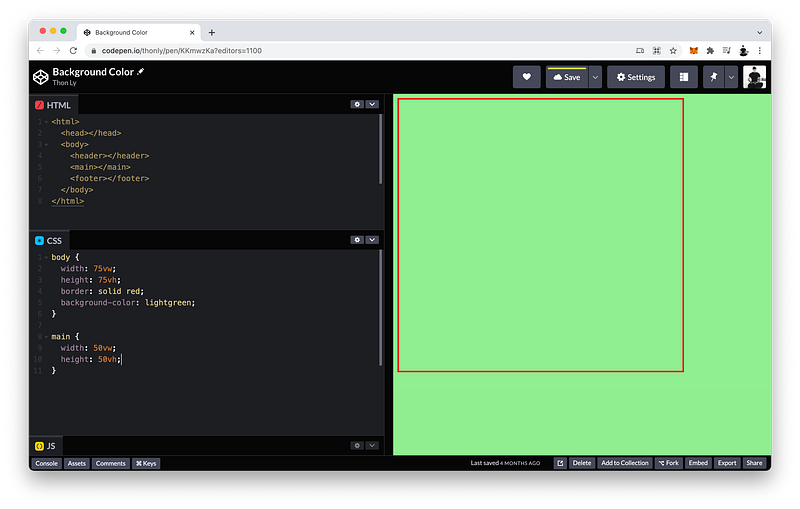
https://codepen.io/thonly/pen/KKmwzKa?editors=1100

This is the NOT the case for other HTML elements.

For example, let’s give the main element a background-color of green:

main {
 width: 50vw;
 height: 50vh;
 background-color: green;
}

As you can see, it exactly covers the dimensions of the main element (50vw x 50vh):
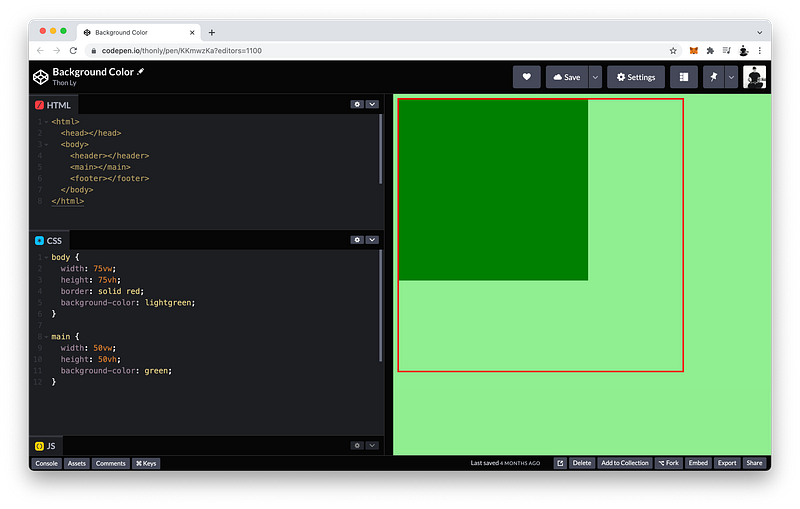
https://codepen.io/thonly/pen/KKmwzKa?editors=1100

The finished Codepen:

RGB Color System

There are a few different ways to specify the color that we want. So far, we have used familiar keywords such as green and lightgreen.

body {
 background-color: lightgreen;
}
main {
 background-color: green;
}

What if we want a more nuanced color between green and lightgreen?

How would we do that?

We can use a color system called RGB:

main {
 background-color: rgb();
}

Which stands for Red, Green, and Blue.

R = Red
G = Green
B = Blue

In nature, these are the three primary colors of light, from which we can produce any other colors:

Primary Colors: Red + Green + Blue => Rainbow

To get any particular color, we simply vary the amount of Red, Green, and Blue.

In fact, each pixel in a computer screen is made up of these 3 primary colors.

Pixel: Red + Green + Blue => Any Color

And depending on how much each one is lighted up, each pixel can produce any color.

In the RGB color system, each value can range from 0 all the way to 255.

RGB: 0 -> 255

For example, if we want a perfect red, we would make:

  • Red = 255
  • Green = 0
  • Blue = 0
main {
 background-color: rgb(255, 0, 0);
}

If we want a perfect green, we would make:

  • Red = 0
  • Green = 255
  • Blue = 0
main {
 background-color: rgb(0, 255, 0);
}

Similarly, if we want a perfect blue, we would make:

  • Red = 0
  • Green = 0
  • Blue = 255
main {
 background-color: rgb(0, 0, 255);
}

What is lightgreen in RGB?

It is:

main {
 background-color: rgb(144, 238, 144);
}

What happens if we set 0 to everything?

main {
 background-color: rgb(0, 0, 0);
}

Since all primary colors are turned off, we get pure black.

What happens if we max everything instead?

main {
 background-color: rgb(255, 255, 255);
}

We get pure white.

With RGB, it is also possible to control the transparency of a color.

By default, it is 100% representing no transparency.

main {
 background-color: rgb(255, 255, 255, 100%);
}

What happens if we make the transparency 50%?

main {
 background-color: rgb(255, 255, 255, 50%);
}

As you can see, the parent’s background-color of lightgreen seeps through a little.

What happens if we make the color completely transparent at 0%?

main {
 background-color: rgb(255, 255, 255, 0%);
}

The parent’s background-color comes through completely.

Transparency:
0%   ->  100%
full ->  none

It is more precise to use rgba() to include the transparency (alpha channel).

The finished Codepen:

HEX Shorthand

To make RGB shorter so we can type less, it is possible to count with base 16 instead of base 10.

Base 10:
R: 0 -> 255
G: 0 -> 255
B: 0 -> 255

Including 0, each of the three primary colors has 256 possibilities.

0 -> 255 = 256 possibilities 

When we count from from 0 to 9, we get base 10 or the decimal system:

Base 10: 0 -> 9 = 10 possibilities

Using this system, we need at least 3 digits for each primary color:

Decimal System:
R: 3 digits
G: 3 digits
B: 3 digits

Therefore in total, we need at least 9 digits to represent any color:

Total: 3 + 3 + 3 = 9 digits

For example:

rgb(255, 255, 255) => 9 digits

If we instead count from 0 to 9, then a to f, we get base 16 or the hexadecimal system.

Base 16: 0 -> 9 and a -> f = 16 possibilities

Using this system, we only need 2 digits to account for all 256 possibilities:

16 x 16 = 256 possibilities 

This means we only need 6 digits total to represent any color:

Hexadecimal System:
R: 2 digits
G: 2 digits
B: 2 digits

Let’s do some examples!

To get a perfect red, we write:

  • ff for red (which is 255 in the decimal system)
  • 00 for green (which is 0 in the decimal system)
  • 00 for blue (which is 0 in the decimal system)
main {
 background-color: ff0000;
}

To let CSS know that we’re using the hexadecimal system, we prefix it with the pound symbol:

main {
 background-color: #ff0000;
}

To get a perfect blue, we write #:

  • 00 for red
  • 00 for green
  • ff for blue
main {
 background-color: #0000ff;
}

To get pure black, we write # and 00 for everything:

main {
 background-color: #000000;
}

To get pure white, we write # and ff for everything:

main {
 background-color: #ffffff;
}

We can also add transparency.

To make a color fully transparent, add 00 at the end:

main {
 background-color: #ffffff00;
}

To make it 50% transparent, add 80 at the end:

main {
 background-color: #ffffff80;
}

To make it have no transparency, add ff at the end:

main {
 background-color: #ffffffff;
}

Finally, there’s even a shorter shorthand we can use!

If both digits are identical for each value, we can just drop one of them:

R: ff => f
G: ff => f
B: ff => f
A: ff => f

A represents the Alpha channel which is the formal name for transparency.

A = Alpha channel = transparency

In practice, we may be more intuitive to think of the alpha channel as the opacity instead.

A = opacity

Transparency and opacity are opposite terms that describe the ability to see through an object. Greater transparency means it is easier to see through something. Greater opacity means it is harder to see through it.

Low opacity (A = 0%) => High transparency
High opacity (A = 100%) => Low transparency

In other words, when something is opaque, light cannot pass through it easily. Hence, it is not transparent.

The shorthand:

main {
 background-color: #ffff;
}

The finished Codepen:

HSL Color System

Using the RGB color system, to change the color of a pixel on a computer screen, we simply vary the amount of the 3 primary colors of light.

Red + Green + Blue = Any Color

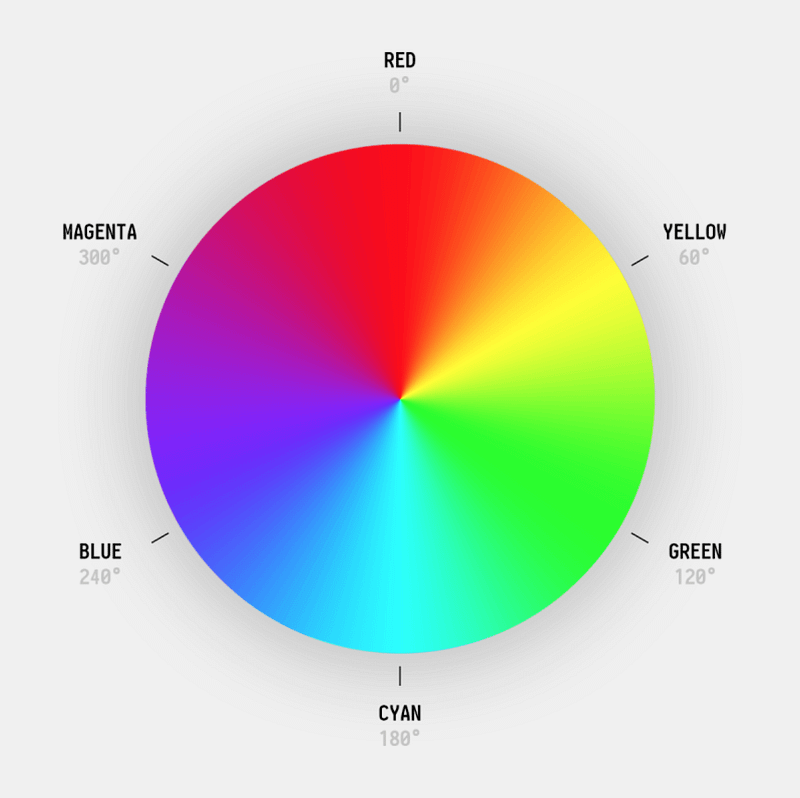
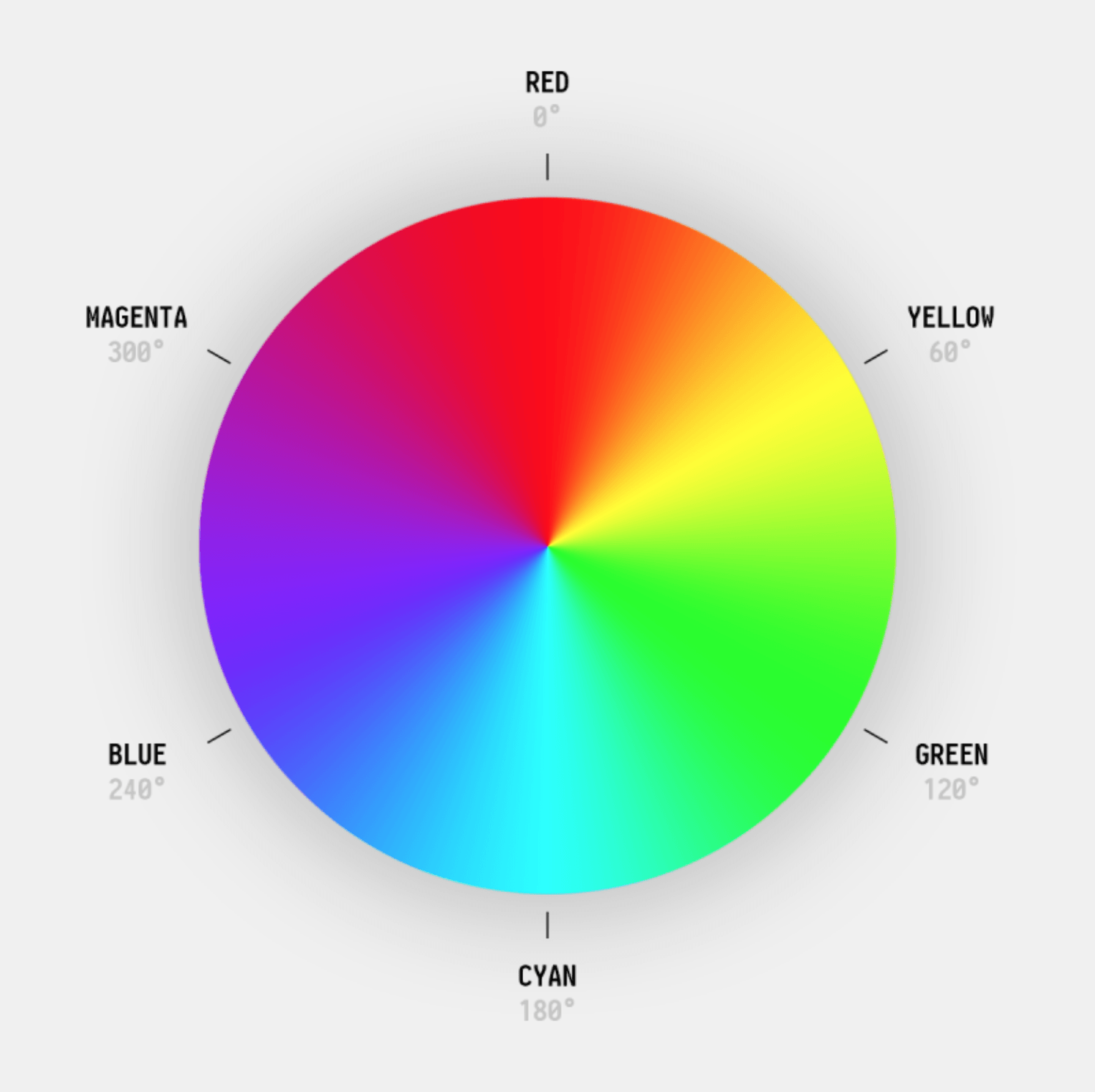
On a color wheel:

https://tsh.io/wp-content/uploads/2019/12/hsl-color-wheel.png

They are located at:

  • Red = 0 degrees
  • Green = 120 degrees
  • Blue = 240 degrees

For coders and engineers, this color system is simple and intuitive.

Engineers: RGB Color System

Designers and painters, on the other hand, prefer another system that uses a different set of primary colors. For them, colors are produced by mixing:

Designers: Yellow + Cyan + Magenta

On the color wheel, they are the complementary colors of light located at:

  • Yellow = 60 degrees
  • Cyan = 180 degrees
  • Magenta = 300 degrees

Using this system, to create different shades of the same Hue, painters can simply vary the amount of white paint being added. This amount of white paint is referred to as the Lightness factor.

Lightness = White

Computer printers also use this system of colors. However, instead of using white to create different shades, printers use black instead. The amount of black ink being added is referred to as the Saturation factor.

Saturation = Black

Let’s do some examples!

To tell CSS that we are using the Hue-Saturation-Lightness system of colors, we write:

main {
 background-color: hsl();
}

Then, to get perfect yellow for example, we write:

  • 60 degrees for the yellow Hue on the color wheel
  • 100% for the Saturation which means do not add any black “ink”
  • 50% for the Lightness
main {
 background-color: hsl(60deg, 100%, 50%);
}

Why 50%?

Below 50%:

main {
 background-color: hsl(60deg, 100%, 40%);
}

Means white “paint” will be removed.

Above 50%:

main {
 background-color: hsl(60deg, 100%, 60%);
}

Means white “paint” will be added.

At 50%:

main {
 background-color: hsl(60deg, 100%, 50%);
}

Means to do neither.

Lightness: 
0% ->         50%       -> 100%
remove white  no white  add white

If we add black “ink” to the maximum by setting the Saturation to 0%:

main {
 background-color: hsl(60deg, 0%, 50%);
}

The color will turn gray.

Saturation:
0%  ->  100%
full    none

Like RGB, we can also add an Alpha channel (transparency factor).

To make a color 50% transparent, we simply add 50% at the end like usual:

main {
 background-color: hsl(60deg, 0%, 50%, 50%);
}

It is more precise to use hsla() to include the alpha channel.

The finished Codepen:

Summary

In this lesson, we studied the background-color in more detail.
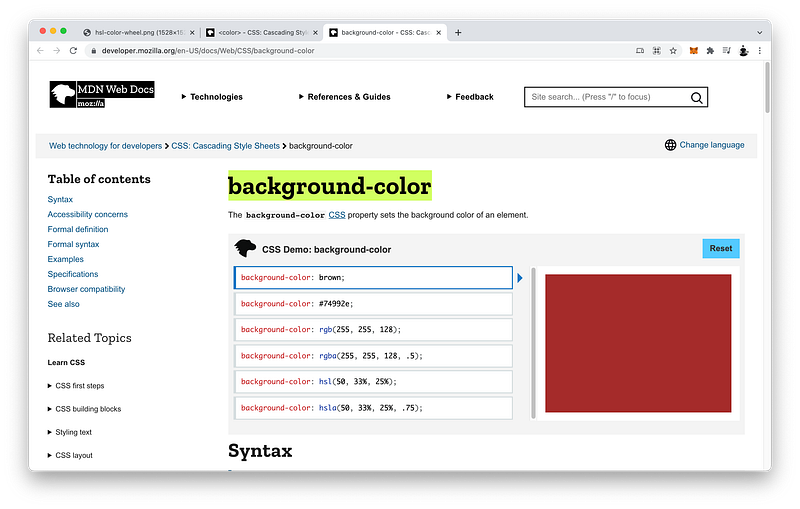
https://developer.mozilla.org/en-US/docs/Web/CSS/background-color

In particular, we explored three different ways to specify colors.

If we want to use colors that are common, we can specify keywords such as brown:

background-color: brown;

For the complete list of keywords, check out this MDN article:
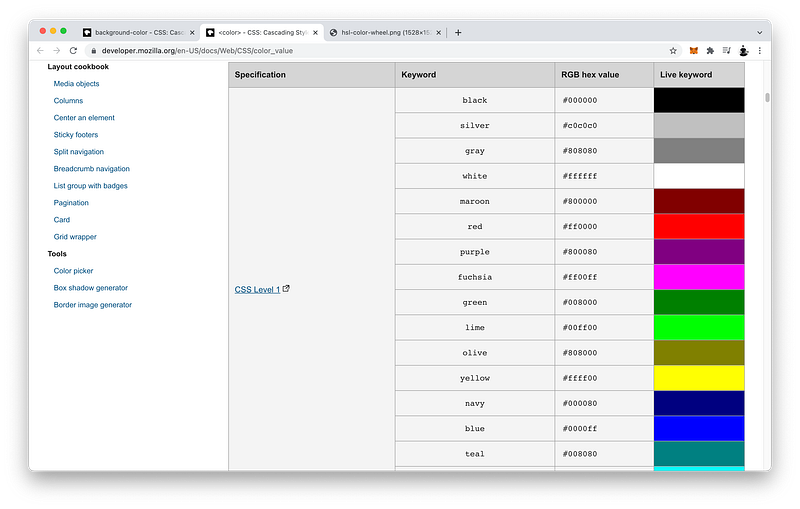
https://developer.mozilla.org/en-US/docs/Web/CSS/color_value

However, if we want to use colors that are not common, there are two systems of colors we can utilize:

  1. RGB Color System
  2. HSL Color System
https://tsh.io/wp-content/uploads/2019/12/hsl-color-wheel.png

RGB Color System

The RGB color system mirrors the way nature produces colors by varying the amount of the three primary colors of light:

  1. Red
  2. Green
  3. Blue

For example, a pixel on a computer screen uses this system to produce color.

Pixel = Red + Green + Blue

In fact, the cone cells in our eyes also use this system to enable us to see colors.

Cone Cell = Red + Green + Blue

HSL Color System

On the other hand, the HSL color system uses the three complementary colors of light:

  1. Yellow
  2. Cyan
  3. Magenta

With this system, shades can easily be created by adding white or black to the Hue.

For example, painters use this system to easily create shades by adding white or the Lightness factor.

Hue + White => Shades

Computer printers also use this system to easily create shades by adding black or the Saturation factor.

Hue + Black => Shades

Painters don’t use black because it’s difficult to mix. Printers don’t use white because the paper is already white.

RGB Syntax

To use the RGB color system, we can write it as a function:

rgb(R, G, B, A)

Or, as a hexadecimal:

#RRGGBBAA

In the functional notation, Red, Green, and Blue can be a number from 0 to 255, or a percentage.

R: 0 -> 255 or %
G: 0 -> 255 or %
B: 0 -< 255 or %

The transparency or Alpha can be a number between 0 and 1, or a percentage.

A: 0 -> 1 or %

We can separate these values with a common:

rgb(R, G, B, A)

Or, just a space:

rgb(R G B A)

In the hexadecimal notation, we use hexadecimal characters:

  • 0 through 9
  • a through f

If all four values and their two digits are the same, we can drop one:

#RRGGBBAA => #RGBA

Again, it is more precise to use rgba() to include the alpha channel.

HSL Syntax

To use the HSL color system, we specify:

  • Hue
  • Saturation
  • Lightness
  • Alpha

We can separate them using a comma:

hsl(H, S, L, A)

Or, just a space:

hsl(H S L A)

The Hue is expressed as an angle, the Saturation and Lightness are expressed as percentages. The Alpha can be expressed as a number between 0 to 1, or a percentage.

H: angle
S: %
L: %
A: 0 -> 1 or %

In both color systems, the Alpha channel is optional and the default is 1 which is no transparency.

Again, it is more precise to use hsla() to include the alpha channel.

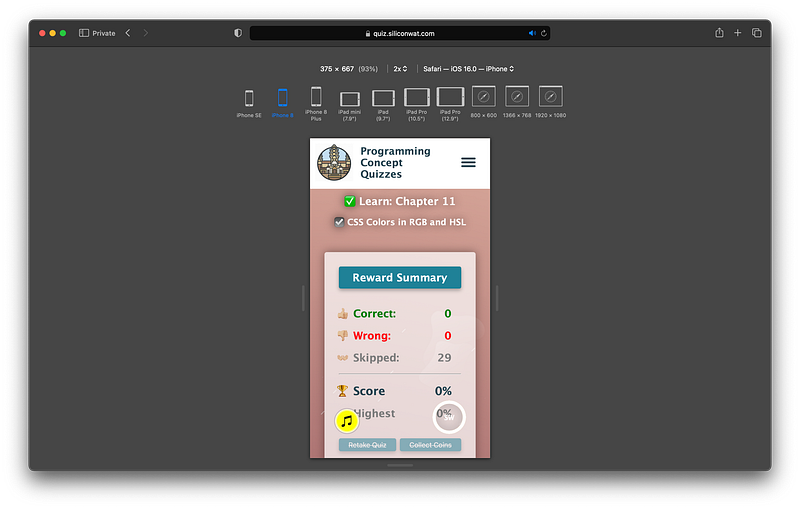
Concept Quiz

Take my Programming Concept Quiz to check your understanding! For every correct choice, you will earn SW Coins which you can redeem for coupons towards the purchase of any of my Udemy courses!

https://quiz.siliconwat.com/?lang=en#frontend-chapter11

Sample Quiz Questions for Lesson 11:

Question 1:

Which CSS property CANNOT set the background-color?

  1. background
  2. color
  3. background-color

Question 2:

Setting a background-color on the body element will always cover the entire viewport.

  1. True
  2. False

Question 3:

What is NOT a primary color?

  1. red
  2. green
  3. yellow
  4. blue

Question 4:

Which will produce pure red?

  1. rgb(0, 255, 0)
  2. rgb(255, 0, 0)
  3. rgb(0, 0, 255)

Question 5:

Which will produce pure green?

  1. rgb(100%, 0%, 0%)
  2. rgb(0%, 100%, 0%)
  3. rgb(0%, 0%, 100%)

Question 6:

Which will produce pure blue?

  1. rgb(0 0 255)
  2. rgb(255 0 0)
  3. rgb(0 255 0)

Question 7:

Which will produce pure white?

  1. rgb(100% 100% 100%)
  2. rgb(0 0 0)

Question 8:

Which will produce pure black?

  1. rgb(255 255 255)
  2. rgb(0 0 0)

Question 9:

Which will produce perfect transparency?

  1. rgb(0 0 0 100%)
  2. rgb(0 0 0 0)

Question 10:

Hexadecimal notation requires a # prefix.

  1. True
  2. False

Question 11:

Which is NOT a hexadecimal character?

  1. 0
  2. 9
  3. a
  4. d
  5. f
  6. g
  7. 5

Question 12:

Which will NOT produce pure red?

  1. #ff0000
  2. #f00
  3. #ff0

Question 13:

Which will NOT produce pure green?

  1. #0f0
  2. #0ff
  3. #00ff00

Question 14:

Which will NOT produce pure blue?

  1. #f0f
  2. #0000ff
  3. #00f

Question 15:

Which will NOT produce pure white?

  1. #ffffff
  2. #fff
  3. #000

Question 16:

Which will NOT produce pure black?

  1. #fff
  2. #000
  3. #000000

Question 17:

Which will NOT produce perfect transparency?

  1. #0000
  2. #0000000
  3. #000f

Question 18:

Which is NOT a complementary color?

  1. yellow
  2. green
  3. cyan
  4. magenta

Question 19:

Yellow is located at what degree?

  1. 60
  2. 180
  3. 300

Question 20:

Cyan is located at what degree?

  1. 60
  2. 180
  3. 300

Question 21:

Magenta is located at what degree?

  1. 60
  2. 180
  3. 300

Question 22:

What “paint” color does the Lightness factor add or remove?

  1. white
  2. black

Question 23:

What “ink” color does the Saturation factor add?

  1. white
  2. black

Question 24:

What Lightness value will NOT add any white?

  1. 0%
  2. 50%
  3. 100%

Question 25:

What Saturation value will NOT add any black?

  1. 0%
  2. 50%
  3. 100%

Question 26:

Which is NOT a complementary color?

  1. hsl(60deg 100% 50%)
  2. hsl(180deg 100% 50%)
  3. hsl(300deg 100% 100%)
  4. hsl(300deg 100% 50%)

Question 27:

Which color system uses primary colors?

  1. RGB
  2. HSL

Question 28:

Which color system uses complementary colors?

  1. RGB
  2. HSL

Question 29:

Which Alpha value will NOT produce perfect opacity (no transparency)?

  1. 1
  2. 100%
  3. 0
https://quiz.siliconwat.com/?lang=en#frontend-chapter11

Programming Concept Quiz for Chapter 11

Coding Exercises

Check out my Interactive Coding Exercises to put to practice what you have learned! There, you will also find interactive hints to help you understand each line of code. Likewise, for every correct solution, you will earn SW Coins which you can redeem for coupons towards the purchase of any of my Udemy courses!

Interactive Coding Exercises for Chapter 11

Syntax Flashcards

Review what you have learned by playing my Syntax Flashcard Game! These flashcards are designed to help you commit to memory all the new code syntaxes you learned in this lesson. Likewise, for every correct answer, you will earn SW Coins which you can redeem for coupons towards the purchase of any of my Udemy courses!

Syntax Flashcard Game for Chapter 11

Next Steps

Congrats on completing Unit 2: Lesson 6 of 13! 🎉

Unit 1: 100% Completed
Unit 2: 46% Completed
Unit 3: 0% Completed
Unit 4: 0% Completed
Unit 5: 0% Completed
Bonus Unit 6: 0% Completed
Bonus Unit 7: 0% Completed
Overall Progress: 11% Completed

Join Remote Frontend Cohort Program

Next Lesson

In this lesson, we formally introduced the CSS background property and focused on the background-color. In the next lesson, we will continue our discussion of the background property by focusing on the background-image. This will complete our understanding of the background property as well as enable us to create some really fancy gradient effects in Lesson 13!

Chapter 12: CSS Background

Table of Contents

When you use my referral link above 👆 to become a Medium member, all proceeds will be donated towards the construction of the Silicon Wat Campus for children in Ukraine and Cambodia ❤️

HTML
CSS
JavaScript
Front End Development
Programming
Recommended from ReadMedium