
Build a Web App with ASP.NET Core MVC and EF Core
In this post, I will show how to build a web application using ASP.NET Core MVC and Entity Framework Core. The application will manage a database of TV Shows and its main page will look like below at the end.
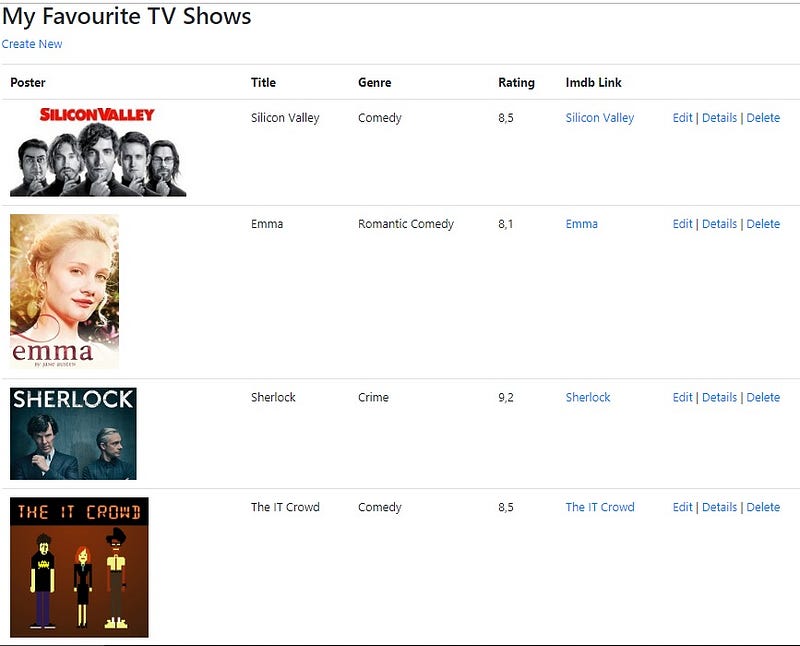
I will demonstrate how to
- Create an ASP.NET Core MVC project
- Add and scaffold a model
- Work with a database using Entity Framework Core
- Add validation
- Add a new field
For the application development, I will use
- Visual Studio 2017 Community Edition (free)
- .Net Core SDK 2.2 (free)
- Microsoft Sql Server Express (free)
For a better understanding of this post, I suggest you read the below post first:
If you are ready, let’s get started.
Creating the Starter Project
First, open File -> New -> Project.
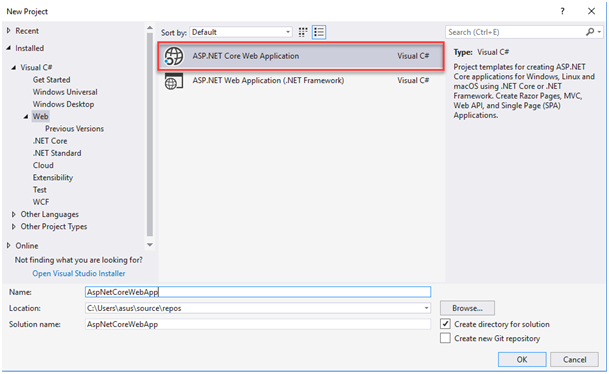
Select ASP.NET Core Web Application, give your project a name and select OK.
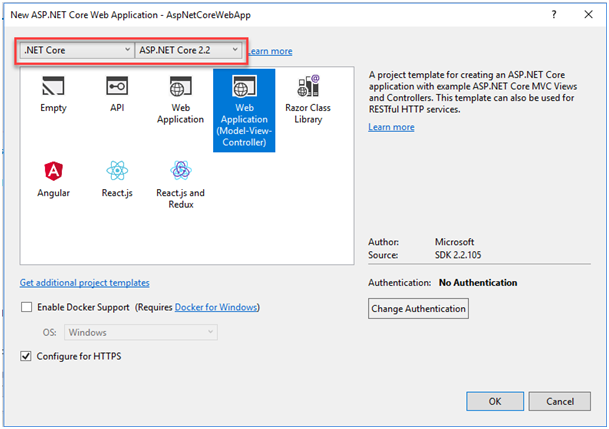
In the next window, select .Net Core and ASP.Net Core 2.2 as shown in the red box and select Web Application (Model-View-Controller) and then click OK.
At this point, we have a starter project. Let’s run the project (Crtl + F5) to see everything is OK.
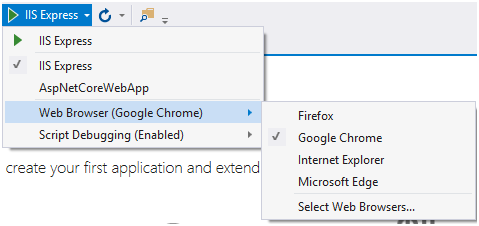
You can change the browser that you want to run the site from below:
After running we get the Welcome page as below:
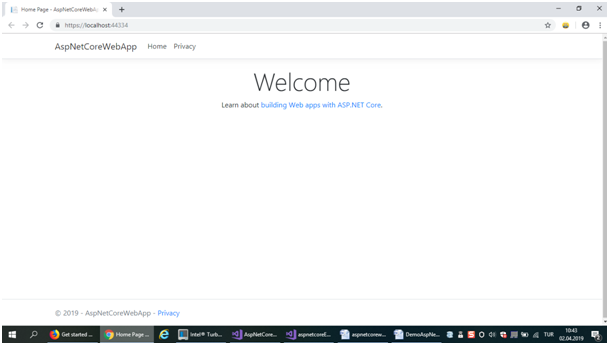
MVC invokes controller classes (and the action methods within them) depending on the incoming URL. The default URL routing logic used by MVC uses a format like this to determine what code to invoke:
/[Controller]/[ActionName]/[Parameters]
The routing format is set in the Configure method in Startup.cs file.
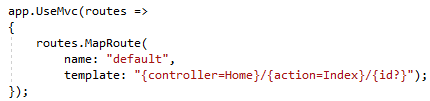
When you browse to the app and don’t supply any URL segments, it defaults to the HomeController and the Index method specified as above. So, if you enter https://localhost:{Your Port Number}/Home/Index as URL, you will get the same Welcome page shown above.
In the Views/Shared/_Layout.cshtml file, make the following changes in the title, menu link and the footer.
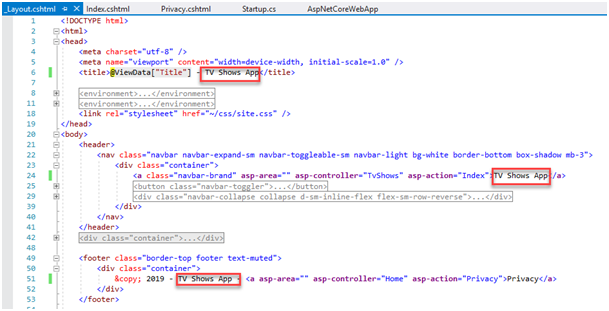
After the changes, our site looks like below:
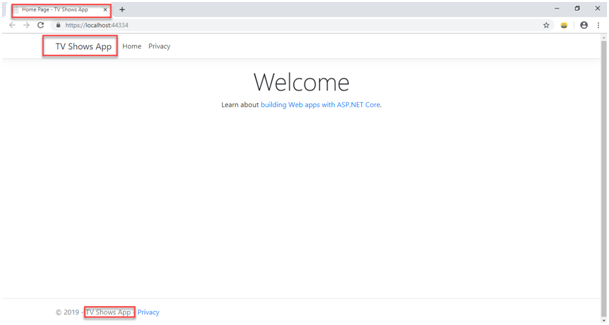
We changed the menu link’s controller to TvShows and we will implement that in the next section.
Adding a Model and Scaffolding
Now, we will implement our data model class (Model part of the MVC app). We will use this class with Entity Framework Core (EF Core) to work with a database. EF Core is an object-relational mapping (ORM) framework that simplifies the data access code. Model classes don’t have any dependency on EF Core. They just define the properties of the data that will be stored in the database.
In this post, we will write the model classes first and EF Core will create the database. This is called Code First Approach.
Now, right click the Models folder and select Add->Class.
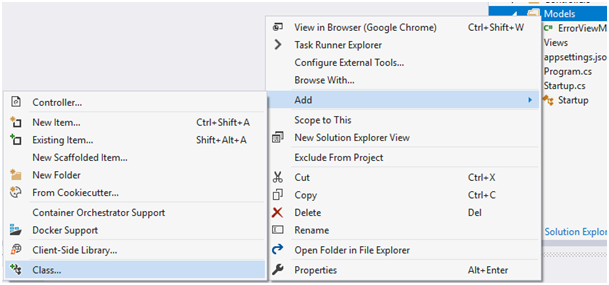
Give the name TvShow.cs to the class and select OK. Then add the following properties to the class.
Then add another class called Genre.cs as below:
At this point, we need to build the project.
Next, we will create our controller and views (View-Controller part of the MVC app).
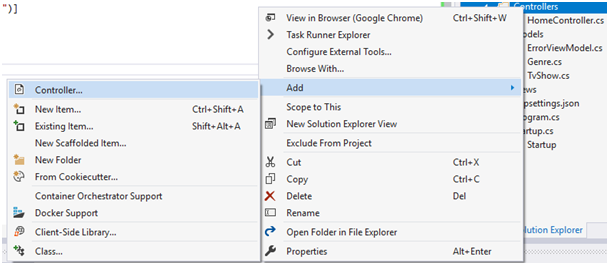
Right click the Controllers Folder and select Add -> Controller.
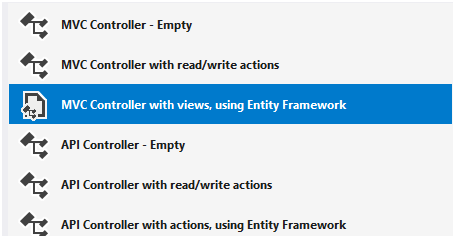
In the following window, select MVC Controller with views, using Entity Framework and click Add.
In the next window, select TvShow as Model class and click + sign in the Data context class and give it a name. Keep the default for the other fields and select Add.
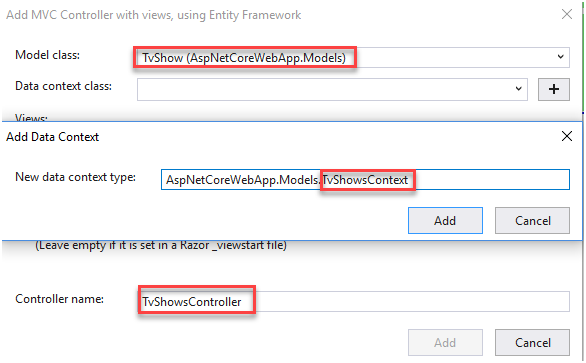
At this point, scaffolding tool works. The automatic creation of the database context and CRUD (create, read, update, and delete) action methods and views is known as scaffolding.
We will now examine what Visual Studio added to our project automatically as the result of scaffolding:
- Controller class -> Controllers/TvShowsController.cs
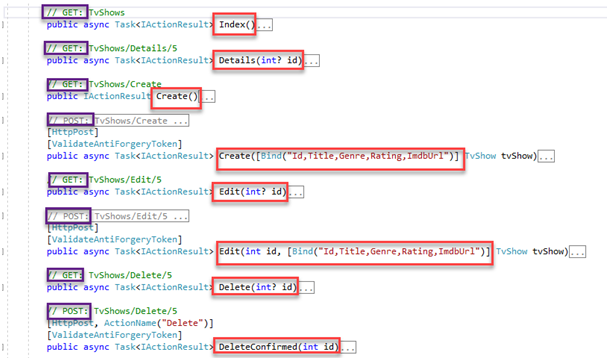
The following methods are the action methods of the TvShowsController:
- Index (GET)
- Details (GET)
- Create (GET & POST)
- Edit (GET & POST)
- Delete (GET & POST)
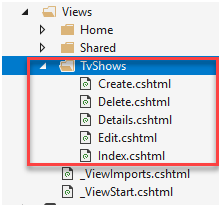
2. Razor view files for Create, Delete, Details, Edit, and Index pages -> Views/TvShows/*.cshtml
3. Dll.s related to Entity Framework Core (under Dependencies menu)
4. EF Core database context class -> Data/TvShowsContext.cs
The TvShowsContext coordinates EF Core functionality (Create, Read, Update, Delete, etc.) for the TvShow model. The TvShowsContext is derived from Microsoft.EntityFrameworkCore.DbContext. The data context specifies which entities are included in the data model:
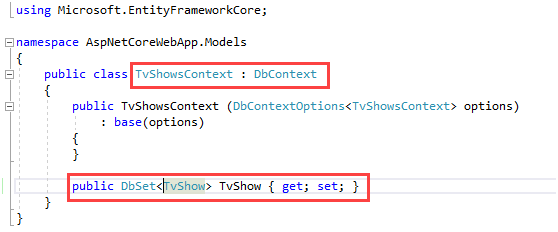
The preceding code creates a DbSet<TvShow> property for the entity set. In Entity Framework terminology, an entity set typically corresponds to a database table and an entity corresponds to a row in the table.
The name of the connection string is passed into the context by calling a method on a DbContextOptions object. For local development, the ASP.NET Core configuration system reads the connection string from the appsettings.json file.

ASP.NET Core is built with Dependency Injection (DI). Services (such as the EF Core DB context) are registered with DI during application startup. Components that require these services are provided with these services via constructor parameters.
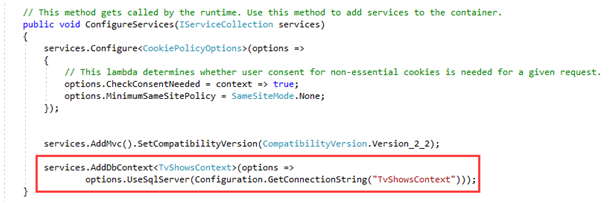
The scaffolding tool registered the DB context (TVShowsContext) with the DI container in the ConfigureServices method of Startup.cs as below:
In the Controllers/TvShowsController.cs , the constructor uses dependency injection to inject the database context (TvShowsContext) into the controller.
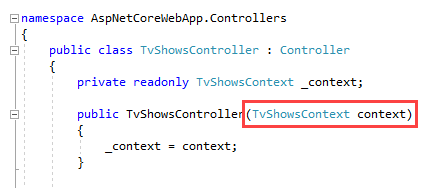
TvShowsContext is used in each of the CRUD methods in the TvShowsController.
Creating Database using Migrations
Now, we will create the database using the EF Core Migrations feature. Migrations lets us create a database that matches our data model and update the database schema when our data model changes.
First, we will add an initial Migration.
Open Tools -> NuGet Package Manager > Package Manager Console(PMC) and run the following command in the PMC:
Add-Migration Initial
The Add-Migration command generates code to create the initial database schema which is based on the model specified in the TvShowsContext class. The Initial argument is the migration name and any name can be used.
After running the command, a migration file is created under the Migrations folder:
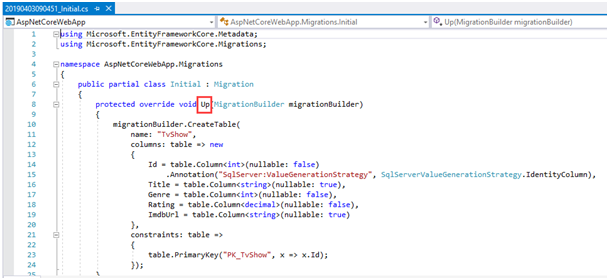
As the next step, run the following command in the PMC:
Update-DatabaseThe Update-Database command runs the Up method in the Migrations/{time-stamp}_InitialCreate.cs file, which creates the database.
Now, we will check the database created. Open View -> Sql Server Object Explorer.
You will see the newly created database under the following path:
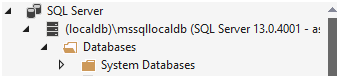
as below:
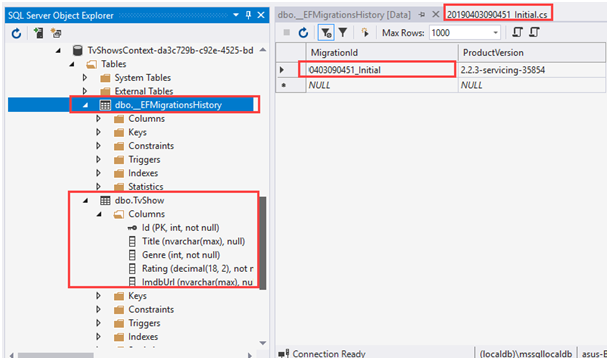
As you see, the TvShows table and the migration history table are created automatically. Then a record is inserted to the migration history table to show the executed migrations on the database.
Creating the First Record
Now, run the app and click Tv Shows App and then click Create New link.
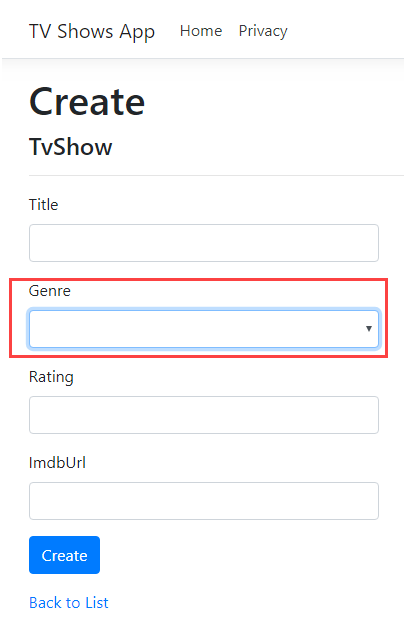
For now, Genre drop-downlist is empty. We will edit Create.cshtml to load the list from the Genre enum as below:
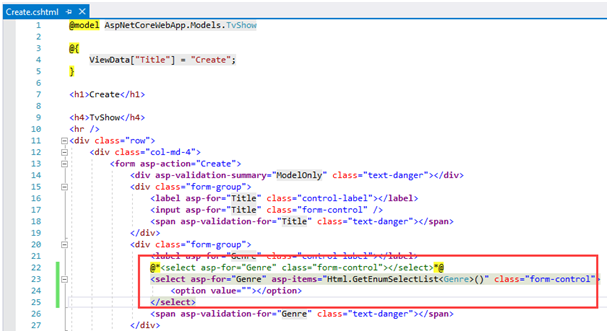
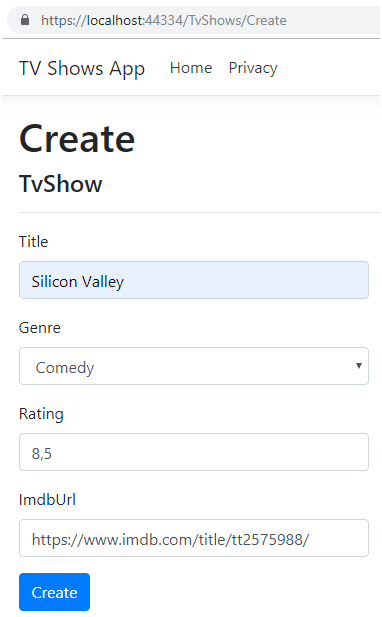
After saving the Create.cshtml, if you refresh the browser the change will be reflected and Genre drop-downlist is loaded. Now we can create the first record. (You should do the same change in the Edit.cshtml too)
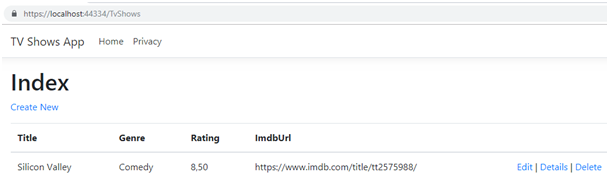
After clicking the Create button, the new record is shown as below in the Index page:
Besides we can check this from the table in the Sql Server:

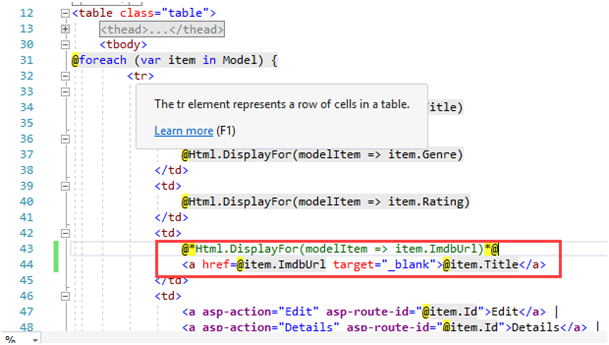
Now we will show Imdb Url as a link. Change Views/TvShows/Index.cshtml as follows:
If we run the app again, Index page is shown as below:
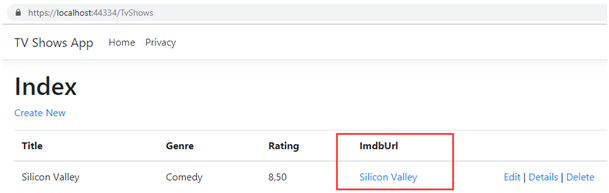
You can do the same change for the Details page (Views/TvShows/Detail.cshtml) as well.
Adding Data Annotations to the Model
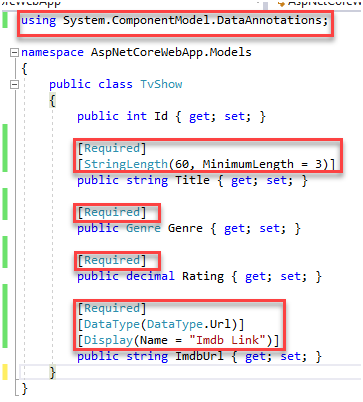
In this section, we will add data annotations to our model for validation and display purposes. Data Annotations provides a built-in set of validation attributes that you apply declaratively to any class or property. It also contains formatting attributes that help with formatting and don’t provide any validation.
Change the TvShow.cs as follows:
If we run the application and try to create a new record as below, we can see the effect of these data annotations:
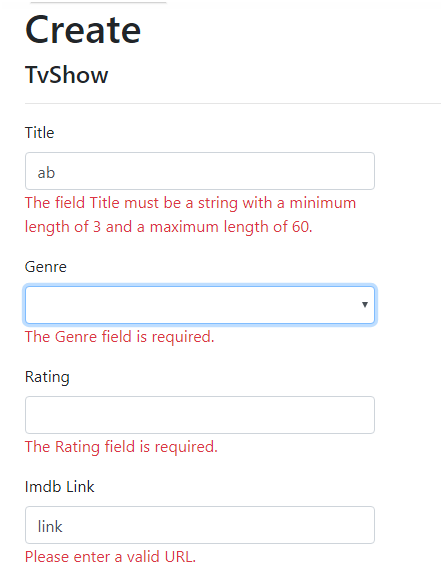
The errors are enforced both client-side (using JavaScript and jQuery) and server-side (in case a user has JavaScript disabled).
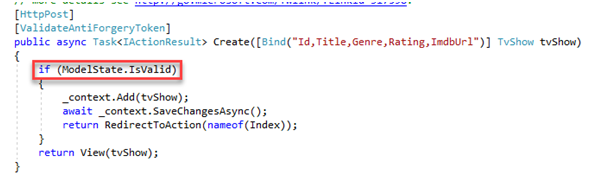
For server-side validation, the second Create method (POST version) calls ModelState.IsValid to check whether the movie has any validation errors.
Adding a New Field
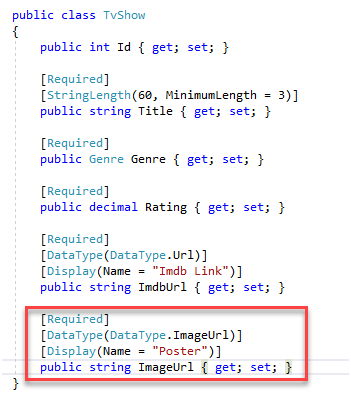
We will now add Image Url field to our application and show the poster of the TV Show in the records.
First, add this property to the TvShow model (Models/TvShow.cs) as follows:
Then build the application.
Next, we will use Code First Migrations to add this field to the db table. Run the following commands in the PMC:
Add-Migration ImageUrlUpdate-DatabaseWe can see from Sql Server Object Explorer that the ImageUrl is added to the table as below:

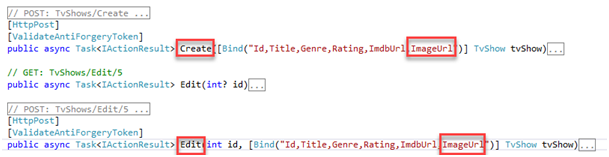
Now, we will update the [Bind] attribute for the Create and Edit POST methods in the TvShowsController.cs:
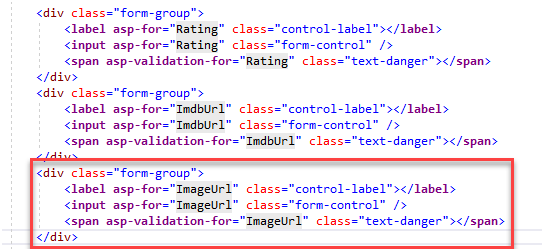
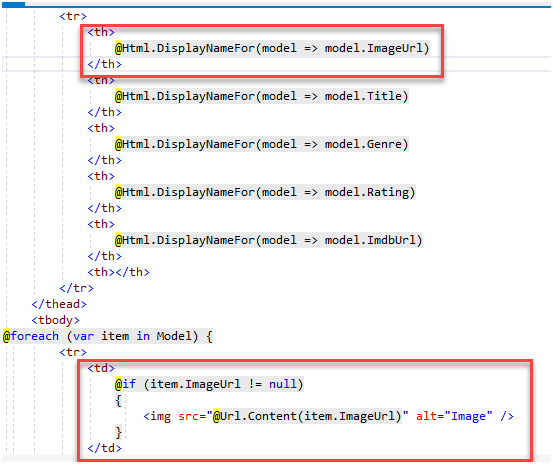
Next, we need to change the Index, Create, Edit, Delete views to show this new field.
Add the following part shown in the red box to the Edit.cshtml.
And change the Index.cshtml as below:
Go to the Edit page for the record we created and enter the following image url in the Poster field:
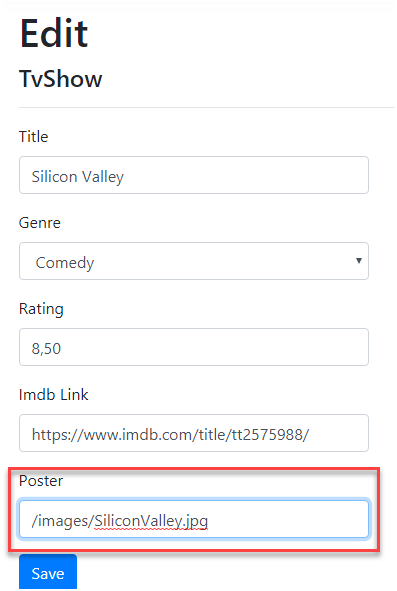
You should copy the image file under wwwroot/images directory.
After pressing the Save button, our record is shown as below in the Index page:
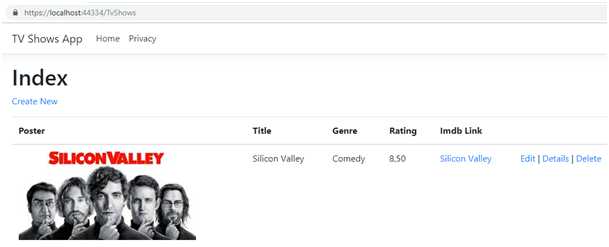
You should change the Create, Details and Delete views to show the new field as well.
Lastly, let’s change the display format of the Rating field so that it only shows one digit after the decimal separator. Add the following line to the TvShow.cs and build the application.

Now our application is ready to enter our favourite TV shows. I entered mine, you can enter yours :)
You can access the full project from here.
I hope you enjoyed reading this post and found it helpful and easy to understand. Please let me know if you have any comments and/or corrections.
And if you liked this post, please clap your hands 👏👏👏
Bye!
UPDATE (16/06/2019): If you are interested in .NET Core and want to find out more, you can check this .NET Core publication. The posts in the publication are as below:
- Introduction to .NET Core
- ASP.NET Core MVC Web Application (Project Structure)
- Build a Web App with ASP.NET Core MVC and EF Core (this post)
- How To Build a RESTful API with ASP.NET Core
- Build a Web App with ASP.NET Core and MongoDB
- Repository Pattern Implementation in ASP.NET Core
If you want, you can follow this publication and be informed when a new post arrives.
References
https://docs.microsoft.com/en-us/aspnet/core/tutorials/first-mvc-app/validation?view=aspnetcore-2.2


