
Build Your Own AI-powered Blogging Tools on the iPad
A Practical Guide to 3 Useful ChatGPT iPad Shortcuts

Everyone is talking about it, and it is impossible to imagine the modern world without it — AI. OpenAI brought it to the public with the release of ChatGPT and made AI accessible to everyone. Nowadays, AI is implemented in nearly every piece of software and there is hardly any chance to come around the use of AI in our everyday lives. We all have experienced how powerful AI can be and how it can support us in efficient and productive working. AI is also compelling for writing blog articles, although we would rather not get to the stage where AI writes the articles. I think we all want to read real stories from real people. However, used wisely, AI can be a very useful tool in the process of writing and can contribute one or two good aspects to flesh out an article.
AI, especially ChatGPT, can be even more powerful when implemented into Apple Shortcuts on the iPad. This article guides you in the process of building a Shortcuts framework customizable to your needs based on text input and ChatGPT implementation for even more efficient writing. Let’s start building!
Before you start…
…you need to install the ChatGPT app from the App Store. The app can be used in Shortcuts and provides you with the ChatGPT interface command.
At this point, pause reading and get the app. But make sure to come back here.
Ready? Then let’s move on to building the framework.
Building the basis
The basic framework is simple. A prompt will ask for text input, and the input text will then be combined with a pre-set ChatGPT command line. The combined text will be handed to ChatGPT. The text from the ChatGPT output will be copied to the clipboard to have it ready to paste wherever required. The following commands are combined in the following order:
1 — “Ask for Input”
2 — “Combine Text”
3 — “Ask ChatGPT”
4 — “Copy to Clipboard”
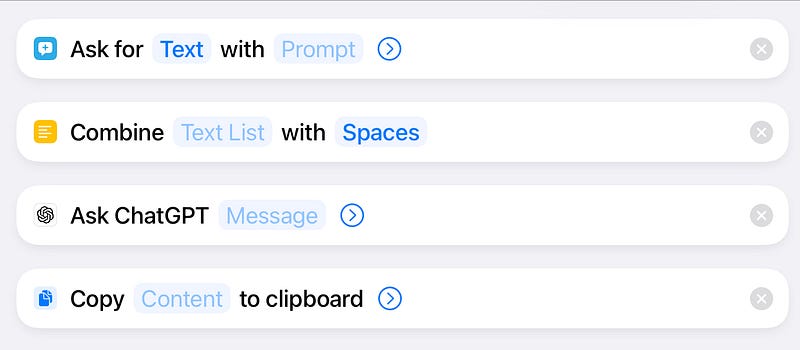
This structure is important as I will refer to this as a “framework” throughout this article.
Now it’s time to get creative. Based on this framework, I built 3 shortcuts to make writing more efficient.
Optimizing the title of an article
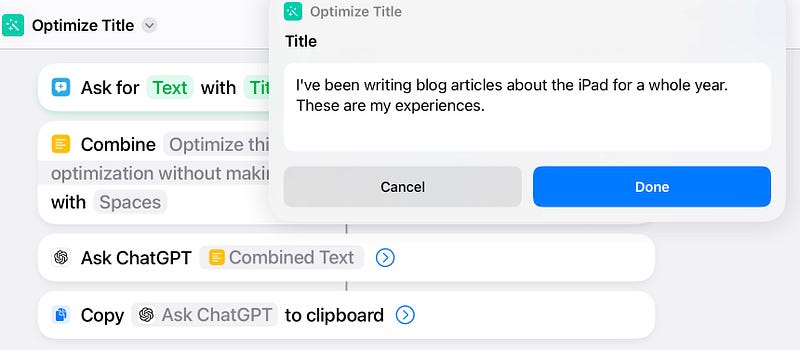
The title is crucial to engage people reading your article. It should keep its promises, i.e., the title should fit the content of the article and must not be clickbaity (at least on Medium). But the article must also be found by search engines. Title optimization has an important influence on the traffic your article gains. In this shortcut, a title is pasted to a prompt, and handed over to ChatGPT for title optimization.
To build this shortcut, follow these steps:
Build the framework in the Shortcuts app.
1 — “Ask for Input”: Specify the input type to text. If you like, you can put a CTO or just a description in the “Prompt” field.
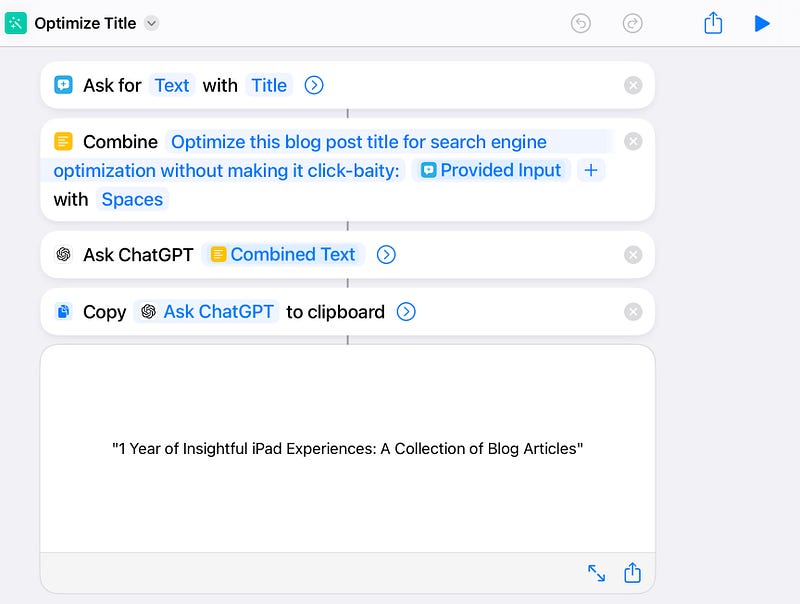
2 — “Combine Text”: Type in your ChatGPT command line in the “Text List” field and finish the command line with a colon. Tap on the “+” icon next to the input field, tap on the newly inserted input field, and select “Provided Input”. Keep “Spaces” in the last input field. This specifies how the two blocks of text are combined.
3 — “Ask ChatGPT”: Tap on the “Question” input field and select “Combined Text”.
4 — “Copy to Clipboard”: Tap on the input field and select the “Ask ChatGPT” variable.
The output will be displayed and copied to the clipboard. However, the optimized title contains quotation marks that are also copied to the clipboard.
For an even more frictionless experience, you can modify the shortcut according to the image below to remove them from the output. Just add the “Get Text from Input” and “Replace Text” commands and specify the variables as shown.
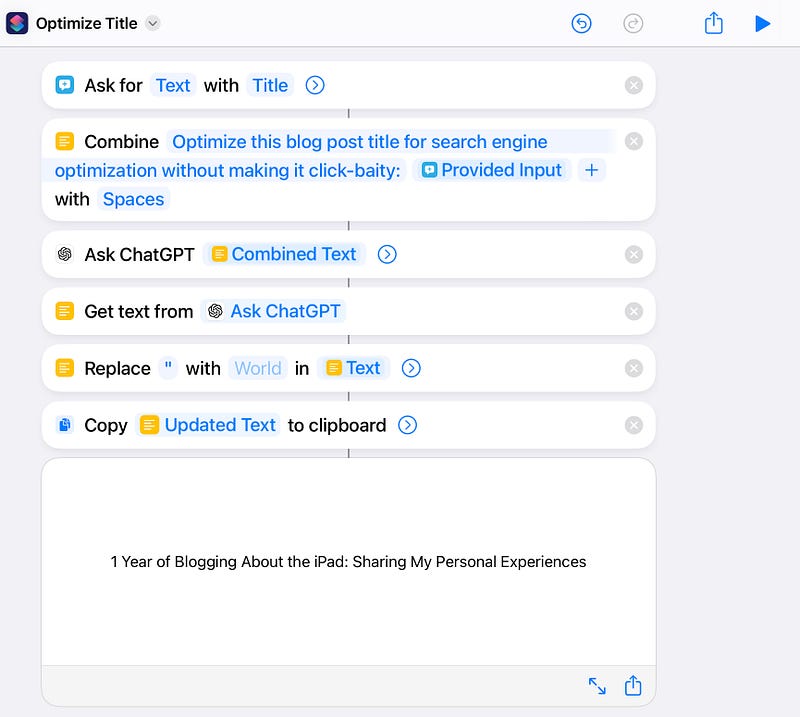
Your optimized title is now ready to be pasted wherever you require it.
Summarize texts or articles
Especially when writing long texts, a summary or an abstract of the text or article is often useful. This is a task where AI can assist and that can be automized in a shortcut.
To build this shortcut, again, get the framework ready in the Shortcuts app on your iPad.
Follow the same steps as in the previous section. In stage 2, be sure to put a word limit into your ChatGPT command line (which is often not met by ChatGPT, but at least the text output gets close to this number). In my example, I ask ChatGPT to exclude the phrase “the author” because this third-person style of writing does not fit my use cases for this shortcut.
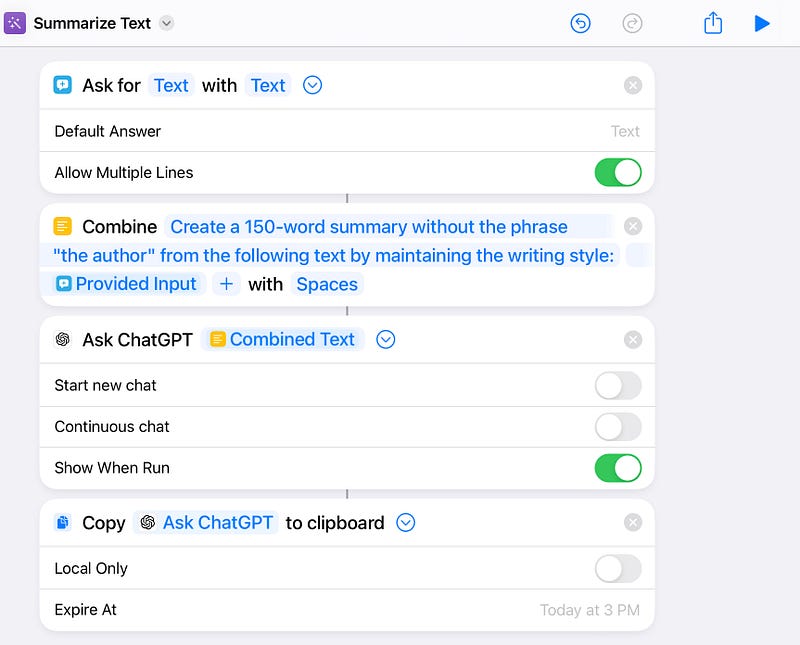
In this example, I used an article I published recently. I copied the text to the clipboard and pasted it to the prompt. The summary output will be displayed. After clicking on done, the ChatGPT output will be copied to the clipboard.
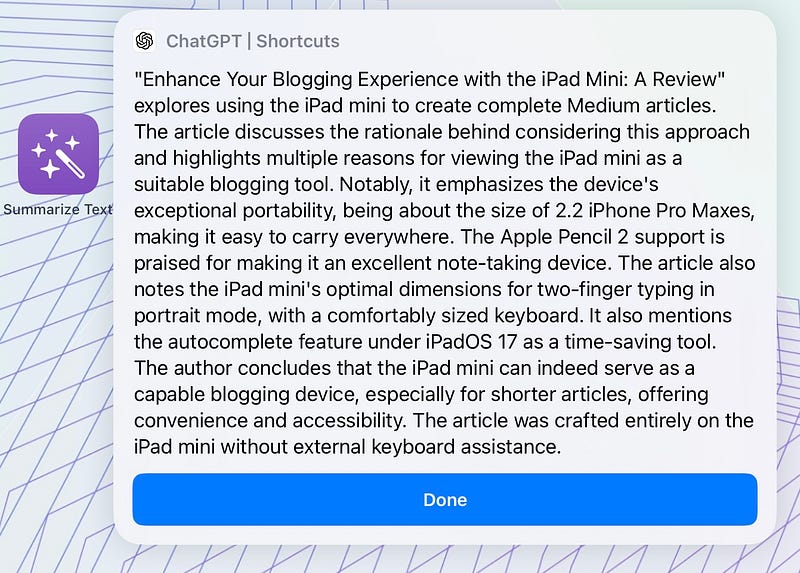
Your text summary is now ready to be pasted wherever needed.
Generating an outline for an article
I often have ideas for articles but need some inspiration on a good structure. ChatGPT always comes up with great aspects to be considered in the structure of the article. Using the framework, you can jot down your article idea in a few words to a prompt and ChatGPT creates an outline for you ready to be pasted everywhere from the clipboard.
To build this shortcut from the framework by specifying the ChatGPT command line in “Combine Text”.
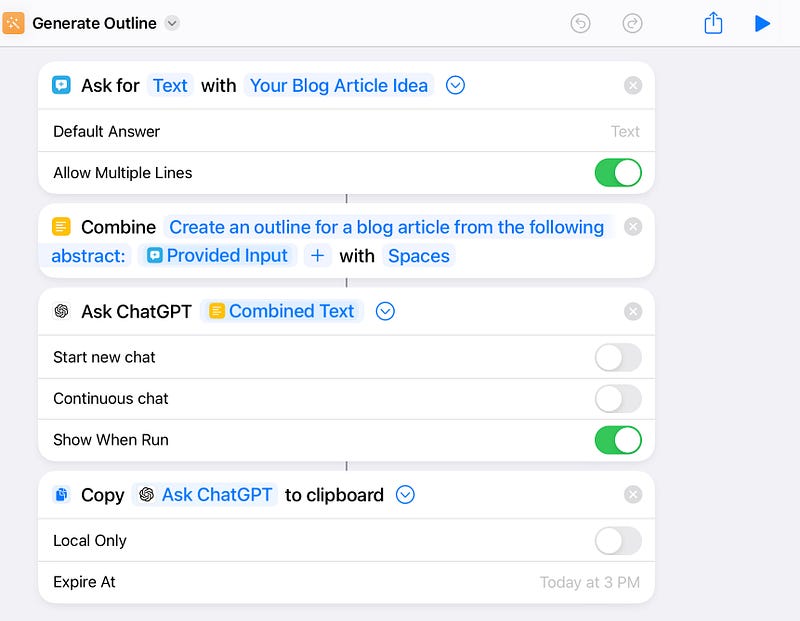
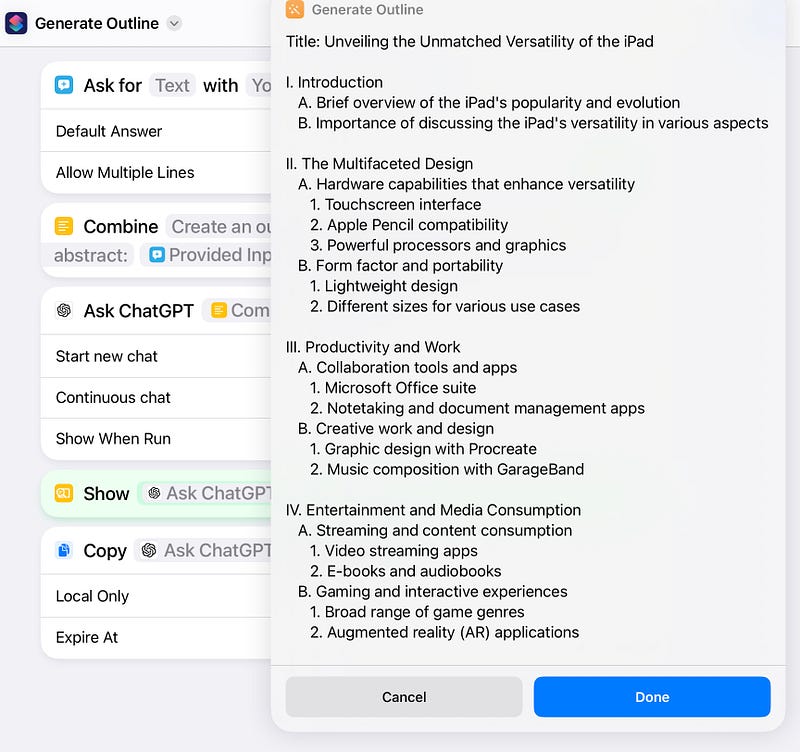
One downside of this shortcut is that the preview of the outline suggested by ChatGPT is very populated and not structured at all.
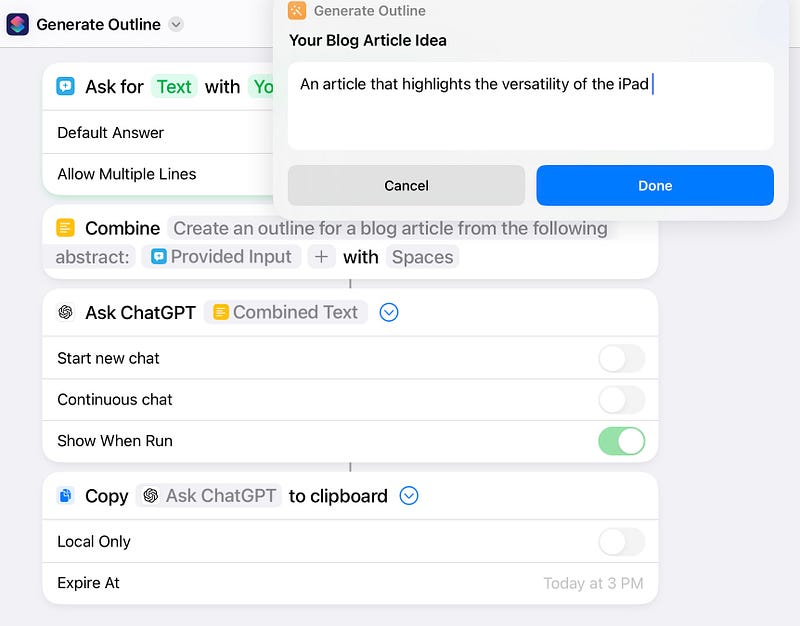
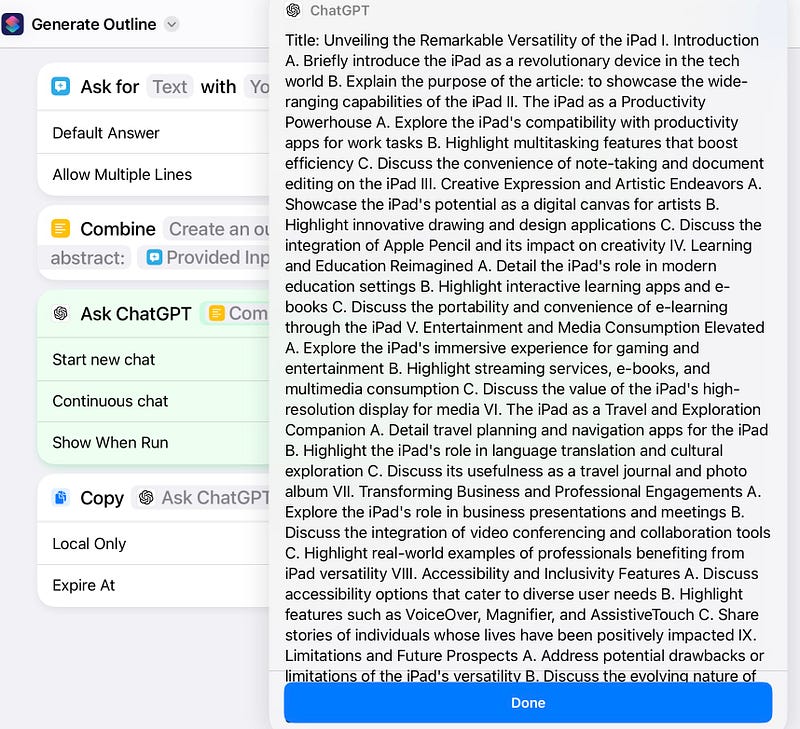
However, the text copied to the clipboard is formatted. If you do not need a nicely structured preview, then you are good to go with this version of the shortcut.
If you want a nicely structured preview, then add the “Show result” to the penultimate position.
Conclusion
ChatGPT implementation into the Shortcuts app is a very powerful tool to create productivity shortcuts from a simple framework. You can keep the same structure and can create different shortcuts by simply changing the command line text that is, together with the input, handed over to ChatGPT. Of course, these are just 3 simple examples. Much more is possible and the Shortcuts and ChatGPT apps allow you to create powerful and highly customizable AI tools. But, not everything is possible. I failed to create an SEO and readability optimization shortcut with entire articles as input. This shortcut frequently failed to execute commands after the “Ask ChatGPT” command. However, the result can still be found in the ChatGPT app which makes workarounds possible. Get creative and use AI wisely to your advantage!
Do you already have your own productivity ChatGPT shortcuts? If so, for which tasks do you use ChatGPT? Let me know your use cases in the comments! I‘m genuinely interested in reading them to get new inspiration.
Thank you for reading!
Tobias


