
Build a Personal Search Engine Web App using Open AI Text Embeddings
Create a semantic search engine using Open AI embeddings and models powered by Databutton — an all-in-one Python building web-development ecosystem.
Not a medium member ? Use this friend link to read this article for free!
Introduction
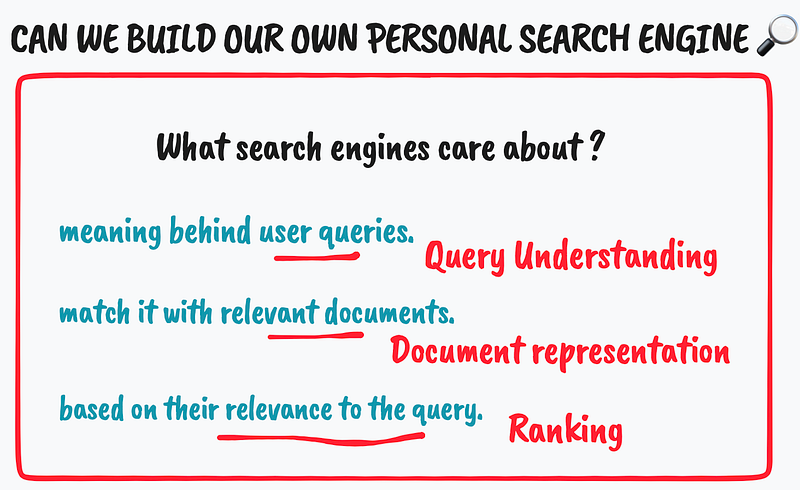
Search engines primarily rely on natural language processing and machine learning to understand the meaning behind user queries and match them with relevant documents. But, how can we create a personal semantic search engine quickly? To answer that, it is of prior importance to understand the fundamental concepts of Large Language Models (LLMs) and embeddings. Embeddings and LLMs are crucial tools that help to provide accurate and relevant search results.

As an example, OpenAI has developed advanced search language processing models or LLMs. These models can process a corpus amount of text and understand the relationships between words and phrases. To further define LLMs, let’s have a quick look at Wikipedia:
A large language model (LLM) is a language model consisting of a neural network with many parameters (typically billions of weights or more), trained on large quantities of unlabelled text using self-supervised learning. LLMs emerged around 2018 and perform well at a wide variety of tasks. This has shifted the focus of natural language processing research away from the previous paradigm of training specialized supervised models for specific tasks.[1]
One such very popular LLM is GPT-3, developed by OpenAI, which can generate highly fluent and coherent natural language text. GPT-3 can even write entire articles based on a small prompt provided by the user. Additionally, it can perform tasks such as language translation, text summarization, and answering questions (in form of an AI Assistance/Chat Bot). This technology can be incredibly useful in different areas such as online shopping, research, and note-taking tasks.
I tried to cover such instances in my earlier blog posts and video tutorials. You can find the live demo app here.
GPT-3 is especially useful in semantic search because it can interpret the meaning of a user’s query and generate personalized and relevant results. Its semantic search considers the context and intent behind the query instead of just matching keywords (LLMs are great at this). For example, GPT-3 can generate more accurate search queries based on the user’s input and it can analyze the content of web pages and other documents to identify key concepts and relationships, improving the accuracy of search results. In the context of semantic search, embeddings are one of the techniques that are commonly used.
Frequently, I save tweets that are useful for sharing. I recently came across a tweet that could aid us in comprehending why the concept or execution of ‘embedding’ search is superior to keyword matching.
Also, here’s how Open AI defines “embeddings” in its docs,
An embedding is a vector (list) of floating point numbers. The distance between two vectors measures their relatedness. Small distances suggest high relatedness and large distances suggest low relatedness.
Overall, LLMs applied with embeddings can be powerful tools for improving the quality and relevance of search results for the development of a semantic search engine. Thus, through this blog post, we will walk through a fundamental use case where we can search through all of our notes at once using LLMs to develop a personalised search engine.
Building the front-end
As we discussed earlier, our search engine needs to accept queries from users for which, a simple easy-to-build user interface (UI) is of utmost necessity. We will create a minimalist UI using Databutton, an all-in-one online ecosystem that is Python-friendly and allows for the development and deployment of web applications quickly and easily. It has recently become one of my productivity hacks for quickly creating prototypes.💜
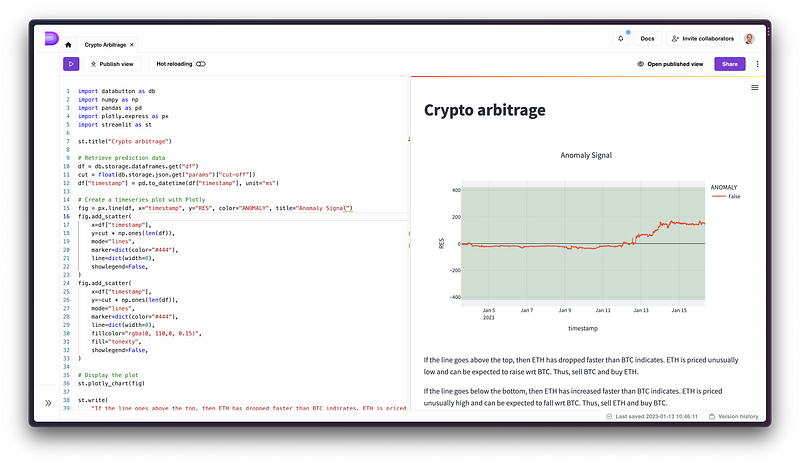
Why Databutton While working with Databutton we can ditch working in our local editor and avoid constant wrestling with our Python environment maintenance. Instead, we can take advantage of their minimalist text editor, pre-installed packages within the ‘Configuration’ space, hot-reloading enabled local hosts, beautiful Streamlit integrated front end, and seamless cloud service to write and deploy our web applications. Furthermore, Databutton allows for collaboration and co-writing of applications (It even has a ChatGPT plugged-in chatbot to assist with debugging the code when requested 🤯 ).
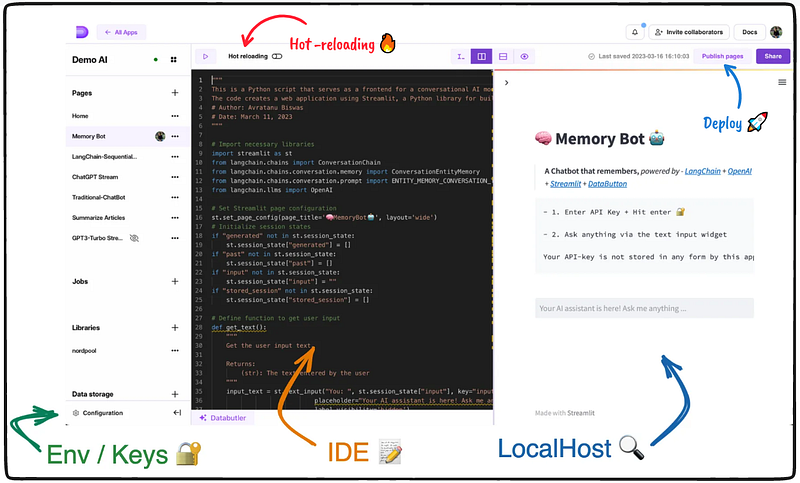
Quick overview while developing our web app within Databutton:
A) Configuration space 🔐 — provides a secure place to maintain our Python environment and comes with pre-installed packages. This feature also allows us to store API secret keys.
B) IDE 📝 — the built-in IDE offers a default editor with auto-formatting using Black, linting with Flake8, and an additional functionality called ‘Hot-reloading’, which provides real-time visuals of our application in the local host.
C) LocalHost 🔎 — enables us to constantly test our web app during the development process. With just one click of the “Publish pages” button, our app can be deployed in no time! 🚀
What’s our workflow to build a semantic search engine?
In this post, we will break down the whole process into two critical steps, even though it would ideally be demonstrated over a Databutton web app.
- Get embeddings for text data (using Jupyter/Collab Notebook)
- Building UI with Databutton — the front-end for search queries using embeddings
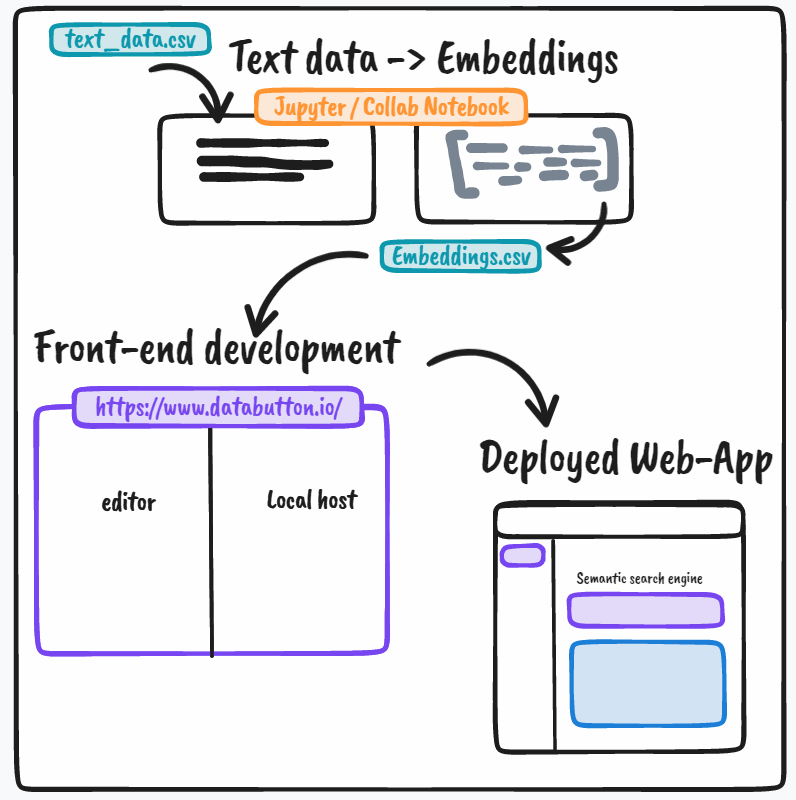
The image above briefly describes the workflow for building a personal semantic search engine in our demo case study here.
Get embeddings for text data
We need to start with the installation of python libraries:
Pandas: a popular Python library used for data manipulation and analysis ,!pip install pandasOpenAI: a Python library to work with OpenAI API endpoints,!pip install openai
In short, using get_embedding function from openai.embeddings_utils we convert text into a numerical vector representation using OpenAI's language model. The resulting embeddings are stored in a new column of the dataframe and saved to a CSV file.
This code is used as a starting point for this project which can be alternatively automated within the web app. However to highlight this critical initial step in our project I choose to keep it separate from the UI development section.
Importing the Modules
Next, we import the modules. We also need to import a function called get_embedding from openai.embeddings_utils. This function as previously mentioned is used to convert text into a numerical vector representation using OpenAI's language model.
import pandas as pd
import openai
from openai.embeddings_utils import get_embedding
Ingesting our data
We load a dataset named Notes.xlsx , further using pd.read_excel function we store it in a variable called df. This line of code is used to read the contents of an Excel file and convert it into a Pandas dataframe for further analysis.
# Load & inspect dataset
input_datapath = "Notes.xlsx"
df = pd.read_excel(input_datapath)

# Display the data
df
# Pandas.DataFrame (A fragment of dataframe is shown)
Notes
0 Akhtar 2017, Photosynth Res, Excitation transf...
1 Science, 2015, Shen; Structural basis for ener...
2 Croce 1998, Biochemistry ;A Thermal Broadening...
3 Arteni et al. 2009 BBA : Tri-cylindrical Phyco...
4 A PBS-PSII-PSI megacomplex was purified by usi...
5 Allophycocyanin and phycocyanin crystal struct...
6 At 77K trapping time reaches a minimal valueof...
7 Nature Plants, March 2020, Ming chen et al ; D...
8 Kato et al., Nature Com, Oct 2019 - Structure ...
9 Biochemistry, Alexander N. Melkozernov,*,§ Jam...
10 In cyanobacteria, phycobilisomes (PBS) serve a...
11 Phycobilisomes (PBSs) are photosynthetic anten...
12 Imbalanced light absorption by photosystem I (...
13 Time-resolved fluorescence study of excitation...
14 In Synechocystis sp. PCC 6803 and some other c...
15 Changes of the photosynthetic apparatus in Spi...
16 Photosystem II (PSII) is the water-splitting e...
17 Photosynthesis in deserts is challenging since...
18 Heterocysts are formed in filamentous heterocy...
19 Imbalanced light absorption by photosystem I (...
20 The phycobilisome (PBS) serves as the major li...Using OpenAI API Key
To use the OpenAI API, you will need to obtain an API key by signing up for a free account on the OpenAI website and creating a new API key. You can then use the API key in your code by setting it as the value of the openai.api_key variable (refer to the code block). You can then use the OpenAI API by making requests to the API's endpoints using the openai library. This will allow you to use the AI-powered text generation capabilities of the OpenAI API in your projects.
Note: I've made a demo tutorial video that will guide you through this process
Alternatively we can use the getpass function to securely input the API key by hiding the user input. 🤫
# Insert our openAI API key
# https://platform.openai.com/account/api-keys
from getpass import getpass
openai.api_key = getpass()
Performing embeddings
The next three lines of code are used to get embeddings and save them for future reuse. The get_embedding function is applied to each row of the df['Notes'] column using the apply method. The resulting embeddings are stored in a new column called embedding. Finally, the to_csv function is used to save the dataframe with the new embedding column to a CSV file named "Notes_embedding.csv".
# Choose any embedding models OpenAI provides
embedding_model = "text-embedding-ada-002"
df['embedding'] = df['Notes'].apply(lambda x: get_embedding(x, engine = embedding_model))
df.to_csv('Notes_embedding.csv')
Now, let’s take a close look at the embeddings — the arrays or vectors formed are numerical representations of the original text data. These vectors are formed by mapping each word or token in the text to a high-dimensional vector in a semantic space, where similar words are located close to each other in this space. Each dimension of the vector corresponds to a specific feature or property of the text.
# Pandas.DataFrame (A fragment of dataframe is shown)
embedding
0 Akhtar 2017, Photosynth Res, Excitation transf... [-0.014268608763813972, -0.00750343594700098, ...
1 Science, 2015, Shen; Structural basis for ener... [0.029421359300613403, 0.014977660961449146, 0...
2 Croce 1998, Biochemistry ;A Thermal Broadening... [0.01835845410823822, 0.008602556772530079, 0....
3 Arteni et al. 2009 BBA : Tri-cylindrical Phyco... [-0.002030973555520177, -0.011452245526015759,...
4 A PBS-PSII-PSI megacomplex was purified by usi... [0.007848380133509636, -0.00770143186673522, -...
5 Allophycocyanin and phycocyanin crystal struct... [-0.012414338067173958, -0.0014144801534712315...
6 At 77K trapping time reaches a minimal valueof... [-0.007672490552067757, 0.023651620373129845, ...
7 Nature Plants, March 2020, Ming chen et al ; D... [0.0029470250010490417, 0.0031576461624354124,...
8 Kato et al., Nature Com, Oct 2019 - Structure ... [0.0104265371337533, 0.006919794250279665, -0....
9 Biochemistry, Alexander N. Melkozernov,*,§ Jam... [0.020863814279437065, -0.009340589866042137, ...
10 In cyanobacteria, phycobilisomes (PBS) serve a... [-0.007135096937417984, -0.011238282546401024,...
11 Phycobilisomes (PBSs) are photosynthetic anten... [-0.006878746207803488, -0.011519589461386204,...
12 Imbalanced light absorption by photosystem I (... [0.006039089057594538, -0.01113048568367958, 0...
13 Time-resolved fluorescence study of excitation... [0.0003713815240189433, -0.027415981516242027,...
14 In Synechocystis sp. PCC 6803 and some other c... [0.016354594379663467, -0.0012557758018374443,...
15 Changes of the photosynthetic apparatus in Spi... [-0.008826221339404583, -0.008555686101317406,...
16 Photosystem II (PSII) is the water-splitting e... [0.011479043401777744, -0.003932869527488947, ...
17 Photosynthesis in deserts is challenging since... [0.02509896829724312, 0.015313279815018177, -0...
18 Heterocysts are formed in filamentous heterocy... [0.003749607130885124, -0.019789593294262886, ...
19 Imbalanced light absorption by photosystem I (... [0.005903774872422218, -0.011245286092162132, ...
20 The phycobilisome (PBS) serves as the major li... [-0.009439579211175442, -0.017732542008161545,...
The code for your semantic search engine web app
- Let’s head over to our Databutton workspace and generate a state-of-the-art data application named NotebookAI.
Below is a screen-grab of the workflow to work with Databutton to create a a new data app.
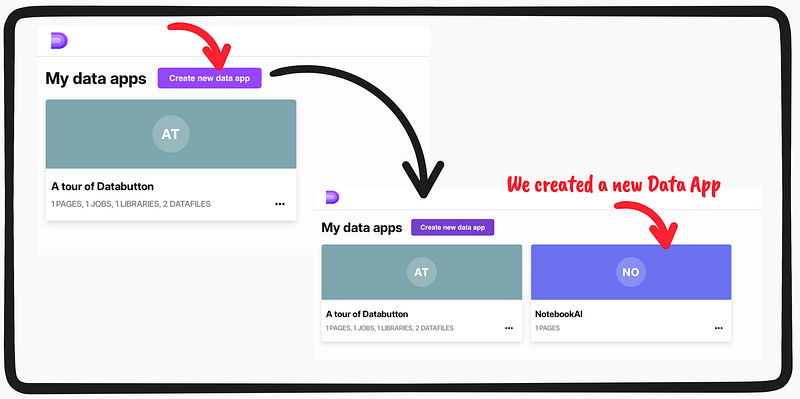
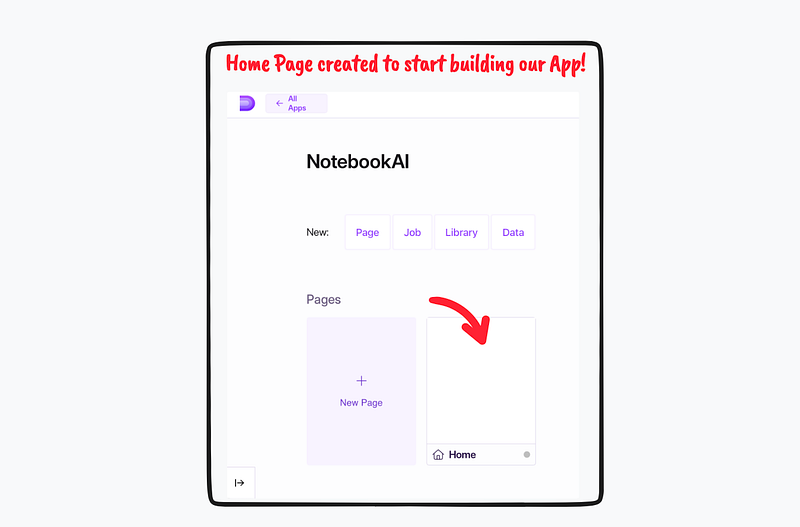
2. Now that we’ve created the NotebookAI app, let’s dive into it and explore its features. Although NotebookAI has the potential to be a multipage web application, for our demo purposes, we will focus on the home page and begin building the app from there.
Below is a screen-grab of the workflow to open the Home 🏠 page of your generated web app.
3. Our initial task is to establish our Python environment (Configuration) because it’s necessary to install certain packages that aren’t included by default. These additional packages will be essential for the development. The packages necessary to add to the configuration files are : openai , pandas , matplotlib , numpy , plotly , scipy and scikit-learn .
Below is a screen-grab of the workflow to set up the Python dependencies 📦
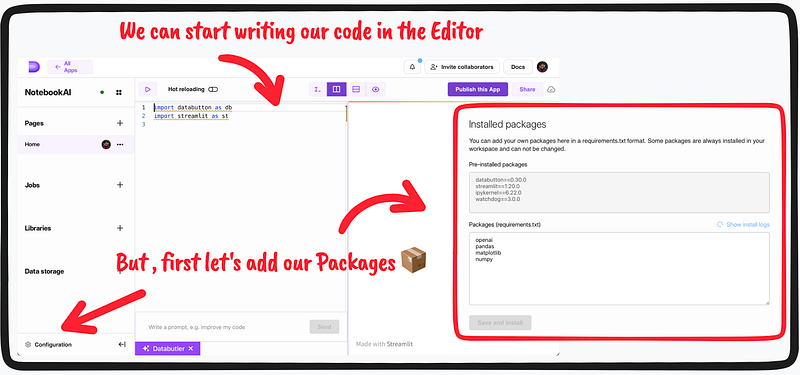
Once our Python environment is set up with the necessary packages installed, we can begin writing our code in the editor. With this setup (side-by-side, consisting of the editor and localhost layout), we can see any changes in real-time as we work over the editor with our codes and view the app development subsequently over the LocalHost. Let’s also not forget to toggle on the hot-reloading 🔥 button at the top of the editor panel — for instant update of the local host with our codes.
4. Code Blocks: We will use the following few lines of code, to accomplish a semantic search engine web app in no time. Let’s explore the code below in detail.
We start by importing the necessary modules,
import numpy as np
import openai
import pandas as pd
import streamlit as st
from openai.embeddings_utils import cosine_similarity, get_embedding
From the UI perspective, we use simple Streamlit syntax — where users can create a title for the application and display an emoji and text using the st.title() function. The st.file_uploader() function creates a file uploader widget where users can upload a file. We start with uploading the Embeddings.csv file which we generated via the Notebook step. If a file has been uploaded, the pd.read_csv() function is used to read the contents of the file as a Pandas dataframe, and the data is dumped in the front end as a Streamlit dataframe.
st.title("📒 Notebook AI 🤖 ")


file_load = st.file_uploader("Upload Embeddings file")
if file_load:
    data = pd.read_csv(file_load)
# Display the DataFrame
    data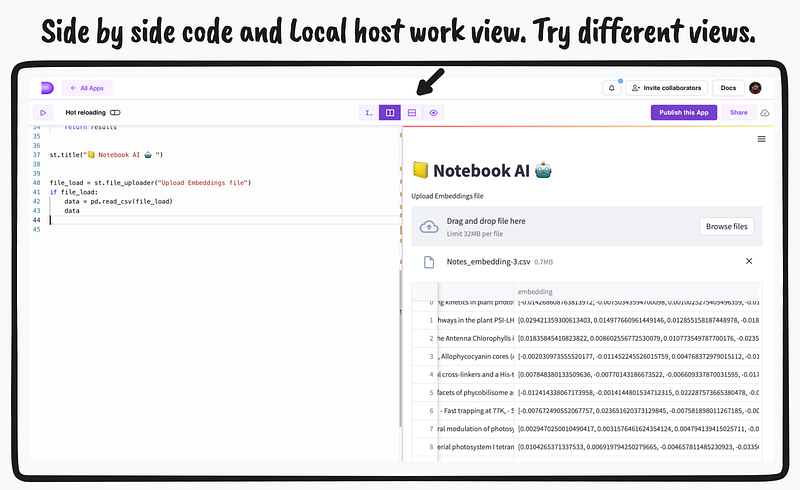
Above is a screen-grab showing the app in action after few lines of code. The code and local host side-by-side panel help us to inspect both at the same time.
Further we create, text input widgets for users to add the OpenAI secrets and search queries for our semantic search engine to work.
user_secret = st.text_input(
        label=":blue[OpenAI API key]",
        placeholder="Paste your openAI API key, sk-",
        type="password",
    )
    if user_secret:
        openai.api_key = user_secret

        # Get the search term from the user through a text input widget
        search_term = st.text_input(
            label=":blue[Search your Query]",
            placeholder="Please, search my notebook with...",
        )

        # Get the search button trigger from the user
        search_button = st.button(label="Run", type="primary")
One of the most critical aspects of this web app is the usage of search_notebook function implementation. The search_notebook function takes in a dataframe df — which we loaded above, containing notes along with their embeddings, and a search_term as a string. It then retrieves the embedding vector for the search_term using OpenAI's "text-embedding-ada-002" engine, and calculates the cosine similarity between each note's embedding vector and the search_term's embedding vector. The function returns a new dataframe containing the n most similar notes to the search_term, sorted by similarity in descending order.
def search_notebook(df, search_term, n=3, pprint=True):
    """
    Search for the most similar notes in the dataframe `df` to the `search_term`.

    Args:
        df (pandas.DataFrame): DataFrame containing the notes to be searched through.
        search_term (str): The term to search for.
        n (int, optional): The number of results to return. Defaults to 3.
        pprint (bool, optional): Whether to print the results. Defaults to True.

    Returns:
        pandas.DataFrame: DataFrame containing the most similar notes to the `search_term`, sorted by similarity.
    """
    # Convert the embeddings in the 'embedding' column from strings to numpy arrays.
    df["embedding"] = df["embedding"].apply(eval).apply(np.array)

    # Get the embedding for the `search_term` using the "text-embedding-ada-002" engine.
    search_embeddings = get_embedding(search_term, engine="text-embedding-ada-002")

    # Calculate the cosine similarity between each note's embedding and the `search_term`'s embedding.
    df["similarity"] = df["embedding"].apply(
        lambda x: cosine_similarity(x, search_embeddings)
    )

    # Sort the notes by similarity in descending order and select the top `n` notes.
    results = df.sort_values("similarity", ascending=False).head(n)
    return results
Below is a screen-grab showing the app in action with text-input widgets. Tip: The ‘password’ parameter in the API widget helps to hide the API Key, when compared to query text input widget.
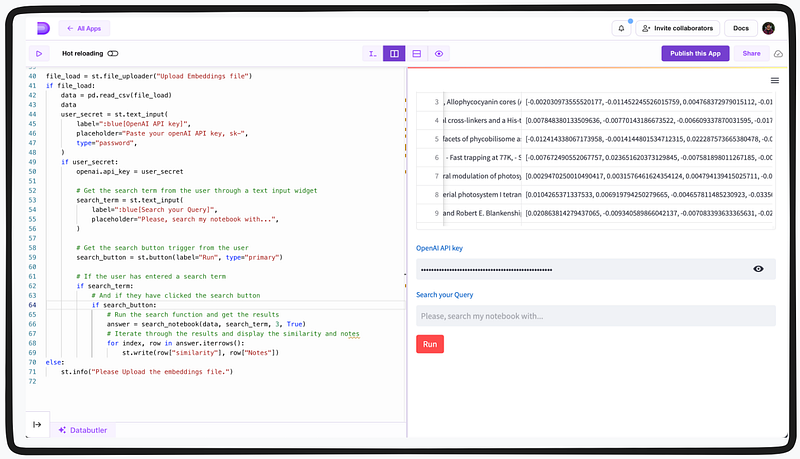
        # If the user has entered a search term
        if search_term:
            # And if they have clicked the search button
            if search_button:
                # Run the search function and get the results
                answer = search_notebook(data, search_term, 3, True)
                # Iterate through the results and display the similarity and notes
                for index, row in answer.iterrows():
                    st.write(row["similarity"], row["Notes"])
else:
    st.info("Please Upload the embeddings file.")
Clicking, the Run button will execute the search_notebook function as well as any other code present. However, to use theget_embedding function within the search_notebook function, a valid API key needs to be provided. If an invalid API key is provided, an error may occur. To make the app more user-friendly, better error handling can be implemented to handle cases where an invalid API key is provided.
Now, let’s test the app and see how it performs!

Above the app in action seems to work very well while searching with the user’s queries. It throws with the three best similar context, based on the computed similarity index (with the similarity score) — which we previously implemented in the code block.
Conclusion
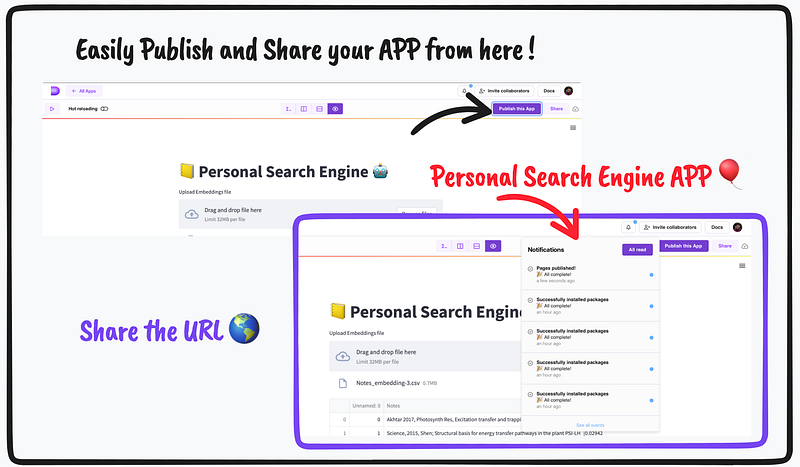
Now it’s time to publish and share our Personal search engine web app with the world! 🎉 You can find the demo live app here.
The app can be easily published in Databutton using the ‘Publish pages’ button (see image below). Once published, a unique URL will be generated which can be shared with anyone.
👨🏾💻 GitHub ⭐️| 🐦 Twitter | 📹 YouTube | ☕️ BuyMeaCoffee | Ko-fi💜
Links, references, and credits:
- Databutton: https://www.databutton.io/
- Databutton docs: https://docs.databutton.com/
- Open AI docs: https://platform.openai.com/docs/introduction
- Streamlit docs: https://docs.streamlit.io/
Related blogs:
- How to build a Chatbot with ChatGPT API and a Conversational Memory in Python
- Getting started with LangChain — A powerful tool for working with Large Language Models
- Summarizing Scientific Articles with OpenAI ✨ and Streamlit
- Build Your Own Chatbot with OpenAI GPT-3 and Streamlit
- ChatGPT helped me to build this Data Science Web App using Streamlit-Python
Recommended YouTube playlists:
Thank you for your time in reading this post!
Make sure to leave your feedback and comments. See you in the next blog, stay tuned 🤖
Hi there! I’m always on the lookout for sponsorship, affiliate links, and writing/coding gigs to keep broadening my online content. Any support, feedback, and suggestions are very much appreciated! Interested? Drop an email here: [email protected] | Become a Patreon — link


