
Build A Custom AI Based ChatBot Using Langchain, Weviate, and Streamlit
A comprehensive guide to building a customized chatbot using Generative AI, a popular vector database, prompt chaining, and UI tools
As multiple organizations are racing to build customized LLMs, a common question I have been asked is — what are the tools out there to streamline this process?
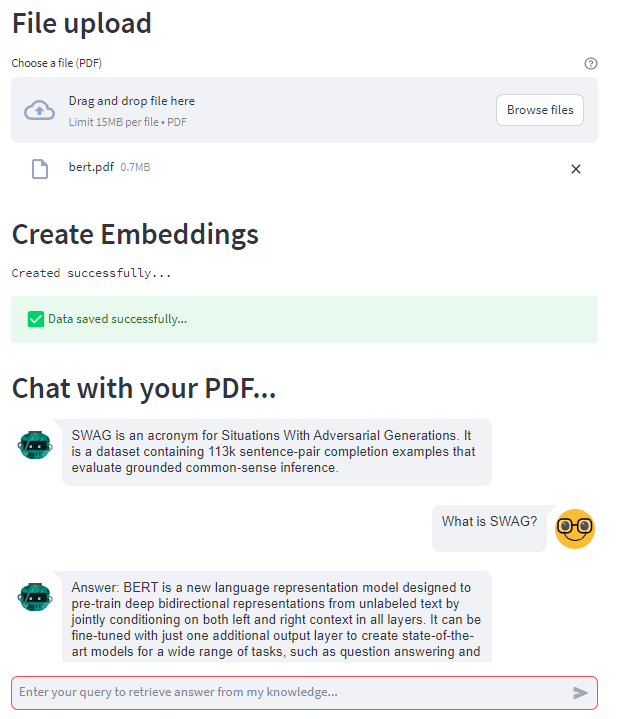
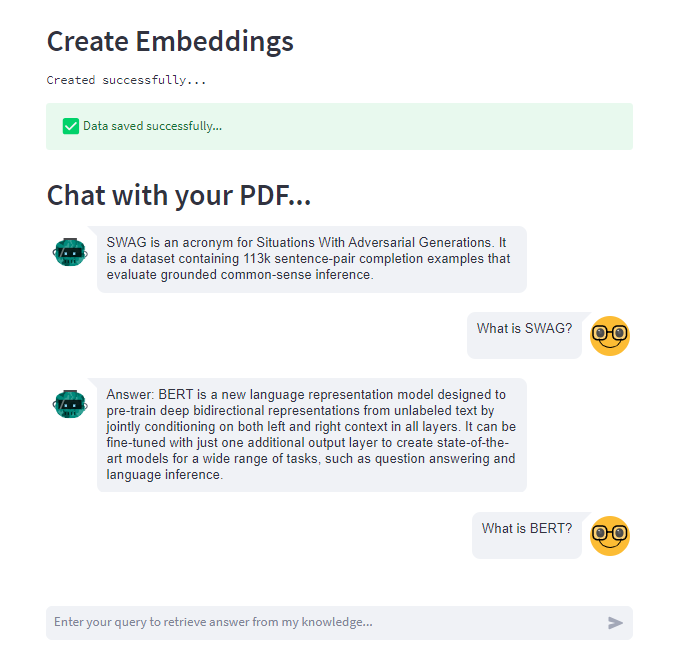
In this article, I show you how to build a fully functional application for engaging in conversations through a chatbot built on top of your documents. This application employs the power of ChatGPT/GPT-4 (or any other large language model) to extract information from document data stored as embeddings in a vector database, and Langchain for prompt chaining. Here’s a preview:
So let’s dive in!
Building the app🏗️
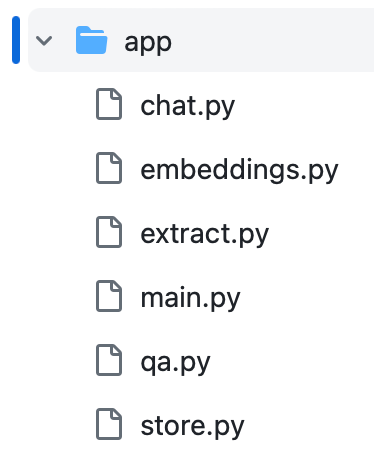
First, create a new folder named `app` where the source code for the application resides. This acts as the entry point for the streamlit application. Then create folders that perform different tasks like extracting text from PDF, creating text embeddings, storing embeddings, and finally — chatting. The `app` directory looks like this:
PDF Upload
Upload a PDF and extract text for further processing.
from PyPDF2 import PdfReader
import streamlit as st
@st.cache_data()
def extract_text(_file):
"""
:param file: the PDF file to extract
"""
content = ""
reader = PdfReader(_file)
number_of_pages = len(reader.pages)
# Scrape text from multiple pages
for i in range(number_of_pages):
page = reader.pages[i]
text = page.extract_text()
content = content + text
return contentCode Link:
https://github.com/LLM-Projects/docs-qa-bot/blob/main/app/extract.py
Generate Text Embeddings
Vectorizing is converting data into dimensions. Vector embeddings assign values to PDF text. Vector embeddings speed up the process of comparing similar texts, and assign similarity scores based on vector similarity metrics like cosine similarity, nearest neighbor search, etc. Here, we use embeddings to find the documents that are most similar to the user input, so that the answers generated are the most valid. This is called Retrieval Augmented Generation (RAG) — I’ve written a blog on RAG if you want to learn more:
We use OpenAI embeddings provided by Langchain. The PDF text is often too large for our OpenAI API key to handle. One common solution is breaking the text into smaller chunks in the form of documents that are easier to store and work with.
We then store the embeddings in a vector database. The advantage of a vector database over a traditional database is that it speeds up standard vector tasks like comparing/filtering using cosine similarity or other vector metrics.
import pandas as pd
from langchain.text_splitter import CharacterTextSplitter
from langchain.embeddings import OpenAIEmbeddings
import streamlit as st
@st.cache_data
def create_embeddings(text, OPENAI_API_KEY):
text_splitter = CharacterTextSplitter(
separator = "\n",
chunk_size = 1000,
chunk_overlap = 200,
length_function = len,
)
texts = text_splitter.create_documents([text])
embeddings = OpenAIEmbeddings(openai_api_key=OPENAI_API_KEY)
embeddings_query_result = []
for i in range(len(texts)):
query_result = embeddings.embed_query(texts[i].page_content)
embeddings_query_result = embeddings_query_result + query_result
embeddings_df = pd.DataFrame(embeddings_query_result)
embeddings_df.columns = ["embedded_values"]
return texts, embeddings, embeddings_dfStore the embeddings in a vector store
Now that we are done with generating the embeddings, we now need to store them in the vector database. In our case, we are using Weaviate. The reason for choosing weaviate are:
- Open Source
- Multiple search options like vector, hybrid, and generative searches
- A vibrant community of developers and support
First, create a weaviate client to initiate the connection with our weaviate cluster — note that the cluster type can either be authenticated or not authenticated.
client = weaviate.Client(
url=st.secrets["WEAVIATE_CLUSTER_URL"],
# auth_client_secret=weaviate.AuthApiKey(
# api_key=st.secrets["WEAVIATE_AUTH_KEY"]
# ),
)After this, create a new schema. This is essential to store the data to weaviate. It is a JSON object that contains keys like classes, vectorizers, and properties.
schema = {
"classes": [
{
"class": "PDF",
"moduleConfig": {
"text2vec-transformers": {
"skip": False,
"vectorizeClassName": False,
"vectorizePropertyName": False,
}
},
"vectorizer": "text2vec-openai",
"properties": [
{
"name": "embeddings",
"dataType": ["number"],
"moduleConfig": {
"text2vec-transformers": {
"skip": False,
"vectorizePropertyName": False,
"vectorizeClassName": False,
}
},
}
],
}
]
}
client.schema.create(schema)
print('Schema created...')Finally, store the generated embeddings in the weaviate DB. For this, you need to configure the client to perform batch processing that can handle large amounts of data.
client.batch.configure(
batch_size=10,
dynamic=True,
timeout_retries=3,
)
for i in range(0, len(embeddings)):
item = embeddings.iloc[i]
pdf_obj = {
"embedded_values": item["embedded_values"],
}
try:
client.batch.add_data_object(pdf_obj, "PDF")
except BaseException as error:
print("Import Failed at: ", i)
print("An exception occurred: {}".format(error))
# Stop the import on error
break
print("Status: ", str(i) + "/" + str(len(embeddings) - 1))
client.batch.flush()
print("Job done...")
return TrueCode Link:
https://github.com/LLM-Projects/docs-qa-bot/blob/main/app/store.py
Decoding the Schema📉
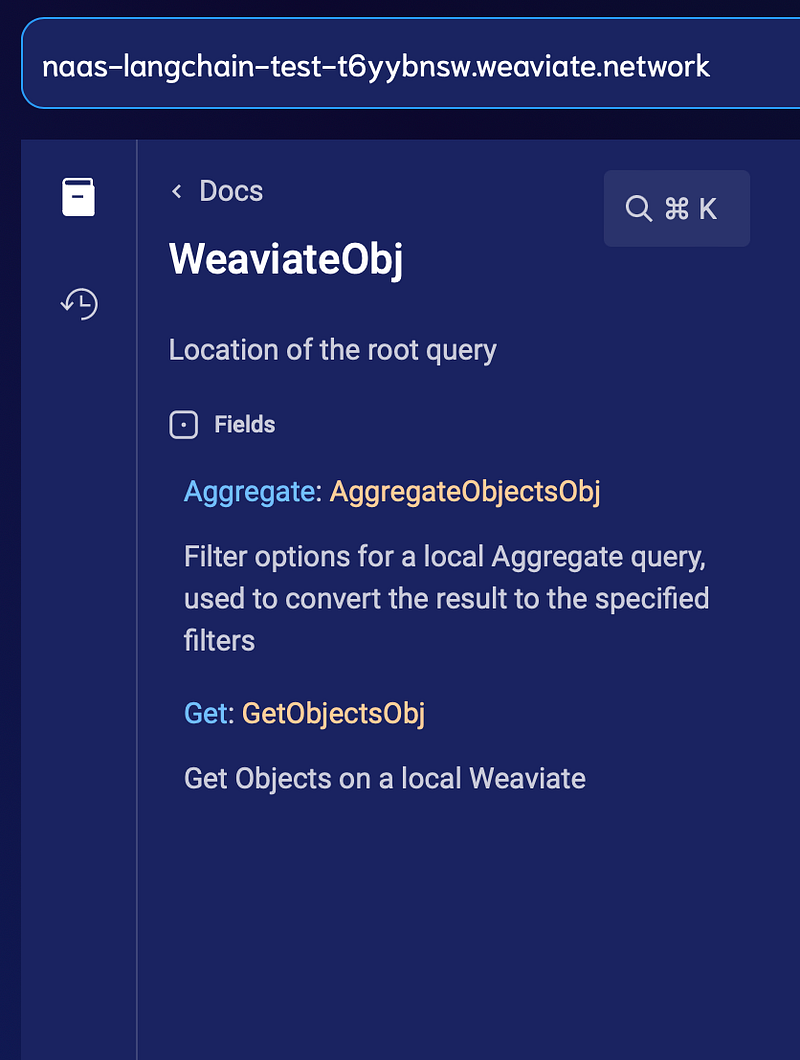
Weaviate supports Graph query language (GraphQL) that supports that is built over Graph data structures hence faster data access rates and updation. Like any other query language, you can perform Get, Aggregate, and Explore on the Weaviate schema. These can be easily performed on the Weaviate console that provides prebuilt UI to test the GraphQL queries:
Get⬇️
As per the schema, you can `Get` the embedding values which display the values stored inside the schema which is in the form of JSON. The command for the same is shown below:
{
Get {
PDF {
embedded_values
}
}
}Sample response:
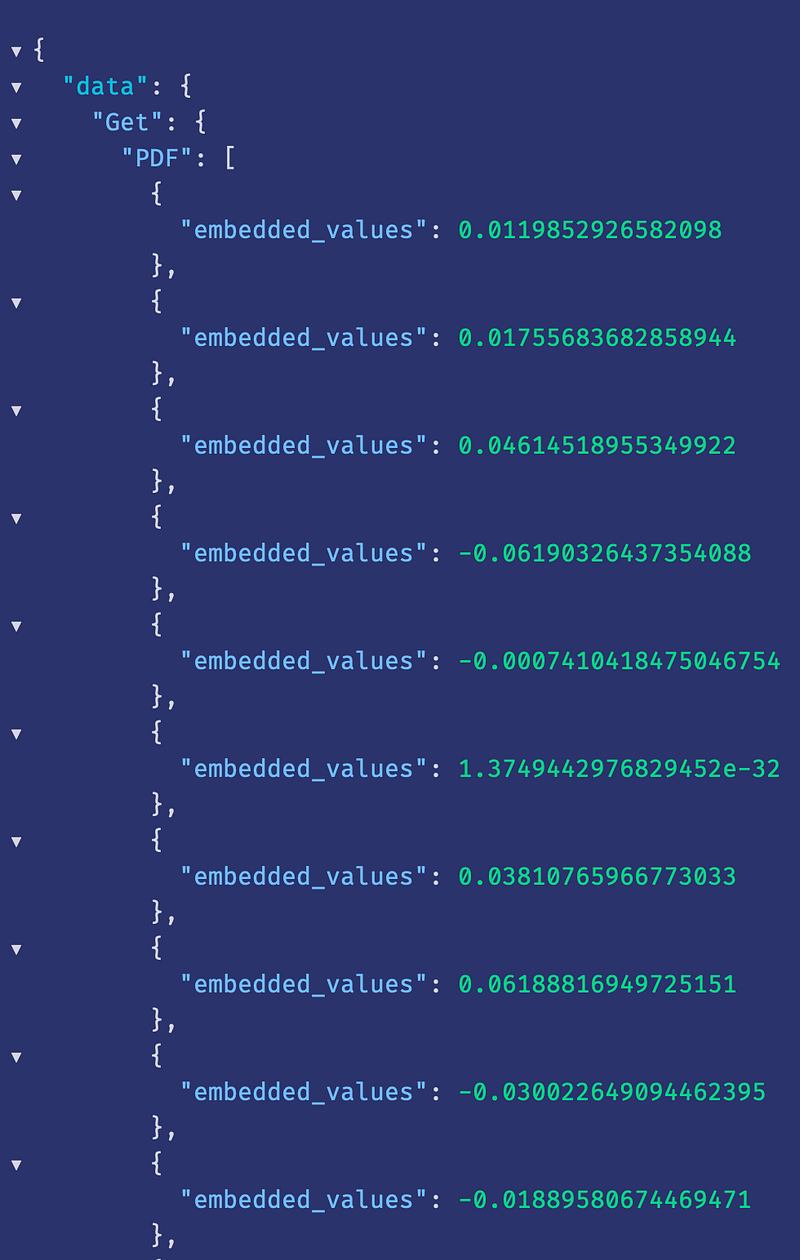
Learn more about the `Get` function here.
Aggregate➕
It’s easy to perform aggregate functions like mean, median, mode, count, etc., on numeric columns. Other datatypes like String, Boolean, and Text are also supported. A sample query to perform an aggregate function is shown below:
{Aggregate {
PDF {
embedded_values {
count
maximum
mean
median
minimum
mode
sum
type
}
}
}
}Sample response:
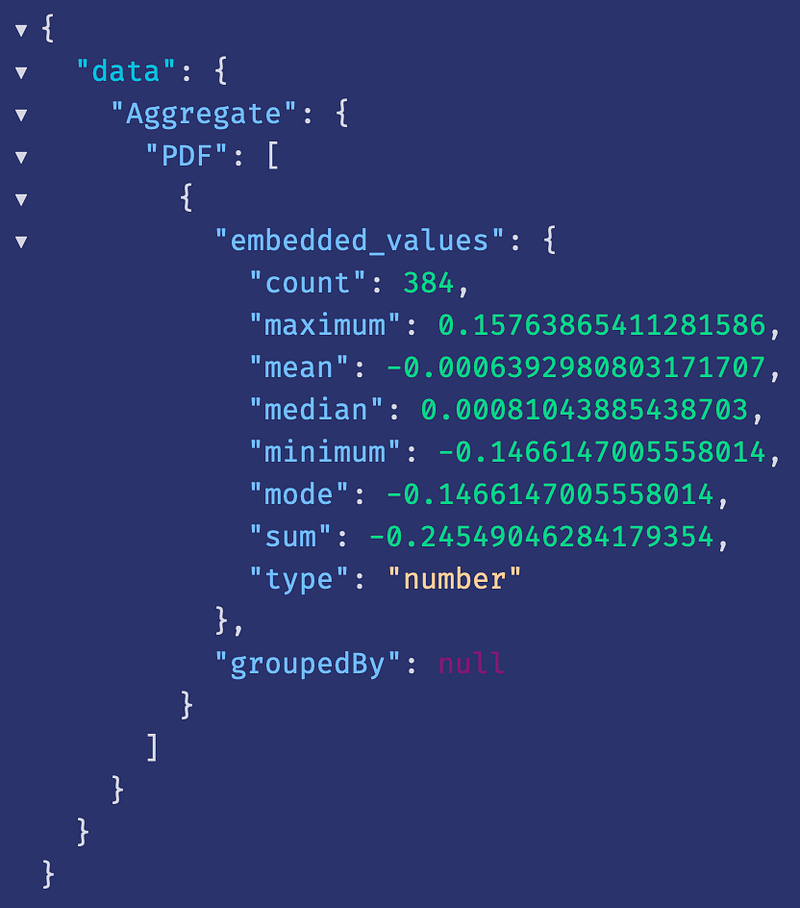
Other available functions for different data types can be found in the Weaviate GrpahQL Aggregate docs.
Retrieve the closest match
As I talked about earlier — the key is finding the closest match(es) to the user input. You can run weaviate hybrid search on the schema, using Langchain, and OpenAI to return the closest match.
First, run a recursive text splitter on the extracted text. Then, the `ChatPromptTemplate` is used for creating chat prompts, and the `SystemMessagePromptTemplate` and `HumanMessagePromptTemplate` modules are used for generating prompts for system and human messages, respectively. These modules aid in creating interactive chat components using Langchain.
from langchain.text_splitter import RecursiveCharacterTextSplitter
from langchain.vectorstores import Weaviate
from langchain.chains import RetrievalQAWithSourcesChain
from langchain import OpenAI
from langchain.prompts.chat import (
ChatPromptTemplate,
SystemMessagePromptTemplate,
HumanMessagePromptTemplate,
)
import streamlit as st
@st.cache_data
def chat_with_pdf(_text, _embeddings, chat_prompt):
text_splitter = RecursiveCharacterTextSplitter(chunk_size=1000, chunk_overlap=0)
texts = text_splitter.split_text(_text)
system_template="""Use the following pieces of context to answer the users question.
Begin!
----------------
{summaries}
"""
messages = [
SystemMessagePromptTemplate.from_template(system_template),
HumanMessagePromptTemplate.from_template("{question}")
]
prompt = ChatPromptTemplate.from_messages(messages)The RetrievalQAWithSourcesChain is used for Question-Answering(QA) using sources of information. Finally, pass the prompt to the `get_chain` function that searches using `docsearch`. The response is the answer to the prompt given by the user based on the most relevant document.
docsearch = Weaviate.from_texts(
texts,
_embeddings,
weaviate_url=st.secrets["WEAVIATE_CLUSTER_URL"],
by_text=False,
metadatas=[{"source": f"{i}-pl"} for i in range(len(texts))],
)
def get_chain(store):
chain_type_kwargs = {"prompt": prompt}
chain = RetrievalQAWithSourcesChain.from_chain_type(
OpenAI(temperature=0),
chain_type="stuff",
retriever=store.as_retriever(),
chain_type_kwargs=chain_type_kwargs,
reduce_k_below_max_tokens=True
)
return chain
chain = get_chain(docsearch)
# chain = RetrievalQAWithSourcesChain.from_chain_type(
# OpenAI(temperature=0), chain_type="stuff", retriever=docsearch.as_retriever()
# )
response = chain(
{"question": chat_prompt},
return_only_outputs=True,
)
print(response["answer"])
return response["answer"]Code Link:
https://github.com/LLM-Projects/docs-qa-bot/blob/main/app/chat.py
Developing the UI (Frontend):
Now that you are done creating the app, its time to bring it to life!

Streamlit helps build and share web apps in just a few minutes. The advantages of using streamlit are:
- Customizable pre-built components for all our needs
- Instant deployment
- Responsive design
- High compatibility with different libraries
- Pre-built components
For building UI close to the one shown in the image above, you can easily use components like:
Structure your streamlit application by setting the title and use the file uploader component that accepts a PDF as input and scrapes and returns the text.
# External libraries
import streamlit as st
from streamlit_chat import message
import time
from PyPDF2 import PdfReader
# Internal file imports
from extract import extract_text
from embeddings import create_embeddings
from store import store_embeddings
from qa import search_qa
from chat import chat_with_pdf
# Start of streamlit application
st.title("PDF QA Bot using Langchain")
# Intitialization
st.header("File upload")
file = st.file_uploader("Choose a file (PDF)", type="pdf", help="file to be parsed")
if file is not None:
# @st.cache_data
data = extract_text(file)
# st.text(data, help="Extracted text from uploaded pdf")Then run the `create_embeddings` function in the `embeddings.py` file.
# Create, display, search and query the embeddings
st.header("Create Embeddings")
texts, embeddings, embeds_df = create_embeddings(
data, st.secrets["OPENAI_API_KEY"]
)
st.text("Created successfully...")
if store_embeddings(embeds_df):
st.success("Data saved successfully...", icon="✅")
else:
st.error("Operation not successful. Please reach out to support...", icon="❌")
else:
st.error("Upload the file to proceed further", icon="🚨")Last but not least is the chat component. The user input is passed as arguments along with scrapped text and embeddings to return the response from the LLM we created.
# Chat component to chat with your uploaded PDF
st.header("Chat with your PDF...")
if 'generated' not in st.session_state:
st.session_state['generated'] = []
if 'past' not in st.session_state:
st.session_state['past'] = []
def get_text():
input_text = st.chat_input("Enter your query to retrieve answer from my knowledge...")
return input_text
user_input = get_text()
if user_input:
output = chat_with_pdf(data, embeddings, user_input)
st.session_state.past.append(user_input)
st.session_state.generated.append(output)
if st.session_state['generated']:
for i in range(len(st.session_state['generated'])-1, -1, -1):
message(st.session_state["generated"][i], key=str(i))
message(st.session_state['past'][i], is_user=True, key=str(i) + '_user')Finally, we are all done. Let’s run the app locally:
streamlit run app/main.py
This opens a new environment in http://localhost:8501 that renders the app. If this works as required, it’s time to take the application live and make it available for users all over the Internet!
Commit the changes to reflect in the GitHub repository. You can now head to the online Streamlit app, link to the GitHub repo — and reboot the application to see the changes.
Conclusion
This article showcases how to harness the power of LLMs on your PDF documents using tools and techniques that are now becoming a staple of building customized LLM-based solutions. The key aspects covered are:
- LLMs (Using ChatGPT/GPT-4)
- Vectorization and databases (Using Weaviate)
- Prompt engineering/chaining (Using Langchain)
- Frontend and UI (Using Streamlit)
While this space is growing so fast with new LLMs, database solutions, and prompt engineering techniques coming out every day — these can be used in a modular fashion and swapped out accordingly. With slight modifications, you can also build a similar chatbot for other file formats like CSV, Docs, PPTX, etc.
I hope this helps you build a real-life application or prototype with minimal overhead. I can’t wait to see what you all build! The entire GitHub repo is below:
If you like this post, follow me — I write on Generative AI in real-world applications and, more generally, on the intersections between data and society.
Feel free to connect with me on LinkedIn!
Here are some related articles:
When Should You Fine-Tune LLMs?
LLM Economics: ChatGPT vs Open-Source
4 Crucial Factors for Evaluating Large Language Models in Industry Applications
Deploying Open-Source LLMs As APIs
How Do You Build A ChatGPT-Powered App?
Extractive vs Generative Q&A — Which is better for your business?
Fine-Tune Transformer Models For Question Answering On Custom Data


