
3D modeling
Beginners Guide to Blender Part 2
— Object mode —

For non-Medium members, click this link.
If you are new to the 3D modeling world, first check out what Blender is.
After that, learn how to install it.
Before continuing to read the second part of the guide, first read the first part.
Now it’s finally time to open Blender for a new lesson.
Last time, we learned how to move a cube in Blender.
Today, we will learn how to rotate it and scale it.
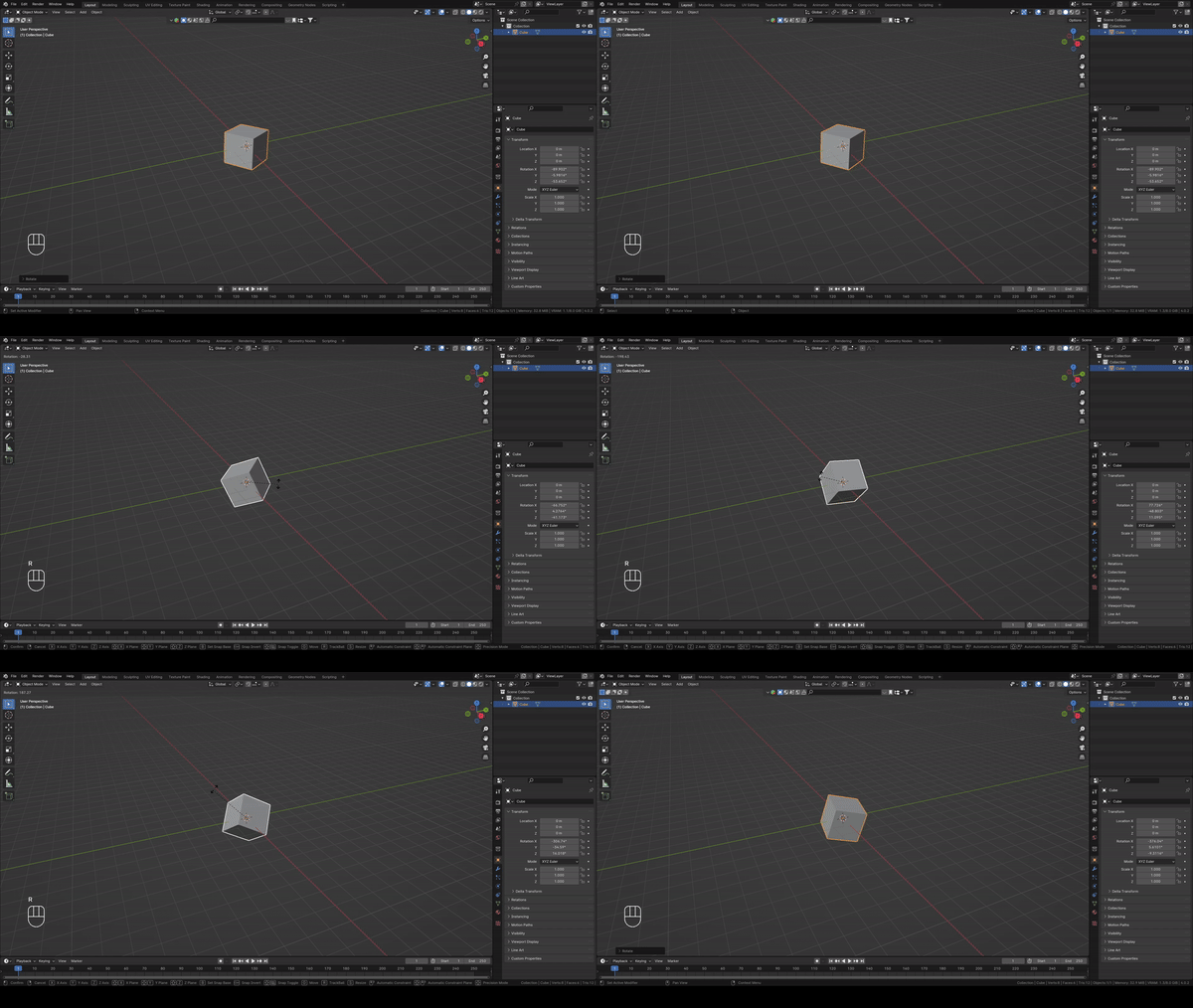
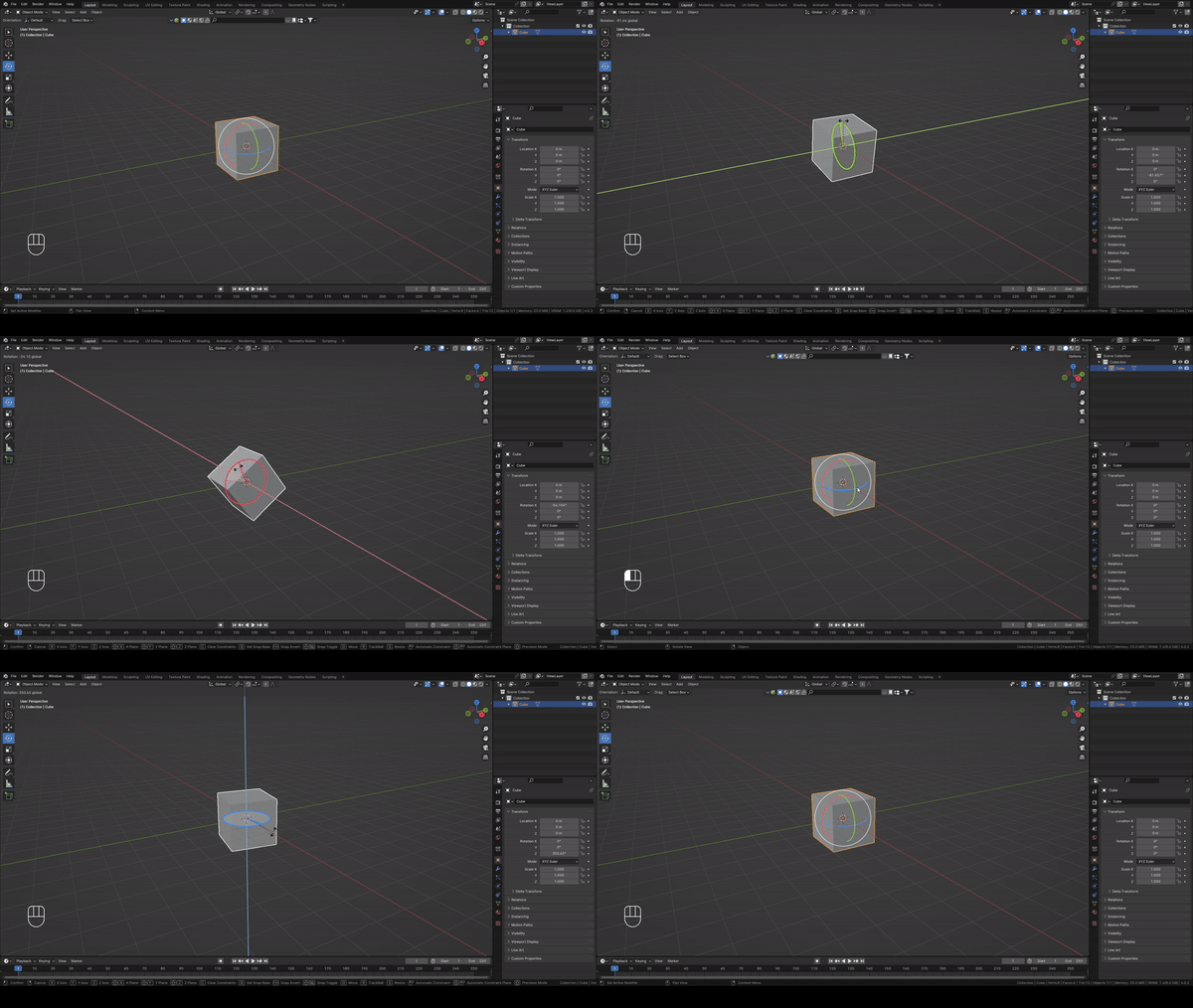
How to rotate a cube by using a shortcut (angle rotation)?
- Select the cube with the LMB.
- Press R, and rotate the cube with your mouse to your desired angle.
- Confirm the position with the LMB.
That is the angle of the rotation.
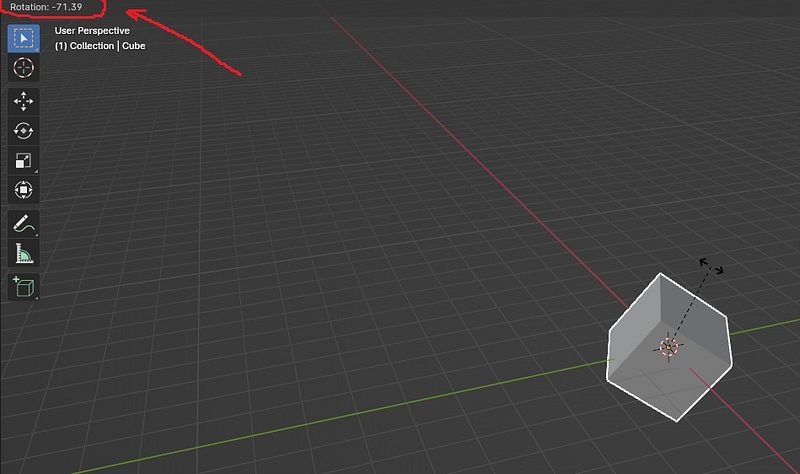
You can see in the left corner the value of a rotation angle.
How to rotate a cube by using a shortcut (axis rotation)?
- Select the cube with the LMB.
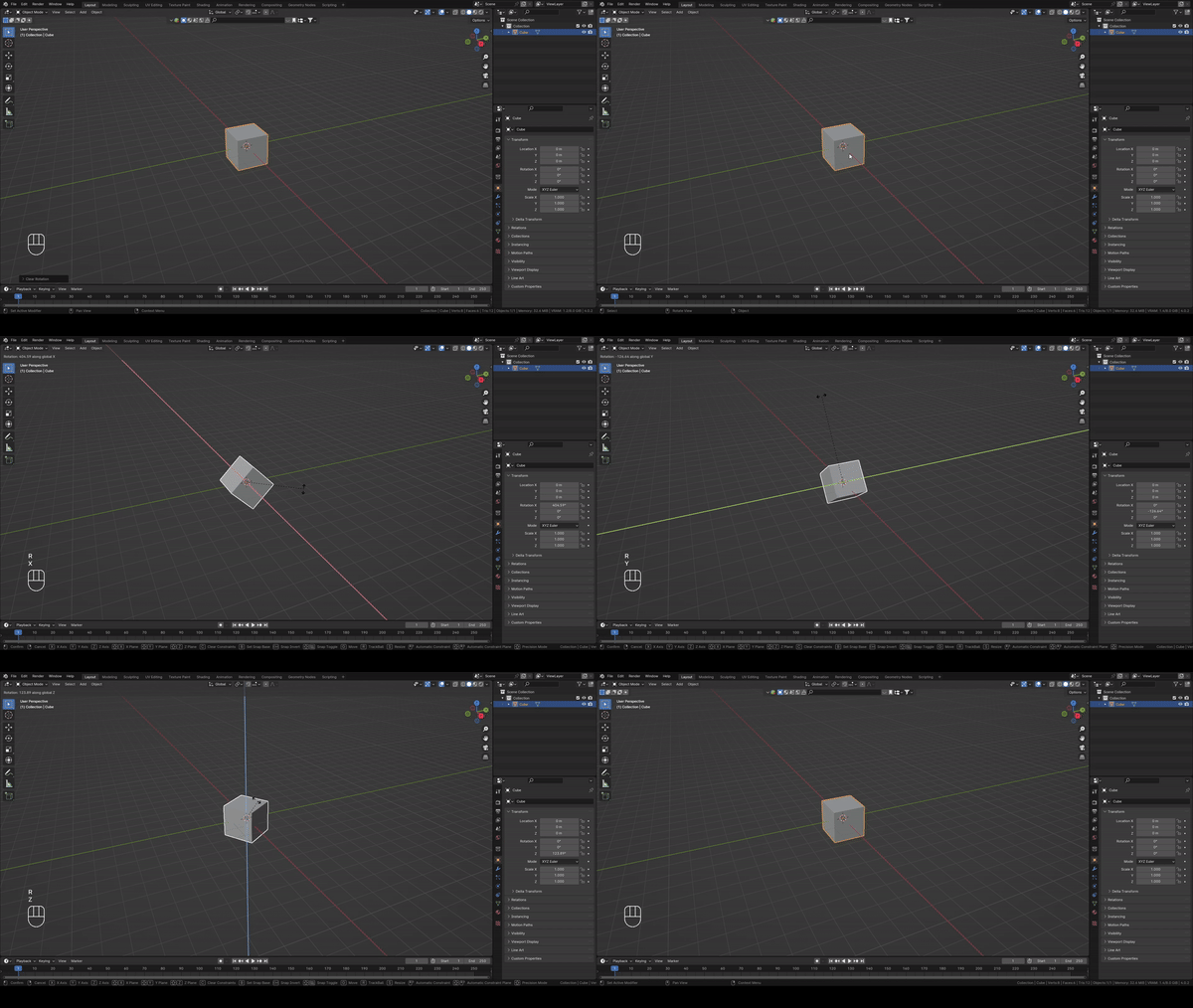
- If you want to rotate it along the axes, just press R+(one of the axes).
R+X — to rotate it along the X-axis.
R+Y — to rotate it along the Y-axis.
R+Z — to rotate it along the Z-axis.
3. In the end, confirm the rotation with the LMB.
How to rotate a cube without using a shortcut (axis rotation)?
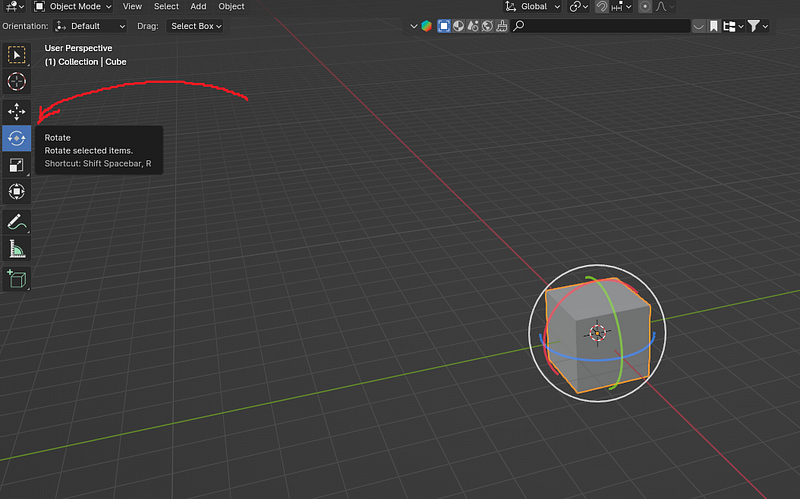
- Click on the toolbar (where the arrow is pointing) — and click on the Rotate button to enable it.
- Three colored circles will appear—each color representing one of the axes.
- Select the axis you want, then while holding the LMB, rotate it in the direction of the selected axis.
We learned how to move and rotate a cube (or any other object).
Now it is time to learn how to scale (resize an object).
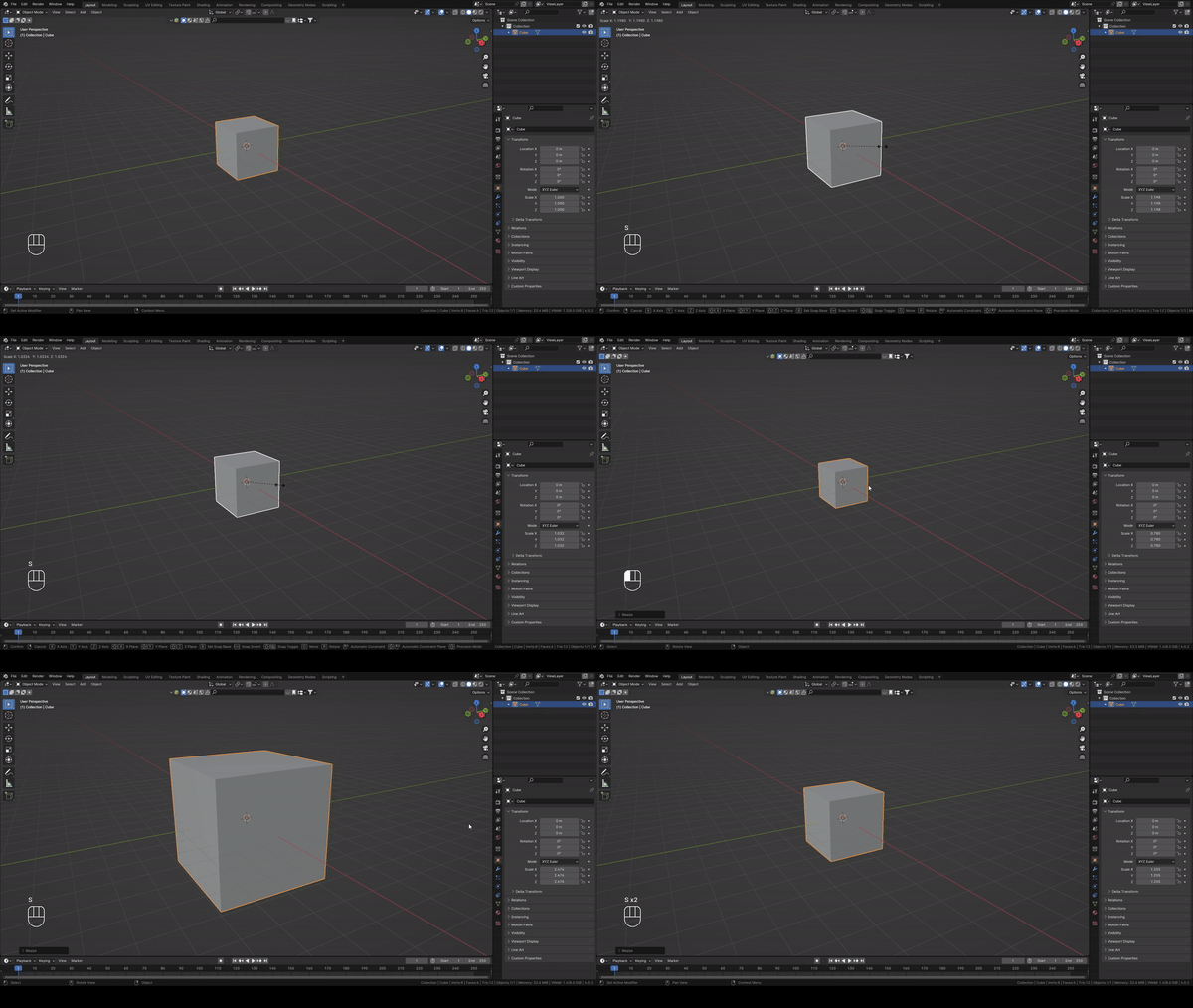
How to scale a cube by using a shortcut
- Select the cube with the LMB.
- Press S, and scale the cube with your mouse to your desired size.
3. In the end, confirm the scale with the LMB.
How to scale a cube along an axis by using a shortcut
- Select the cube with the LMB.
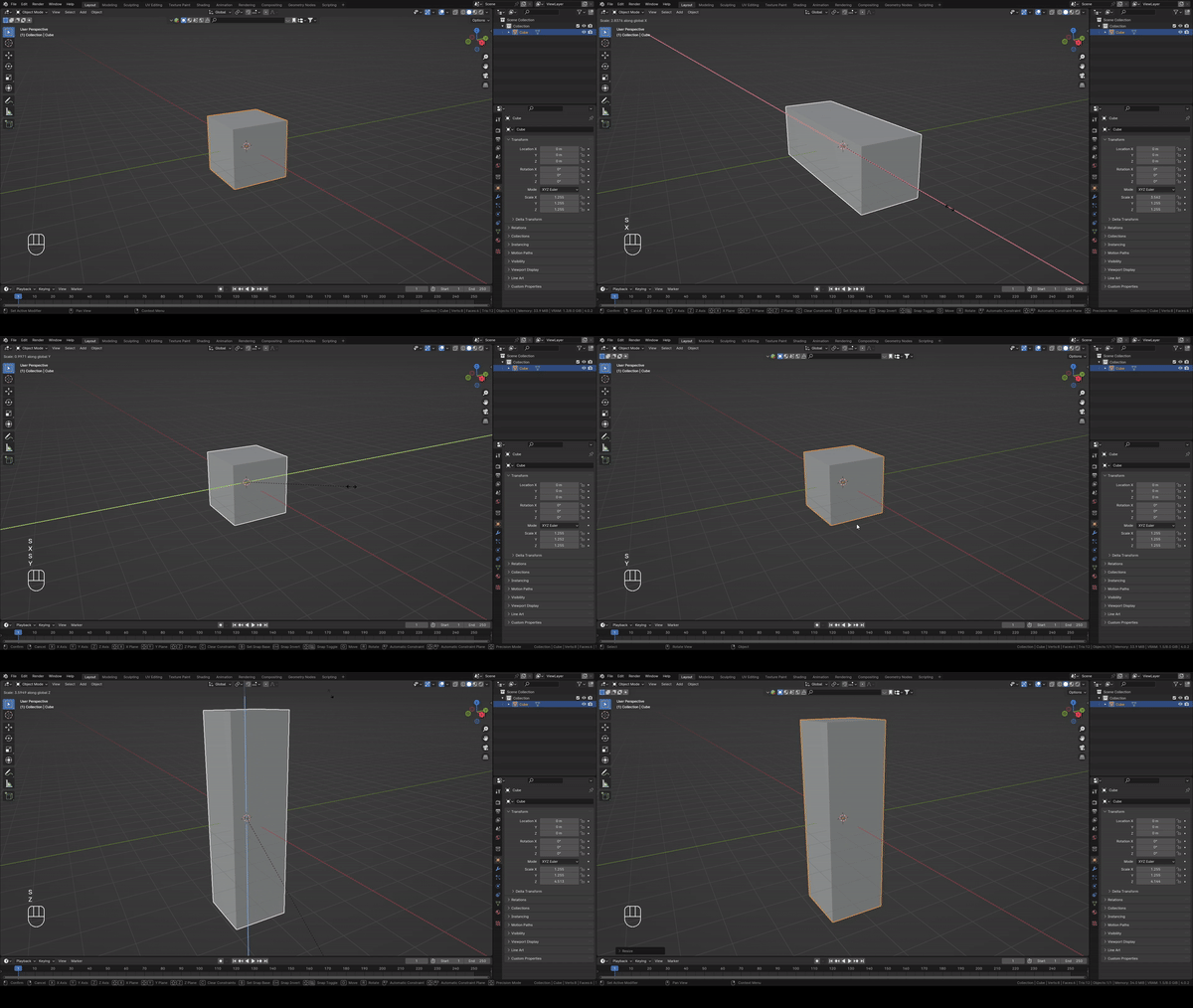
- If you want to scale it along the axes, just press S+(one of the axes).
S+X — to scale it along the X-axis.
S+Y — to scale it along the Y-axis.
S+Z — to scale it along the Z-axis.
3. In the end, confirm the scale with the LMB.
How to scale a cube without using a shortcut
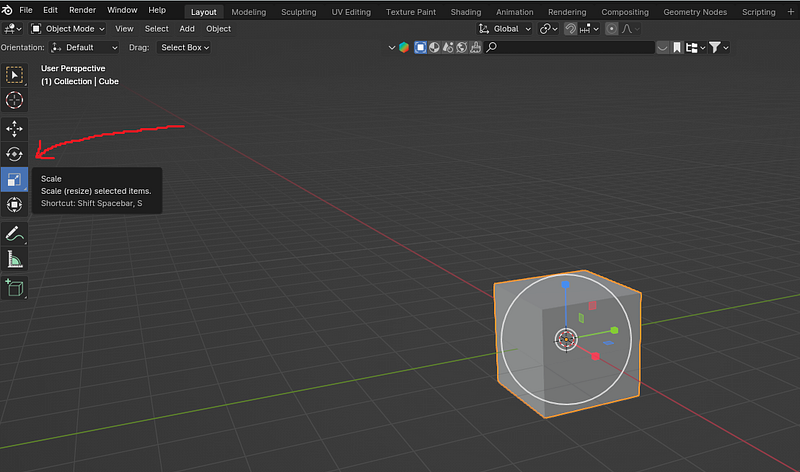
- Click on the toolbar (where the arrow is pointing) — and click on the Scale button to enable it.
- Three colored lines will appear — each color for the one axis.
- Select the axis you want, then while holding it, scale it in the direction you want (and can).
- In the end, confirm the scale with the LMB.
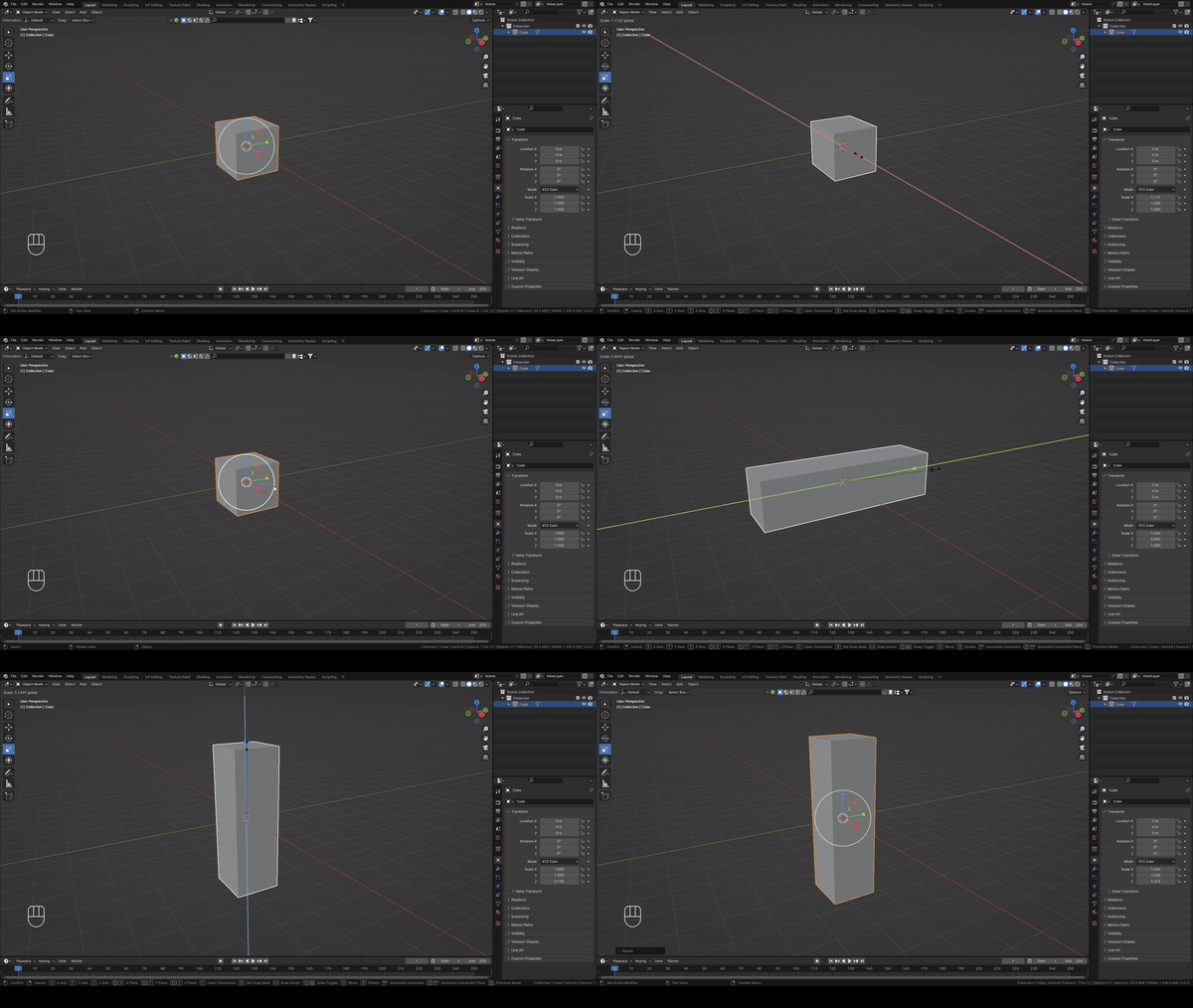
You learned how to transform objects (move, rotate, and scale) in the Object mode.
IMPORTANT THING!
Make sure you apply the transforms before editing the mesh in the edit mode.
Otherwise, the values between the object mode and the edit mode will not match.
HOW TO APPLY SCALE TO THE OBJECT?
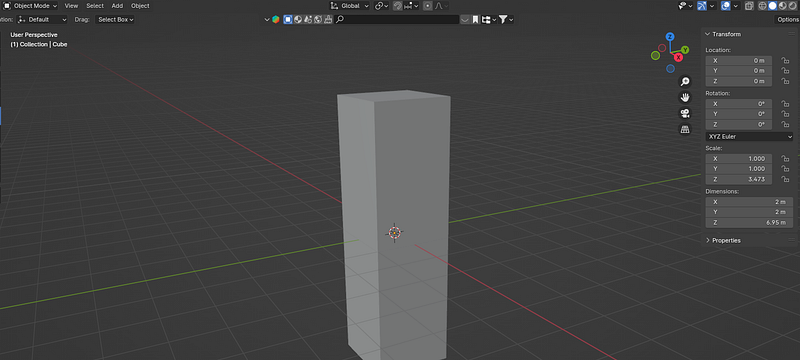
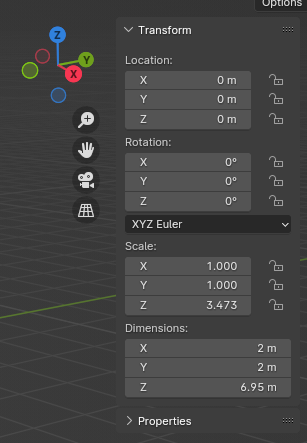
As you can see here, the scale of X = 1, the scale of Y = 1, but the scale of
Z= 3,473.
What does that mean?
We didn’t change the scale of X and Y, so those numbers stayed the same.
Numbers here represent percentages. 1=100% which represents the original size, 2=200%, 3=300% and so on.
We have scaled the object along the Z-axis, so the value changed and isn’t the default 1 anymore.
Scale values of X, Y, and Z need to be 1 the whole time.
To apply the scale of Z (or X or Y if needed) click “CTRL+A” and apply the scale.
When you click that, all values are applied. You don’t need to do it for each value X, Y, and Z separately.
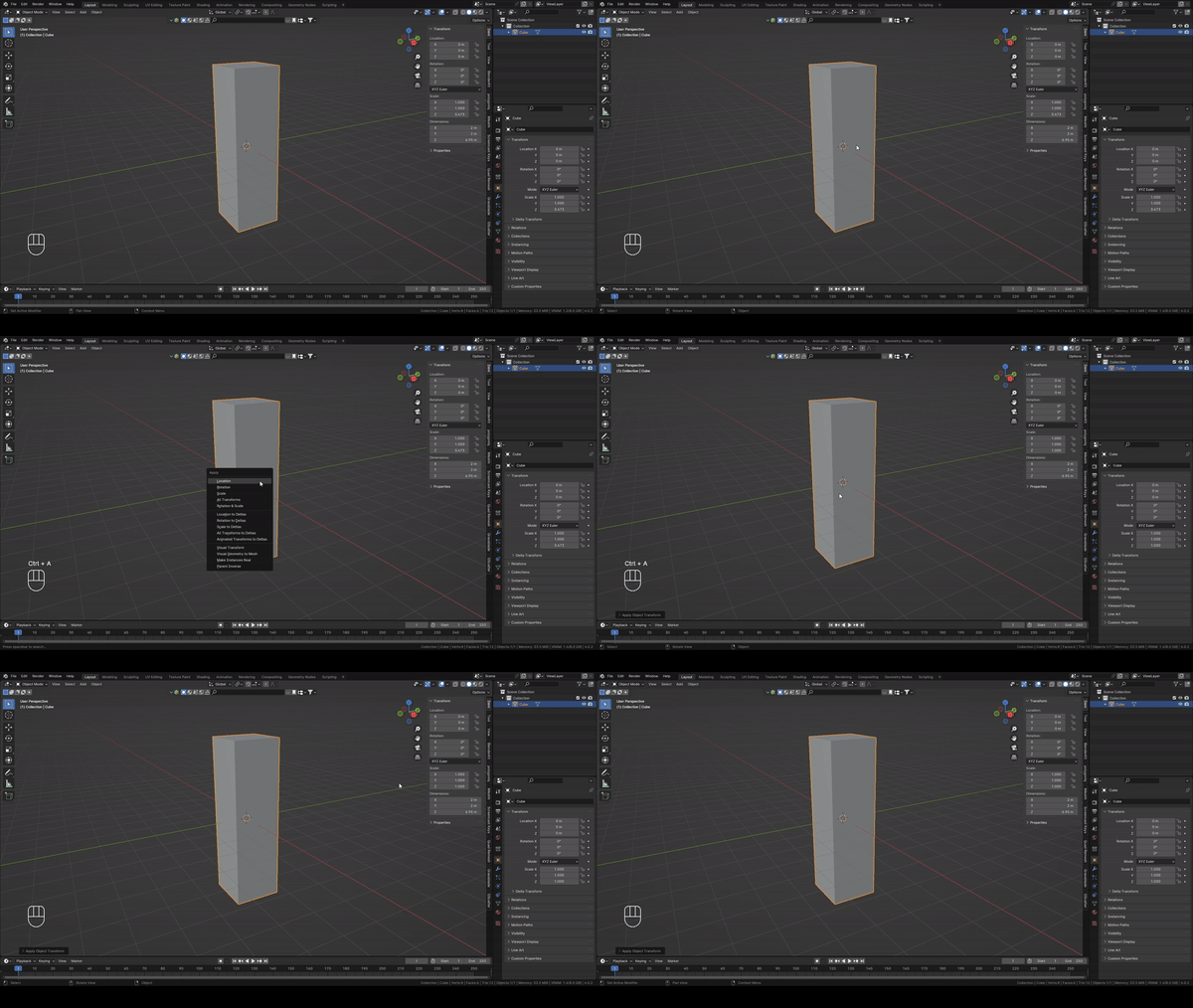
Congratulations! Now you know how to move, rotate, and scale your cube in Blender!
I will stop here so you don’t feel overwhelmed.
If you have any questions, feel free to ask; I will gladly help!
If you are interested in learning Blender with me, feel free to check out my YouTube channel :)


