avatarSandraWrites

Free AI web copilot to create summaries, insights and extended knowledge, download it at here

3463

Abstract

If there is no orange outline, the cube isn’t selected.</p><figure id="f8de"><img src="https://cdn-images-1.readmedium.com/v2/resize:fit:800/1*SVJwL5T9wiQOgWleYGrK7w.png"><figcaption>Screenshot by Author.</figcaption></figure><p id="4d62">If there is an orange outline, the cube is selected.</p><figure id="81fa"><img src="https://cdn-images-1.readmedium.com/v2/resize:fit:800/1*5SS84oZU_yPb7pBH2T0kEA.gif"><figcaption>Selecting and deselecting a cube. Video by Author.</figcaption></figure><p id="041e">If you want to deselect the cube, click outside of it.</p><p id="ba43">As you can see in this video example, when you do that, the orange outline disappears.</p><p id="7aa6">Before we move on, I will show you another way to determine which object is selected.</p><figure id="3249"><img src="https://cdn-images-1.readmedium.com/v2/resize:fit:800/1*wQE15aScrbpG5W_N0zqQyw.png"><figcaption>Outliner. Screenshot by Author.</figcaption></figure><p id="7099">This is an outliner. It is used to organize all data, select and unselect objects, hide or show objects, and much more.</p><p id="7459">I will explain another time about other functions, but for now, I wanted to tell you about active objects and selecting and unselecting objects.</p><figure id="e882"><img src="https://cdn-images-1.readmedium.com/v2/resize:fit:800/1*7sot1DIDTqkUoznRzBftpw.png"><figcaption>Sign for a mesh in Blender.</figcaption></figure><p id="8fb1">You can see this grey background around the mesh sign ( we will talk about what mesh is a bit later).</p><p id="13c7">That grey background means that your object is active.</p><p id="57db">For now, it is enough to know that there is something that is called an active object.</p><figure id="a379"><img src="https://cdn-images-1.readmedium.com/v2/resize:fit:800/1*Z6VcQHYkNEH3gkgKEslQ5A.png"><figcaption>Cube is selected. Screenshot by Author.</figcaption></figure><p id="30e4">Just as you selected a cube previously with LMB by clicking directly on it, you can also select it by clicking LMB in the outliner on the name of your object (mesh).</p><p id="6eed">In this case, your object is called a Cube.</p><p id="3e7c">You will know that a cube is selected by seeing the orange outline on the cube, but also by seeing the blue background behind the name of the object (in this case a Cube.)</p><figure id="5582"><img src="https://cdn-images-1.readmedium.com/v2/resize:fit:800/1*_HZMpt0F30LwoU9GwybO-Q.png"><figcaption>Cube is selected. Screenshot by Author.</figcaption></figure><p id="116d">Now when you know how to select a cube, let’s try to move it.</p><p id="2590">But before that, let’s try to delete that camera and light because they are not important now.</p><figure id="6661"><img src="https://cdn-images-1.readmedium.com/v2/resize:fit:800/1*R_F8m8UElQUNM2ExFrOIGw.gif"><figcaption>Deleting objects. Video by Author.</figcaption></figure><p id="d429">As you can see, you can delete an object by selecting it with LMB and clicking X or DEL.</p><p id="de12">Now when your scene is clean, let’s finally move the cube.</p><h1 id="c2bb">It is time to learn your first shortcut in BLENDER!</h1><p id="5d72">Are you ready? Ok, let’s do it!</p><figure id="9735"><img src="https://cdn-images-1.readmedium.com/v2/resize:fit:800/1*vQFVsL2EEp9yEM5cLv9-JQ.gif"><figcaption>Moving a cube. Video by Author.</figcaption></figure><h1 id="5bcd">How to move a cube by using a shortcut?</h1><ol><li>Select the cube with LMB</li><li>Press G and r

Options

elease it.</li><li>Now move the cube with your mouse to the position where you want it to be.</li><li>Confirm the position with the LMB.</li></ol><h1 id="23f6">AXES IN BLENDER</h1><figure id="93f3"><img src="https://cdn-images-1.readmedium.com/v2/resize:fit:800/1*CCooByj9kQwf7gaf7o9XQw.png"><figcaption>X and y axes. Screenshot by Author.</figcaption></figure><figure id="6122"><img src="https://cdn-images-1.readmedium.com/v2/resize:fit:800/1*-3vLRKNGaoWRLA2lGURJSA.png"><figcaption>X and Z axes. Screenshot by Author.</figcaption></figure><figure id="a095"><img src="https://cdn-images-1.readmedium.com/v2/resize:fit:800/1*ad5lNnkBUBYAySzIEcqvvQ.png"><figcaption>Gizmo showing x,y, and z axes. Screenshot by Author.</figcaption></figure><p id="9100">In Blender, we have three axes: X (the red one) — for left and right, Y (the green one) — for front and back, and Z (the blue one) — for top and bottom.</p><h1 id="a2d8">How to move a cube along the axes?</h1><figure id="745e"><img src="https://cdn-images-1.readmedium.com/v2/resize:fit:800/1*b9DB1Fw6PCsvcryim44ucQ.gif"><figcaption>Moving a cube along the axes. Video by Author.</figcaption></figure><p id="e968">As you already learned, we move a cube with G.</p><p id="70df">If we want to move it along the axes, just press G+(one of the axes).</p><p id="cab9"><b>G+X — to move it along the X-axis.</b></p><p id="90d4"><b>G+Y — to move it along the Y-axis.</b></p><p id="37b1"><b>G+Z — to move it along the Z-axis.</b></p><p id="5f7b">In the end, confirm the position with the LMB.</p><p id="aa7d">As I mentioned before, there are many ways to do the same thing in Blender.</p><p id="fb3c">We can move the cube in one more way.</p><figure id="bc3d"><img src="https://cdn-images-1.readmedium.com/v2/resize:fit:800/1*i3MHlZhVq3qaNogAqdkymg.gif"><figcaption>Moving a cube along the axes. Video by Author.</figcaption></figure><figure id="bf3b"><img src="https://cdn-images-1.readmedium.com/v2/resize:fit:800/1*F4MCAxvHzDfrI4YaCqXMuA.png"><figcaption>Move button. Screenshot by Author.</figcaption></figure><ol><li>Click here (where the arrow is showing) —and turn on the Move button.</li></ol><figure id="d284"><img src="https://cdn-images-1.readmedium.com/v2/resize:fit:800/1*TQF76gAA2UeiftWTI_cLjQ.png"><figcaption>Axes. Screenshot by Author.</figcaption></figure><p id="84a3">2. Three arrows will appear. Each color for the one axis.</p><p id="b046">3. Select the arrow you want, then while holding it, move it in the direction you want (and can).</p><p id="c146">Congratulations! Now you know how to move your cube in Blender!</p><p id="4ef7">I will stop here so you can learn little by little.</p><p id="90f8">If you have any questions, feel free to ask; I will gladly help!</p><p id="53ff">If you are interested in learning Blender with me, feel free to check out my YouTube channel :)</p><div id="5c29" class="link-block"> <a href="https://www.youtube.com/@SaTales3D"> <div> <div> <h2>SaTales</h2> <div><h3>Here you can find the easiest and most detailed Blender tutorials ever. No skipping parts on purpose to get views. I…</h3></div> <div><p>www.youtube.com</p></div> </div> <div> <div style="background-image: url(https://miro.readmedium.com/v2/resize:fit:320/0*biv0Z9laESlHj5YU)"></div> </div> </div> </a> </div></article></body>

You installed Blender, now what? (Beginners Guide to Blender Part 1)

— Object mode —

For non-Medium members, click this link.

If you are new to the 3D modeling world, I am here to help you.

But first, you need to know what is Blender

and how to install it.

Now it’s finally time to open Blender.
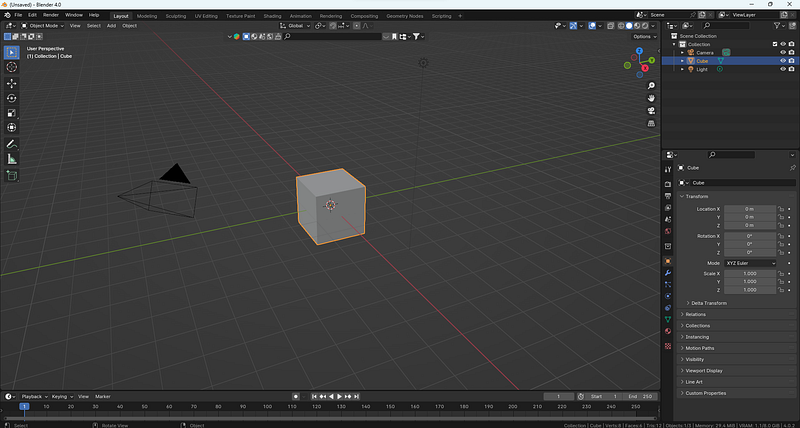
Blender start screen. Screenshot by Author.

First, what you will see in your scene are three objects: a camera, a cube, and a light.
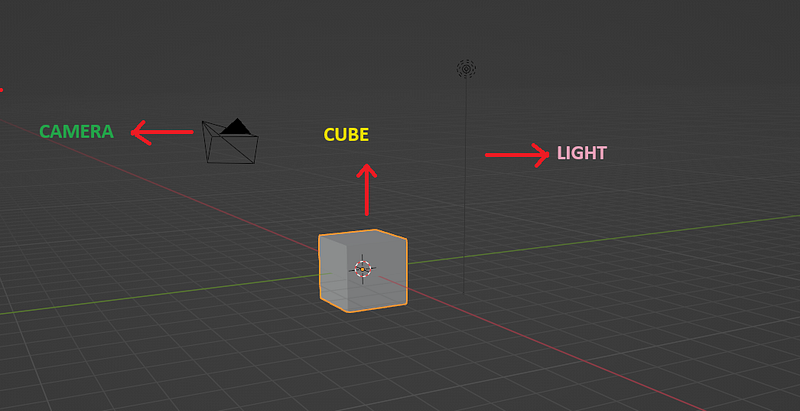
Camera, cube, light. Screenshot by Author.

Before we start doing anything in Blender, there are two important things to know:

  1. You can model one thing in Blender in various ways, and most of the time, they are all correct ways.
  2. There are many shortcuts in Blender. Try to use and learn them from the start because your modeling will be much easier that way.
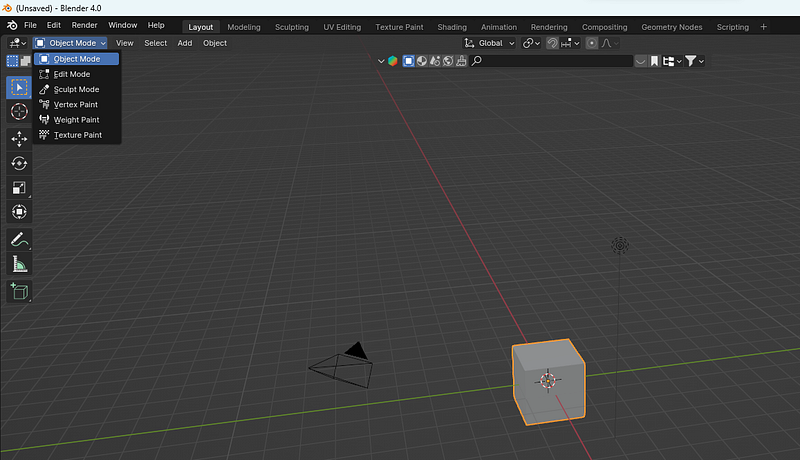
Screenshot by Author.

If you click here, you will get a dropdown menu with different modes.

First, we will talk about OBJECT MODE:

In object mode, you can move, rotate, and scale objects, but without changing their geometry.

So let’s select our object, THE CUBE.

You can select things in Blender by clicking the left mouse button (LMB) on it.
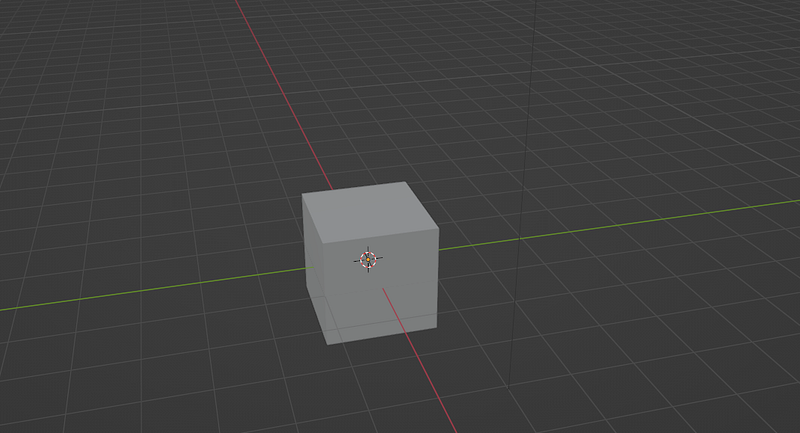
Screenshot by Author.

If there is no orange outline, the cube isn’t selected.
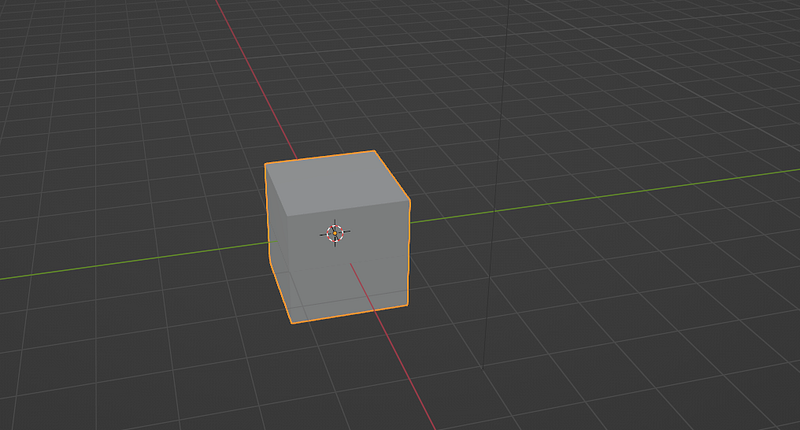
Screenshot by Author.

If there is an orange outline, the cube is selected.
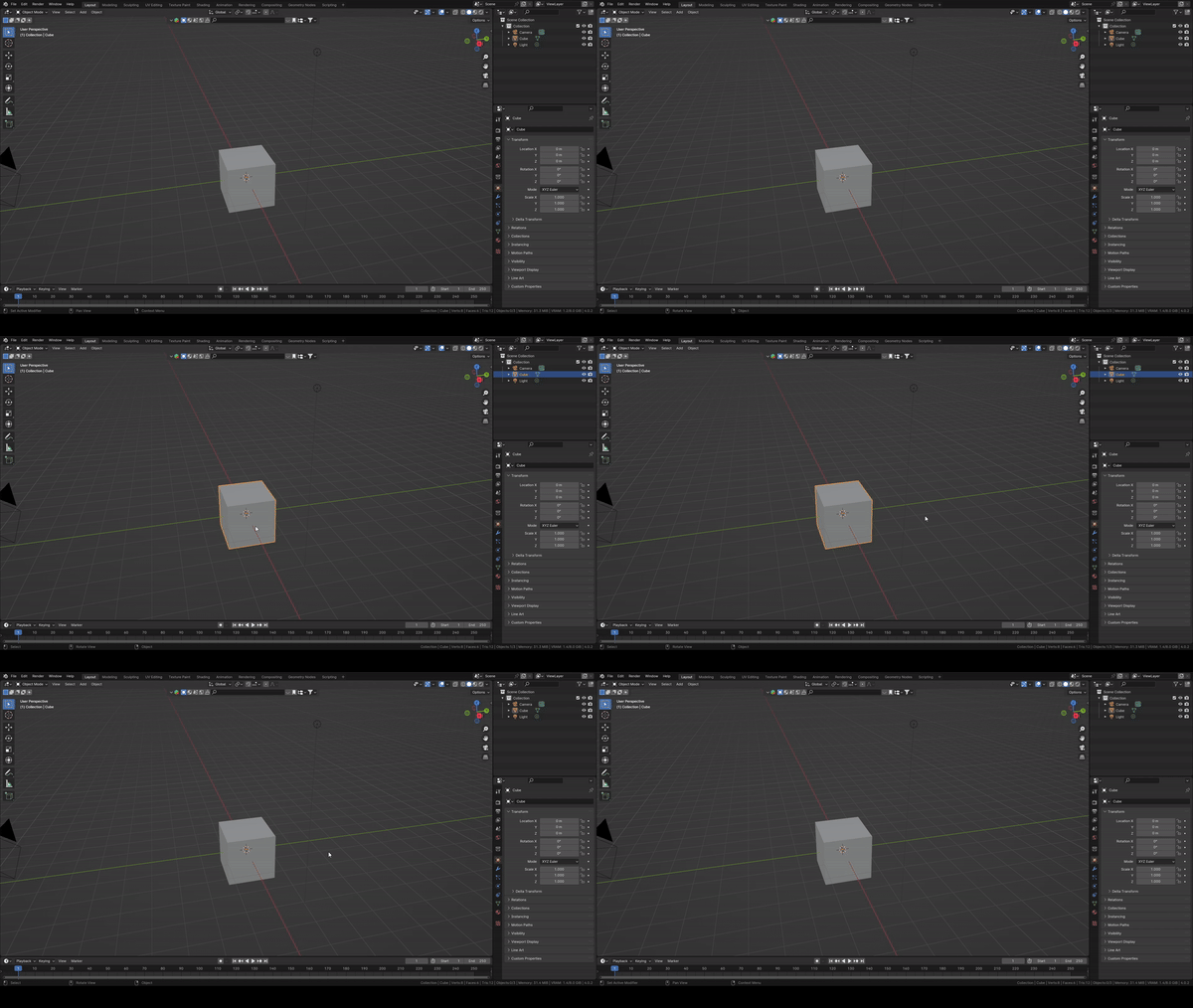
Selecting and deselecting a cube. Video by Author.

If you want to deselect the cube, click outside of it.

As you can see in this video example, when you do that, the orange outline disappears.

Before we move on, I will show you another way to determine which object is selected.
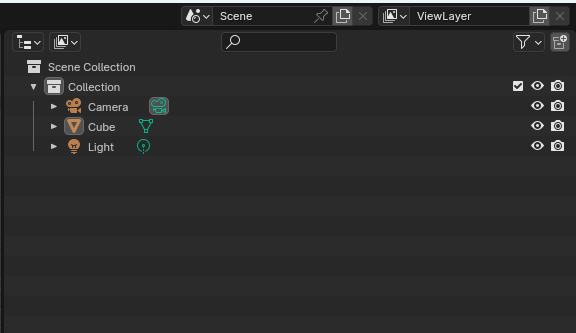
Outliner. Screenshot by Author.

This is an outliner. It is used to organize all data, select and unselect objects, hide or show objects, and much more.

I will explain another time about other functions, but for now, I wanted to tell you about active objects and selecting and unselecting objects.

Sign for a mesh in Blender.

You can see this grey background around the mesh sign ( we will talk about what mesh is a bit later).

That grey background means that your object is active.

For now, it is enough to know that there is something that is called an active object.
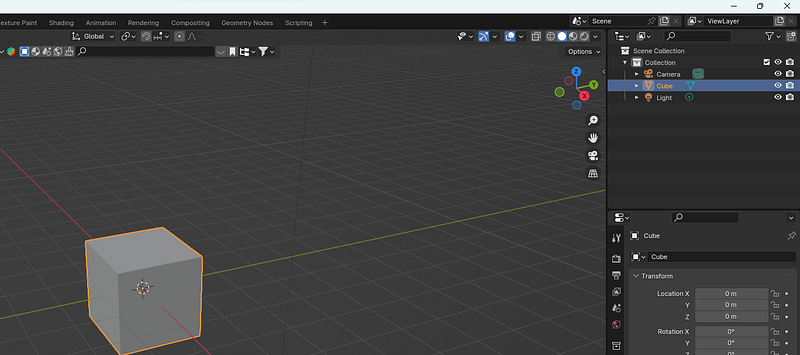
Cube is selected. Screenshot by Author.

Just as you selected a cube previously with LMB by clicking directly on it, you can also select it by clicking LMB in the outliner on the name of your object (mesh).

In this case, your object is called a Cube.

You will know that a cube is selected by seeing the orange outline on the cube, but also by seeing the blue background behind the name of the object (in this case a Cube.)
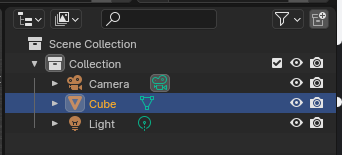
Cube is selected. Screenshot by Author.

Now when you know how to select a cube, let’s try to move it.

But before that, let’s try to delete that camera and light because they are not important now.
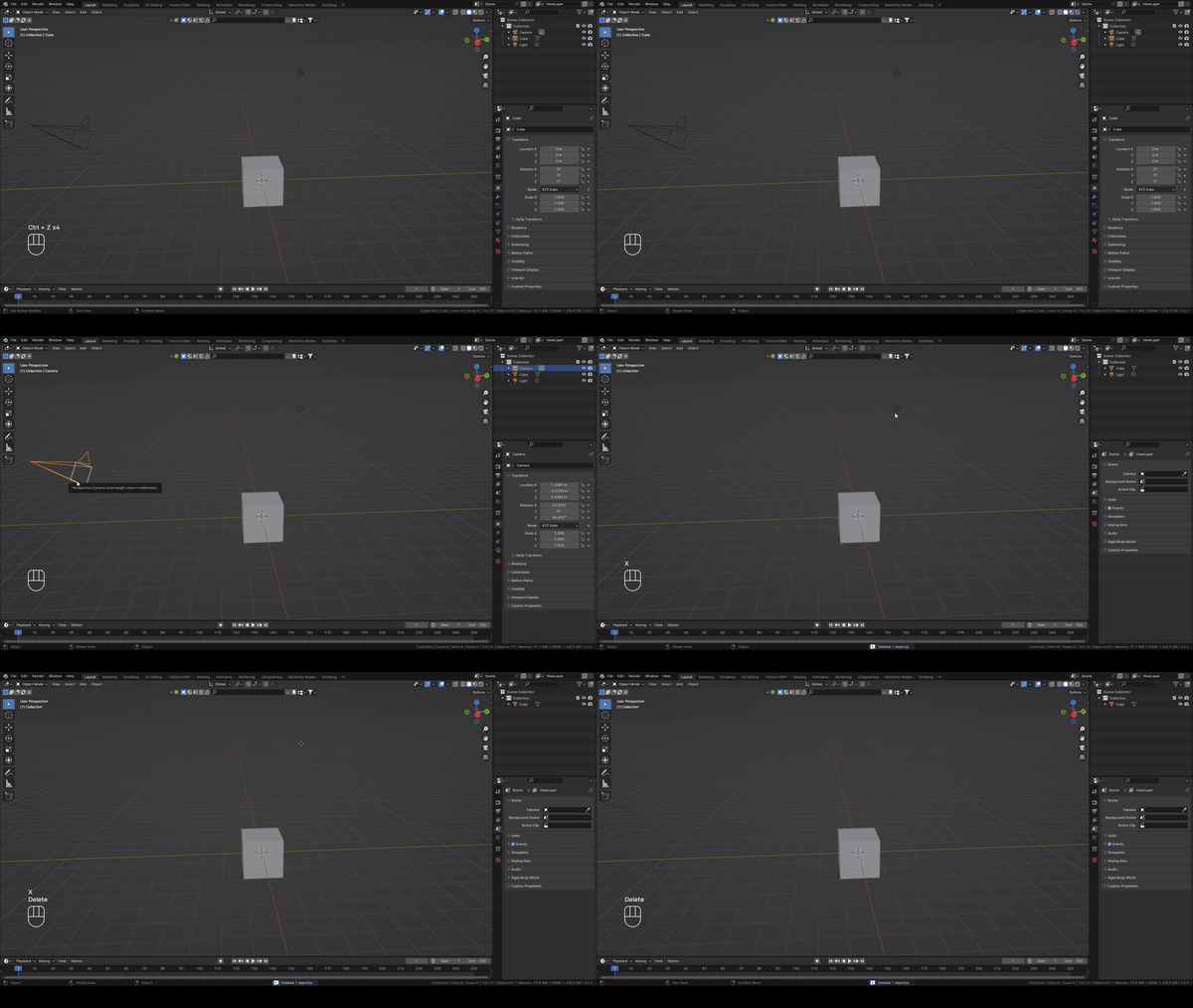
Deleting objects. Video by Author.

As you can see, you can delete an object by selecting it with LMB and clicking X or DEL.

Now when your scene is clean, let’s finally move the cube.

It is time to learn your first shortcut in BLENDER!

Are you ready? Ok, let’s do it!
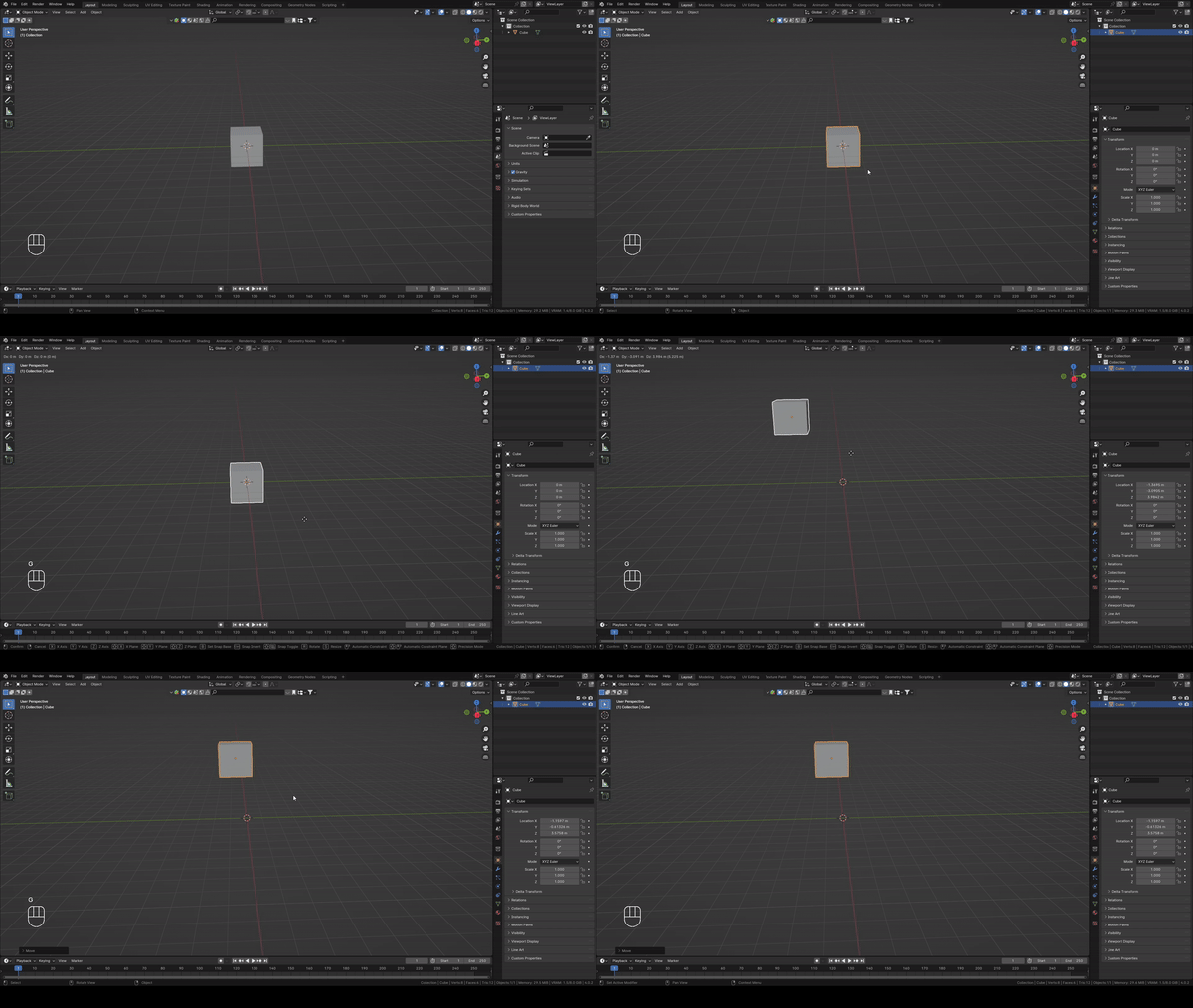
Moving a cube. Video by Author.

How to move a cube by using a shortcut?

  1. Select the cube with LMB
  2. Press G and release it.
  3. Now move the cube with your mouse to the position where you want it to be.
  4. Confirm the position with the LMB.

AXES IN BLENDER
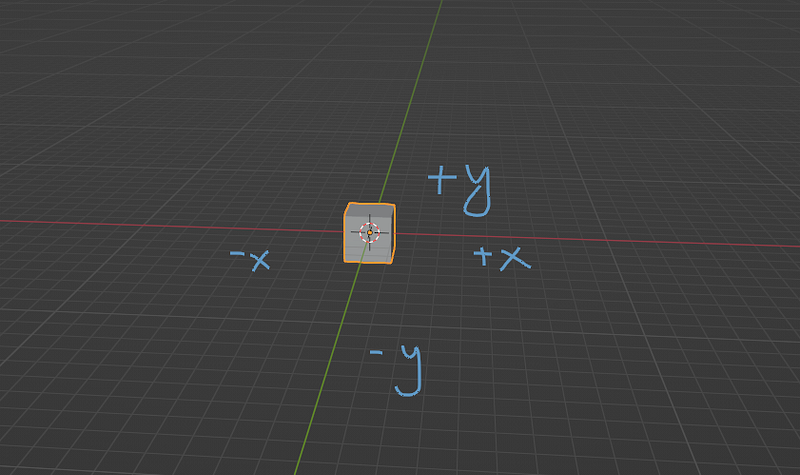
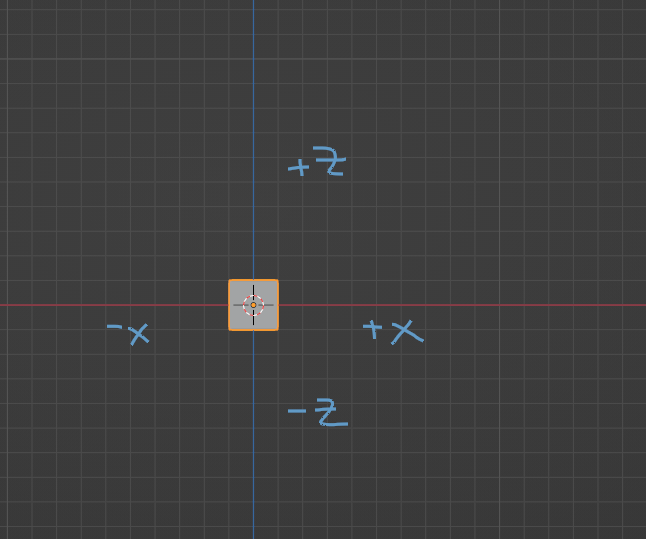
X and y axes. Screenshot by Author.
X and Z axes. Screenshot by Author.
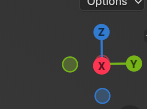
Gizmo showing x,y, and z axes. Screenshot by Author.

In Blender, we have three axes: X (the red one) — for left and right, Y (the green one) — for front and back, and Z (the blue one) — for top and bottom.

How to move a cube along the axes?
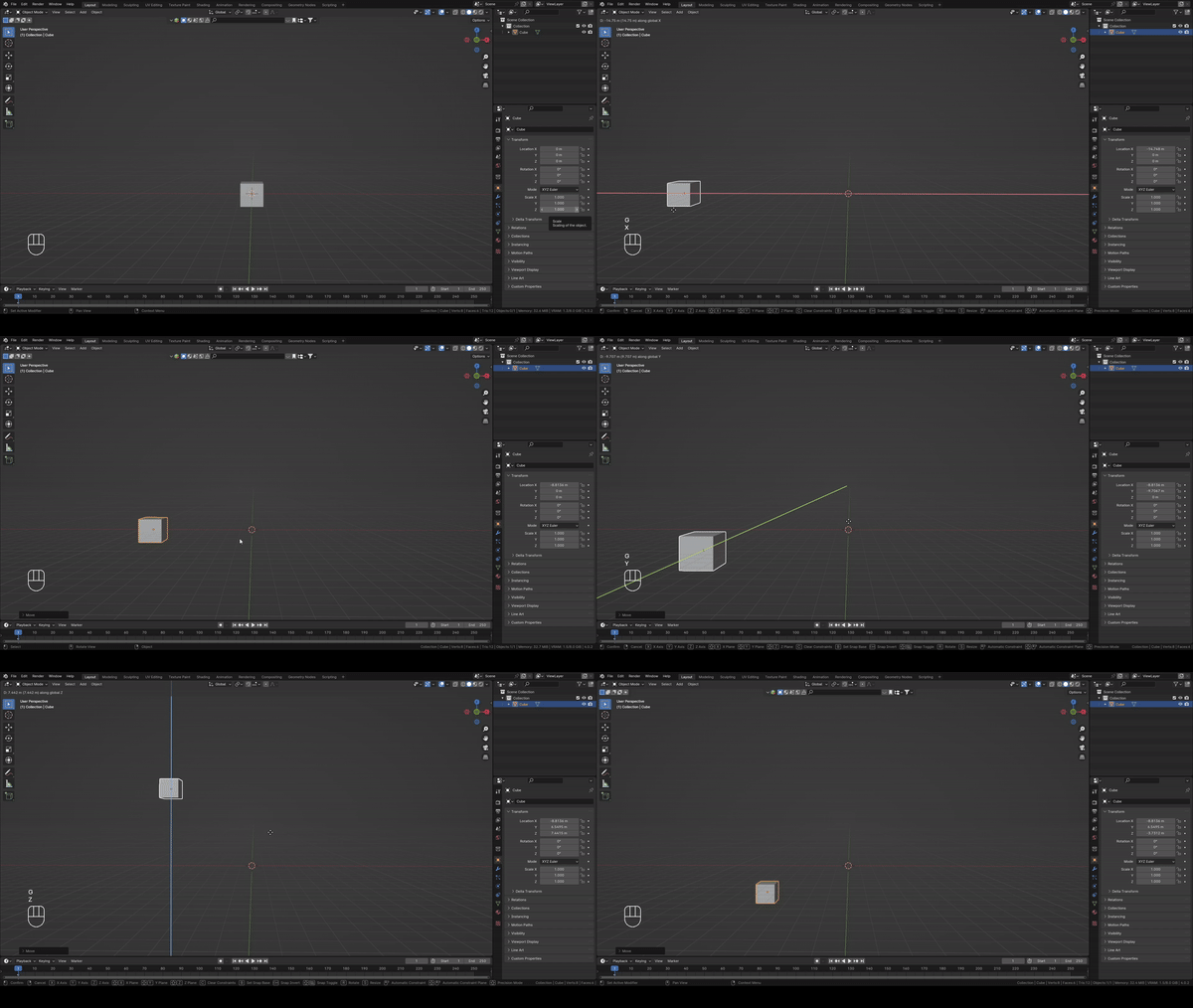
Moving a cube along the axes. Video by Author.

As you already learned, we move a cube with G.

If we want to move it along the axes, just press G+(one of the axes).

G+X — to move it along the X-axis.

G+Y — to move it along the Y-axis.

G+Z — to move it along the Z-axis.

In the end, confirm the position with the LMB.

As I mentioned before, there are many ways to do the same thing in Blender.

We can move the cube in one more way.
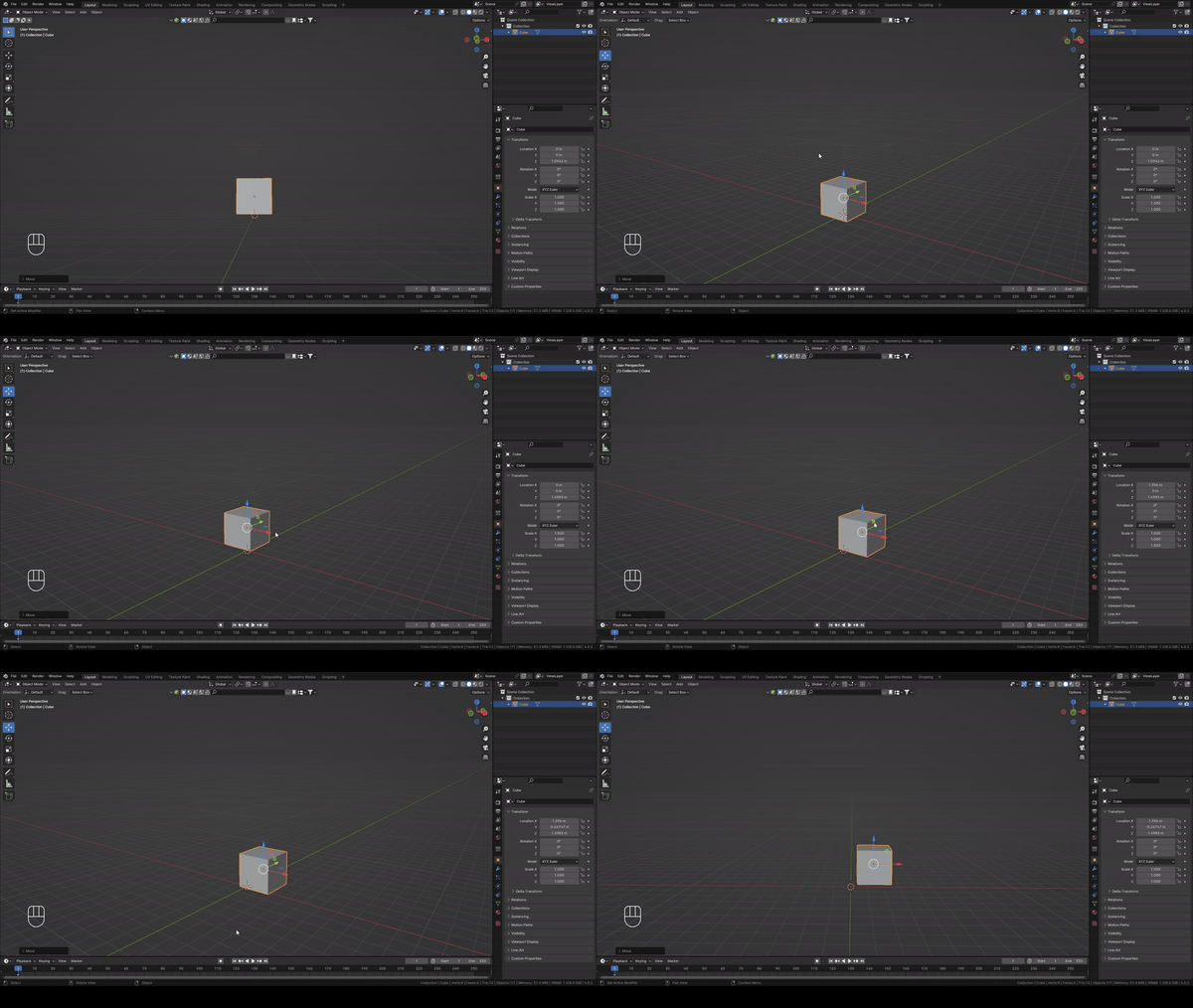
Moving a cube along the axes. Video by Author.
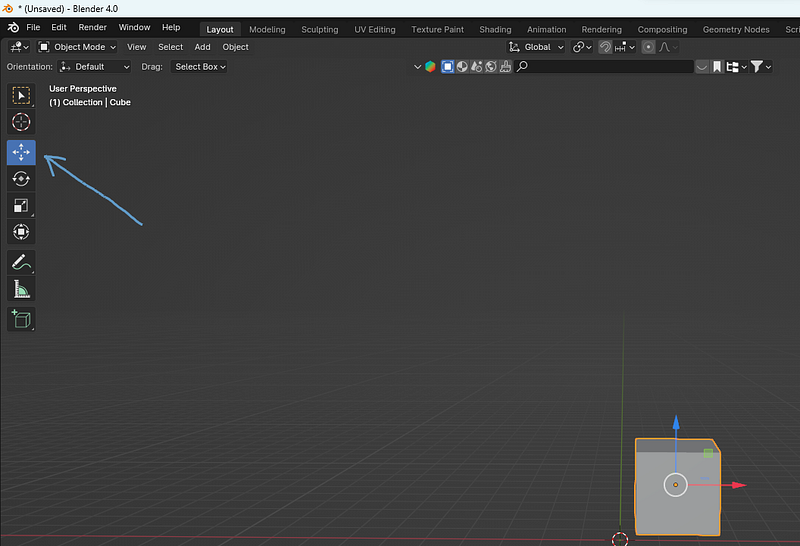
Move button. Screenshot by Author.
  1. Click here (where the arrow is showing) —and turn on the Move button.
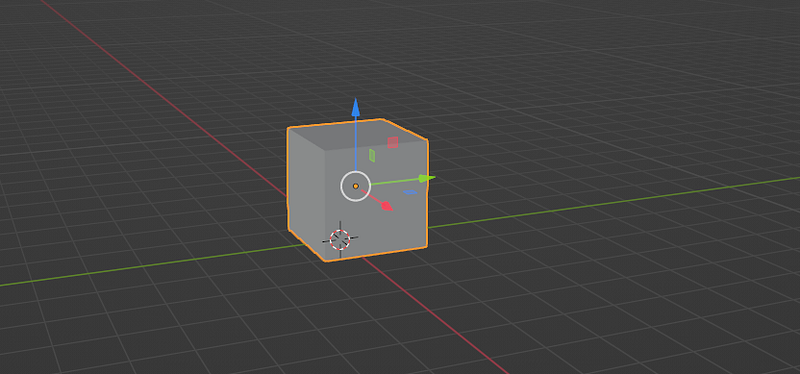
Axes. Screenshot by Author.

2. Three arrows will appear. Each color for the one axis.

3. Select the arrow you want, then while holding it, move it in the direction you want (and can).

Congratulations! Now you know how to move your cube in Blender!

I will stop here so you can learn little by little.

If you have any questions, feel free to ask; I will gladly help!

If you are interested in learning Blender with me, feel free to check out my YouTube channel :)

Blender
3d
3d Modeling
Learning
Art
Recommended from ReadMedium