avatarTeri Radichel

Free AI web copilot to create summaries, insights and extended knowledge, download it at here

9531

Abstract

t. That is why it’s best to create a new account and work from there. Lock away those root credentials and MFA keys!</p><p id="1352">Recall that I previously wrote about the concept of <i>root of trust</i> which you will want to establish in your organization.</p><div id="7838" class="link-block"> <a href="https://readmedium.com/backdoors-and-privilege-escalation-via-cloud-account-users-298b54a45f30"> <div> <div> <h2>Backdoors and Privilege Escalation Via Cloud Account Users</h2> <div><h3>ACM.134 Preventing a user from leveraging another user with permissions they don’t have</h3></div> <div><p>medium.com</p></div> </div> <div> <div style="background-image: url(https://miro.readmedium.com/v2/resize:fit:320/1*o2-oz7KOX7_NPgI8FyoTlg.png)"></div> </div> </div> </a> </div><p id="06ad">We’ll be attempting to do that over the next few posts.</p><p id="7000"><b>Create a new Organizational Unit programmatically</b></p><p id="18f1">We have different options for creating organizational units. We could use CloudFormation or the AWS CLI. If we use CloudFormation we would have to create a template, check it out from source control and get it into AWS CloudShell and run it from there. Then in order to manage that CloudFormation stack we would have to log back into the root account.</p><p id="c45f">For this reasons I’m just going to create the first governance organizational unit from the command line. Using the command line reference above I can see that I can create an organizational unit with this command:</p><div id="6438" class="link-block"> <a href="https://awscli.amazonaws.com/v2/documentation/api/latest/reference/organizations/create-organizational-unit.html"> <div> <div> <h2>create-organizational-unit - AWS CLI 2.9.22 Command Reference</h2> <div><h3>undefined</h3></div> <div><p>undefined</p></div> </div> <div> <div style="background-image: url(https://miro.readmedium.com/v2/resize:fit:320/)"></div> </div> </div> </a> </div><p id="da95">The required parameters include the parent ID and a name:</p><figure id="10d0"><img src="https://cdn-images-1.readmedium.com/v2/resize:fit:800/1*oQTWkbcmBz3tnE7X2g5LAg.png"><figcaption></figcaption></figure><p id="76b8">Remember how I told you to take note of the root ID above for your organization? That is the parent OU and you’ll need to pass that value in as the parent-id along with whatever name you want for your new OU.</p><p id="93d4">Besides looking in the console, you can also get the root id with the following command:</p><div id="d439"><pre>aws organizations list-roots | grep <span class="hljs-string">"Id"</span></pre></div><p id="6143">Run your command with the appropriate value:</p><div id="8dc9"><pre>aws organizations create-organizational-unit --parent-id r-xxxxx --name Governance</pre></div><figure id="e595"><img src="https://cdn-images-1.readmedium.com/v2/resize:fit:800/1*eNyTzmaQMdEvPIBym8M35w.png"><figcaption></figcaption></figure><p id="3235">Navigate back to the organizational dashboard.</p><figure id="4fed"><img src="https://cdn-images-1.readmedium.com/v2/resize:fit:800/1*jYf95gt9alGG2mF4EVubsQ.png"><figcaption></figcaption></figure><p id="f4d5">You can see the new OU in the AWS organizations hierarchy.</p><p id="899f">Notice the value that starts with “ou-” under our new Governance organizational unit. That is the <b>Organizational Unit Id</b>. We are going to need that value below.</p><p id="5036"><b>Create a new Account programmatically</b></p><p id="1042">Next let’s create the Governance account. Once again we can see here that it’s pretty simple to do so with the AWS CLI.</p><figure id="b4f4"><img src="https://cdn-images-1.readmedium.com/v2/resize:fit:800/1*gwOjgec_gVUHN9eKZ1U2pg.png"><figcaption></figcaption></figure><p id="b351">Run the command. Replace [email protected] with an email alias for your new account, the same way I explained you should create an alias for your root AWS account in the post above.</p><div id="b39c"><pre><span class="hljs-string">aws</span> <span class="hljs-string">organizations</span> <span class="hljs-built_in">create-account</span> <span class="hljs-built_in">--email</span> <span class="hljs-string">x</span>@<span class="hljs-string">x</span>.<span class="hljs-string">com</span> <span class="hljs-built_in">--account-name</span> <span class="hljs-string">Governance</span></pre></div><p id="da78">Return to the organizations dashboard. Do you see a problem?</p><figure id="1788"><img src="https://cdn-images-1.readmedium.com/v2/resize:fit:800/1*FmTdKsfvxxdJkUXzQxDhBA.png"><figcaption></figcaption></figure><p id="9986">We created the new account but did not specify an organizational unit, so the account is at the same level as the management account. We could apply policies to the Governance account directly but any policies applied to the Governance OU would not apply to the governance account.</p><h2 id="57d1">Move an account into an OU</h2><p id="9d94">To fix that problem we could delete and re-create the account. Alternatively we can move the account into the Governance OU. Now here’s where you would have a mess when using Control Tower. If you move the account to a new OU then things get a little wonky and you have to run some processes to clean things up in Control Tower. Since we are not using Control Tower here we can move the account without any issues.</p><p id="d54d">Let’s use the move-account command. We’ll need the ID for the governance OU and the root ID.</p><div id="1fed" class="link-block"> <a href="https://awscli.amazonaws.com/v2/documentation/api/latest/reference/organizations/move-account.html"> <div> <div> <h2>move-account - AWS CLI 2.9.22 Command Reference</h2> <div><h3>The unique identifier (ID) of the account that you want to move. The regex pattern for an account ID string requires…</h3></div> <div><p>awscli.amazonaws.com</p></div> </div> <div> <div style="background-image: url(https://miro.readmedium.com/v2/resize:fit:320/)"></div> </div> </div> </a> </div><figure id="6001"><img src="https://cdn-images-1.readmedium.com/v2/resize:fit:800/1*wxmDFEGd5KgLO3B6xyHuIQ.png"><figcaption></figcaption></figure><p id="d9a5">Run the command to move the account into the governance ou:</p><div id="5f51"><pre>aws organizations move-account --account-id xxxxxxxxxxxx --source-parent-id r-xxxxx --destination-parent-id ou-xxxxx-xxxxxx</pre></div><p id="f029">Return to the Organization dashboard.</p><p id="d90d">Click the down arrow next to your Governance OU.</p><figure id="d027"><img src="https://cdn-images-1.readmedium.com/v2/resize:fit:800/1*MRM48Ds-HRxswtYGaMXGvw.png"><figcaption></figcaption></figure><p id="c5de">Now you can see that the Governance account is in the Governance OU. You can apply policies to the Governance OU and those policies would apply to the Governance account.</p><figure id="b487"><img src="https://cdn-images-1.readmedium.com/v2/resize:fit:800/1*kN1xT-nZR-tkBPWEp7OvUw.png"><figcaption></figcaption></figure><h2 id="b366">Programmatically Create a Delegated Organization Administrator</h2><p id="4dac">Now as you recall, last time I tried creating a delegated administrator, I ended up simply manually creating one for my AWS Organization.</p><div id="18f9" class="link-block"> <a href="https://readmedium.com/delegated-administrator-for-aws-organizations-8b58c021e8e1"> <div> <div> <h2>Delegated Administrator for AWS Organizations</h2> <div><h3>ACM.139b Delegating governance via service control policies to an AWS Governance account</h3></div> <div><p>medium.com</p></div> </div> <div> <div style="background-image: url(https://miro.readmedium.com/v2/resize:fit:320/1*zEL8EukAMw2FfB0Oyw780A.png)"></div> </div> </div> </a> </div><p id="10ab">Let’s try to do that programmatically now. Check the list of commands for AWS organizations. There’s one called register-delegated-administrator.</p><div id="6ebb" class="link-block"> <a href="https://awscli.amazonaws.com/v2/documentation/api/latest/reference/organizations/register-delegated-administrator.html"> <div> <div> <h2>register-delegated-administrator - AWS CLI 2.9.22 Command Reference</h2> <div><h3>undefined</h3></div> <div><p>undefined</p></div> </div> <div> <div style="background-image: url(https://miro.readmedium.com/v2/resize:fit:320/)"></div> </div> </div> </a> </div><p id="93f8">At this point it looks like we need a service principal, which as you may recall from the last post was an IAM role:</p><figure id="3098"><img src="https://cdn-images-1.readmedium.com/v2/resize:fit:800/1*S1g0oLcZ6qbb3thX5uJHkA.png"><figcaption></figcaption></figure><p id="c970">What is interesting about this command is that it does not seem to have the option to create a restrictive pol

Options

icy the way we did here in the AWS Organizations settings:</p><div id="4962" class="link-block"> <a href="https://readmedium.com/delegating-scp-management-to-governance-team-via-aws-organizations-53334a31b71c"> <div> <div> <h2>Delegating SCP Management to Governance Team via AWS Organizations</h2> <div><h3>ACM.141 Delegated AWS Organizations Administrator — Policy as Code</h3></div> <div><p>medium.com</p></div> </div> <div> <div style="background-image: url(https://miro.readmedium.com/v2/resize:fit:320/0*Uv6158JyLJJWH1Td.png)"></div> </div> </div> </a> </div><p id="1d35">Is that command serving our intended purpose? It’s not clear.</p><p id="12ab">Well, if you recall, in the post before that one I had to reverse engineer how to create a delegated administrator policy for governance from the information in CloudTrail.</p><div id="7e66" class="link-block"> <a href="https://readmedium.com/analyzing-cloudformation-requests-related-to-scps-7cd8647d1a07"> <div> <div> <h2>Analyzing CloudTrail Requests Related to SCPs</h2> <div><h3>ACM.140 Trying to figure out conditions and ARNs to create a delegated administrator for SCPs</h3></div> <div><p>medium.com</p></div> </div> <div> <div style="background-image: url(https://miro.readmedium.com/v2/resize:fit:320/1*olEFMOyzrmUuJRCoXr2ijQ.png)"></div> </div> </div> </a> </div><p id="4f39">That’s because the only example AWS provides is for a backup administrator and that’s not what I was trying to create:</p><figure id="5a6a"><img src="https://cdn-images-1.readmedium.com/v2/resize:fit:800/1*atOBzKIJkFMlTh8IEymVqg.png"><figcaption></figcaption></figure><p id="4b49">Perhaps we can use the above command to automate the deployment of the backup administrator policy for our deleted governance administrator policy.</p><div id="be9e"><pre>aws organizations put-resource-policy --content [policy]</pre></div><p id="d11e">Recall that I formulated this policy in the prior post and applied it manually to my organization via the settings option in the console:</p><div id="de38"><pre>{ <span class="hljs-string">"Version"</span>: <span class="hljs-string">"2012-10-17"</span>, <span class="hljs-string">"Statement"</span>: [ { <span class="hljs-string">"Sid"</span>: <span class="hljs-string">"ViewAWSOrganizationsResources"</span>, <span class="hljs-string">"Effect"</span>: <span class="hljs-string">"Allow"</span>, <span class="hljs-string">"Principal"</span>: { <span class="hljs-string">"AWS"</span>: <span class="hljs-string">"arn:aws:iam::XXXXXXXXXXXX:root"</span> }, <span class="hljs-string">"Action"</span>: [ <span class="hljs-string">"organizations:DescribeOrganization"</span>, <span class="hljs-string">"organizations:DescribeOrganizationalUnit"</span>, <span class="hljs-string">"organizations:DescribeAccount"</span>, <span class="hljs-string">"organizations:DescribePolicy"</span>, <span class="hljs-string">"organizations:DescribeEffectivePolicy"</span>, <span class="hljs-string">"organizations:ListRoots"</span>, <span class="hljs-string">"organizations:ListOrganizationalUnitsForParent"</span>, <span class="hljs-string">"organizations:ListParents"</span>, <span class="hljs-string">"organizations:ListChildren"</span>, <span class="hljs-string">"organizations:ListAccounts"</span>, <span class="hljs-string">"organizations:ListAccountsForParent"</span>, <span class="hljs-string">"organizations:ListPolicies"</span>, <span class="hljs-string">"organizations:ListPoliciesForTarget"</span>, <span class="hljs-string">"organizations:ListTargetsForPolicy"</span>, <span class="hljs-string">"organizations:ListTagsForResource"</span> ], <span class="hljs-string">"Resource"</span>: <span class="hljs-string">""</span> }, { <span class="hljs-string">"Sid"</span>: <span class="hljs-string">"DelegatingAllActionsForServiceControlPolicies"</span>, <span class="hljs-string">"Effect"</span>: <span class="hljs-string">"Allow"</span>, <span class="hljs-string">"Principal"</span>: { <span class="hljs-string">"AWS"</span>: <span class="hljs-string">"arn:aws:iam::XXXXXXXXXXXX:root"</span> }, <span class="hljs-string">"Action"</span>: [ <span class="hljs-string">"organizations:CreatePolicy"</span>, <span class="hljs-string">"organizations:UpdatePolicy"</span>, <span class="hljs-string">"organizations:DeletePolicy"</span>, <span class="hljs-string">"organizations:AttachPolicy"</span>, <span class="hljs-string">"organizations:DetachPolicy"</span>, <span class="hljs-string">"organizations:EnablePolicyType"</span>, <span class="hljs-string">"organizations:DisablePolicyType"</span> ], <span class="hljs-string">"Resource"</span>: <span class="hljs-string">"arn:aws:organizations:::policy//service_control_policy/"</span> } ] }</pre></div><p id="8f0b">Let’s try using that policy, but replace the xxxxxxxxxxxx values above with your new governance account.</p><p id="25a7">Now it’s at this point where I cannot get the above command to run in AWS CloudShell. I’ve been trying for a while. I don’t know if it’s CloudShell, a problem with the AWS documentation, or something else.</p><p id="c9e8">I’m copying the command exactly as it is written in the documentation and copied the policy that worked in my other account and changed the account numbers. I tried a number of variations and have spent too much time on this already so I’ll have to try again later or just manually add the policy the way I did in my previous blog post. I can still check the policy into source control even though I had to apply it manually.</p><p id="0288">Update: AWS appears to have created a way to deploy this using CloudFormation since I wrote this. I’ll show you how to deploy your organizational resources using CloudFormation in upcoming posts and will add that to my GitHub repository associated with this blog.</p><div id="bc29" class="link-block"> <a href="https://docs.aws.amazon.com/AWSCloudFormation/latest/UserGuide/aws-resource-organizations-resourcepolicy.html"> <div> <div> <h2>AWS::Organizations::ResourcePolicy</h2> <div><h3>undefined</h3></div> <div><p>undefined</p></div> </div> <div> <div style="background-image: url(https://miro.readmedium.com/v2/resize:fit:320/)"></div> </div> </div> </a> </div><h2 id="72ce">Add MFA to the Root User in your new account</h2><p id="fbc9">There’s a lot of other things we can do to further protect new accounts by default as they get created, but for now, add MFA to the root user of your new governance account. You need to logout of the account you’re in or go to a separate incognito window. Login with the root email for your new account but click the forgot password link. Login and reset the password and add MFA to the root user.</p><h2 id="12a1">Back to Okta</h2><p id="f3ac">What next? I was looking at <a href="https://readmedium.com/okta-for-directory-idp-and-sso-e4f4b5be02bb">Okta</a>. Now that I have this new account structure perhaps I can look at Okta a bit more and see if it makes sense to use it and how it maps to AWS constructs like the organization, accounts, OUs, users, roles, and groups. I want to create my governance user in the governance account and figure out how IAM administration will work if I use the external <a href="https://readmedium.com/what-is-an-identity-provider-idp-b58567868c63">IdP</a>.</p><p id="61c8">Follow for updates.</p><p id="4a3a">Teri Radichel | <i>© <a href="https://2ndsightlab.com/?source=post_page---------------------------">2nd Sight Lab</a> 2023</i></p><div id="8b5f"><pre><span class="hljs-section">About Teri Radichel:

⭐️ Author: Cybersecurity Books
⭐️ Presentations: Presentations by Teri Radichel
⭐️ Recognition: SANS Award, AWS Security Hero, IANS Faculty
⭐️ Certifications: SANS ~ GSE 240
⭐️ Education: BA Business, Master of Software Engineering, Master of Infosec
⭐️ Company: Penetration Tests, Assessments, Phone Consulting ~ 2nd Sight Lab</pre></div><div id="caae"><pre><span class="hljs-section">Need Help With Cybersecurity, Cloud, or Application Security?
~~~~~~~~~~~~~~~~~~~~~~~~~~~~~~~~~~~~~~~~~~~~~~~~~~~~~~~~~~~~~</span>
🔒 Request a penetration test or security assessment
🔒 Schedule a consulting call
🔒 Cybersecurity Speaker for Presentation</pre></div><div id="5a42"><pre>Follow <span class="hljs-keyword">for</span> more stories like <span class="hljs-keyword">this</span>:

❤️ Sign Up my Medium Email List ❤️ Twitter: <span class="hljs-meta">@teriradichel</span> ❤️ LinkedIn: https:<span class="hljs-comment">//www.linkedin.com/in/teriradichel</span> ❤️ Mastodon: <span class="hljs-meta">@teriradichel</span><span class="hljs-meta">@infosec</span>.exchange ❤️ Facebook: 2nd Sight Lab ❤️ YouTube: @2ndsightlab</pre></div><figure id="faf5"><img src="https://cdn-images-1.readmedium.com/v2/resize:fit:800/0*H9Ew1KCl-29nZiPR.jpeg"><figcaption></figcaption></figure></article></body>

Automated AWS Organization Creation

ACM.152 Automating the creation of an AWS Organization, Organizational Unit, Account, and Delegated Administrator

Part of my series on Automating Cybersecurity Metrics. The Code.

Free Content on Jobs in Cybersecurity | Sign up for the Email List

In my last post, I pondered an alternate approach for an implementation of AWS IAM Identity Center, for the reasons I explained.

Now that I’ve reviewed how AWS implements SCIM and determined that I don’t want to use AWS IAM Identity Center at the moment, I’m back to the new account I created and setting up my Organization and AWS IAM.

I already explained how I created a new AWS account here with secure default settings:

I’m going to try out Okta without SCIM and with AWS IAM. Before I do that I’m going to do a few other things I showed how to create in the past but in an automated fashion instead of manually. I’m not using AWS Control Tower for the reasons mentioned in the above post.

  • Create an organization.
  • Create a governance OU.
  • Create a governance account in the OU.
  • Make that governance account a delegated administrator for AWS Organizations.

Manually creating an organization in the AWS console

I could create the organization manually. That’s simple.

Log into your AWS account. Search for organizations.
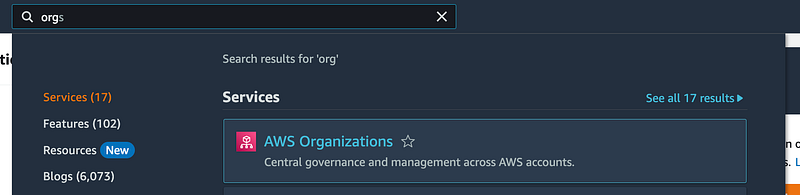
Click on Create an Organization.
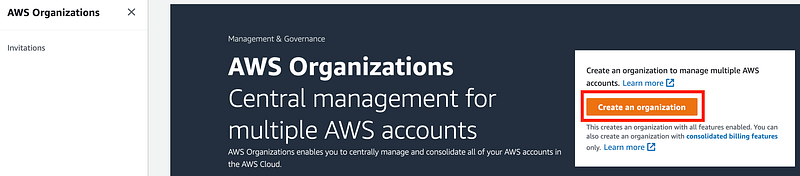
That’s it.

Automated creation of an organization

I want to automate the above. What are my options?

Well, if I look at AWS Organizations in CloudFormation these are the resources I can create:
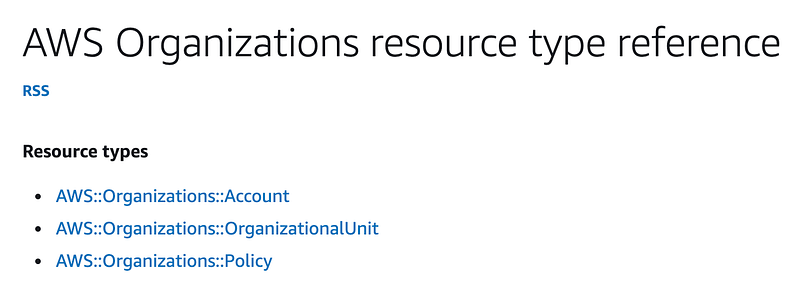
I can’t create the Organization with CloudFormation but that would probably be overkill because you create an organization one time and don’t need to modify it after that point.

Let’s see what we can do with the AWS CLI.

You can find the full list of AWS Organizations CLI commands here:

You can also get all the commands for AWS Organizations by typing:

aws organizations help
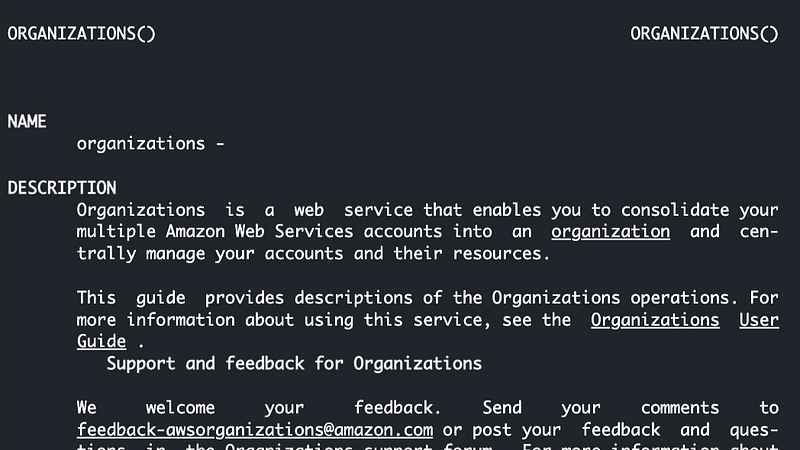
Scroll down for the list of commands:
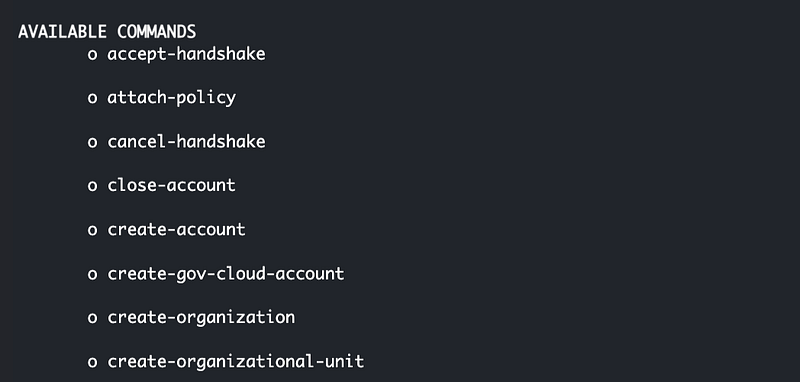
We can create an organization via the AWS CLI using the create-organization command.

The question is, how are you going to run that command in a new account when all you have is the AWS root user?

AWS best practice is that you NEVER create an AWS access key id or secret access key for programmatic actions for the root account. If we don’t do that how would we run the above command?

Well if you recall in a prior post I showed you how to use CloudShell (and the risks associated with that). Can we use CloudShell with the root account? Well, the CloudShell icon is there, so click on it.
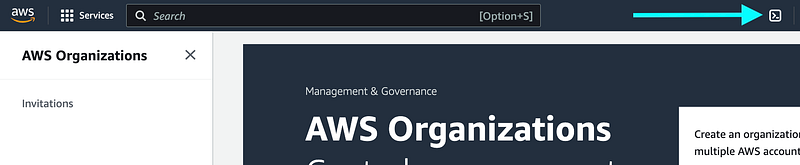
Yes, we have CloudShell and can access it. The AWS CLI is pre-installed via the root user in an AWS account:
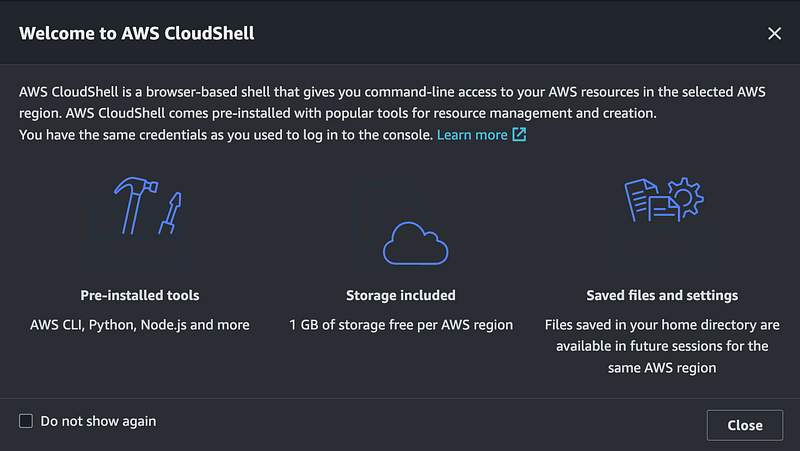
So although you’re never supposed to use long-lived credentials, an attacker that gains access to your browser when logged into AWS as root to use the AWS CLI in your account. You have been warned. Avoid logging in as root and lock away the key as discussed in the post where I created my new account above.

But since it’s here we could use it to create our organization. There’s nothing in our account right now so not a lot of risk. As long as we do it quickly and an attacker doesn’t have a chance to get in and create a backdoor user or access while we are logged in, we should be ok. I already set up MFA on the root user in the above post where I created the new account.

So let’s run the command to create an organization and see what happens:

aws organizations create-organization

View the output:
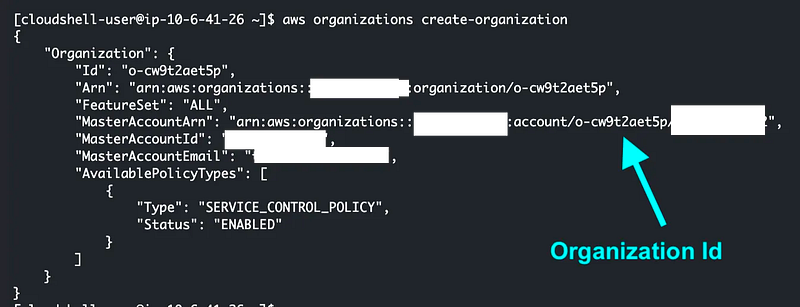
The value that starts with “o-” is your organization ID. we’ll need that for some of the other commands.

Navigate back to the Organizations dashboard.

Take note of three things on this screen.
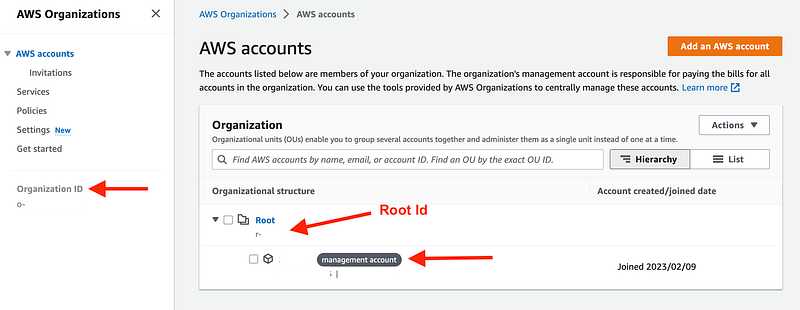
  1. The Organization ID you saw when we created the organization is in the left menu.
  2. A “Root” node was created in your organizational hierarchy. Your root node has an ID that starts with “r-”.
  3. The account where you ran the command to create the organization is now the management account.

I mentioned before when we create an organizational service control policy that it does not apply to the management account.

Therefore, whatever guardrails and restrictions we try to apply across the organization can be bypassed in the root account. This is good, if you make a mistake that is locking everyone out of your account. This is bad if someone can get in and take actions in your management account. Your policies have no effect. That is why it’s best to create a new account and work from there. Lock away those root credentials and MFA keys!

Recall that I previously wrote about the concept of root of trust which you will want to establish in your organization.

We’ll be attempting to do that over the next few posts.

Create a new Organizational Unit programmatically

We have different options for creating organizational units. We could use CloudFormation or the AWS CLI. If we use CloudFormation we would have to create a template, check it out from source control and get it into AWS CloudShell and run it from there. Then in order to manage that CloudFormation stack we would have to log back into the root account.

For this reasons I’m just going to create the first governance organizational unit from the command line. Using the command line reference above I can see that I can create an organizational unit with this command:

The required parameters include the parent ID and a name:

Remember how I told you to take note of the root ID above for your organization? That is the parent OU and you’ll need to pass that value in as the parent-id along with whatever name you want for your new OU.

Besides looking in the console, you can also get the root id with the following command:

aws organizations list-roots | grep "Id"

Run your command with the appropriate value:

aws organizations create-organizational-unit --parent-id r-xxxxx 
       --name Governance

Navigate back to the organizational dashboard.
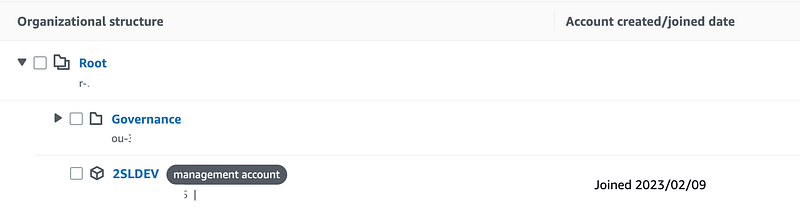
You can see the new OU in the AWS organizations hierarchy.

Notice the value that starts with “ou-” under our new Governance organizational unit. That is the Organizational Unit Id. We are going to need that value below.

Create a new Account programmatically

Next let’s create the Governance account. Once again we can see here that it’s pretty simple to do so with the AWS CLI.

Run the command. Replace [email protected] with an email alias for your new account, the same way I explained you should create an alias for your root AWS account in the post above.

aws organizations create-account --email x@x.com --account-name Governance

Return to the organizations dashboard. Do you see a problem?
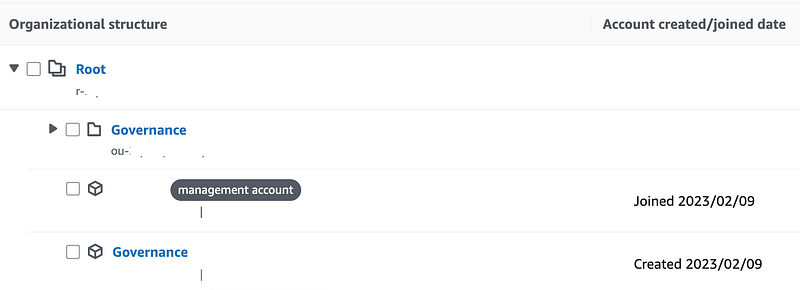
We created the new account but did not specify an organizational unit, so the account is at the same level as the management account. We could apply policies to the Governance account directly but any policies applied to the Governance OU would not apply to the governance account.

Move an account into an OU

To fix that problem we could delete and re-create the account. Alternatively we can move the account into the Governance OU. Now here’s where you would have a mess when using Control Tower. If you move the account to a new OU then things get a little wonky and you have to run some processes to clean things up in Control Tower. Since we are not using Control Tower here we can move the account without any issues.

Let’s use the move-account command. We’ll need the ID for the governance OU and the root ID.

Run the command to move the account into the governance ou:

aws organizations move-account --account-id xxxxxxxxxxxx
  --source-parent-id r-xxxxx --destination-parent-id ou-xxxxx-xxxxxx

Return to the Organization dashboard.

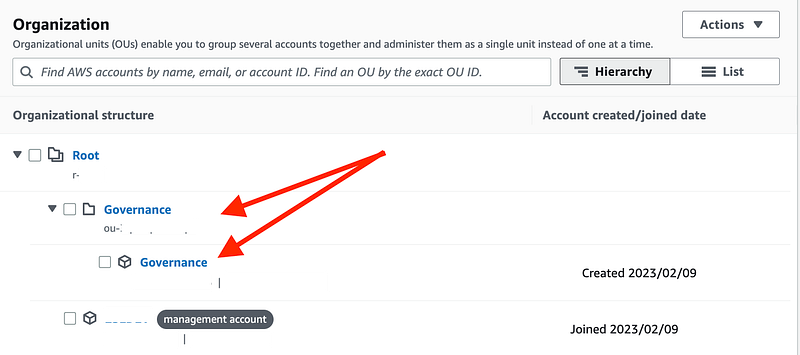
Click the down arrow next to your Governance OU.
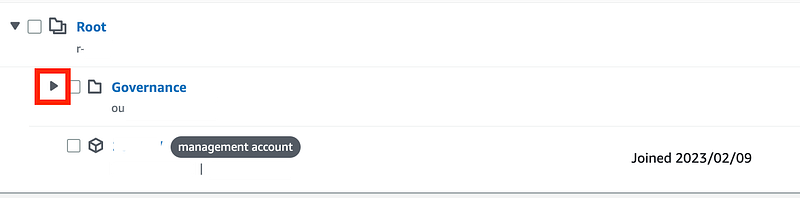
Now you can see that the Governance account is in the Governance OU. You can apply policies to the Governance OU and those policies would apply to the Governance account.
Programmatically Create a Delegated Organization Administrator

Now as you recall, last time I tried creating a delegated administrator, I ended up simply manually creating one for my AWS Organization.

Let’s try to do that programmatically now. Check the list of commands for AWS organizations. There’s one called register-delegated-administrator.

At this point it looks like we need a service principal, which as you may recall from the last post was an IAM role:

What is interesting about this command is that it does not seem to have the option to create a restrictive policy the way we did here in the AWS Organizations settings:

Is that command serving our intended purpose? It’s not clear.

Well, if you recall, in the post before that one I had to reverse engineer how to create a delegated administrator policy for governance from the information in CloudTrail.

That’s because the only example AWS provides is for a backup administrator and that’s not what I was trying to create:
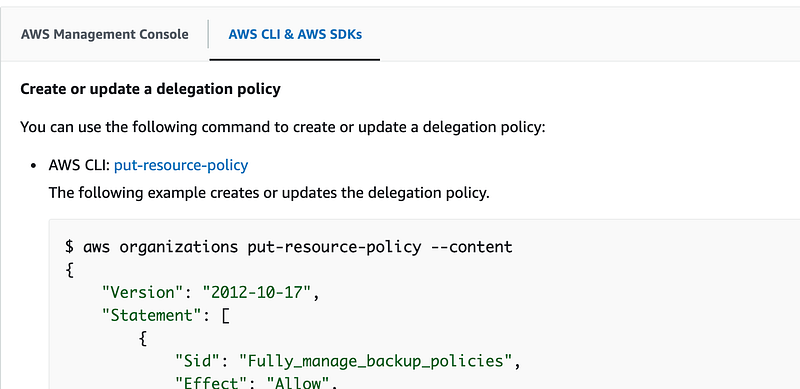
Perhaps we can use the above command to automate the deployment of the backup administrator policy for our deleted governance administrator policy.

aws organizations put-resource-policy --content  [policy]

Recall that I formulated this policy in the prior post and applied it manually to my organization via the settings option in the console:

{
 "Version": "2012-10-17",
 "Statement": [
  {
   "Sid": "ViewAWSOrganizationsResources",
   "Effect": "Allow",
   "Principal": {
    "AWS": "arn:aws:iam::XXXXXXXXXXXX:root"
   },
   "Action": [
    "organizations:DescribeOrganization",
    "organizations:DescribeOrganizationalUnit",
    "organizations:DescribeAccount",
    "organizations:DescribePolicy",
    "organizations:DescribeEffectivePolicy",
    "organizations:ListRoots",
    "organizations:ListOrganizationalUnitsForParent",
    "organizations:ListParents",
    "organizations:ListChildren",
    "organizations:ListAccounts",
    "organizations:ListAccountsForParent",
    "organizations:ListPolicies",
    "organizations:ListPoliciesForTarget",
    "organizations:ListTargetsForPolicy",
    "organizations:ListTagsForResource"
   ],
   "Resource": "*"
  },
  {
   "Sid": "DelegatingAllActionsForServiceControlPolicies",
   "Effect": "Allow",
   "Principal": {
    "AWS": "arn:aws:iam::XXXXXXXXXXXX:root"
   },
   "Action": [
    "organizations:CreatePolicy",
    "organizations:UpdatePolicy",
    "organizations:DeletePolicy",
    "organizations:AttachPolicy",
    "organizations:DetachPolicy",
    "organizations:EnablePolicyType",
    "organizations:DisablePolicyType"
   ],
   "Resource": "arn:aws:organizations::*:policy/*/service_control_policy/*"
  }
 ]
}

Let’s try using that policy, but replace the xxxxxxxxxxxx values above with your new governance account.

Now it’s at this point where I cannot get the above command to run in AWS CloudShell. I’ve been trying for a while. I don’t know if it’s CloudShell, a problem with the AWS documentation, or something else.

I’m copying the command exactly as it is written in the documentation and copied the policy that worked in my other account and changed the account numbers. I tried a number of variations and have spent too much time on this already so I’ll have to try again later or just manually add the policy the way I did in my previous blog post. I can still check the policy into source control even though I had to apply it manually.

Update: AWS appears to have created a way to deploy this using CloudFormation since I wrote this. I’ll show you how to deploy your organizational resources using CloudFormation in upcoming posts and will add that to my GitHub repository associated with this blog.

Add MFA to the Root User in your new account

There’s a lot of other things we can do to further protect new accounts by default as they get created, but for now, add MFA to the root user of your new governance account. You need to logout of the account you’re in or go to a separate incognito window. Login with the root email for your new account but click the forgot password link. Login and reset the password and add MFA to the root user.

Back to Okta

What next? I was looking at Okta. Now that I have this new account structure perhaps I can look at Okta a bit more and see if it makes sense to use it and how it maps to AWS constructs like the organization, accounts, OUs, users, roles, and groups. I want to create my governance user in the governance account and figure out how IAM administration will work if I use the external IdP.

Follow for updates.

Teri Radichel | © 2nd Sight Lab 2023

About Teri Radichel:
~~~~~~~~~~~~~~~~~~~~
⭐️ Author: Cybersecurity Books
⭐️ Presentations: Presentations by Teri Radichel
⭐️ Recognition: SANS Award, AWS Security Hero, IANS Faculty
⭐️ Certifications: SANS ~ GSE 240
⭐️ Education: BA Business, Master of Software Engineering, Master of Infosec
⭐️ Company: Penetration Tests, Assessments, Phone Consulting ~ 2nd Sight Lab
Need Help With Cybersecurity, Cloud, or Application Security?
~~~~~~~~~~~~~~~~~~~~~~~~~~~~~~~~~~~~~~~~~~~~~~~~~~~~~~~~~~~~~
🔒 Request a penetration test or security assessment
🔒 Schedule a consulting call
🔒 Cybersecurity Speaker for Presentation
Follow for more stories like this:
~~~~~~~~~~~~~~~~~~~~~~~~~~~~~~~~~~~~~~~~~~~~~~~~~~~~~~~~~~~~~ 
❤️ Sign Up my Medium Email List
❤️ Twitter: @teriradichel
❤️ LinkedIn: https://www.linkedin.com/in/teriradichel
❤️ Mastodon: @teriradichel@infosec.exchange
❤️ Facebook: 2nd Sight Lab
❤️ YouTube: @2ndsightlab

Aws Organizations
Cloud Security
Cloud Governance
Cybersecurity
Delegated Administrator
Recommended from ReadMedium
avatarMunidimple Muchalli
AWS GuardDuty

AWS Guard Duty

4 min read