
Automate Filling Templates With Python
Do important work instead of repetitive tasks

Introduction
In this article you will learn:
- How to fill in a predefined Word template based on Excel input.
- How to automate this in order to create multiple templates at the same time.
- How you can adapt the template to your specific use case.

This is the first part of the three-part Python series “Build Your Own Application in Python”:
- Automate Filling in Word Templates Using Python
- Create a Graphical User Interface (GUI) using the Tkinter package
- Transform in an .EXE application using the Pyinstaller package

Load The Packages
- Openpyxl: Python package for working with excel files
- Docx: Python package for working with Word documents
Get the Data
Save these files to your local folder:
Create The Word Template
The word template defines the input parameters in the following format:
{{PARAMETER}}It is crucial there are no spaces in your parameters:
- {{Company_Name}} is OK while {{Company Name}} will give errors

Create the Excel File
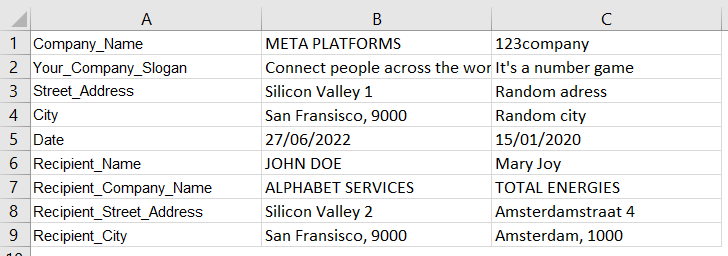
In the first column, the same parameters are shown as defined in your word file. These should have exactly the same naming.
In the other columns, you define the input data for that specific parameter. Each column will ensure that an additional template will be filled in.
In our example, two reports will be generated (B and C):
- Column B defines the data for Meta Platforms
- Column C defines the data for 123company
Load the Files in Python
First, you load the files in Python as shown in the code snippet below.
Then, you define the dictionary, to_fill_in, where you define the parameter names.
Step-by-step code explanation:
- r “C:\Users\Documents\1_Work\Scripts\TemplateAssistant\004-Test”
Change this to the folder location of where you have saved the downloaded word document and excel file.
load_workbook(workbook_path):
Load in the excel workbook using the workbook_path defined earlier on.
DocxTemplate(template_path)
Create a docx template for the word document downloaded earlier.
workbook[“Input”]
You specify the sheet_name of the excel sheet necessary.
to_fill_in
This is an empty dictionary with the keys matching the first column of the excel file. For now, you assign empty values (None) and these will be filled in using the excel file in the next step.
Write a Loop in Python
You now want to use Python to loop over all the parameters and their respective data.
Subsequently, you use Python to fill in the word templates and save them using the company name attribute. Here’s the code:
Step-by-step code explanation:
column = 2
This is the column that will be read in the first iteration. Since the first column defines the input parameters, the second column is the column that contains actual data.
while column ≤ worksheet.max_column
While the current column is not the maximum column (or last column) we should keep iterating/creating templates that are filled in.
col_index = chr(column+64)
Convert the column numbers to character (64 + 2 = B)
- for key in
to_fill_in: …
For each parameter defined in the dictionary: Assign the value of the excel sheet for the current col_index and row_index.
template.render(to_fill_in)
Use the render function to fill in the word template based on the dictionary created.
template.save(filled_path)
You save the created template on the specified path with the name containing the parameter “Company_Name.”
Congratulations
You have now coded your first template filler program. You can experiment with different templates and add more parameters.

Full Code
You can find the full code on this google collab file.
You Might Also Like
Feel free to check out my other Python automation articles:


