
Automate Creation of a VPC
ACM.60 Creating an AWS VPC with a CloudFormation template
Part of my series on Automating Cybersecurity Metrics. Network Security. The Code.
Free Content on Jobs in Cybersecurity | Sign up for the Email List
We’ve been working on setting up a Lambda function. We looked at using AWS Lambda with Parameter Store and then in the last post, we added encryption to our Parameter using a KMS key.
Now let’s look at some of the other security controls we’ll need for our lambda function. I already wrote about Lambda networking options here:
We’re going to need some a VPC for some configuration changes I plan to make, along with some subnets and security groups. There’s also a VPC, subnet, and security group I should have created from the start but just getting around to it now.
Note that I am not going to cover all aspects of VPC creation, just what is relevant to our current architecture and maybe a bit about the connections for the developers who are building it, though the options might be different in a large enterprise.
CIDR Blocks and Network Ranges
This post is written for people who understand CIDRs and network ranges because any company concerned about security will hire someone either internally or as a contractor to design their networks that knows how to allocate IP addresses. However, I will provide the values you can pass in if you’re not a networking guru that should not cause problems if you are working in a test account that doesn’t have conflicting resources.
In this post I’m using the following for my VPC deployment. We’ll expand on this in upcoming posts.
VPC CIDR: 10.10.0.0/24Directory Structure
Create a new directory: Network. Create the same subfolders as we did before: stacks > cfn.
We’ll create our CloudFormation templates in the cfn folder and a deploy script in the stacks folder. We’ll put a test script in the root folder.
I created the following templates in the cfn folder:
Resource Names and Tags
For some of the earlier resources on AWS they don’t have a “name” property. You create a name for the resource by defining a “tag” which is a key-value pair. Set the key to “Name” and the value to whatever you want the name to be. the AWS console magically figures out that the Name tag is the name of your VPC and displays it accordingly.
Add a “network” AWS CLI profile
Create the “network” AWS CLI profile. As a reminder we are simulating different teams with different responsibilities here.
We created a NetworkAdmins Group, Role and a NetworkAdmin user. Add MFA and credentials to your user and use those as described in the following post to create your profile, which is used by the scripts below.
Update the permissions for the network role
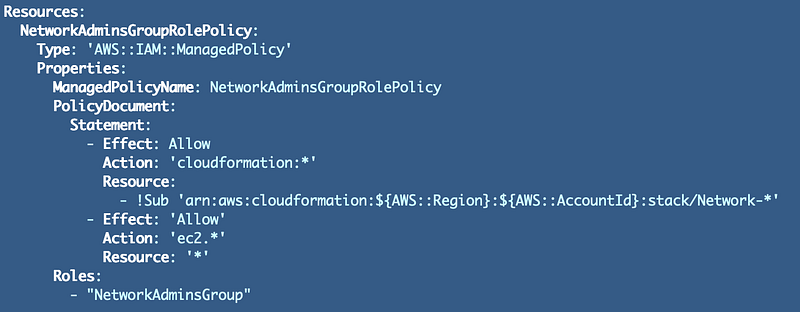
We need to update the permissions for the Network Administrator role to allow it to deploy network resources. Most of our network resources will be in the EC2 service. Since networking can get complicated, I’m going to temporarily allow ec2.*. This is not generally recommended and definitely not for anyone you don’t want to allow to change your network resources.
It is unfortunate that networking is tied in with the permissions to create virtual machines in the cloud as it makes creating zero-trust policies challenging. We are going to run our templates and then go back and revise the policies to be zero trust policies using the method I showed you earlier in this post:
Return to the IAM folder. Alter the policy for network administrators and re-deploy it:
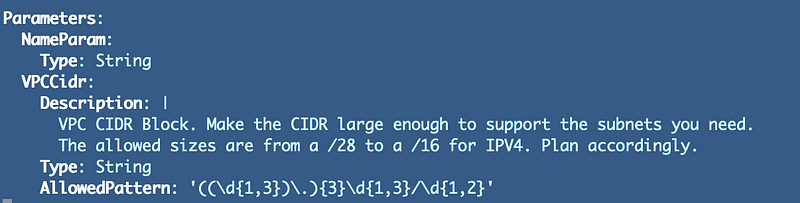
VPC
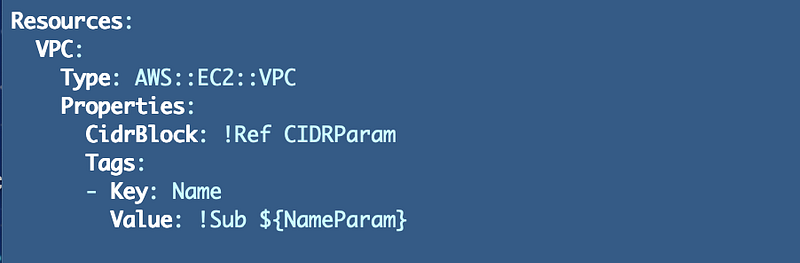
Create a Virtual Private Cloud (VPC or your own network within the AWS Network). We’re going to keep it flexible by passing in the CIDR and Name. That way we can re-use this template later to create additional VPCs.
The VPC resources is pretty simple:
We will need to reference this VPC later so add outputs:
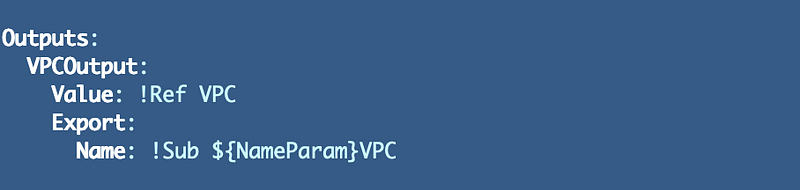
Make sure the export name is unique because we can re-use this template to create multiple VPCs.
Deploy script
I like to always test as I go so I’m going to jump over and create a deploy script and test what we have so far.
Include the shared functions.

We’ll allow our network profile to deploy these resources that we created earlier in the series.

Pass in the appropriate parameters to deploy our stack using the shared function:
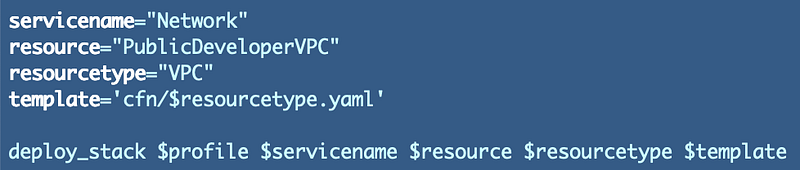
Create the deployment script
Create a deploy.sh script in the root of the /network/stacks folder.
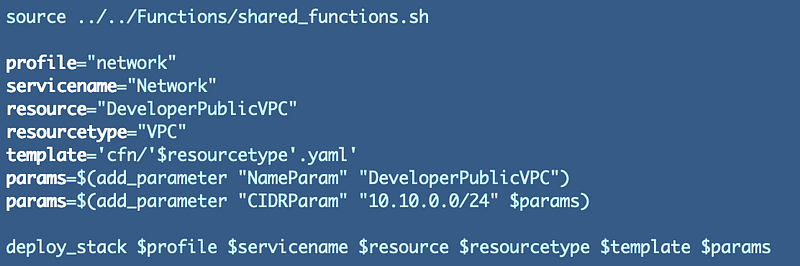
Deploy and validate your VPC:
./deploy.sh
Check to see that your VPC was created. Although VPC permissions fall under EC2, there’s a separate VPC dashboard and you should see your VPC there.
Create a test script in the network directory
Just like with our other subfolders we want to create a test script so we can automate testing that all our scripts work correctly. Add a test script to the network directory and incorporate the test script into the root directory.
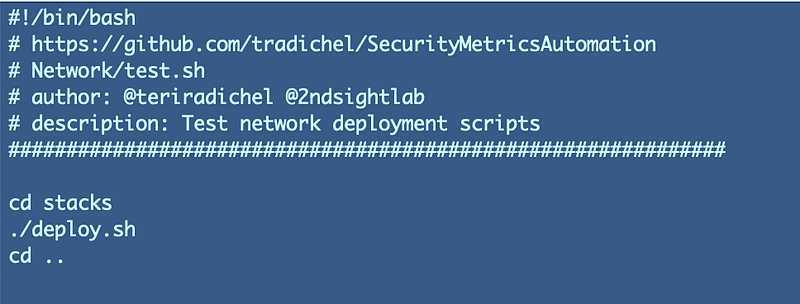
We’re not done with this template. In the next post we use a single template create a public or private VPC.
Follow for updates.
Teri Radichel | © 2nd Sight Lab 2022
About Teri Radichel:
~~~~~~~~~~~~~~~~~~~~
⭐️ Author: Cybersecurity Books
⭐️ Presentations: Presentations by Teri Radichel
⭐️ Recognition: SANS Award, AWS Security Hero, IANS Faculty
⭐️ Certifications: SANS ~ GSE 240
⭐️ Education: BA Business, Master of Software Engineering, Master of Infosec
⭐️ Company: Penetration Tests, Assessments, Phone Consulting ~ 2nd Sight Lab
Need Help With Cybersecurity, Cloud, or Application Security?
~~~~~~~~~~~~~~~~~~~~~~~~~~~~~~~~~~~~~~~~~~~~~~~~~~~~~~~~~~~~~
🔒 Request a penetration test or security assessment
🔒 Schedule a consulting call
🔒 Cybersecurity Speaker for PresentationFollow for more stories like this:
~~~~~~~~~~~~~~~~~~~~~~~~~~~~~~~~~~~~~~~~~~~~~~~~~~~~~~~~~~~~~
❤️ Sign Up my Medium Email List
❤️ Twitter: @teriradichel
❤️ LinkedIn: https://www.linkedin.com/in/teriradichel
❤️ Mastodon: @teriradichel@infosec.exchange
❤️ Facebook: 2nd Sight Lab
❤️ YouTube: @2ndsightlab