
Android Design — Coordinator Layout #1: An Introduction
The Coordinator Layout is described as a “a super-powered FrameLayout” according to the docs. It is used to facilitate how views within your layout interact with each other. This is done by creating or assigning specific Behaviors to these views. These Behaviors are core to what makes Material Design unique, and include familiar interactions such as sliding drawers and panels to swipe-dismissable elements and buttons that stick to other elements as they move and animate.
Let’s take a look at Behaviors and how they work. In our next article we shall show a simple example of how to create a Behavior that allows for basic interaction between views in a CoordinatorLayout
Behaviors
Behaviors are at the core of CoordinatorLayouts. They represent interactions between 2 or more views in the same layout. They are normally categorized into the following:
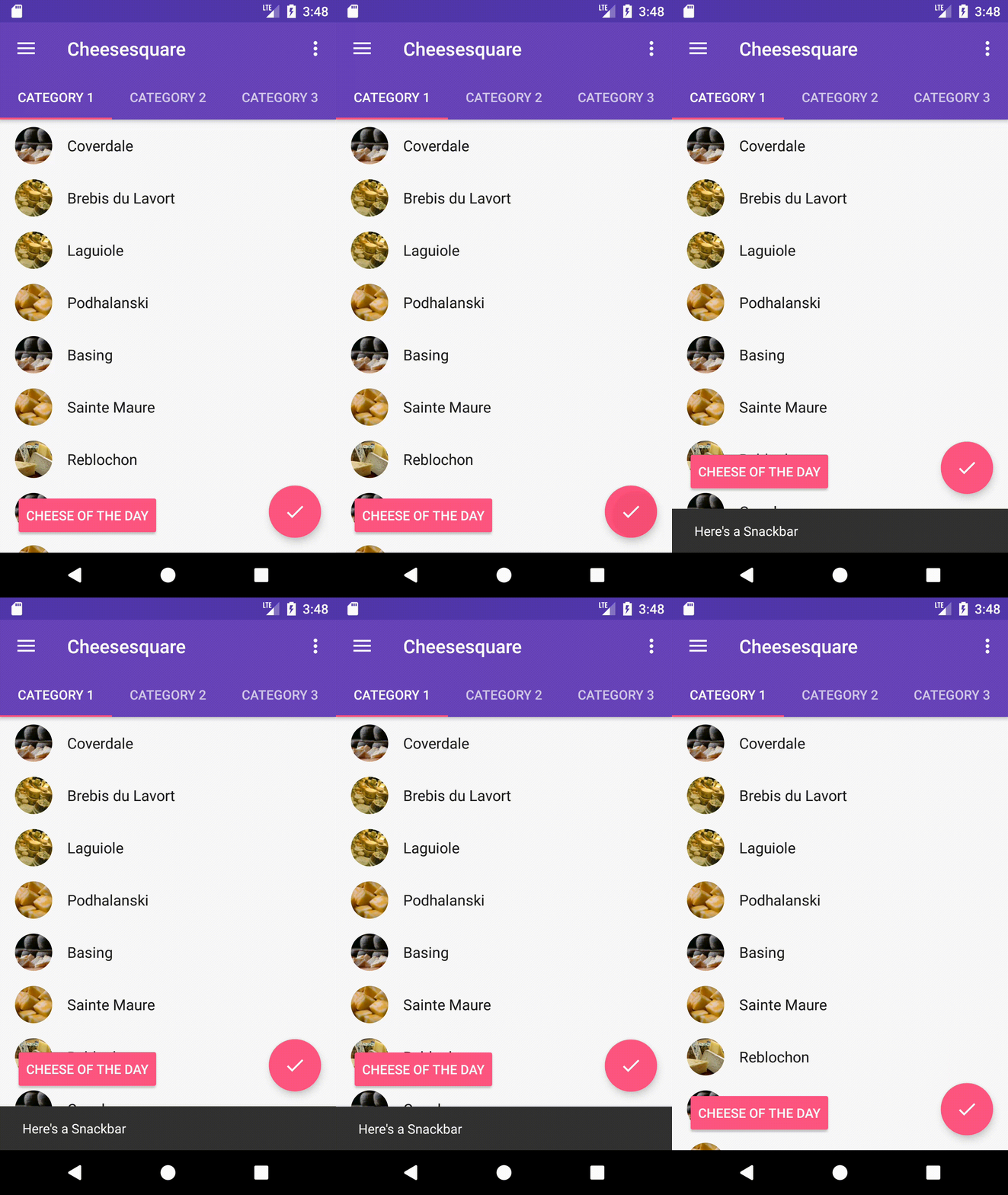
1. Layout-Based Behaviors: E.g. when a Snackbar appears from the bottom, the FloatingActionButton immediately translates upwards to accommodate the incoming view as shown in Figure 1 on the left.
Anchoring is also a form of Layout-Based Behavior, for instance when a FloatingActionButton is anchored to an AppBarLayout as seen in Figure 2. Layout-Based Behaviors tend to be ubiquitous throughout the Android Framework and generally the easiest to create, so we shall focus on them in this article.
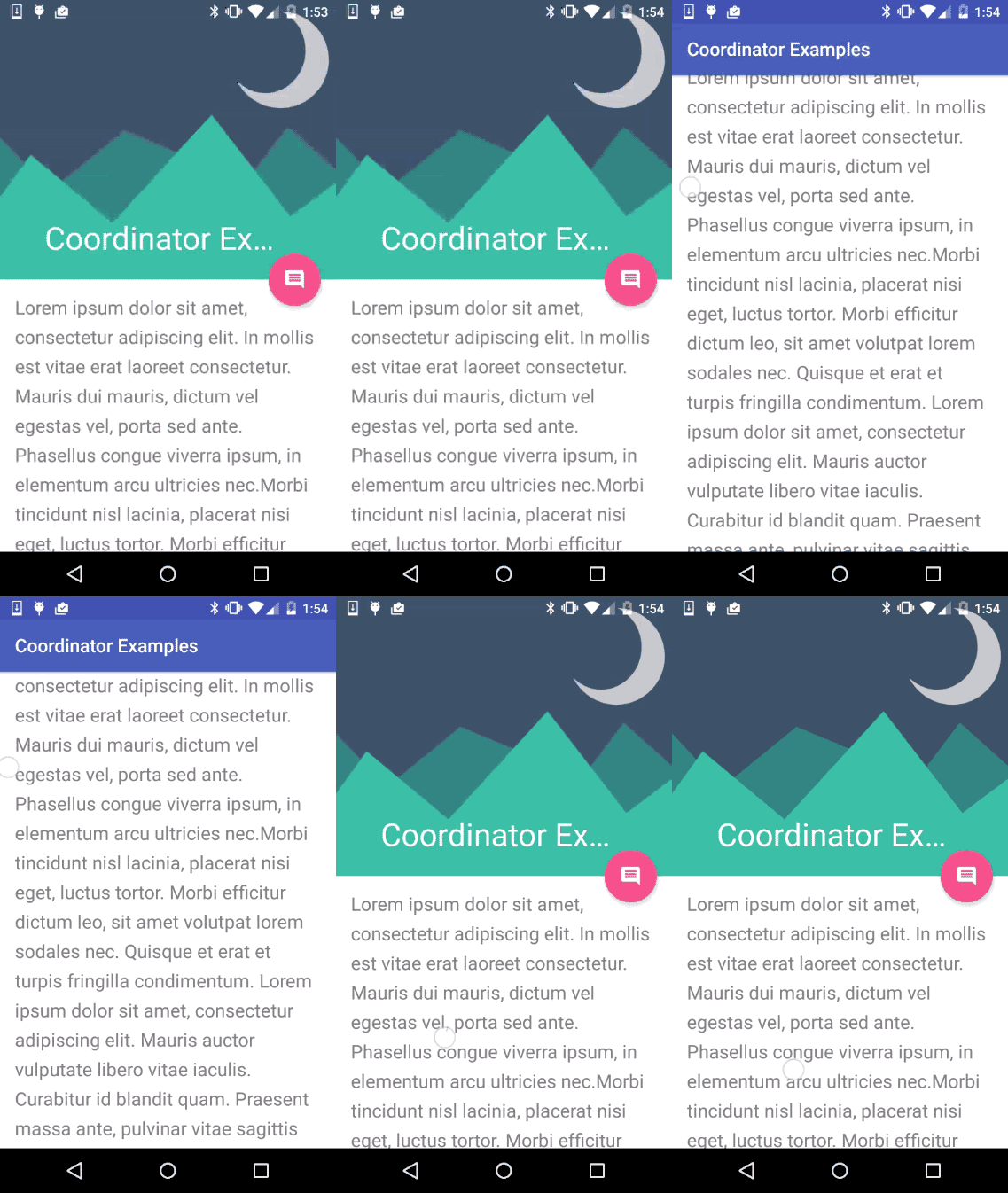
2. Scroll-Based Behaviors: E.g. When a RecyclerView and AppBar both exist in aCoordinatorLayout, when the RecyclerView scrolls, it will push the AppBar upwards a bit, and then minimize the AppBar , so as to continue scrolling seamlessly as shown in Figure 2 (on the left). Scroll-Based Behaviors involve a little more work to get them going and we shall not focus much on them for now.
If you dive into the code of any view that contains a Behavior, you will notice a Behavior is attached to the view by use of an annotation as shown in EC-1, EC -2 and EC-3 below.
EC-1: AppBarLayout Behavior
@CoordinatorLayout.DefaultBehavior(AppBarLayout.Behavior.class)
public class AppBarLayout extends LinearLayout EC-2: FloatingActionButton Behavior
@CoordinatorLayout.DefaultBehavior(FloatingActionButton.Behavior.class)
public class FloatingActionButton extends VisibilityAwareImageButton EC-3: Snackbar Behavior
public final class Snackbar extends BaseTransientBottomBar<Snackbar> Using the annotation as showed in EC-1 and EC-2 is a way of attaching a Behavior to a view programmatically. A view can only have one given Behavior attachment to it. It is important to note that a Snackbar and its parent BaseTransientBottomBar do not have a Behavior attached to them, even though they both interact with the FloatingActionButton when the FloatingActionButton is pressed. This goes to show that there is directionality involved when it comes to Behaviors. Meaning a Behavior can depend on another view but not necessarily vice-versa. To see why, let’s look at how Behaviors work internally.
Implementing the Behaviors
When it comes to creating Behaviors, your Behavior class must extend the Coordinator.Behaviors<V> class, where V represents the view that will contain the Behavior. The Coordinator.Behaviors<V> class has several methods that can be overridden to fine tune your Behavior, however there are 3 methods in particular that are essential to override.
To get a deeper understanding, we shall use the interaction between the FloatingActionButton and the BottomSheet as an example. (See the FloatingActionButton$Behavior class)
1. layoutDependsOn(…)
Used to check if a certain view in the CoordinatorLayout is the view your behavior depends on. For instance, the FloatingActionButton will check if the BottomSheet view is a view it depends on. If so it shall return true.
2. onDependentViewChanged(…)
Once the layout has found a dependency, it shall begin observing that dependency. For instance, once the FloatingActionButton has identified that it depends on the BottomSheet, this method will listen for changes on the BottomSheet and inform the FloatingActionButton. Example code (EC-5) below shows this. Here is where the logic to handle the interaction goes.
EC-5: Here is code from the FloatingActionButton source @Override
public boolean onDependentViewChanged(CoordinatorLayout parent, FloatingActionButton child,
View dependency) {
if (dependency instanceof AppBarLayout) {
// If we're depending on an AppBarLayout we will show/hide it automatically
// if the FAB is anchored to the AppBarLayout
updateFabVisibilityForAppBarLayout(parent, (AppBarLayout) dependency, child);
} else if (isBottomSheet(dependency)) {
updateFabVisibilityForBottomSheet(dependency, child);
}
return false;
}As we can see, this method checks to see the type of views in the CoordinatorLayout, in our case an AppBarLayout and BottomSheet, for the AppBarLayout, it will anchor itself to it, and for the BottomSheet, it will hide itself or translate upwards depending on various conditions.
3. onDependentViewRemoved(…)
This method is similar to onDependentViewChanged() however it informs the attached view i.e the FloatingActionButton if the BottomSheet has been removed from the CoordinatorLayout. The FloatingActionButton will then react accordingly by re-appearing pr translating downwards if it hadn’t disappeared.
There are more methods offered by the Coordinator.Behaviors<V> class that offer more granularity. These 3 are the most basic and important, particularly onDependentViewChanged
Conclusion
As you can see, the Coordinator Layout if used appropriately is a very powerful mechanism for orchetrating interactions between its nested views. It is a useful tool for view interaction, ultimately bringing out out the ideals of Material Motion.
In our next article we shall see how to create our own custom behaviors! Trust me it’s easier than you think. Thanks for reading! Peace!


