
AI-Powered Creative Teams: Discord + Midjourney As Collaborative Design Tool.
Setting up & running a Discord server as a team workstation
While some people find it annoying that Midjourney needs a Discord server to function, others might be happy for the same reason, seeing the potential for a whole new form of collaboration in small creative teams.
This is a field report from one such team, where we used Midjourney to create the complete artwork design for an audio series. For those not yet familiar with Midjourney’s collaborative workflows, this is also a tutorial on how to set up the necessary infrastructure, which includes some examples of workflows that have been useful.
Setting Up A Discord Server
For absolute beginners: here is a guide on how to set up your own private Discord server, invite the Midjourney Bot and decide which subscription (and licensing!) model to use.
Now there are only two additional things you have to take care of when setting up a Discord server for your creative team:
Sharing an invite link with your team members
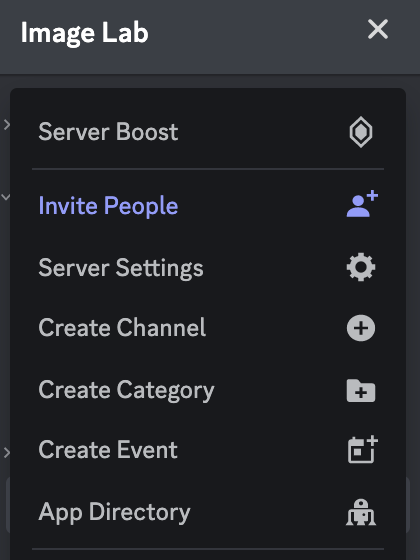
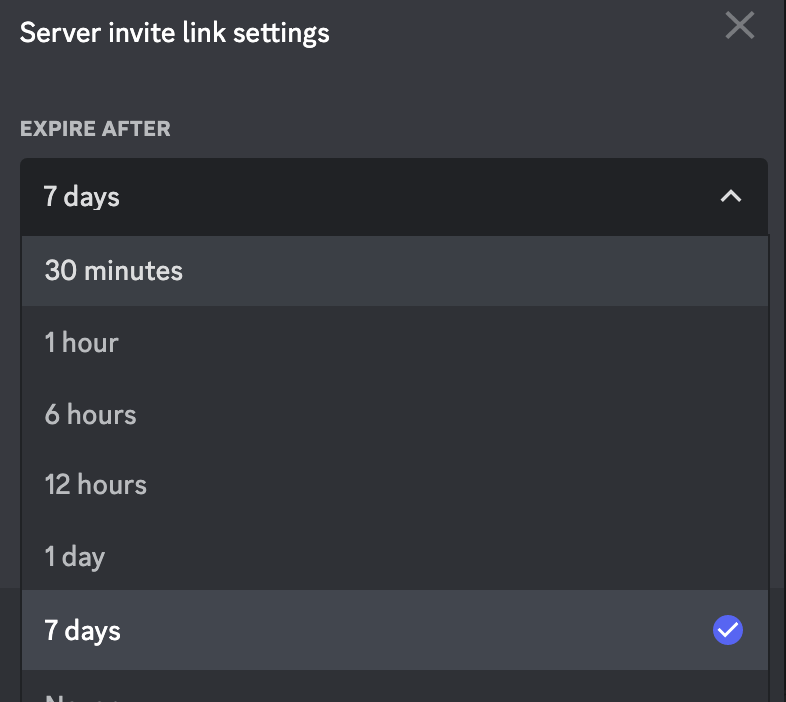
In the top left, click on your server name (in our case the server name has been “Image Lab”) or right-click on your server icon in the server list on the left. Then choose “Invite People” and create a server invite link.
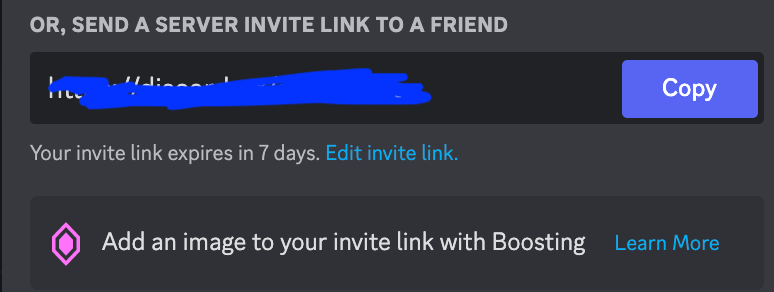
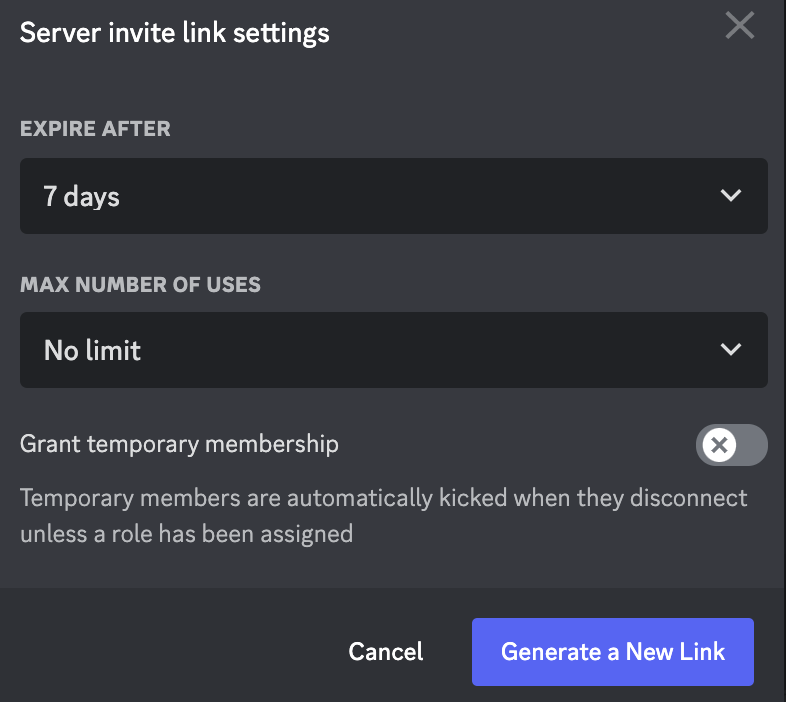
Keep in mind that by default there is an expiry date after which the link becomes invalid. Set “Expire After” to “Never” to keep the link valid forever.
Setting your server’s permission to allow team members to use the bot
Once your team members joined your server, make sure that the permissions are set correctly. To do this, go to “Server Settings” (again, click the server name in the top left or right-click on the server icon in the server list on the left)…
… and in the Server Settings menu on the left choose “Roles”…
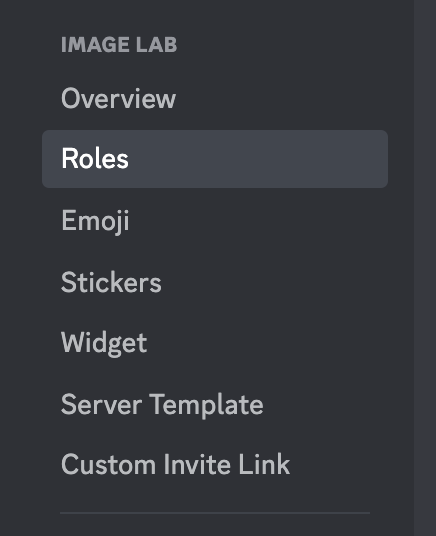
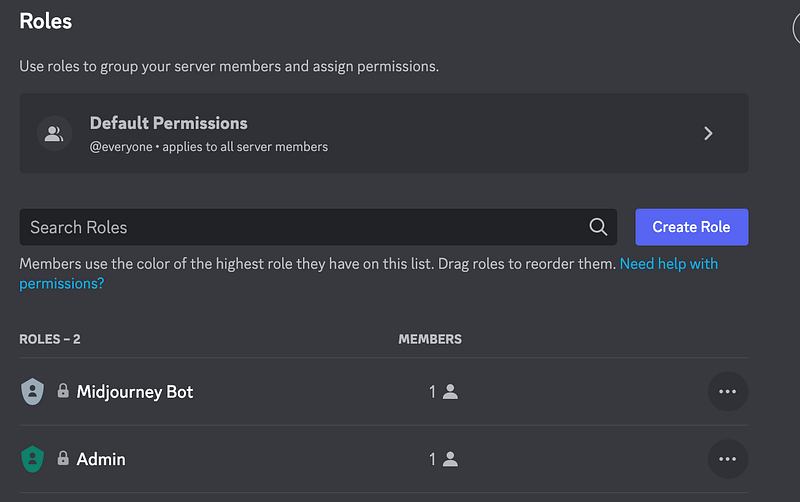
Now, if you and your team members are the only ones using the server you can make the changes to the permissions right in the “Default Permissions” tab, which leads you to edit the default role called “@everyone” (alternatively, you can set up a custom role by clicking on “Create Role”).
Whether you are editing the default permissions aka “@everyone” or a custom role, in order to work with the Midjourney bot you need to activate “Use Application Commands” by scrolling down to it your use the search bar.
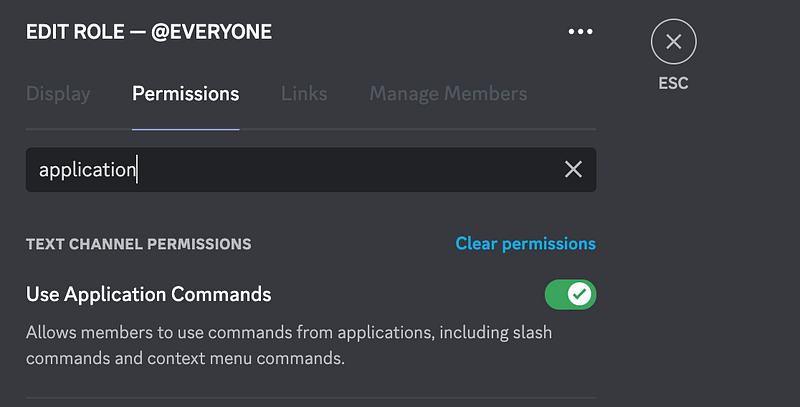
And that’s it. You and your team are set.
Keep in mind that in order to use the Midjourney Bot each team member needs their own Midjourney subscription. At the time of writing, there is no group subscription model available, but chances are that this might change in the future. So keep an eye on www.midjourney.com and the announcements on Midjourney’s official Discord server.
Keeping Things Tidy
Everybody using Midjourney knows how quickly a channel gets flooded with images that diverge in subject matter and style. You might start to work on an alien planet’s landscape and a couple of hours later find yourself rendering images of microscopic fractal beings painted in the style of a neo-impressionist still life. Welcome to Midjourney’s infamous creative maelstrom.
In order to keep things nice and tidy you might want to organize your team’s server in a way that lets you curate stuff effectively and find images quickly. There are basically three methods to do this, which can be combined in a way that fits your project:
Channels
The most straightforward way to organize your Discord server is by using channels. This lets you separate topics or tasks within your team. In our case we started with this simple channel setup:
#general-chat & #voice-chat
A general chat channel to discuss stuff via text messages or voice calls.
#socmedia-brainstorm
A brainstorm channel for the social media illustrations we had to create
#socmedia-illus-character-one, #socmedia-illus-character-two, etc
For all six characters we had to create illustrations for, we set up a separate channel. In each of them, only one specific character was worked on by all team members.
#socmedia-illus-vote
In this channel we copied links from our favorite illustrations from the aforementioned character channels to vote on which ones to develop further (see “Workflows” below)
Threads
Another way to organize your server is by using threads. It’s similar to the “channels method” but instead of having to create a separate channel for each topic, you can accumulate different sub-topics (threads) within one channel.
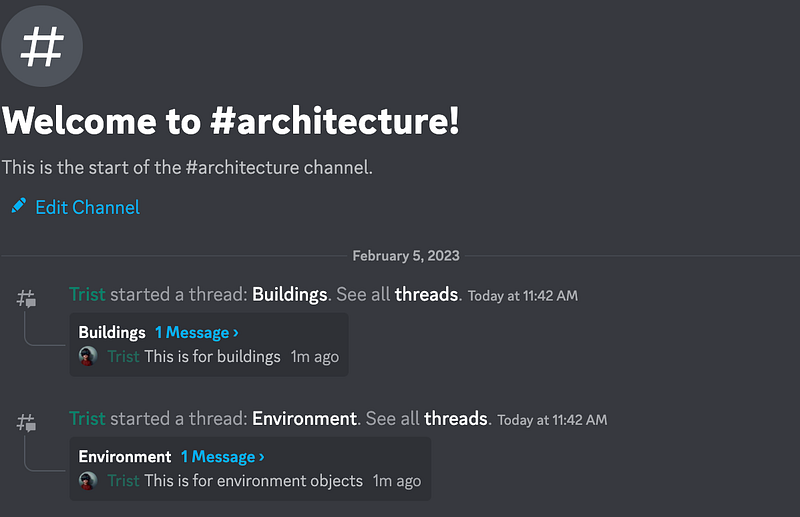
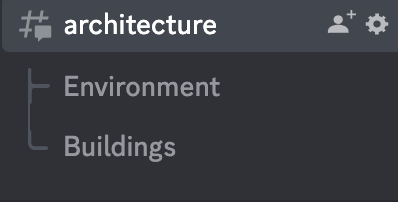
For example, let’s say your team is working on architecture renderings. You could create a channel for this called #architecture and create different threads for different elements of the final rendering, e.g. buildings and environmental objects.
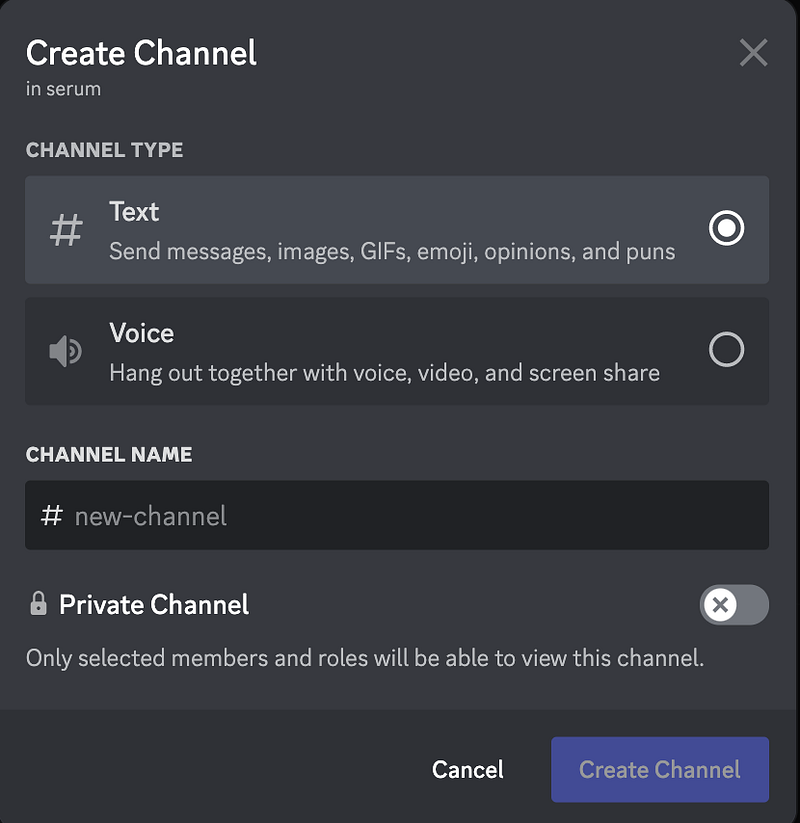
To do this, first create a new channel by clicking on the “+” sign in your server’s channel list, choose “text cannel” and give it a name, e.g. “architecture”…
Next, enter the channel and click on the “+” sign next to the channel’s message field:
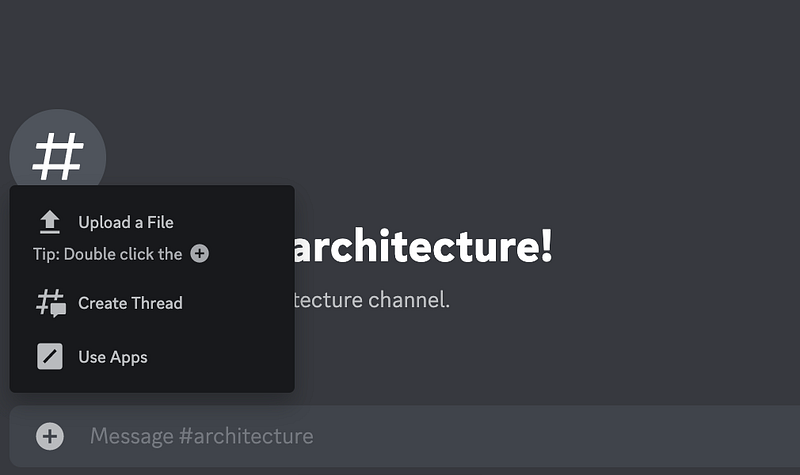
Choose “Create Thread” and follow the instructions to create two threads, e.g. “Buildings” and “Environment”.
The result is a tidy server setup where you and your team can keep topics separated or delegate tasks.
Hashtags
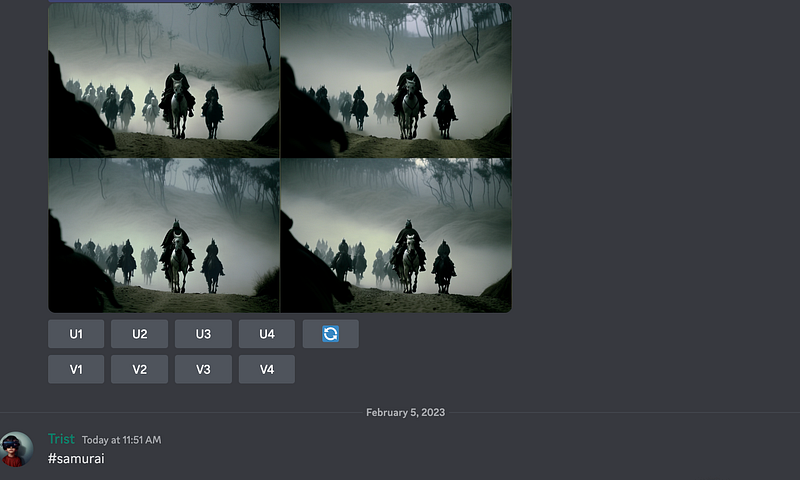
This one’s a workaround for the fact that Midjourney does not mark its image output with an ID. The idea is simple: after an image or a set of images that you created, you use a specific hashtag which you can later search for via the Discord search function.
Let’s say you generated an image grid you want to keep track of. You would then just add a hashtag immediately after the image, e.g.:
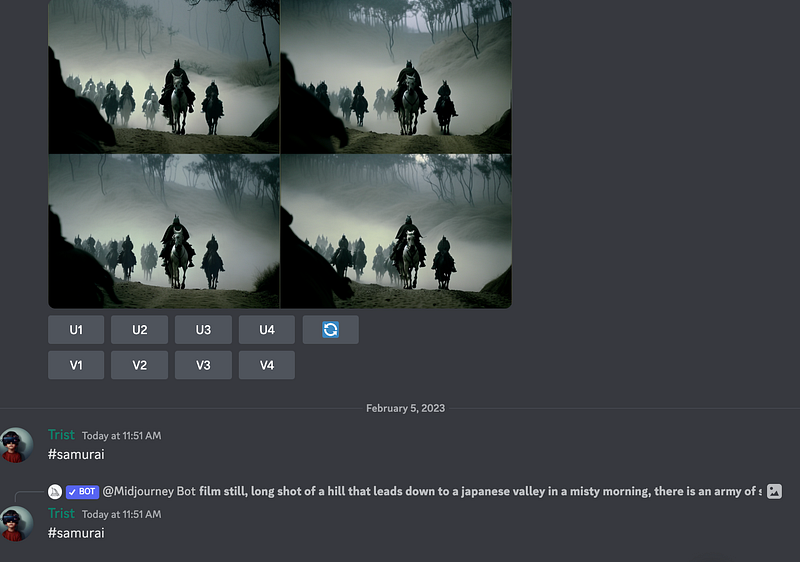
Or, if you found an image you or a team member made a while ago, you can hit the reply button and reply to that image with a hashtag, e.g.:
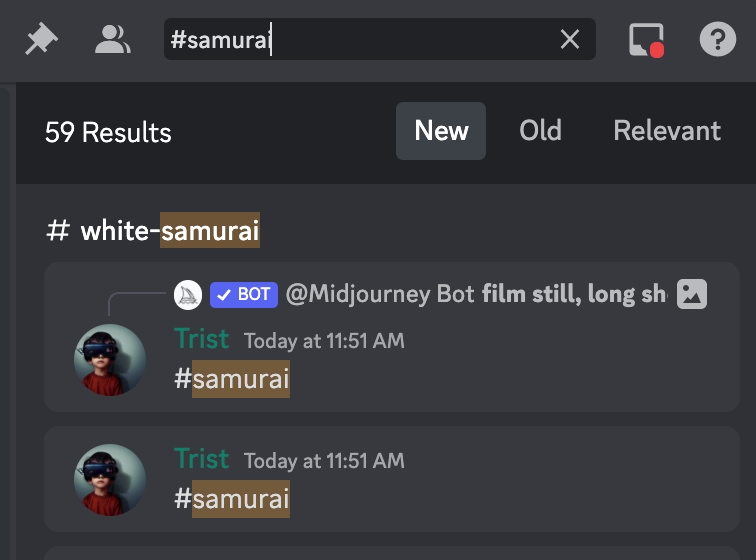
Finally, to retrieve all images “marked” with a hashtag, you simply search for it in the server’s search bar in the top right:
Example Workflows
Here are two workflows that were specific to our task of creating artwork for an audio series but I think these can be adapted to other projects’ needs as well.
Curating & Voting
Curating is a major issue when it comes to collaborating with Midjourney via Discord. As mentioned before, our choice has been to create separate “voting channels” in which we copied links to images we wanted the team to vote on.
To do this, you choose a message from the Midjourney Bot that contains the image output that you want to copy to the voting channel, click on the “three dots menu” and choose “Copy Message Link”.
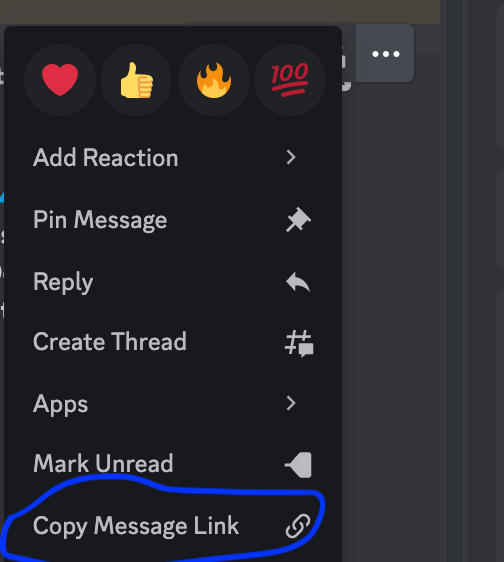
Next, you paste the message link into a separate voting channel where it will be shown as an image preview and a link to quickly jump to the respective place on the server where it initially occurred (handy in case someone wants to investigate the genesis of the image or remix it etc.) Finally, you and your team vote on which images to select for further development with simple emoji reactions.
Passing Seed Numbers
A crucial part in teamwork with Midjourney is sharing Seed Numbers. I have written about seed numbers and how to use them in more detail here. Once you are in possession of a prompt and a seed number you can recreate an image someone else did and tweak/re-roll/remix it.
If you are not a Medium member yet and want to get full access to all my articles (and those of thousands of other writers), feel free to sign-up with this link.
I hope you enjoyed reading this article. If so, please leave some claps.



