
Information
Adding an Image to your Draft Story
Updated May 18th 2023: How to Guide: Choose and position your image on a Tantalizing Tale
An image can make or break a story. It is important to not only choose the right one but also to display it correctly.
In this article, I will be talking about the position and size of images on Tantalizing Tales and Teaser Tales.
All Publications
Publications on Medium tend to vary with regard to where the header photo is positioned.
One thing we all have to agree on, because it’s within the Medium rules, is this…
Graphic content We do not allow posting, linking to, or otherwise promoting pornographic images or videos. We do allow erotic writing and non-graphic erotic images.
Which means even if your writing content is explicit, the image has to be… subtle.
Images on Tantalizing Tales
We want all our stories to go out in the same format. So that if a reader comes to the magazine and decides to read more than one story, they will feel familiar with the layout as they jump from one to the next.
Here is an example of a story that has the correct format for header image and titles.
If you want us to pick an image for you, that is fine. Just don’t include one when you submit your story to us.
We get a lot of our pictures from sites that let the user download free images, such as:
And you can too…
- AI Images: If you want to use an AI created image then please make sure it is labelled as such. Check out this story to see how that is done.
Image Dimensions & Aspect Ratio
As of May 2023 Medium returned to allowing three sizes of image.
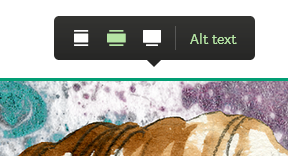
If the width of your photo is 1200 or more, and you are on the laptop, you will be able to left-click and choose one of three display sizes:
- small (the same width as the writing);
- medium (like the one that heads this story);
- stretch (which covers the whole width of the laptop page).
See the pic below.
We don’t mind which size you use as long as it is up the top of the page before the title. See below on how to achieve that.
I would not choose an image wider than 1500 as larger than this may take a while to load for some readers.
Try and keep the dimensions 3 to 2. This option is called the aspect ratio. So if the width is 1200, the height will be 800. Or square.
Then the focal point displays better on social media and on Medium feeds.
To check the size of your image on your laptop, go to the folder it lives in, hover over it with your mouse and the dimensions should be displayed for you.
Alternatively, right-click on the image — click on properties, then details.
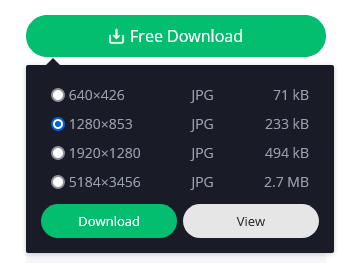
When downloading an image, you are usually offered a size. This is when, for example, on pixabay you will have a choice of four. The second option will work OK for us. As you can see many of the images in Pixabay are already sized 3 to 2…
Resizing
If you have an image that you need to resize, then there are plenty of apps that probably do this. Paint is an old-fashioned one — but May More loves it!
Marie A. Rebelle recommends Irfanview for resizing photos.
Uploading and positioning your image
On Tantalizing Tales, we like the image to appear at the very top of the page. This can be tricky until you know how.
When you go to write a story, this is what you see:
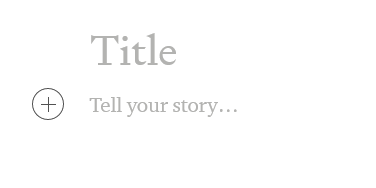
The easiest way is to write in your title and then by positioning your arrow/cursor to the left of it — press enter — this will move the title down one line.
Now the screen looks like this, with the title and a free line (indicated by the +) above:
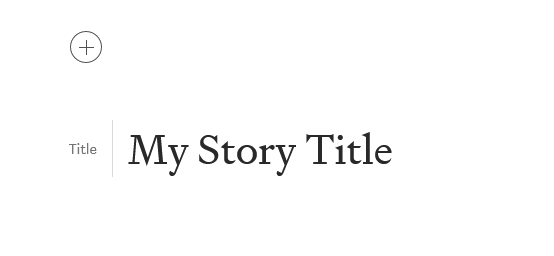
Once you click on the + sign you see this screen:
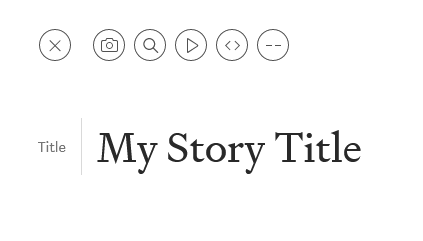
Now, you can click on the camera option and upload the image you downloaded to your computer earlier :-) OR click on the magnifying glass (next to the camera) to choose a photo from the Unsplash site.
Then you have a photo above the title:
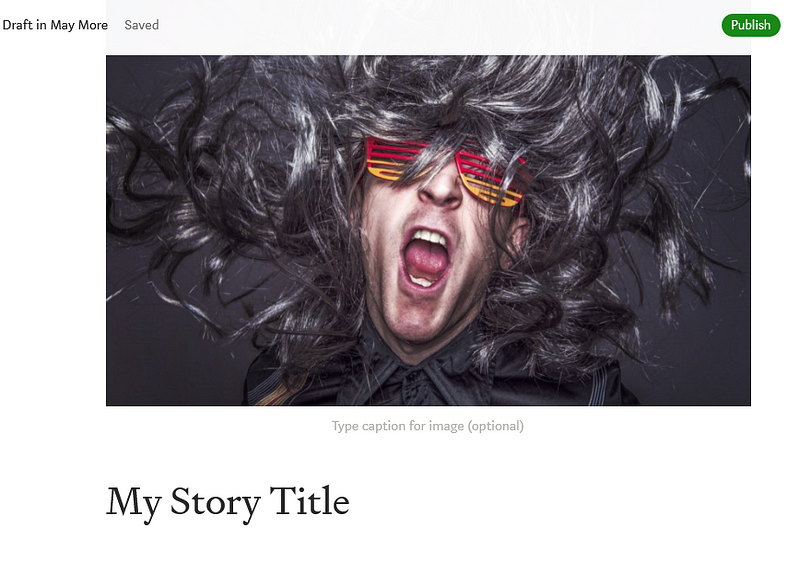
Once loaded in your story, clicking on the image lets you write alt text to add a description of the image, which is used for those who have visual impairments or if the image refuses to load.
And lastly, under your photo, it will have a space for an image caption. It is usual to put the photo copyright here with a link to the URL where you got the image and also a mention if you have altered it in any way.
Altering the position of your Image
If you have already placed the titles above the image then it is possible to alter this.
There are two easy ways:
Put the cursor at the start of the title and press enter to bring the title down one, and create a free line above it.
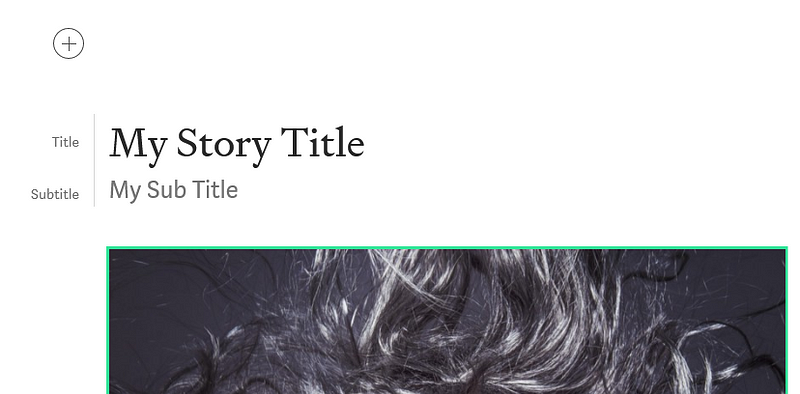
Then, you can simply copy and paste the image into that free line or click on the + followed by the camera icon to upload the image again.
OR
- Copy your story title.
- Delete it and the line it is on so your image is right at the top of the page.
- Paste in your story title under the image.
If in doubt, please ask.
I hope this is a helpful post for anyone submitting stories to publications.
If you are a blogger, this article may help you…


