How to launch an Instant app to production on the Google Play Store
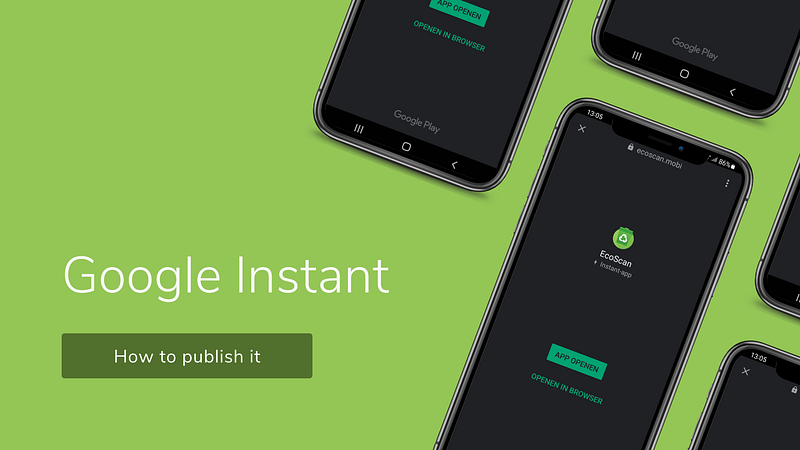
An instant app is a functionality that allows users to use your app without having to install it. This is the final part of the Instant app series. After this step you could publish an Instant app to the Google Play Store.
But wait… Would you like to have more information about Instant apps first? Then read the article here.
Are you enthusiastic but don’t know how to get it working or do you want to know how to develop an instant app? Read the article here
Deploy in Play store
After you have tested the functionality locally, you can publish it in the Google Play Store.
Activate release type
Before you can start, you must first activate the release type. You do this by going to the management page of your app in the Google Play store. Then click Configure > Advanced Settings > Release Types. On this screen you could add the release type Google Play Instant. After you have activated this, you can continue.
Upload the bundle
First of all you need to upload the bundle as a standard release type. This can be done, for example, in the Internal test track. After you have done this, click on release in the overview of the internal test track at the top right. A list will now appear, choose Instant apps only. You can now create a new release by selecting the app bundle from your library. The steps also look the same as a normal app release.
Test your app
You can already test the version in the internal test track. It sometimes takes a day before changes become visible, but within this test track you could test the functionality without releasing it. But yes, you just need a little patience sometimes. Is it going well? Then you can send it to the next track and finally you can release it to production!
Bonus: what to do if your app is too big?
First of all, you can check whether libraries are still needed and check whether all assets and resources are being used or use webp instead of png/jpeg files. In some cases this is already enough to get below the 15 MB limit. You can also find the bundle explorer in the Google Play Store. Here you can see how big your app is. Is your project still too big? Then the app has to continue on a diet. You can do this by creating a new module and all code/resources and libraries that are not needed for the core functionality can be put in it. This way it doesn’t take up any space and you can make sure you hit the limit.
Good luck!
Have you tried everything but it still doesn’t work? Let me know so I can help you. You could also send me a message on LinkedIn.
Do you like the article? Please give it a clap and follow me!
To get access to unlimited stories, you can also consider signing up to become a Medium member for just $5 a month or $50 a year. If you sign up using my link, I’ll receive a small commission (with no extra cost for you, so thank you!)