
7 Hidden iPhone Hacks You Didn’t Know Existed!
Mastering them will give you the iOS pro degree
Till now, I’ve discussed plenty of iOS hidden hacks that make your iPhone experience fun and productive. However, they aren’t the end, fortunately.
Even after years of swimming in the Apple ecosystem, I still keep finding new features I repent why I hadn’t known earlier. Anyways, better late than never. Here are 10 features that hooked me lately.
You probably didn’t knew these existed.
#1. Make Siri speak anything 🗣
Podcast addicts greatly appreciate this feature.
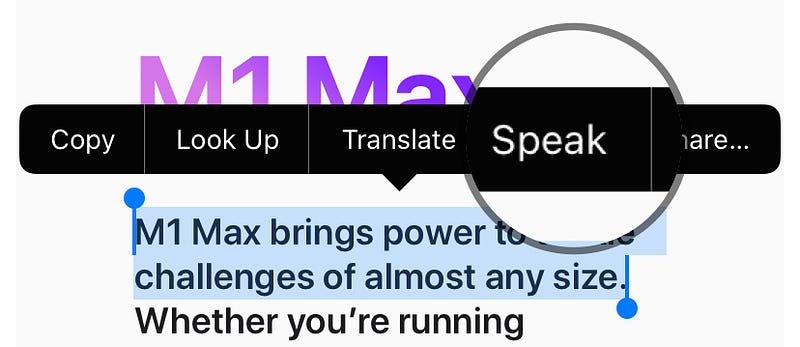
Apple hasn’t yet provided a feature that could speak out text on a webpage or in mail. This Accessibility feature helps you listen to any content just by selecting it. But first,
- Go to
Settings ⚙️ < Accessibility 🚹 < Spoken Content 💬. - Turn on
Speak Selection. That’s it. Close.
Now, go anywhere, select some text and click Speak . Now, a voice of your region will start speaking the content.
If you want them to highlight words as they’re spoke, turn on Highlight Content in the same page. And if you’d like to change the voice, you can do it in the Voices menu, in the same page.
Bonus feature
What do you call this emoji? → 🥸.
I’ve just knew it by highlighting and clicking Speak . It can also describe emojis! It calls it ‘Disguised face with glasses, fake nose, and moustache’.
Strange…
#2. Notifications in a folder
If you use app folders instead of leaving apps separately on the home screen, this tip is for you.
Anytime you receive a notification from an app inside a folder, you don’t always need to open the folder to know which app it is. Just haptic touch (press and hold) the folder to get the app revealed.
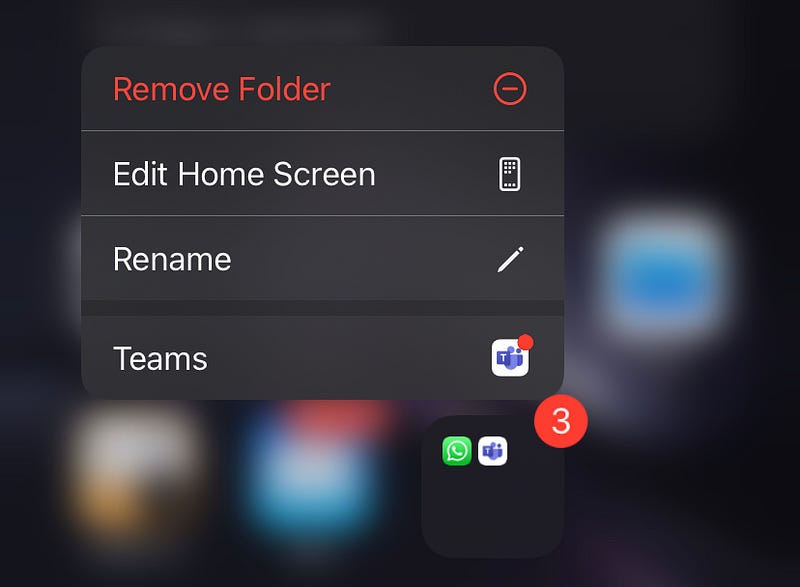
If there are multiple, you get a list of apps.
#3. Convert images to pdf pages
There are myriad of times did we need images as pdfs — maybe when uploading docs to govt websites or so. No worries, as your iPhone has a hidden feature that could help you with it. For this,
- Head on to the default Photos app, and select the photos you need as pdf pages.
- Click
Share. - Scroll down and click
Print 🖨. - SELECT NO PRINTER, just click
Print 🖨.
Now you have a pdf with the selected photos. Save it to files.
#4. Save a Mail in Notes
If you’re a savvy Notes user, this is for you. You might have ever wanted to save a mail to a note, but you ended up just copy-pasting the contents, sadly.
However, did you know you can create a link that can redirect you to that mail? And that it’s simple?
Here’s how:
- Open the default Mail app and scroll to the mail you want to save.
- Haptic touch (press and hold) the mail and shake it up and down till the preview’s closed.
- Now, hold it tight, and use another finger to open a new note.
- Drop the mail there like it’s hot.
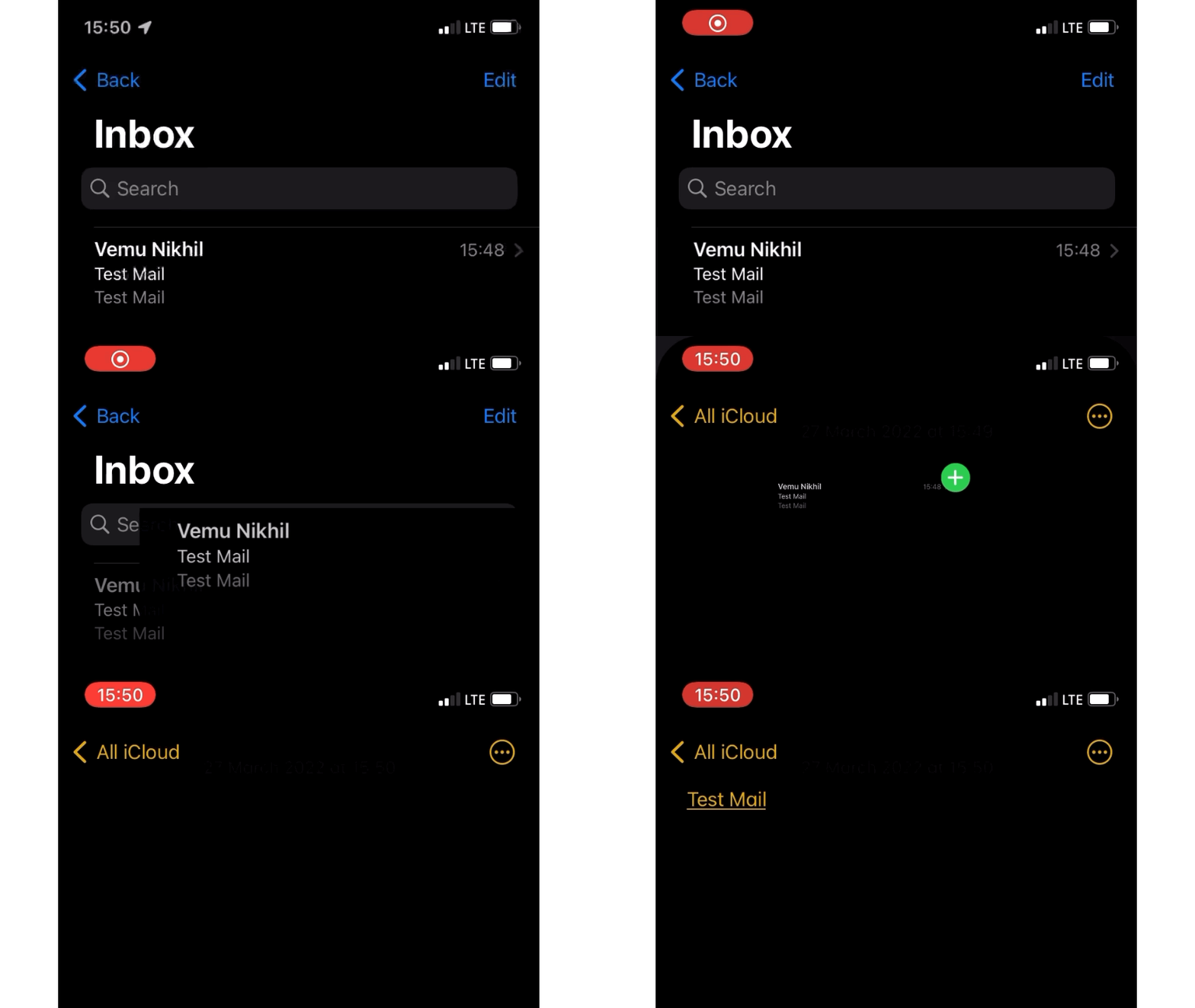
Now, anytime you click that link, you get redirected to that particular mail.
#5. Easiest way to manage tabs
The traditional way to open a private tab in Safari is a bit arduous. You have to open the tabs page, click the reverse ^ below, and click on Private 🖐 .
However, let me tell you an easier way. Just haptic touch (press and hold) the tabs icon below the page, and you’ll get a set of options like this.
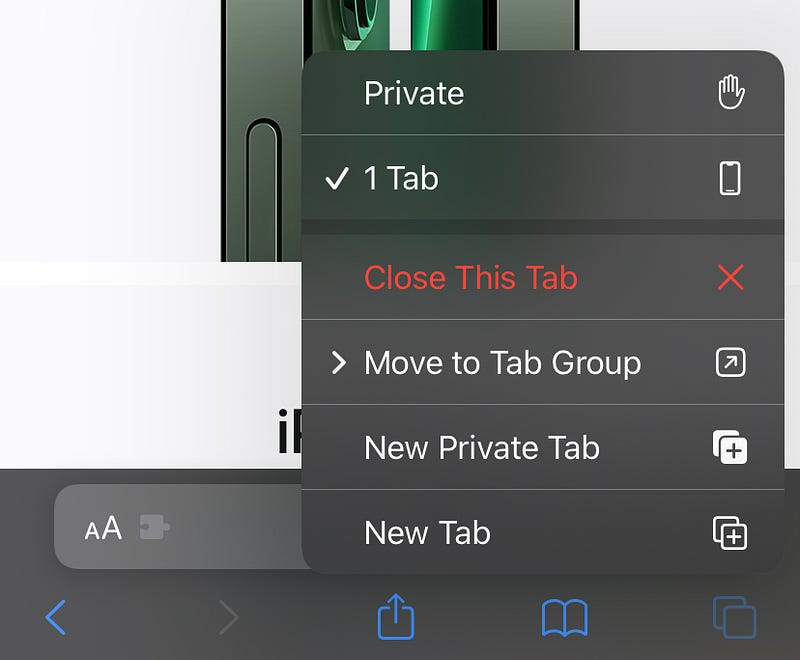
This provides an easier way to open a new tab, private tab, and to move the page to a tab group.
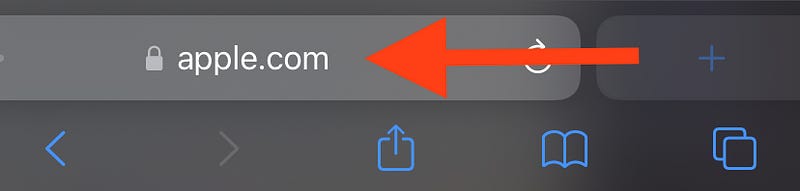
Also, if you’ve set the tab bar below the page, the easiest way to open a new tab is to swipe left on it.
#6. Use Siri to send things
Siri could be a powerful assistant, but you’re probably not using it to its full potential. Did you know Siri can send things for you?
No, things doesn’t mean goods, it can send messages, screenshots, mails etc.
Try these:
- In any app, say “Hey Siri! Send a screenshot to [name]”.
- Open any email and say, “Hey Siri! Forward this to [name]”.
- Open a photo in the default Photos app and say, “Hey Siri! Send this to [name]”.
- Or, open a webpage in Safari and say, “Hey Siri! Share this to [name]”.
This might also work for many other Apple apps. Try it for yourself!
#7. Clear all notifications
You might already be knowing clicking the X button at the top-right corner of a notification clears it. But to clear all the notifications, you do it multiple times, right?
Do that never again. Here’s a nifty trick to clear all notifications with a single tap.
Just haptic touch (press and hold) that X button and click Clear All Notifications .

This will clear the notifications of all the apps, not just one.
Cool feature, right?
Conclusion
Apple doesn’t reveal the complete set of iOS features perhaps to let us discover and get awed by. Though I learnt dozens of new hidden features, it feels difficult to put them all into practice.
However, whenever I use them, I feel like I’m utilising my superpowers to the fullest potential. Do you too?
If you liked this story, you might also like:
Get notified via email whenever I publish. Join 50+ others!
Not a Medium member yet? To get unlimited access to all stories on Medium, Sign up now!
(It’s an affiliate link so I receive a portion of your payment, with zero extra cost for you.)


