
3 Ways To Display An Image onto Browser With Client-Side JavaScript
Lightweight. No plugins or dependencies. Full source code provided.
❝In face of workplace constraints, any individual who values his/her work productivity would naturally create means of overcoming respective hurdles.❞
That is without a doubt the greatest takeaway from my past 5 years of work. When it comes to productivity boosters, a highly effective hackaround I have acquired in the field of technology is to maximise portability of digital tools — i.e. Enabling said resources to be dependency-free and user-friendly. Following the emergence of WebAssembly (WASM), there is now greater incentive than ever to build client-side web applications to fulfil day-to-day work tasks.
Despite the fact that most web browsers have security protocols inplace such as the Cross-Origin Resource Sharing (CORS) Policy —
❝Developers who need to perform local testing should now set up a local server. As all files are served from the same scheme and domain (
localhost) they all have the same origin, and do not trigger cross-origin errors.❞
— Source: CORSRequestNotHttp
(In short, unless the the web app is hosted on a server, all attempts to fetch or load any external resource by the browser including plaintext or image files would fail.)
— it is however still possible for a client-side web app to receive external data via alternative means such as a HTML form input:
<input id='uploadImg' type='file' />
As such, any file upload event can then be captured via client-side JavaScript to receive required image content:
var uploadImg=document.getElementById('uploadImg'); // file input
function readFileAsDataURL(file) {
  return new Promise((resolve,reject) => {
     let fileredr = new FileReader();
     fileredr.onload = () => resolve(fileredr.result);
     fileredr.onerror = () => reject(fileredr);
     fileredr.readAsDataURL(file);
  });
}
uploadImg.addEventListener('change', async(evt) => {
  let file = evt.target.files[0];
  if(!file) return;
  let b64str = await readFileAsDataURL(file);
/* TO DO CODE IMPLEMENTATION */
}, false);- In the above implementation,
FileReaderinvokesreadAsDataURL()and extracts any uploaded image as a Base64-Encoded string (assigned to the variableb64Str)
3 Ways to Render Base64-encoded Image Data —
- Image Tag
- Assign CSS Property — background-image: url(…)
- Canvas Element
Implementation Details
1. Image Tag <img />
By default, files with MIME type image/* tend to be embedded as <img /> HTML tags on web browsers as a means to convey visual information to its audience. The following JavaScript code snippet dynamically generates a HTML image component:
uploadImg.addEventListener('change', async(evt) => {
  let file = evt.target.files[0];
  if(!file) return;
  let b64str = await readFileAsDataURL(file);
/* TO DO CODE IMPLEMENTATION */
  let _IMG=await loadImage(b64str);
  let imgH=_IMG.naturalHeight;
  let imgW=_IMG.naturalWidth;
_IMG['style']['height']=`${imgH}px`;
  _IMG['style']['width']=`${imgW}px`;
  _IMG['style']['border'] ='1px solid #d3d3d3';
  document.body.appendChild(_IMG);
}, false);
/* Additional Utility Function */
const loadImage = (url) => new Promise((resolve, reject) => {
  const img = new Image();
  img.addEventListener('load', () => resolve(img));
  img.addEventListener('error', (err) => reject(err));
  img.src = url;
});
⚠ Important!
Image elements such as new Image() or document.createElement('img') requires the use of a Promise due to its asynchronous nature (hence the utility function loadImage()).

— In the event however when an image display prioritises layout and positioning (E.g. The Site Logo), a CSS-centric approach would be more appropriate instead.
2. Assign CSS Property — background-image: url(…)
Due to simplicity of use-case, only a few lines of code are required:
var cssDIVCard=document.getElementById('cssDIVCard');
uploadImg.addEventListener('change', async(evt) => {
  let file = evt.target.files[0];
  if(!file) return;
  let b64str = await readFileAsDataURL(file);
/* TO DO CODE IMPLEMENTATION */
  let _IMG=await loadImage(b64str);
  let imgH=_IMG.naturalHeight;
  let imgW=_IMG.naturalWidth;
cssDIVCard['style']['height'] = `${imgH}px`;
  cssDIVCard['style']['width'] = `${imgW}px`;
  cssDIVCard['style']['border'] ='1px solid #d3d3d3';
  cssDIVCard['style']['background-image']='url('+b64str+')';
  cssDIVCard['style']['background-position']='center';
  cssDIVCard['style']['background-repeat']='no-repeat';
  cssDIVCard['style']['background-size']='contain';
}, false);- Whereas on the frontend, an existing
<div id='cssDIV'></div>component should be part of the page’s HTML markup.

On the other hand, to address complex use-cases such as Video-to-GIF File conversions:
It would be wise to embed an image onto a <canvas></canvas> element instead.
3. Canvas Element <canvas></canvas>
The unique advantage of rendering image data onto a <canvas></canvas> component is its low cost of reusability. Hence, a CANVAS is usually implemented when frequent updates to an Image’s data is required. Some instances include Scenario (1) — video animations and Scenario (2) — real-time image updates such as social media notifications. In both scenarios, as a consistent and continuous stream of image data is being processed, the ease of rendering each freeze frame onto the same CANVAS element is hence more efficient as compared to initialising a new HTML image element each time an update occurs.
var _ZOOM_FACTOR=1.0;
window.devicePixelRatio=3;
var scale = window.devicePixelRatio;
var canvasCard=document.getElementById('canvasCard');
uploadImg.addEventListener('change', async(evt) => {
  let file = evt.target.files[0];
  if(!file) return;
  let b64str = await readFileAsDataURL(file);
/* TO DO CODE IMPLEMENTATION */
  let _IMG=await loadImage(b64str);
  let imgH=_IMG.naturalHeight;
  let imgW=_IMG.naturalWidth;
let _CANVAS=document.createElement('canvas');
  _CANVAS['style']['border'] ='1px solid #d3d3d3';
  _CANVAS.id='imgCanvas';
  scaleCanvas(_CANVAS,_IMG,_ZOOM_FACTOR,imgH,imgW,scale);
  canvasCard.appendChild(_CANVAS);
}, false);
function scaleCanvas(_CANVAS,_IMG,_ZOOM_FACTOR,imgH,imgW,scale) {
  _CANVAS['style']['height'] = `${imgH}px`;
  _CANVAS['style']['width'] = `${imgW}px`;
  let cWidth=_ZOOM_FACTOR*imgW*scale;
  let cHeight=_ZOOM_FACTOR*imgH*scale;
  _CANVAS.width=cWidth;
  _CANVAS.height=cHeight;
  _CANVAS.getContext('2d').scale(scale, scale);
  _CANVAS.getContext('2d').drawImage(_IMG, 0, 0, imgW*_ZOOM_FACTOR, imgH*_ZOOM_FACTOR);
}
⚠ Important!
In order to preserve an image’s aspect ratios while retaining its original resolution, it is extremely important to differentiate between I & II —
I. Actual Dimensions — height and width HTML values
<canvas width='100' height='100'></canvas>II. Displayed Dimensions — height and width values in CSS Styling
<canvas style='width:100px;height:100px'></canvas>As a rule of thumb, value of window.devicePixelRatio (pixel density) and _CANVAS.getContext('2D').scale() should be invoked when aspect ratios of the CANVAS element are modified.

Demonstration of Web Application Tool
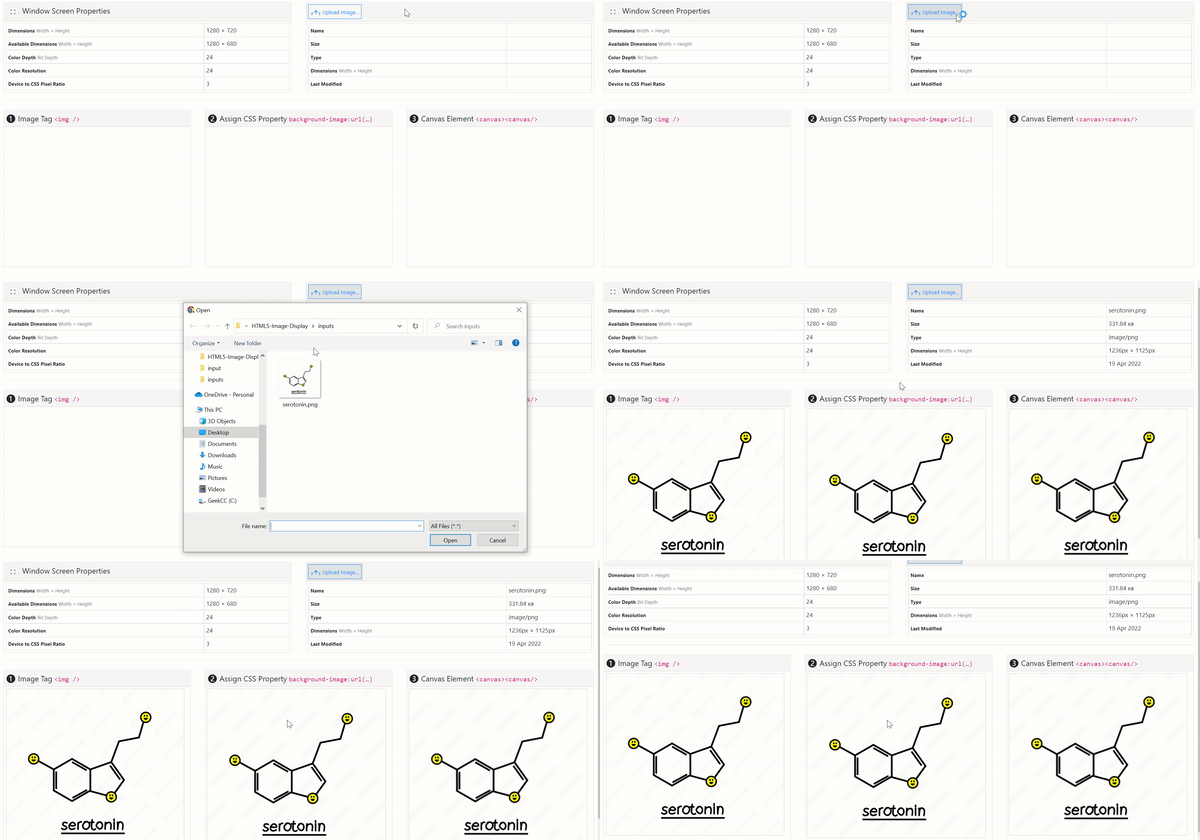

FYI: Full code implementation is at my GitHub: HTML5-Image-Display (feel free to ★ it or 🔱fork it!) or try it out at demo!
Many thanks for persisting to the end of this article! ❤ Hope you have found this guide useful and feel free to follow me on Medium if you would like more GIS, Data Analytics & Web application-related content. Would really appreciate it — 😀
— 🌮 Please buy me a Taco ξ(🎀˶❛◡❛)
— Feel free to explore the following articles as well (each implementation deep-dives into distinct aspects of similar/related domains):


