
Import & Use NPM Modules in The Browser Easily
Step-by-Step Use of Browserify — Full Code + Use-Case Demo
1 of the major plus points of using NodeJS is the huge variety of modules found at npm (npmjs.com). For most business functionalities at least one or more modules are available at the site. However, in certain scenarios when the NPM module functionality is required on the JavaScript client-side such as —
- NodeJS runtime is completely absent and HTML file is run directly in Browser
- Client-side is rendered from the Browser’s end instead of other NodeJS Frontend Frameworks (E.g. ReactJS, VueJS)
It then becomes the developer’s job to import the NodeJS packages which are compatible with the browser’s JavaScript content.
Prerequisite Steps:
Step 1. Node & NPM Installation: Official Downloads Page
FYI: Both Node & NPM are packaged inside one installer on the site so there is no need to install each component separately 🙃
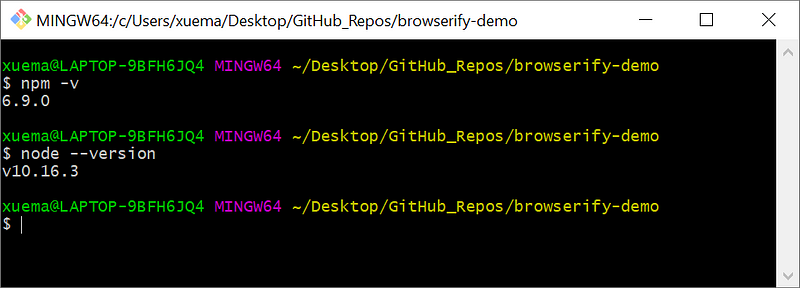
To check if both Node & NPM are installed, proceed to run the following commands in your terminal (for Mac) or command prompt (for Windows):
npm -v
node --version
Step 2. Create a folder for your workspace and inside that folder, proceed to open up your terminal/cmd and run the following commands:
npm init -y
npm install browserify --save
At this point, your workspace should contain the following 3 artifacts:
|--node_modules/
|--package.json
|--package-lock.json
|
For this demonstration, I shall be using json-2-csv npm package as an example. Hence, install the node module you wish to transform into a browser-based library by running the following (in my case it shall be json-2-csv):
npm install json-2-csv --save
Use-Case: Creating a JSON to CSV data format converter
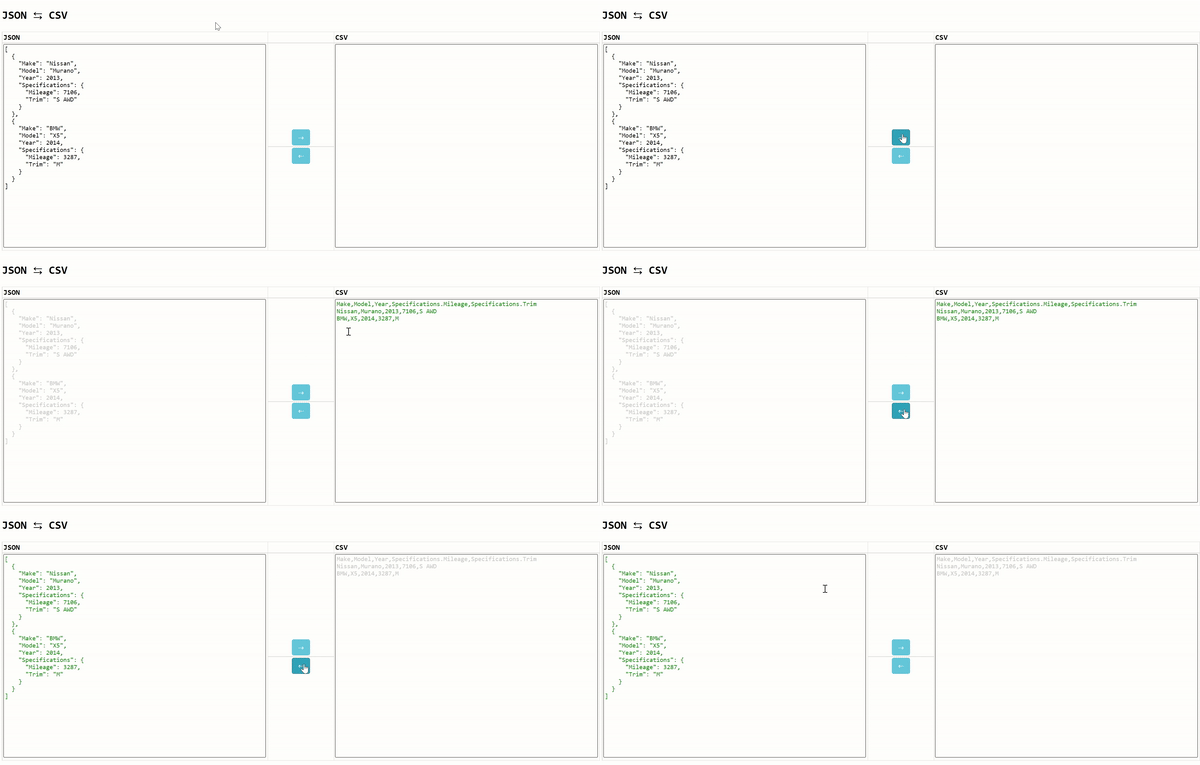
Step 3. Create a ‘index.js’ file in your workspace folder and include your module in the file (e.g. json-2-csv) with the following line:
const converter = require('json-2-csv')
To export the module, include the line: module.exports=converterat the end of the file and your index.js shall look similar to the following:
const converter = require('json-2-csv')
module.exports=converter
Step 4. In your workspace folder, run the following command in your terminal/cmd:
node_modules/.bin/browserify index.js -s <name of module> > <name of output JavaScript file>
In order to output the module exported from index.js into the file json2csv.js,
- Parameter
<name of module>is replaced withconverter(note that json-2-csv was exported asconverterin the earlier step) - Parameter
<name of output JavaScript file>is replaced withjson2csv.js
After running the following:
node_modules/.bin/browserify index.js -s converter > json2csv.js
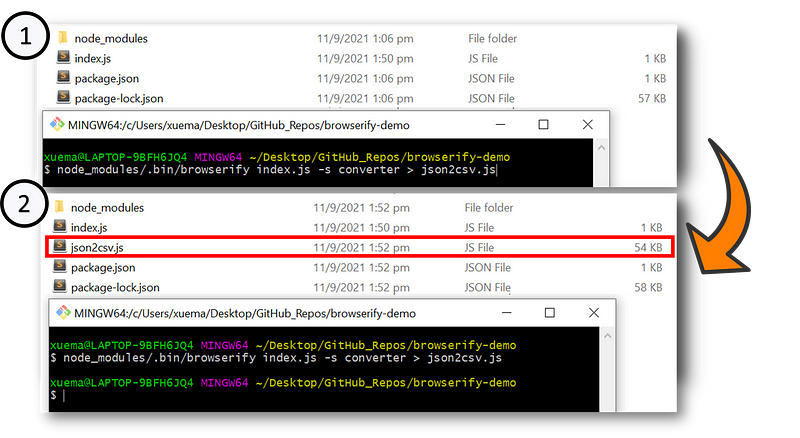
json2csv.js is then generated accordingly.
Step 5. To test if the output file (json2csv.js) runs as expected on the browser, including the file between 2 <script> tags:
<script type="text/javascript" src="json2csv.js"></script>And check the output of the following:
CSV Output in the browser console:
Make,Model,Year,Specifications.Mileage,Specifications.Trim
Nissan,Murano,2013,7106,S AWD
BMW,X5,2014,3287,M
And yay! 🤩 I am now able to integrate the module’s functionality into my HTML file.


