
Programming
3 Visual Studio Code Tips To Boost Your Workflow
VS Code is an almighty tool as long as you know how to use it.
As the days go by, Visual Studio Code gets better and adds more features. However, most of these features are usually out of sight and deep inside the JSON settings of VS Code which most beginners try to avoid. Today, I will share 3 unusual tips that use to power up my development environment.
1. Why There Are Too Many Configs In The Root?
Configuration files, a.k.a dotfiles, are an integral part of development because it is not 2000 anymore and no one uses plain HTML, CSS, and JavaScript anymore. We have tools for almost anything now. There are transpilers, compilers, bundlers, linters, prettifiers… And luckily, we can configure them with a configuration file according to the needs of the projects.
However, having tens of configuration files in the root directory is just a mess. Don’t get me wrong, it is excellent that I can customize these tools, but after configuring them once, I never open them unless there is something that I couldn't foresee in the project. So, why should I try to find my main folder inside this mess every time?
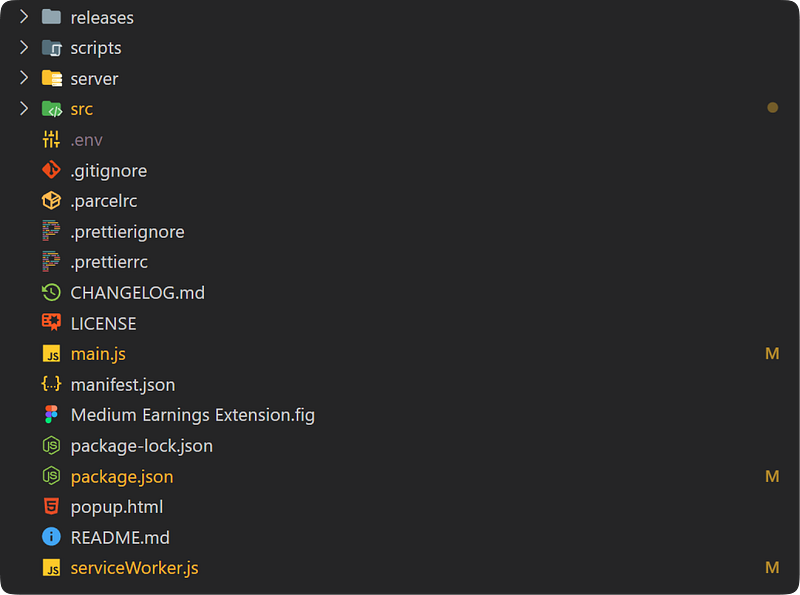
main.js. But, did you able to spot it at first glance?Fortunately, VS Code has an experimental setting called fileNesting. It lets you nest files to one another visually and clears the workspace. Good thing is that it doesn't mess up with file structure and all of the preconfigured tools keep working without any additional effort.
For this project, I will put all of my configuration files under package.json file and changelogs and license under README.md.
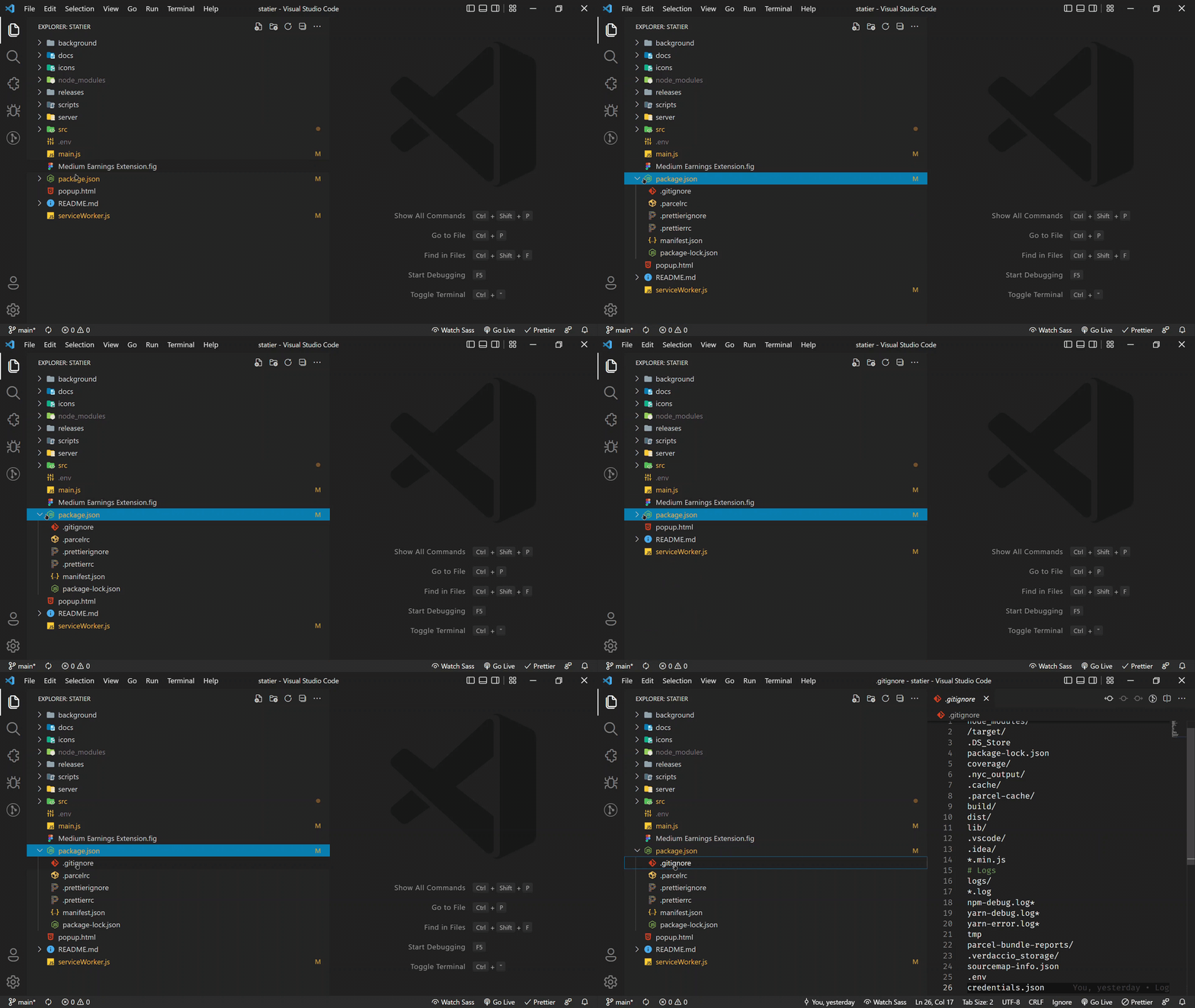
With this setup, I can finally find anything I want at first glance and if I need to edit any configuration file, I can expand package.json like a folder and edit the files under it.
For this trick, you have to add three entries to setting.json. Open it by pressing Ctrl or Cmd + Shift + P and write “settings.json”. Then add these entries to the end.
"explorer.experimental.fileNesting.enabled": true,
"explorer.experimental.fileNesting.expand": false,
"explorer.experimental.fileNesting.patterns": {
  // Append as many as you want
  // The keys are the parents and the values are the nested files.
  "package.json": ".gitignore, .parcelrc, .prettierc ...",
  "README.md": "CHANGELOG.md, LICENCE"
 }
That’s it! No more cluttered root, all easy navigation. Don’t forget to view and start this project I screenshotted to confirm that the file structure is unchanged.
2. You Don’t Need That Extension
Extensions are great! They are mostly what makes Visual Studio Code powerful. Due to the huge community behind it, the number of these extensions get bigger and bigger. However, this vastness is not always a good thing because the more you add extensions, the more it takes for VS Code to load. And after a point, it will take more than 6–7 seconds and if you’re willing to wait for that long why don’t you use an IDE?
Besides, in the extensions, there can be some security and performance issues that can result in something you wouldn’t even imagine.
Here is what I suggest: Don’t install an extension if it is not that crucial for your workstation. Rather, take a look at VS Code documentation and try to find a native way. As I said earlier, using settings.json you can do so many things with VS Code. Here is a small list of extensions and their settings.json alternatives.
Bracket Pair Colorizer
This is a pretty useful one and I used it for a long time. But now that it is implemented natively in VS Code, instead of the extension, I use the native one which is lighting fast.
To enable it, open settings.json and add the following:
"editor.bracketPairColorization.enabled": true,
"editor.guides.bracketPairs":"active",
Auto Import
Auto Import is another huge extension with 2M+ downloads. But why would you bloat your workspace when you don’t need that?
Here is the same functionality with native implementation by VS Code developers. Add this snippet to settings.json.
"javascript.suggest.autoImports": true,
"javascript.updateImportsOnFileMove.enabled": "always",
"typescript.suggest.autoImports": true,
"typescript.updateImportsOnFileMove.enabled": "always"
Auto Close and Rename HTML Tags
These extensions were the first ones I installed on my system but now, they’re all gone because now VS Code can do that automatically with these settings:
"editor.linkedEditing": true,
"html.autoClosingTags": true,
"javascript.autoClosingTags": true,
"typescript.autoClosingTags": true,
Doxygen Documentation Generator
This is another extension that is pretty useful when documenting your code and because of that, VS Code decided to implement it natively. Despite this, still 6M+ users have it installed on their workstation.
This one is enabled by default but if it is not, you can add the following to settings.json:
"javascript.suggest.completeJSDocs": true,
"javascript.suggest.jsdoc.generateReturns": true,
"typescript.suggest.completeJSDocs": true,
"typescript.suggest.jsdoc.generateReturns": true,
There are many more cases where there is a native implementation but people still use the external extension. If you have any suggestions, don’t forget to share them in the response section.
3. Rename Anything Instantly
It s*cks when you have to change the name of a function or a variable across the whole codebase because you cannot use good ol’ find & replace for that. The name of the variable can be inside of a string or even inside of another function name and changing it would break everything.
Fortunately, VS Code is more intelligent than you think. It can easily differentiate which characters are the intended variable name and change only the variable name.
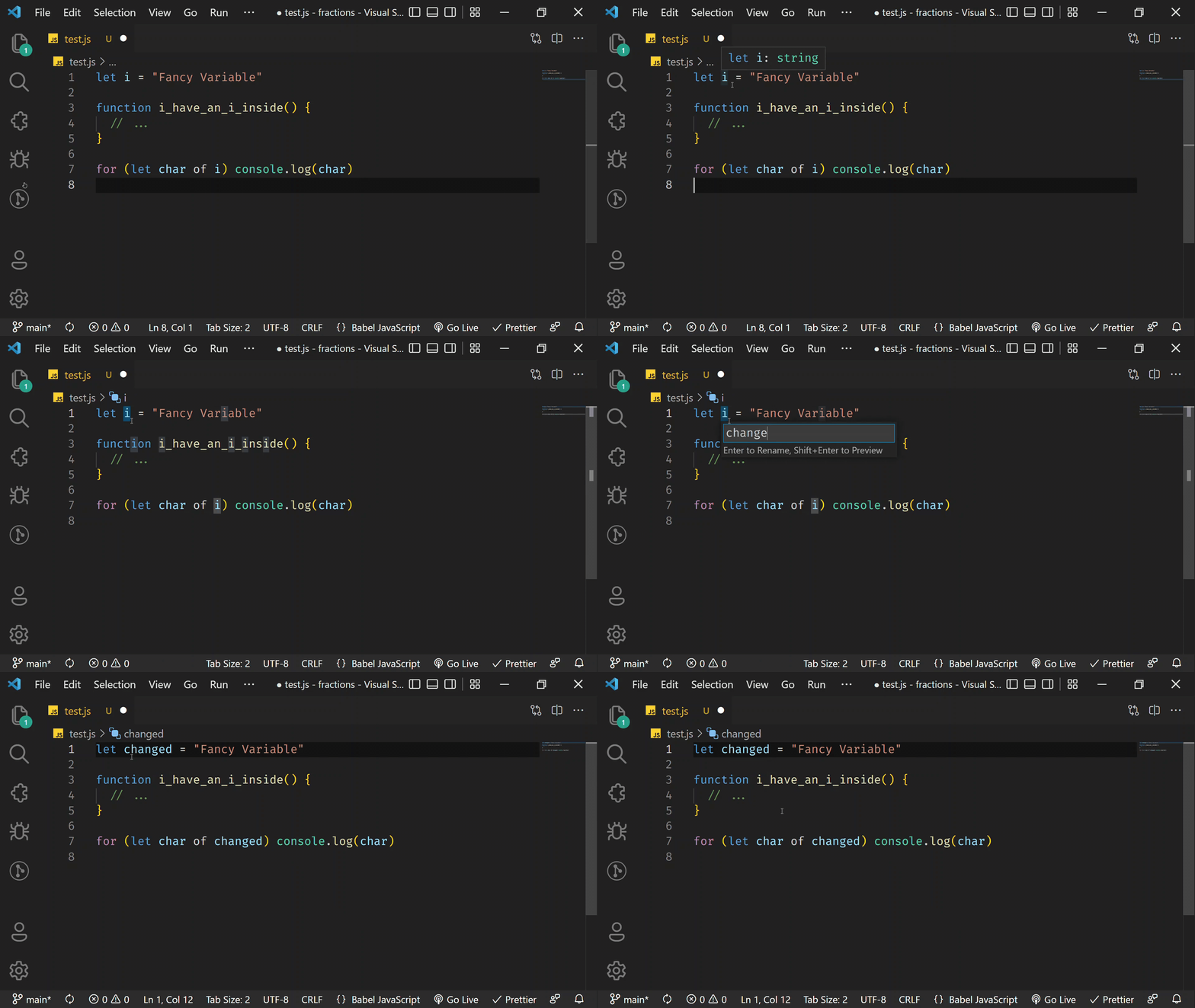
For that, you have to select which variable you need to rename and press F2. After that, input the new variable name and press Enter. Voila! Nothing has broken and the name of the variable has changed instantly.
Conclusion
Congratulations! Now you know 3 VS Code tips that I use to speed up my development environment. All in all, Visual Studio Code is a powerful tool and fulfills its purpose — even more. However, it doesn’t matter that you have the best tool in the world if you don’t know how to use it.

If you liked this article, don’t forget to clap it and if you have anything to share, meet me in the response section.
By the way, I have a project going on, currently. If you star it on Github, I would be really happy. Stay tuned for the next stories.
Enjoy reading stories like these and want to support me as a writer? Consider signing up to become a Medium member. It’s $5 a month, giving you unlimited access to stories on Medium. If you sign up using my link, I’ll earn a small commission.