avatarCan Durmus

Free AI web copilot to create summaries, insights and extended knowledge, download it at here

5596

Abstract

turned off both my camera and microphone on the meeting app because it is pretty possible to unwittingly turn them on. However, thanks to Video Conference Mute, I finally rely on my computer.</p><p id="0ef3">This utility app lets you globally mute your audio and video with a shortcut that is not actually short so that the microphone and camera cannot be turned on accidentally.</p><figure id="48a1"><img src="https://cdn-images-1.readmedium.com/v2/resize:fit:800/1*h3Baip-knpjSTGkkHn-hJA.png"><figcaption>Video Conference Mute has a toolbar that shows up whenever you mute your audio or video, letting you know that you’re safe.</figcaption></figure><p id="3d32">The impressive point of this utility is that it globally mutes you. For instance, if you leave open your microphone and camera on the app, it will show a black screen or any image you pick instead of the camera view. It is a customizable and pretty solid utility app. If you want to discover full capabilities, take a look at <a href="https://docs.microsoft.com/en-us/windows/powertoys/video-conference-mute">this website</a>.</p><h2 id="6180">4. Awake ☕</h2><p id="ef92">My PC sleeps after a certain time of inactivity to save resources which is a pretty useful feature to have because, even if I don’t do anything on PC, it wastes some valuable resources like electricity, CPU power, etc. However, there are certain times that I really get annoyed when my PC goes sleeping and stops all background activity. For instance, I don’t want my PC to sleep when I update some apps, and having to go Settings to change the behavior of the PC every time is a tedious task.</p><figure id="b112"><img src="https://cdn-images-1.readmedium.com/v2/resize:fit:800/1*jBec1WtiGe5cLBOeqSj7ug.png"><figcaption>Awake lays on taskbar overflow and has an easy-to-use user interface.</figcaption></figure><p id="df80"><a href="https://docs.microsoft.com/en-us/windows/powertoys/awake">Awake</a> comes into play right at this point. It is just tailored for this task. It prevents your PC to sleep, in other words, keeps your PC Awake. Besides, changing the power mode of PC is incredibly easy with its simple user interface.</p><h2 id="0665">5. Power Rename 📝</h2><p id="7ed5">Rename is another utility app that I use often. While developing apps, I usually name my assets obeying a convention to form consistency across the codebase. For example, the name of the avatar images can be <code>avatar_1.svg</code>, <code>avatar_2.svg</code> and so on… However, when I want to change the prefix of the asset set, which is <code>avatar_</code>, I had to change all of them one by one which is a huge pain in the *ss.</p><figure id="ff6c"><img src="https://cdn-images-1.readmedium.com/v2/resize:fit:800/1*iprzMkwBcRAM0Ns2F7Js-Q.jpeg"><figcaption></figcaption></figure><p id="5b0b">However, with Power Rename, it is pretty easy to do so. All you have to have is a basic <a href="https://developer.mozilla.org/en-US/docs/Web/JavaScript/Guide/Regular_Expressions">Regular Expressions</a> understanding which is not that hard to learn. Then, you can change the names of the files without a flaw in seconds. It is pretty preferable over renaming tens of files by hand.</p><h2 id="b961">6. Image Resizer 📷</h2><p id="e1e8"><i>Image Resizer </i>is another utility tool that I use on a daily basis. As I mentioned, I am a frontend developer and I deal with pictures and images too much. Sometimes, I have to shrink the image for better loading times or enlarge it for a better look. To date, I was using online tools or <a href="https://www.adobe.com/products/photoshop.html">Adobe Photoshop</a> for this task; however, online tools sometimes give unexpected results and Photoshop is kinda overkilling for such a simple task.</p><p id="b46b">But, at this point, Image Resizer comes into action. It is pretty lightweight and easy to use. When you activate it, it adds a resize option to the context menu and after that, you can click it to resize the images, immediately.</p><figure id="ddbf"><img src="https://cdn-images-1.readmedium.com/v2/resize:fit:800/1*2v_5eavt6mtcWOqHI2EMOg.jpeg"><figcaption>Image Resizer is a useful tool to resize any image according to your needs. (<a href="https://github.com/microsoft/PowerToys/issues/1053">Concept</a> by <a href="https://github.com/zeealeid">Zeealeid</a>)</figcaption></figure><p id="d37c">Apart from resizing options, you have encoding and quality options, as well, which are as useful as resizing options. If you want to see the full capabilities of <i>Image Resizer, </i>check out <a href="https://docs.microsoft.com/en-us/windows/powertoys/image-resizer">this</a> official article.</p><h2 id="ea7b">7. FancyZones 🔲</h2><p id="92ca">FancyZones is a utility app that lets you create desktop layouts for multitasking. Switching between app windows on the same desktop is a really frustrating task because it is not easy to find the app I want to use at first if have more than 3 windows open on the same desktop. That’s why I usually split my screen into small pieces where all the apps lay on.</p><figure id="c5b9"><img src="https://cdn-images-1.readmedium.com/v2/resize:fit:800/1*HFEDcnpDG-fygwmB0UvmfQ.png"><figcaption>When working with multiple apps, it makes everything faster to split screen.</figcaption></figure><p id="ec11">Windows 10 has a basic layout manager for elementary layouts like the layout above. However, if you want to create a layout that is more complex than this, it is time for FancyZones to shine. With its layout editor, you can easily design your workstation layout and apply it immedia

Options

tely.</p><figure id="412d"><img src="https://cdn-images-1.readmedium.com/v2/resize:fit:800/1*WqqBCaq0IjtDrWjFJhSiPw.png"><figcaption>Utilizing Layout Editor, you can create any layout regardless of complexity.</figcaption></figure><p id="4cb6">For many people, FancyZones should be ranked higher. That’s what I thought too until Windows 11 comes out. The layout management of Windows 11 is much more elegant compared to 10. Therefore, for a daily user, there is no urgent need to use FancyZones. However, if you want a real <i>fancy </i>layout, then this utility app is just tailored for you.</p><h2 id="2b64">8. Keyboard Manager ⌨</h2><p id="e140">This is another PowerToys utility that helps me customize the behavior of my PC. <a href="https://docs.microsoft.com/en-us/windows/powertoys/keyboard-manager">Keyboard Manager</a> lets you switch every key o the keyboard virtually, in simple terms. If you want a key to act as another specific key, all you have to do is map the key to another one.</p><p id="9707">Let’s picture a scenario. You have a PC at your home and you are really fast with it because you get used to it over time. However, when you go to work, there is another PC you are supposed to use and it has <code>ctrl</code> and <code>shift</code> keys switched on the keyboard. The solution is easy: Define a two-way map between <code>ctrl</code> and <code>shift</code>, so that you can use your keyboard as you got used to.</p><figure id="3da8"><img src="https://cdn-images-1.readmedium.com/v2/resize:fit:800/1*-as8eAcyrnrW_eJme34f5g.png"><figcaption>In Keyboard Manager, you can easily define keymaps to enhance your workstation.</figcaption></figure><p id="0d8d">In addition, I use this app to ease my workstation. I usually use certain keys more, while working on a project but some are pretty hard to access on the keyboard. That’s why I defined maps to switch most used keys and less used keys so that I can access them lightning fast.</p><h1 id="0a34">Conclusion</h1><p id="c3c9">PowerToys is a great app to customize the behavior of your PC and make it seamless. The utility apps it offers slowly become an indispensable part of the OS and make it pretty hard to work without it. In addition, it is open-source and gets updated gradually. As time goes by, <a href="https://github.com/microsoft/PowerToys/wiki/Specs">more incredible utility apps</a> will be added. So, why are you still here? Go get your PowerToys and start playing.</p><figure id="8b34"><img src="https://cdn-images-1.readmedium.com/v2/resize:fit:800/1*TtX3EIdGpUqGCOW6LtO42Q.png"><figcaption>Subscribe to get your <b>free <i>subscriber-exclusive</i></b> story.</figcaption></figure><p id="9d95">If you enjoy reading stories like these and want to support me as a writer, consider signing up to become a Medium member. It’s $5 a month, giving you unlimited access to stories on Medium. If you sign up using my link, I’ll earn a small commission.</p><div id="c462" class="link-block"> <a href="https://candurmuss.medium.com/membership"> <div> <div> <h2>Join Medium with my referral link — Can Durmus</h2> <div><h3>As a Medium member, a portion of your membership fee goes to writers you read, and you get full access to every story…</h3></div> <div><p>candurmuss.medium.com</p></div> </div> <div> <div style="background-image: url(https://miro.readmedium.com/v2/resize:fit:320/0*vDwSD9y3Pn-J3gYL)"></div> </div> </div> </a> </div><p id="ebe8"><b><i>Further Reading</i></b></p><div id="2a16" class="link-block"> <a href="https://readmedium.com/windows-10-will-be-the-second-xp-heres-why-f2601d24f24a"> <div> <div> <h2>Windows 10 Will Be The Second XP, Here’s Why</h2> <div><h3>Windows 11 is announced just a while ago, but will people be willing to update their PCs? That’s the tricky part.</h3></div> <div><p>medium.com</p></div> </div> <div> <div style="background-image: url(https://miro.readmedium.com/v2/resize:fit:320/1*baVOEU-0kiUDS5SHwyFl1g.png)"></div> </div> </div> </a> </div><div id="835b" class="link-block"> <a href="https://betterprogramming.pub/did-you-know-html-thinks-chuck-norris-is-a-color-9f67edf4c34"> <div> <div> <h2>Did You Know HTML Thinks Chuck Norris Is a Color?</h2> <div><h3>Weird, isn’t it? Here’s why</h3></div> <div><p>betterprogramming.pub</p></div> </div> <div> <div style="background-image: url(https://miro.readmedium.com/v2/resize:fit:320/1*OGnLYvJgLpaW5tGWdzHOLw.png)"></div> </div> </div> </a> </div><div id="d6cd" class="link-block"> <a href="https://betterprogramming.pub/7-must-know-websites-to-boost-your-frontends-b3ea0bb282e6"> <div> <div> <h2>7 Must-Know Websites To Boost Your Frontends</h2> <div><h3>Simple yet useful websites you will use daily</h3></div> <div><p>betterprogramming.pub</p></div> </div> <div> <div style="background-image: url(https://miro.readmedium.com/v2/resize:fit:320/1*onPs9mLU75Y8lLIsu5Hu1g.jpeg)"></div> </div> </div> </a> </div></article></body>

Windows Sucks Without PowerToys: 10 Tools To Power Up Your PC

After one try, PowerToys will immediately turn into a necessity for your Windows.

PowerToys is a set of utilities that can add or enhance some features of Windows. It is an open-source project and developed by Microsoft. After Windows XP, it is deprecated and didn’t get any updates for years. However, in 2019, surprisingly, Microsoft decided to revive the project and released a version for Windows 10. Now, it has many extremely useful utility tools, that will ease your life every day and get updated regularly.

Installation

Firstly, you have to have a Windows machine because it is specially developed for Windows. So, if you have any other OS, unfortunately, PowerToys won’t work.

To install PowerToys, please visit the Github page below and download the topmost executable. Then, you can set up PowerToys on your machine.

Alternatively, you can use Windows package managers such as Chocolatey, Scoop, or Win-Get. You can read more about installation in this article.

Tools

PowerToys consists of 10 individual utility apps or add-ons. Some of them are really crucial and some others are pretty useful, too. In this section, I will order them by their importance and usefulness according to me, and explain the ones I use (8) based on my knowledge and experience with the tool.

1. PowerToys Run 💨

For me, the most important and impressive utility app in PowerToys is PowerToys Run. It is a modern, fast, and easy-to-use launcher for Windows. It basically the same with the search on Windows. However, sometimes, the search can be slow because of the indexing Microsoft use on this one but this is not the case for Run. Everything is lightning fast and besides, the UI of this app is more in line with modern design systems.
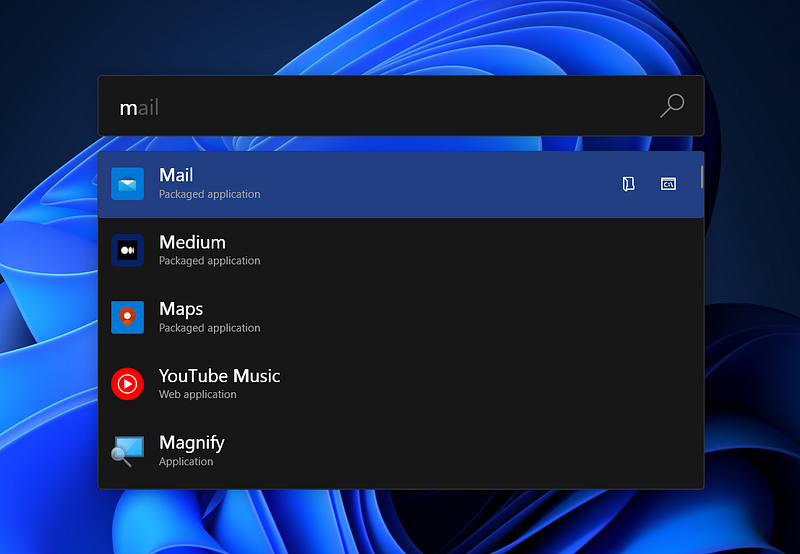
Using Run, you can launch a certain application or open a file without finding and clicking manually.

Apart from launching apps, it has many more functionalities that ease the use of the Windows environment in a such way that without Run, everything feels kinda slow. For instance, you can use Run for unit conversions, mathematical calculations, or Windows system commands (shutdown, sleep, etc.). Here is a full list of capabilities of Run.
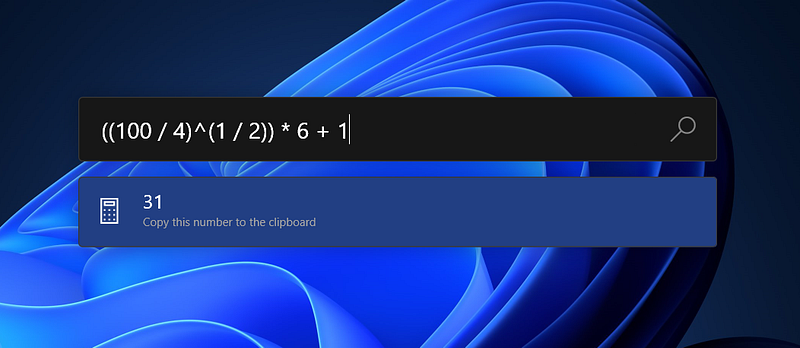
You can use Run for your mathematical calculations, as well.

2. Color Picker 🎨

The other PowerToys utility that I love to use is Color Picker. I am a front-end developer that always gets his hands dirty with colors. I used browser extensions, and some more programs, as well for picking colors on the screen but none of them have worked as seamlessly as Color Picker, by PowerToys. In addition, it is global, which means you can pick the color regardless of the app.
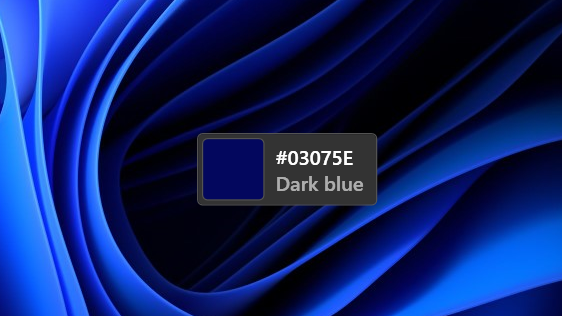
Using Color Picker, you can pick any color you see on the screen with this beautiful UI.

The beauty of Color Picker comes from the customization options. It basically supports almost all types of color definitions such as HEX, RGB, CMYK, and many more… Besides, right after picking you can simply choose to copy it to the clipboard or you can edit the picked color using the color editor which is very solid in terms of functionality.

3. Video Conference Mute 🙊 (Experimental)

As the COVID-19 outbreak has been taking over the world day by day, online meetings have gradually become a casual part of my daily life. I use Zoom to attend my online classes in university, Teams for my graduation project, Discord to have some fun with my friends. Online meetings are cool but, if I am not careful enough, I can end up being in a horrible and shameful situation. It can be my private talks with my girlfriend or an inappropriate video of me.

Up to the present, I was worried even though I turned off both my camera and microphone on the meeting app because it is pretty possible to unwittingly turn them on. However, thanks to Video Conference Mute, I finally rely on my computer.

This utility app lets you globally mute your audio and video with a shortcut that is not actually short so that the microphone and camera cannot be turned on accidentally.

Video Conference Mute has a toolbar that shows up whenever you mute your audio or video, letting you know that you’re safe.

The impressive point of this utility is that it globally mutes you. For instance, if you leave open your microphone and camera on the app, it will show a black screen or any image you pick instead of the camera view. It is a customizable and pretty solid utility app. If you want to discover full capabilities, take a look at this website.

4. Awake ☕

My PC sleeps after a certain time of inactivity to save resources which is a pretty useful feature to have because, even if I don’t do anything on PC, it wastes some valuable resources like electricity, CPU power, etc. However, there are certain times that I really get annoyed when my PC goes sleeping and stops all background activity. For instance, I don’t want my PC to sleep when I update some apps, and having to go Settings to change the behavior of the PC every time is a tedious task.
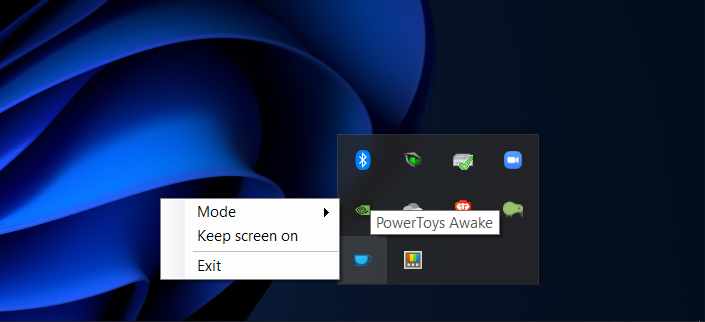
Awake lays on taskbar overflow and has an easy-to-use user interface.

Awake comes into play right at this point. It is just tailored for this task. It prevents your PC to sleep, in other words, keeps your PC Awake. Besides, changing the power mode of PC is incredibly easy with its simple user interface.

5. Power Rename 📝

Rename is another utility app that I use often. While developing apps, I usually name my assets obeying a convention to form consistency across the codebase. For example, the name of the avatar images can be avatar_1.svg, avatar_2.svg and so on… However, when I want to change the prefix of the asset set, which is avatar_, I had to change all of them one by one which is a huge pain in the *ss.
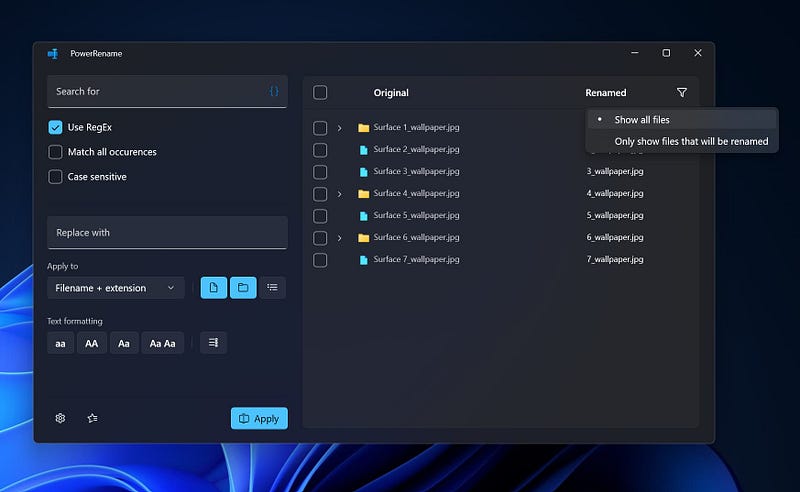
However, with Power Rename, it is pretty easy to do so. All you have to have is a basic Regular Expressions understanding which is not that hard to learn. Then, you can change the names of the files without a flaw in seconds. It is pretty preferable over renaming tens of files by hand.

6. Image Resizer 📷

Image Resizer is another utility tool that I use on a daily basis. As I mentioned, I am a frontend developer and I deal with pictures and images too much. Sometimes, I have to shrink the image for better loading times or enlarge it for a better look. To date, I was using online tools or Adobe Photoshop for this task; however, online tools sometimes give unexpected results and Photoshop is kinda overkilling for such a simple task.

But, at this point, Image Resizer comes into action. It is pretty lightweight and easy to use. When you activate it, it adds a resize option to the context menu and after that, you can click it to resize the images, immediately.
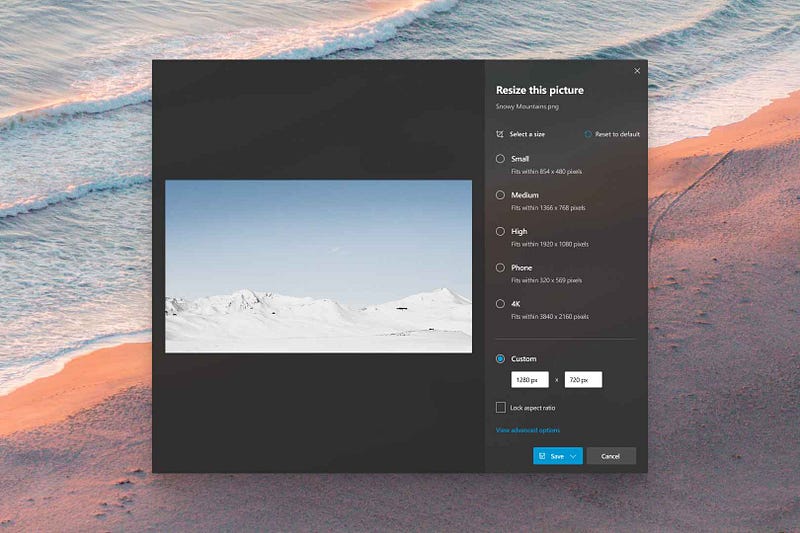
Image Resizer is a useful tool to resize any image according to your needs. (Concept by Zeealeid)

Apart from resizing options, you have encoding and quality options, as well, which are as useful as resizing options. If you want to see the full capabilities of Image Resizer, check out this official article.

7. FancyZones 🔲

FancyZones is a utility app that lets you create desktop layouts for multitasking. Switching between app windows on the same desktop is a really frustrating task because it is not easy to find the app I want to use at first if have more than 3 windows open on the same desktop. That’s why I usually split my screen into small pieces where all the apps lay on.
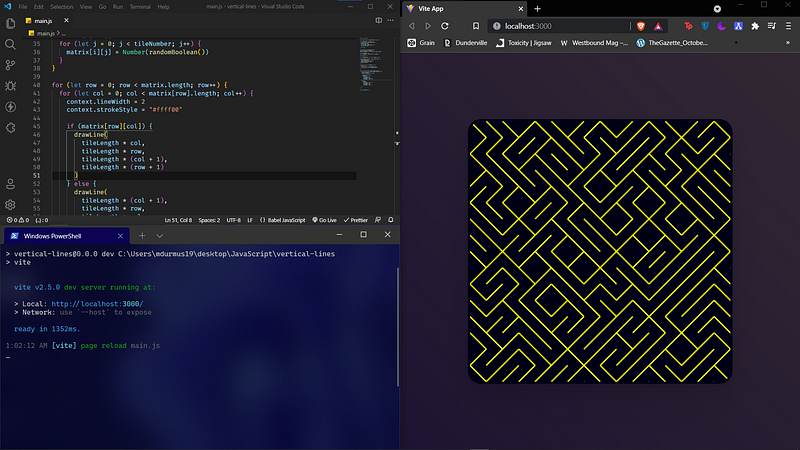
When working with multiple apps, it makes everything faster to split screen.

Windows 10 has a basic layout manager for elementary layouts like the layout above. However, if you want to create a layout that is more complex than this, it is time for FancyZones to shine. With its layout editor, you can easily design your workstation layout and apply it immediately.
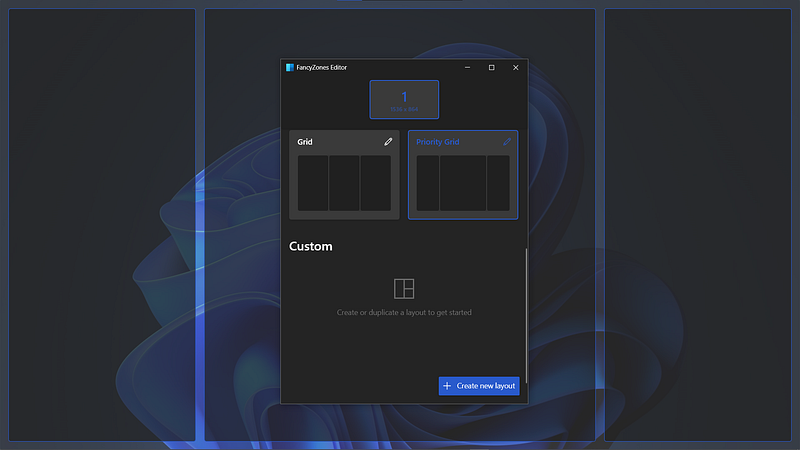
Utilizing Layout Editor, you can create any layout regardless of complexity.

For many people, FancyZones should be ranked higher. That’s what I thought too until Windows 11 comes out. The layout management of Windows 11 is much more elegant compared to 10. Therefore, for a daily user, there is no urgent need to use FancyZones. However, if you want a real fancy layout, then this utility app is just tailored for you.

8. Keyboard Manager ⌨

This is another PowerToys utility that helps me customize the behavior of my PC. Keyboard Manager lets you switch every key o the keyboard virtually, in simple terms. If you want a key to act as another specific key, all you have to do is map the key to another one.

Let’s picture a scenario. You have a PC at your home and you are really fast with it because you get used to it over time. However, when you go to work, there is another PC you are supposed to use and it has ctrl and shift keys switched on the keyboard. The solution is easy: Define a two-way map between ctrl and shift, so that you can use your keyboard as you got used to.
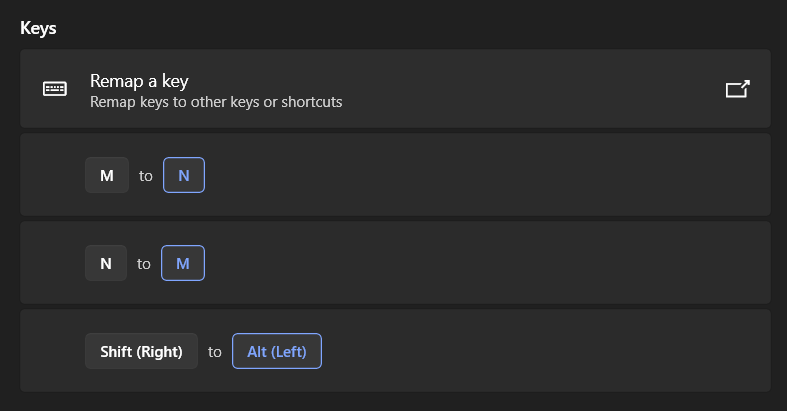
In Keyboard Manager, you can easily define keymaps to enhance your workstation.

In addition, I use this app to ease my workstation. I usually use certain keys more, while working on a project but some are pretty hard to access on the keyboard. That’s why I defined maps to switch most used keys and less used keys so that I can access them lightning fast.

Conclusion

PowerToys is a great app to customize the behavior of your PC and make it seamless. The utility apps it offers slowly become an indispensable part of the OS and make it pretty hard to work without it. In addition, it is open-source and gets updated gradually. As time goes by, more incredible utility apps will be added. So, why are you still here? Go get your PowerToys and start playing.
Subscribe to get your free subscriber-exclusive story.

If you enjoy reading stories like these and want to support me as a writer, consider signing up to become a Medium member. It’s $5 a month, giving you unlimited access to stories on Medium. If you sign up using my link, I’ll earn a small commission.

Further Reading

Windows
Programming
JavaScript
Technology
Powertoys
Recommended from ReadMedium