
11 Amazingly Useful Medium Things You (Probably) Didn’t Know About
The below story shows 11 useful features, quirks, and tips about Medium you might not know about

I’ve researched the hell out of this platform over the last 2 months, partly to learn how to succeed on it, and partly because I love going down a good rabbit hole.
Here are 11 things I’ve found out about Medium that aren’t commonly known (I think).
I’ve put a TLDR index just below, scroll down further if you’d like to see more on an item. I hope you find them useful!
TLDR of 11 things about Medium
- There’s a fake view from the Medium algorithm after you submit
- You can connect your account to Twitter and Facebook for cross-links & fast sharing
- You can highlight and tweet quotes in articles
- You can tag your comments/responses to help earn Top writer
- There are shortcuts when researching publications (not Smedian)
- If you changed your title, it might not have changed
- Your user name might be unsearchable on Medium
- The stats page on Medium shows articles AND comments/response
- You can highlight your own articles to increase visibility
- Your daily earnings report doesn’t show 100% of your real earnings
- You can hyperlink your images
Full details of 11 Medium Things
1. The algorithm fake view
Shortly after you submit a story, if you pay close attention, you’ll notice your first read is often kind of weird. It shows up as an external view and also as an internal view, yet has 0 read time.
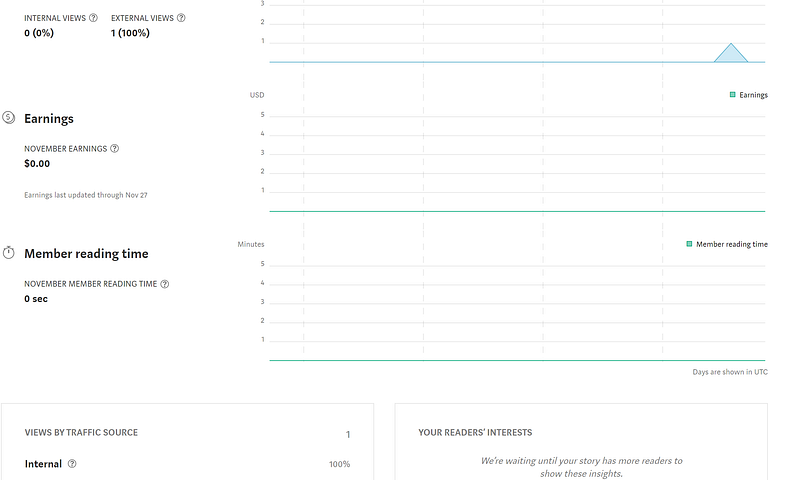
This is very likely the Medium curation algorithm doing its first check on your article, probably in a queuing system.
No need to panic, as it doesn’t count for anything.
2. You can connect your Facebook and/or Twitter accounts to Medium for cross-links & fast sharing
Medium.com allows a user to connect both their Facebook and Twitter accounts. Just go into your profile’s account settings to add it.
The benefits? You can log in with one of them, you get fast short-cuts for sharing your articles, and you get point number 3 below.
If you aren’t using Twitter yet to help expand your views and interaction with the community — start!
It’s a great way to expand your reach and help others do the same. I even got retweeted by the Medium-famous Tom Kuegler and found out he’s also hanging out in SouthEast Asia!
Here’s a short but useful article on the subject from Katherine T. Hoppe 🐰.
3. You can highlight and tweet quotes in articles
When you normally share a Medium article on Facebook or Twitter (by pasting the article link), it will show a ‘card’ that looks like this:
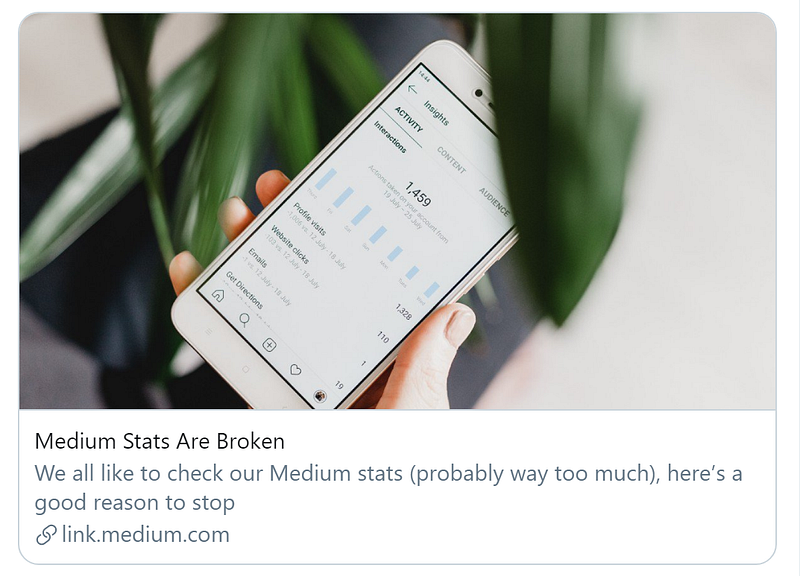
Of course, you can edit what it says, but the above is the default. If you have your Twitter account connected, it makes this step even faster.
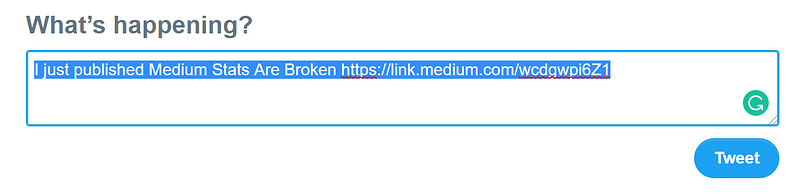
But did you know you can also do an even cooler method of sharing? You can go on your own or another person’s article, highlight a phrase that you like, and tweet that quote. Here’s an example on Robert Turner It looks like this:

It ends up looking like this on Twitter:
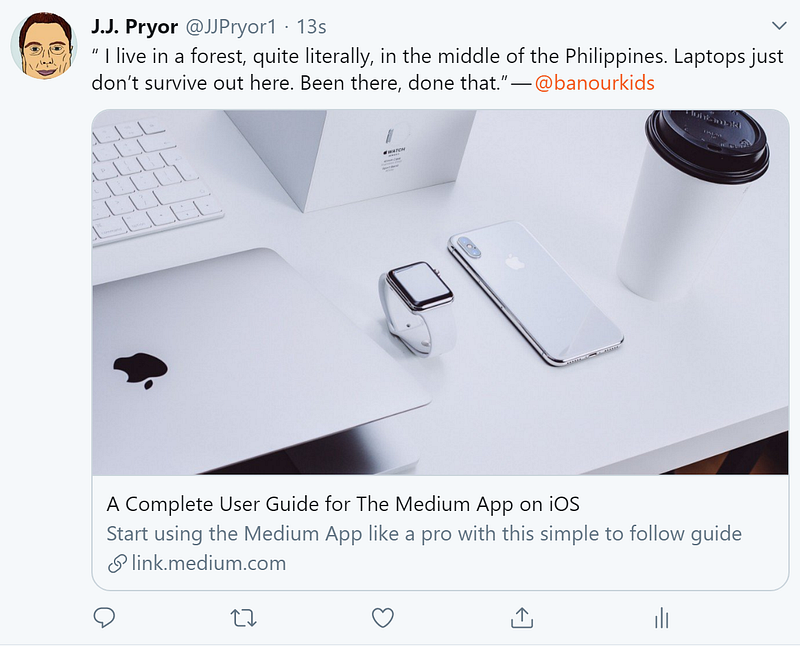
You can see it keeps the card but changes your tweet and also adds the user’s Twitter link. Retweet and be merry and don’t forget to add in hashtags!
4. You can tag your comments/responses to help earn Top writer
If, like me, you’re chasing after that vanity award called ‘Top Writer’ then here’s a useful tip for you: Tagging your responses also counts towards the article count for Top Writer.
As I’ve complained about before, Medium still annoyingly calls all posts ‘stories’. But they also treat all posts, comments, etc the same because of that.
So, if you’re trying to post as many ‘stories’ on a certain Top Writer tag — ex. ‘Business’ — you can get there by doing two things. You have to be curated in that area first.
You then have to have enough stories to beat out everyone except the top 49 writers in that topic with the number of stories (there’s a max of 50 in each topic tag). It’s still a bit of mystery to everyone if there are any quality checks on this, in an ideal world there should be.
But as far as I’ve read, it just seems to be quantity for now. So get posting on your favorite tag and make sure it’s in the 73 eligible tags!
5. There are shortcuts when researching publications (not Smedian)
When I make up my listicle articles that show active publications for noob writers to apply to, it initially took me quite a long time to compile.
But as we all know, with practice makes perfect, and in doing so I found some shortcuts to do this.
Curious about seeing how many people follow a publication or want to see if they’re still active? Type ‘/latest’ in the address bar after a publications name, like this:

On that page it will then show some brief details in the lower right, followers, email and social media contacts:
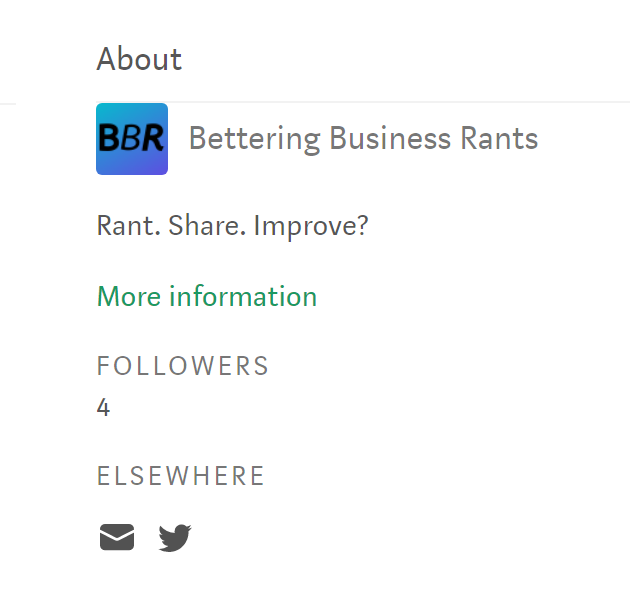
The above is my first (very sad) attempt at a publication, but you get the point. It’s an easy way to see how big a publication is and how to contact them.
Want to see who owns a publication or how many writers they have (maybe to check if they accept a lot of writers?). Then just use ‘/about’ instead of ‘/latest’.
The above two have always worked for me, I believe its set as defaults in all publications. Some other ones that often work (but not always) are ‘/submit’ for submissions, and ‘/archive’ to see all their work in a ‘sortable’ manner.
6. If you changed your title, it might not have changed
We’re always excited to publish our latest article after we just finish writing it. In the rush of double-checking (I hope you do this!) we can often overlook things. Or sometimes after you see an article published you just don’t feel the title.
Maybe you just made an obvious typo in the title and need to change it.
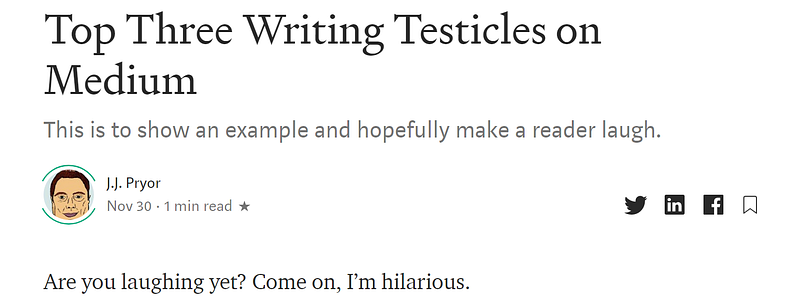
So, you go back, press the little ‘gear’ button in the top right corner of your screen and click ‘Edit story’. You then change the title and hit the ‘Ready to publish’ button.
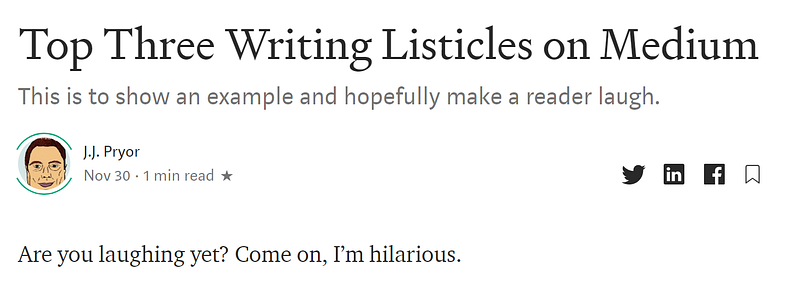
Title changed and article published, right? Nope!
This is what that same article looks like after I used the Tweet shortcut without changing a thing (except the title as mentioned):
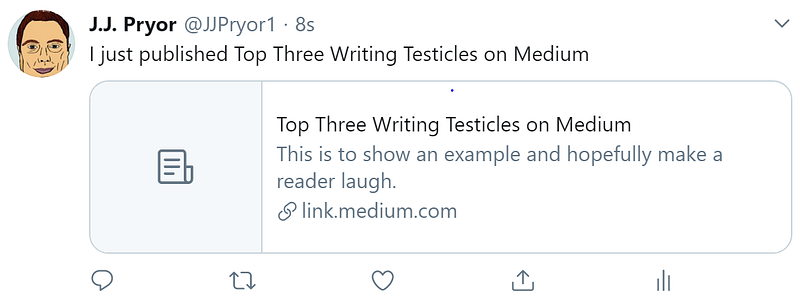
Oops!
But there’s an easy fix, go back to the ‘Edit story’ page. Click on the three ‘…’ in the top right, and go down to ‘Change display title/subtitle’. In this box, you’ll see that the external title hasn’t changed, but you can switch it here and press enter.
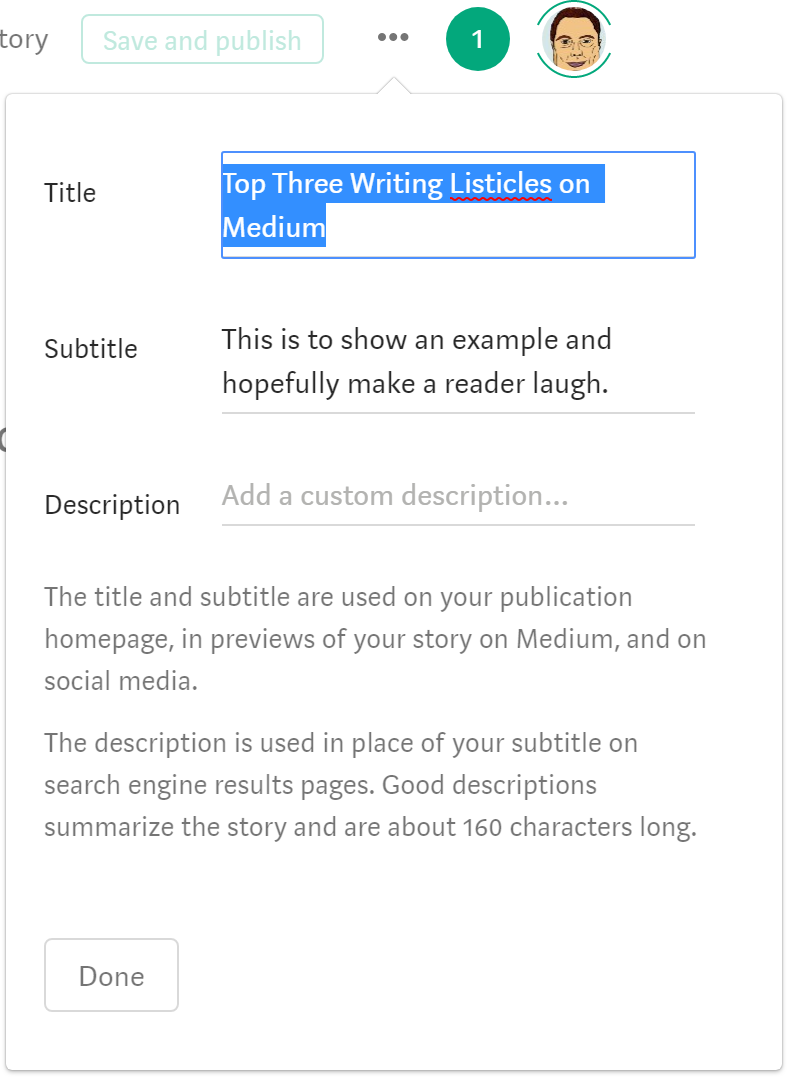
Click the ‘Done’ button and the title will be properly changed now! (Someone actually clapped for the example article while I was making this lol)
7. Your name might be unsearchable on Medium
I hate seeing great articles and writers post stuff and not be able to search their names on here. They’re likely missing out on a decent amount of sharing and viewership just because of that. I wrote a full article on the subject here.
What do I mean? Let’s take a fellow noobie Medium writer I read the other day, Michael A. Van Kerckhove. Go ahead and try to tag him. You can’t find him, can you?
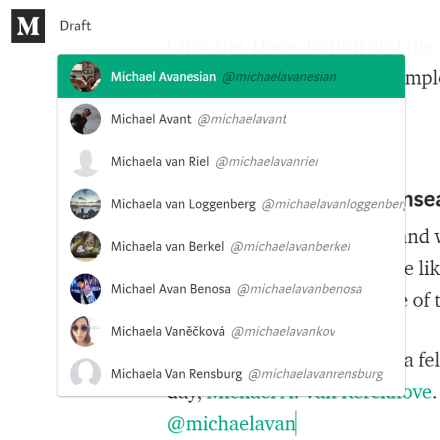
That’s likely because his account name is different from his user name. Let’s look at his profile:
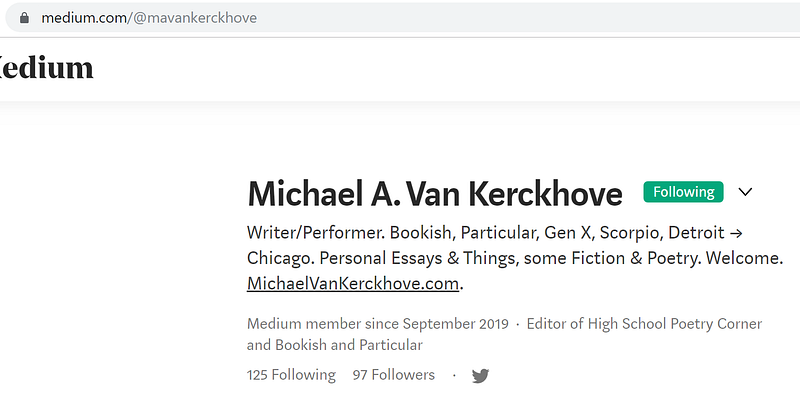
You can see his display name ‘Michael A. Van Kerckhove’ is different from his account name. Look at the address bar, its ‘/@mavankerckhove’.
Now if we search for that ‘@mavankerckhove’, we can find him:
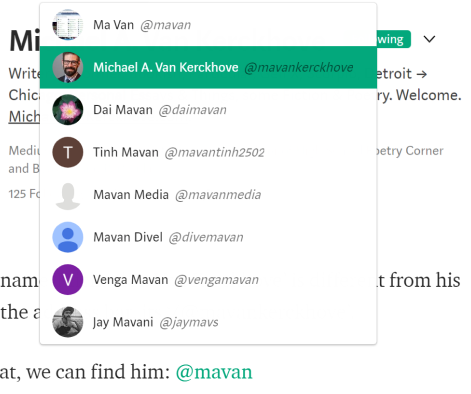
Don’t fret though, as we can fix it. Just go into your profile and go down to the ‘Settings’ tab.
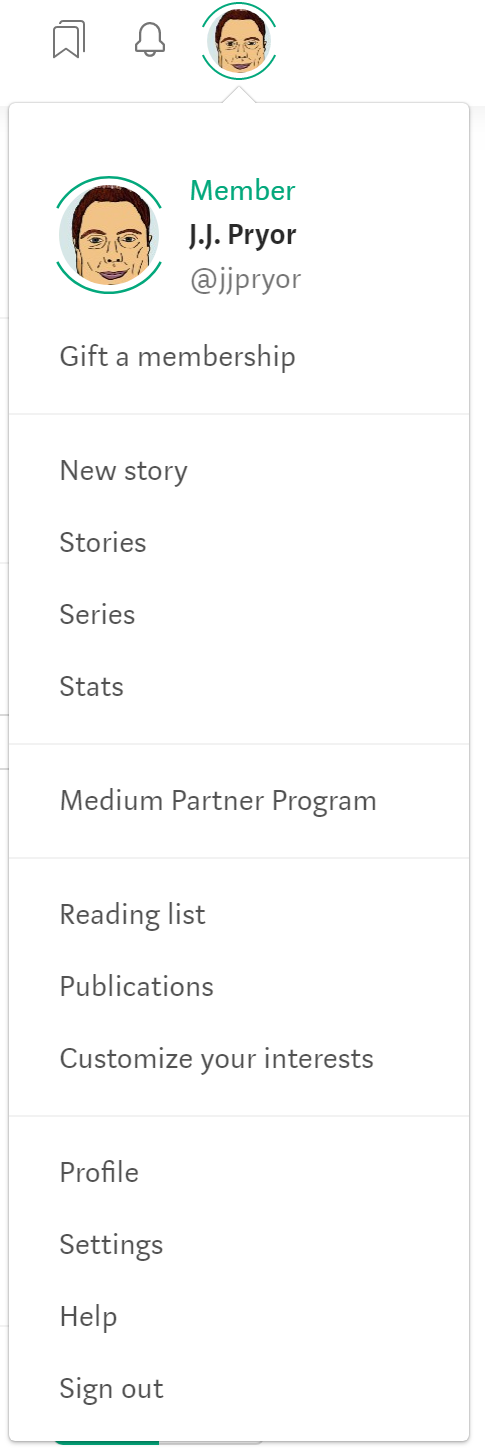
In the settings screen, scroll down to the ‘Account’ section, and click ‘Edit username’.
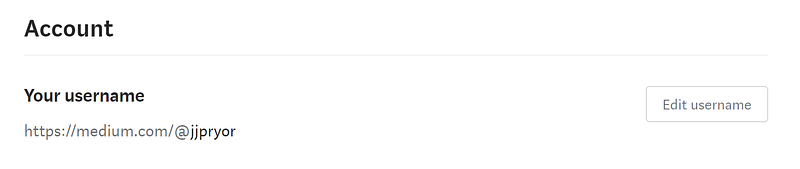
You can then change the ‘Medium.com/XXXXXXX’ part to show the same as your display name — thus making it easily searchable. Don’t miss out on those extra shares and views!
8. The stats page on Medium shows articles AND comments/responses
Since Medium classifies all posts, replies, and articles as ‘stories’ (sigh), they display their statistics all in one.
What do I mean? I made a reply the other day that has garnered 850+ views by now. I didn’t know the views were from a comment when I first saw that day’s view counts and thought I was about to make a few extra dollars that day.
I was wrong.
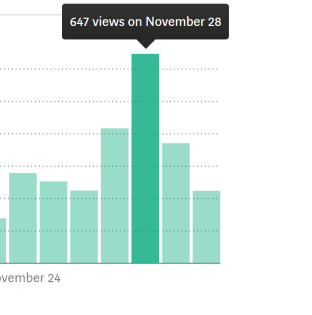
I only had something around ~200 article views that day and didn’t earn much (as usual).
So, if you comment regularly, keep an eye out on how many views, reads, and claps you get from it — it completely throws off the meaning of statistics if you’re trying to monitor how well your articles are doing.
If you don’t comment (I think you should!), then you have nothing to worry about — carry on as usual, citizen.
9. You can highlight your own articles to increase visibility
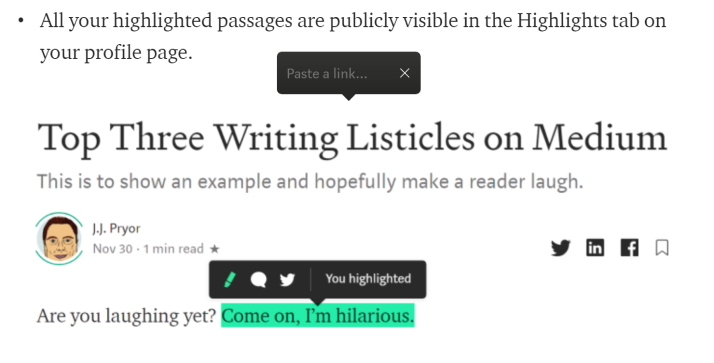
After you’ve finished publishing an article, you can go an view it to get a more outside-the-box kind of look at it. If you feel really strong about a particular sentence or phrase that you wrote, go in and highlight it!
As per an official post from Medium, these are the direct benefits of highlighting your article or someone else’s:
- Passages you highlight are visible to your followers and the author of the story on the story page.
- All your highlighted passages are publicly visible in the Highlights tab on your profile page.
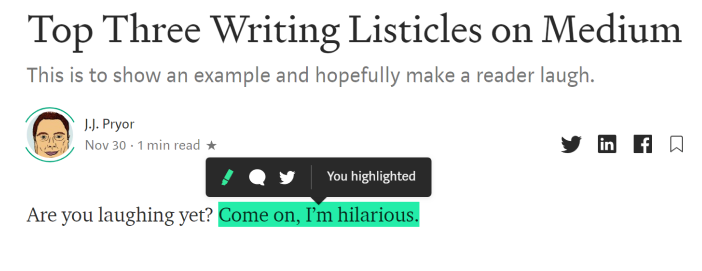
Doesn’t that humble statement look way prettier with a green highlight? Of course it does!
10. Your daily earnings report doesn’t show 100% of your real earnings
Medium changed the MPP earnings methods and reporting at the end of October. The reporting is now done daily instead of weekly, but that comes with its problems because the source of that payment is calculated monthly.
There are also additional potential earnings from non-members that view your articles and sign up within 30 days.
Some people have noticed ‘0 view earnings’ show up on some days, well after the initial article was posted. These are very likely to be the Medium algorithm adjusting the payments because of the above points on payment sources.
I’m still waiting to see if there’s a final boost after the end of the month and will post an update later. The bottom line, your daily earnings will probably be slightly higher later on in the month.
You can hyperlink your images
Did you notice anything about every single image I posted above? They all have a link embedded in them. If you click on any of the images, it will take you to the attached link.
This is pretty useful for those that want to share other peoples’ work and websites. It also helps make it easier for navigation if you have a big image instead of searching for a tiny underlined link somewhere.
To hyperlink an image in your story, be sure you’re in editing mode, then simply click an image, press ‘Ctrl + K’ at the same time, and paste your link.
Extra tip of the day: A shortcut for adding a source to your images is clicking the image then press ‘Ctrl + V’ — it saves time trying to find the little source box that shows up seemingly at random.
To see hundreds of more tips, tricks, tweaks, hacks, and whatever else the kids call them these days — please check out this extremely useful article!
That’s it for now! I hope the above is useful for everyone and assists you in getting better on the platform!
Have a wonderful day and check out my other deep dives, guides, and interesting articles with my free occasional newsletter!


