
Your iPhone Is the Best Scanner You Have — Digital Minimalism Series
Back in 2012, when our phones didn’t come with a high-quality camera, we used scanners to store the digital copies of our documents and pictures. Smartphones did advance their camera by increasing megapixels and improving exposure triangles, but the progress was slow.
I remember using a gigantic scanner and scanning my documents individually. The machine made funny noises, a whirring every time it turned on. I had a mixed feeling using that device; it felt both strange and satisfying.
When Apple introduced iPhone 6 and 6 plus, I realized how great iPhone cameras have gotten. As improvements continued, more apps came to the AppStore, which utilized iPhone’s cameras for many use cases; Scanning documents, AR, Dashcam replacement, and many more.
Most document scanning apps are functionally doing a decent job, yet they are either expensive (subscription model) or free but filled with advertisements invading our privacy.
Thankfully Apple introduced a native document scanner on iOS 11 and improved its accuracy with every iteration of iOS. In this story, I will explain how you can scan documents on your iPhone without the need to install any third-party apps.
Solution #1. Notes App
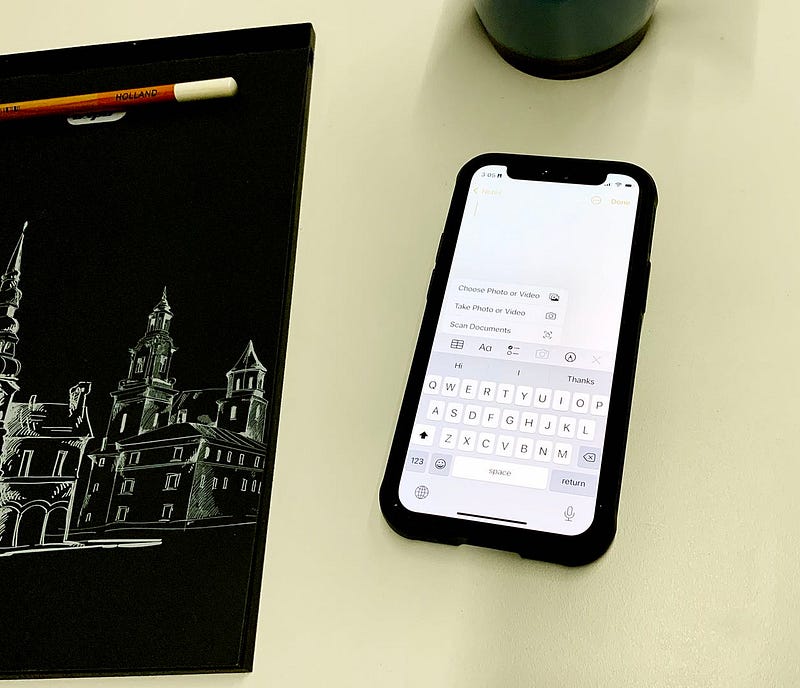
Apple’s default apps amaze us with plenty of features that most people are unaware such features exist. One of the use cases I have found within this app is storing my receipts whenever I buy something. I simply create a folder and name it “expenses,” then assign a tag to each note to organize them based on how much money I’ve spent on groceries and other goods.
Here is how you can scan a document using the Notes app:
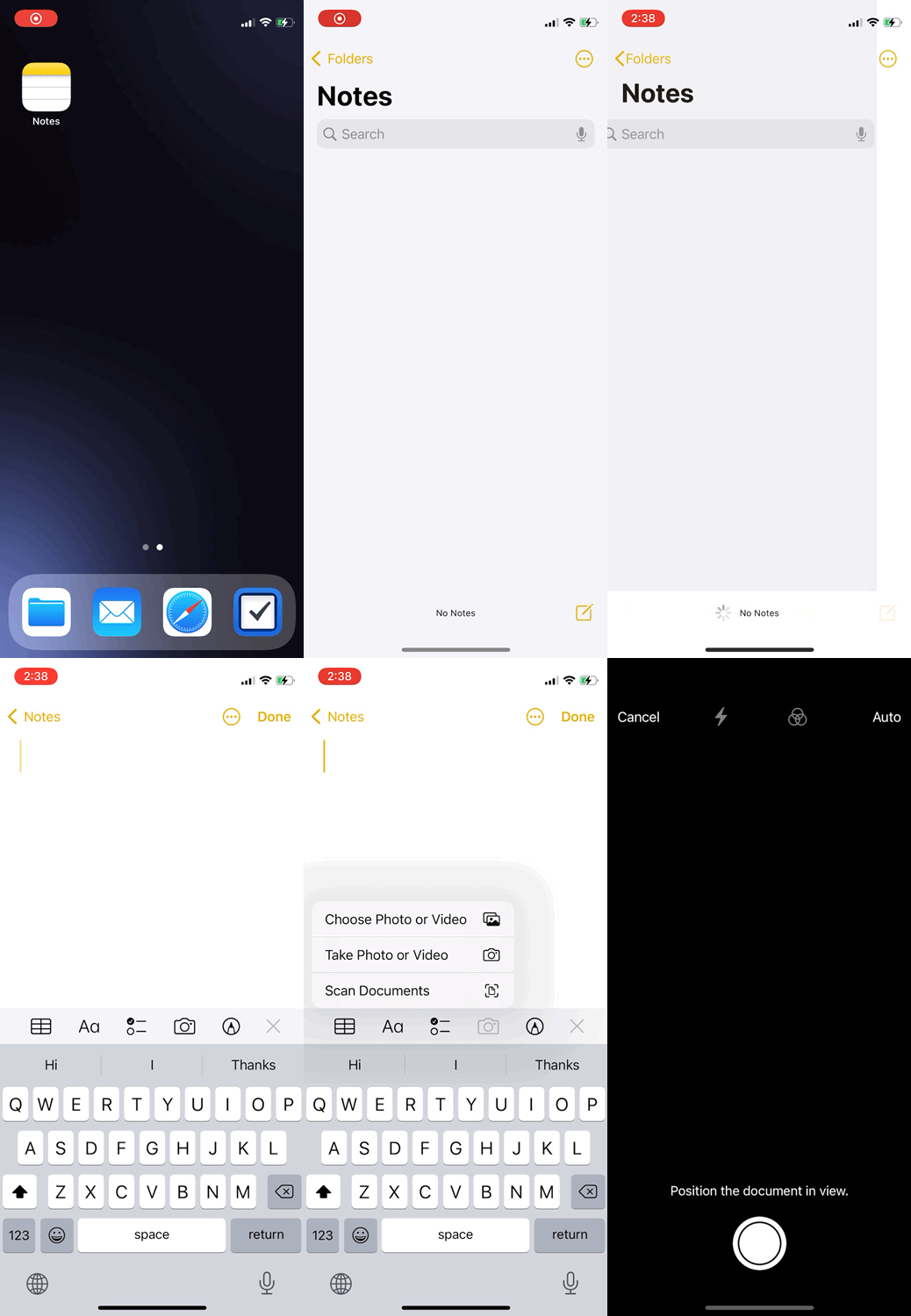
- Find the Notes app on your home screen
- Create a new note
- On top of your keyboard, tap on the camera icon
Solution #2. Files App
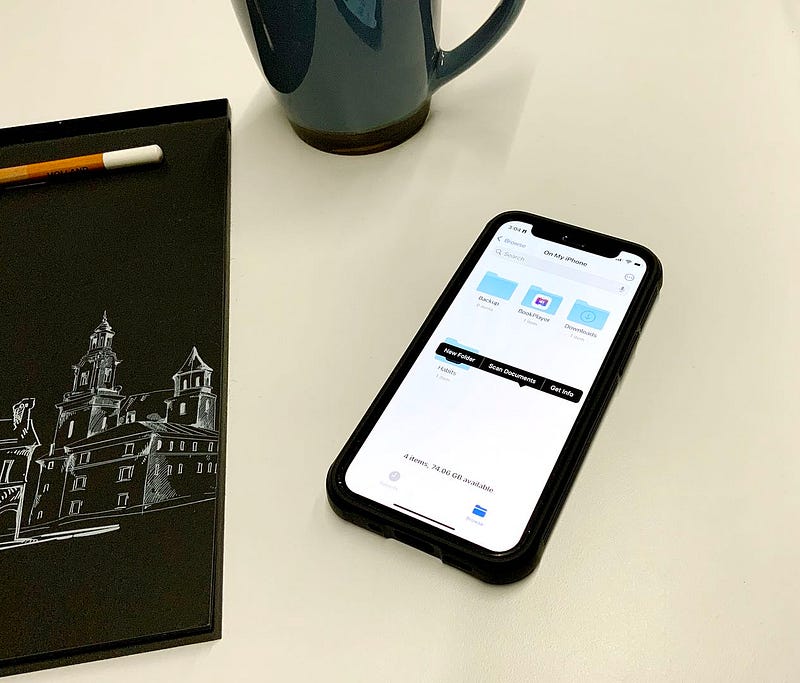
The default Files app might lack in many areas for professional users, but it comes with certain features most people need. One of which is scanning documents and saving them inside your local storage or within a cloud service.
Here is how you can scan a document using the Files app:
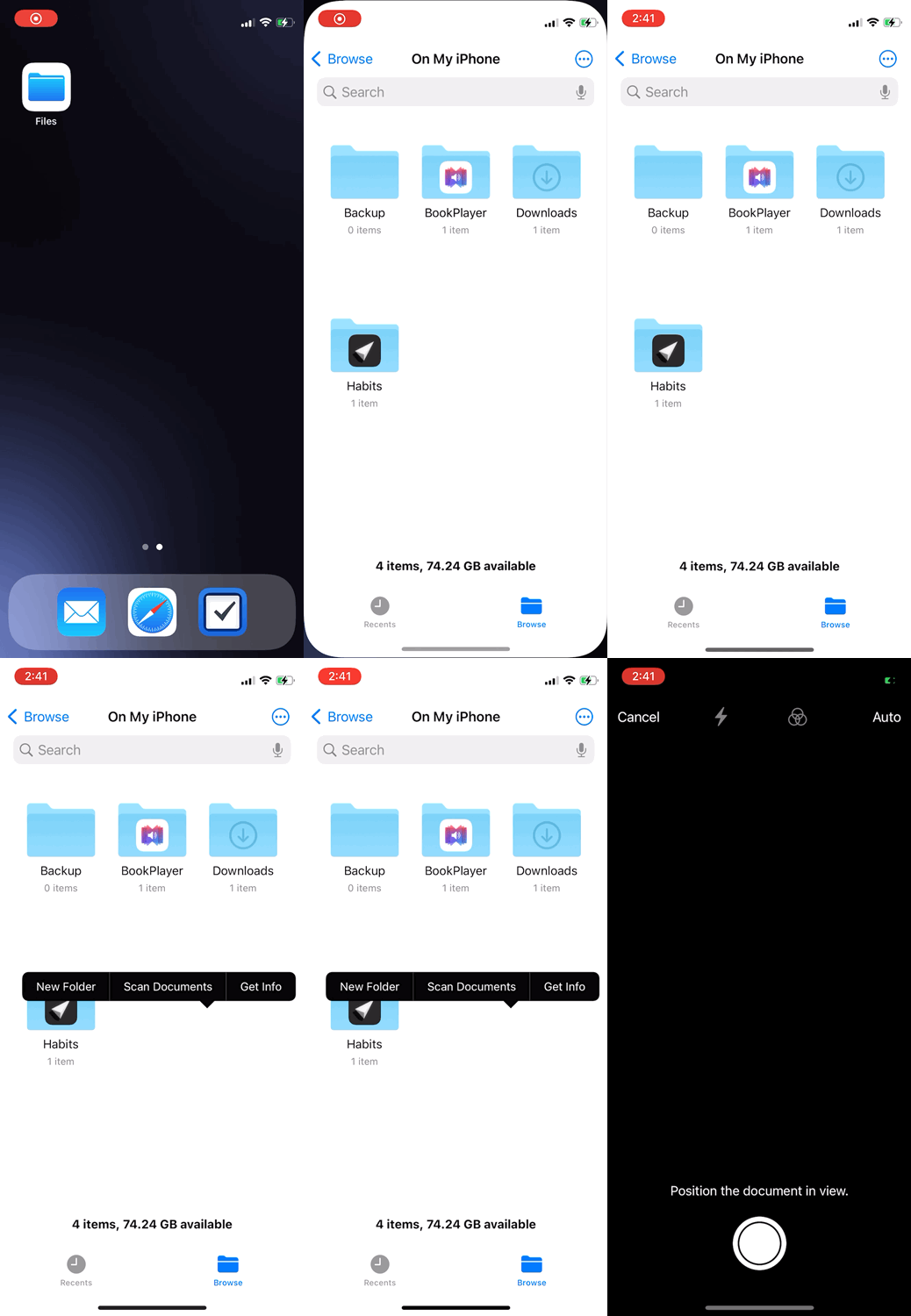
- Open the Files app
- Tap and hold on an empty space inside the app
- Tap on Scan Documents
Solution #3. Control Center
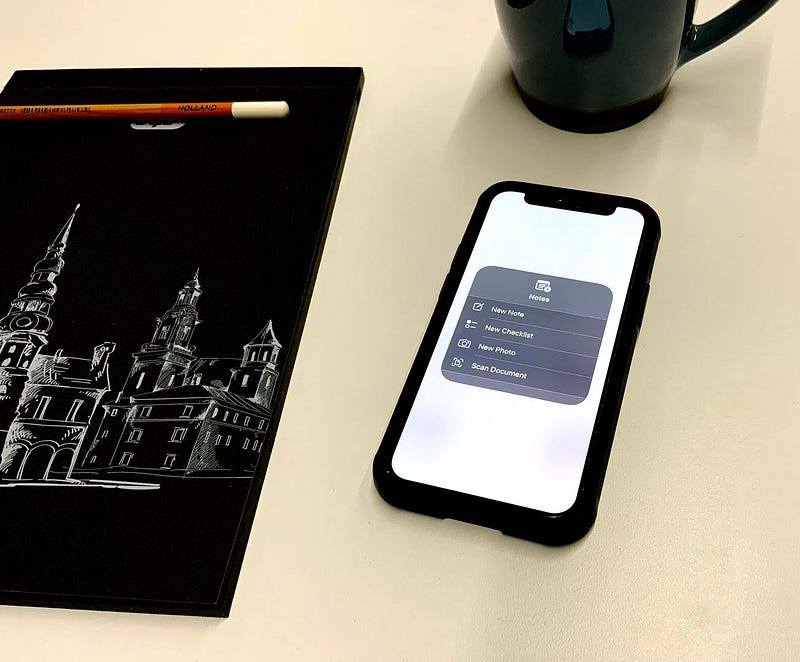
Apple’s default Notes app comes with a handy widget for your control center, allowing you to call document scanner quickly. You can call the scan feature from anywhere on your screen.
Here is how you can scan a document using the Notes app widget on your Control Center:
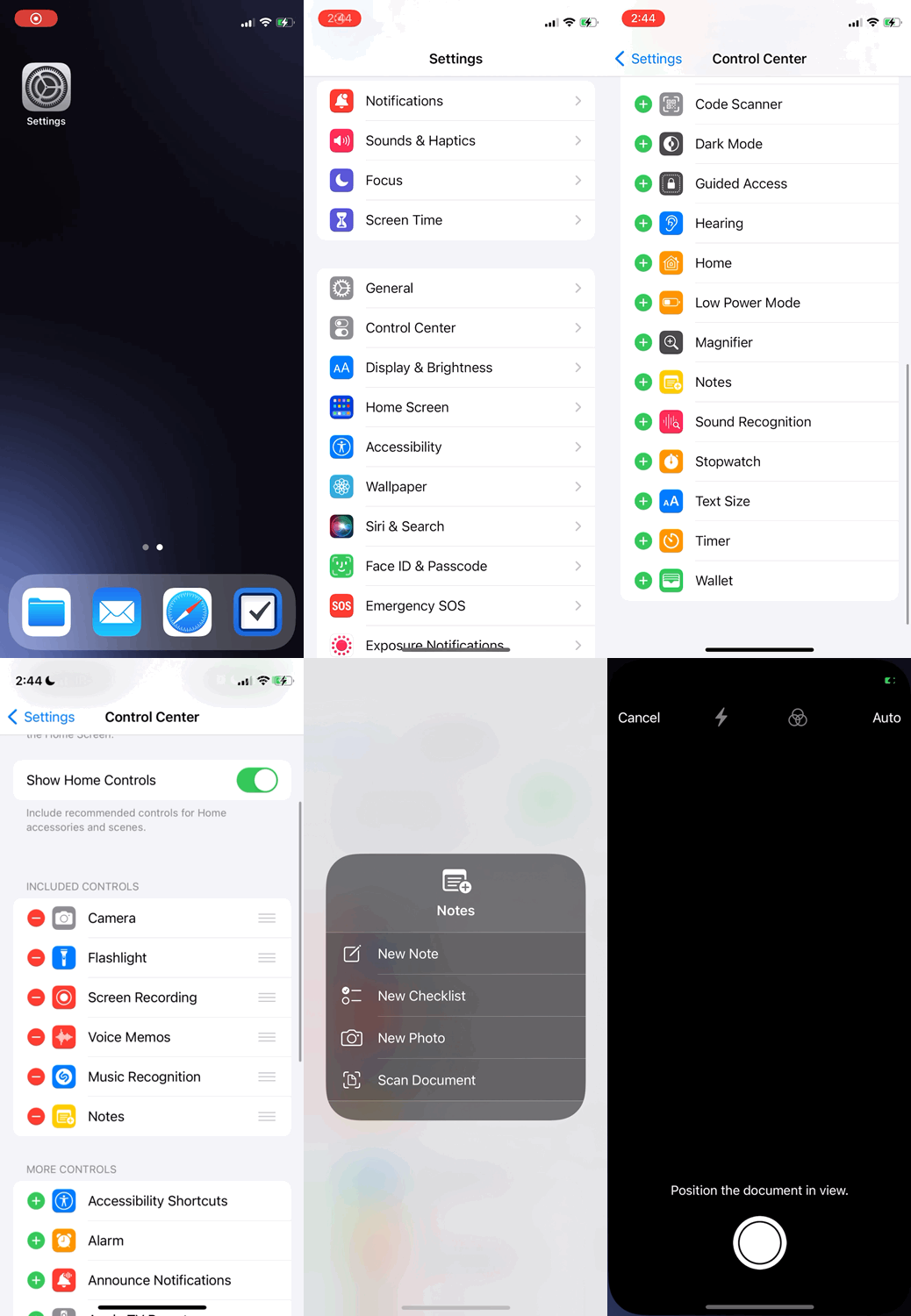
- Open Settings
- Tap on Control Center
- Scroll down and tap on Notes
- Open Control Center
- Tap and hold on the Notes widget
- Choose Scan Document
This story is focused on people who don’t want to clutter their iPhones with unnecessary apps. I use Digital Minimalism to help create a zen-like experience on my iPhone and other devices.
I hope you enjoyed reading this story. If you have any comments, and recommendations about scanning documents from an iPhone, let me know in the response section. I will be happy to read and talk about them.
I would appreciate it if you support me by becoming a Medium member using the link below:


