avatarAnshul Kummar

Free AI web copilot to create summaries, insights and extended knowledge, download it at here

2933

Abstract

/blockquote><p id="de1f">You may use it for conferences, people, equipment, or books you’ve read. There are countless options. They offer a query language similar to SQL, but you can also utilize JavaScript and Database.</p><p id="1195">There is so much that can be done with this plugin, and I have barely begun to do so.</p><h1 id="f931">3. Syntax highlight</h1><p id="3c60">If you’ve ever copied code into Obsidian, you might have noticed that it doesn’t read as well as it could.</p><p id="4a69">Editor <a href="https://github.com/deathau/cm-editor-syntax-highlight-obsidian">syntax highlight</a> significantly increases readability by altering the syntax highlighting according to the programming language you choose.</p><p id="c82c">It won’t take the place of Vscode any time soon, but if you’re anyone like me and use it as a type of development log when you’re trying to figure things out, and you include your final answer or the code into your note, then I believe that this is a must.</p><h1 id="06c2">4. Outlines.</h1><p id="47be">I used Roam research before I switched to Obsidian.</p><p id="337b">Even though my philosophical interests have moved on, the Roam research bulletin format is one of my favorites.</p><div id="b149" class="link-block"> <a href="https://readmedium.com/why-i-ditched-notion-and-started-using-roam-research-dc7a9a925e2f"> <div> <div> <h2>Why I Ditched Notion and Started Using Roam Research</h2> <div><h3>Notion is slow, but this isn’t the reason why I stopped using it.</h3></div> <div><p>medium.com</p></div> </div> <div> <div style="background-image: url(https://miro.readmedium.com/v2/resize:fit:320/1*t8I5hvGMgpxvG0I-VCRu0Q.png)"></div> </div> </div> </a> </div><p id="6cac">The same functionality is now available in Obsidian, thanks to <a href="https://github.com/vslinko/obsidian-outliner">Outliner</a>, so you can quickly move items up and down lists or indent and unindent text using keyboard keys.</p><p id="d3f4">It has substantially facilitated my move from Roam research.</p><h1 id="cb4a">5. Obsidian Publish.</h1><p id="7237">You may rapidly publish all of your notes, or just the ones you choose, to a specific domain with the help of <a href="https://github.com/ozntel/ozanshare-publish-plugin">Obsidian Publish</a>, a premium add-on for Obsidian.</p><p id="e302">I’ve successfully redirected it to a custom domain.</p><p id="f78b">But there’s something about Publish, and it only takes a few clicks to get from writing to publishing, which makes it much easier for me to learn in front of an audience.</p><p id="0e22">I highly value learning in public and cultivating a dynamic digital garden because it has been crucial to my career and personal growth.</p><p id="3d21" type="7">So without a doubt, my fa

Options

vorite Obsidian plugin is Obsidian Publish.</p><p id="f9e8">Please let me know in the comments if you’d like to learn more about my experience with any of the plugins I discussed.</p><p id="035e">Check out <a href="undefined">Valerie</a> for some interesting stories on Obsidian. Here is one of them.</p><div id="81a3" class="link-block"> <a href="https://readmedium.com/a-beginners-guide-to-creating-a-medium-knowledge-base-in-obsidian-ab7c4cc06b3b"> <div> <div> <h2>A Beginner’s Guide to Creating a Medium Knowledge Base in Obsidian</h2> <div><h3>Save all your articles and notes in one place, find connections, and get inspired.</h3></div> <div><p>medium.com</p></div> </div> <div> <div style="background-image: url(https://miro.readmedium.com/v2/resize:fit:320/1*21Cg0aBD6GQH2TBZX6e9rg.png)"></div> </div> </div> </a> </div><h1 id="c11e">More Related Stories:</h1><div id="5266" class="link-block"> <a href="https://readmedium.com/everything-i-knew-about-productivity-was-a-lie-42894e864047"> <div> <div> <h2>Everything I Knew About Productivity Was a Lie</h2> <div><h3>Forget everything you know about productivity, and read this</h3></div> <div><p>medium.com</p></div> </div> <div> <div style="background-image: url(https://miro.readmedium.com/v2/resize:fit:320/0*U4o9qL-It9wGJvBH.jpeg)"></div> </div> </div> </a> </div><div id="851a" class="link-block"> <a href="https://readmedium.com/3-incredible-productivity-tools-i-use-every-day-in-2022-8bf0fc32691d"> <div> <div> <h2>3 Incredible Productivity Tools I Use Every Day in 2022</h2> <div><h3>The only recipe for motivation is persistence, hard work, & belief.</h3></div> <div><p>medium.com</p></div> </div> <div> <div style="background-image: url(https://miro.readmedium.com/v2/resize:fit:320/1*3Zdviv1a1bDVjYRpiF1qrA.jpeg)"></div> </div> </div> </a> </div><blockquote id="175a"><p><b><i>Follow me on <a href="https://twitter.com/k31091632_kumar">Twitter</a></i></b></p></blockquote><blockquote id="cb59"><p><b><i>Get all my upcoming stories directly to your inbox. <a href="https://medium.com/subscribe/@wordsmithwriter">Signup</a></i></b></p></blockquote><blockquote id="2c20"><p><b><i>Feel free to become a member for full access to my content — and the entire Medium library! In addition, I’ll earn a small commission if you sign up through <a href="https://medium.com/@wordsmithwriter/membership">my link</a>.</i></b></p></blockquote></article></body>

You Should Try These 5 Obsidian Community Plugins in 2022

Simplicity always equals high performance.
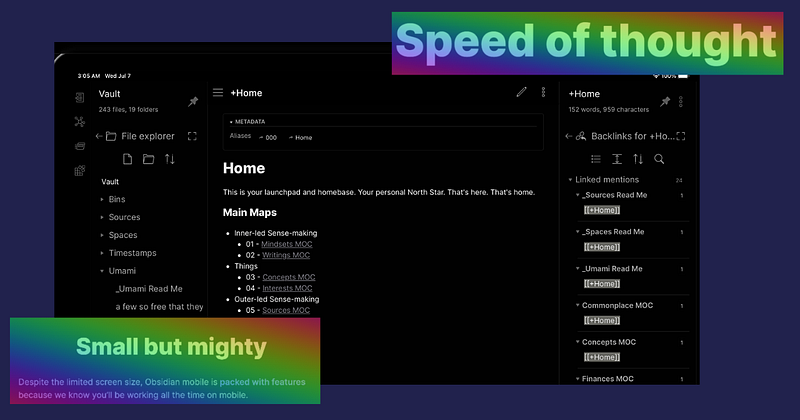
Created on Canva — images from Obsidian website

I wouldn’t say I liked using Obsidian when I initially tried it. It didn’t appear to be easy to utilize.

I couldn’t quite make it accomplish what I wanted, and to be honest, I didn’t get the buzz.

I currently have more than 100 notes spread throughout several Obsidian vaults.

So what changed?

I was missing a crucial component of the experience the first time, and that component was Obsidian plugins.

To help you avoid making the same mistake, I have compiled a list of the top 5 community plugins for Obsidian.

Some of the core plugins that come with Obsidian are already turned on by default. In this article, I’ll discuss community plugins, which are add-ons for Obsidian made by other users.

Table of Contents.

· 1. Calendar · 2. Data View · 3. Syntax highlight · 4. Outlines. · 5. Obsidian Publish. · More Related Stories:

1. Calendar

There is a good reason why the Calendar plugin is the most downloaded in the Obsidian plugin directory right now.

It provides a clickable calendar view in your sidebar to switch between dates for your daily notes quickly.

Click on a date in the calendar view to advance to that day. If the date hasn’t been set, you’ll be prompted to add a new Daily Note in the proper spot.

The Calendar plugin is required if you plan to use Daily Notes in Obsidian. It’s that simple.

In Obsidian, I’ve used a “fantasy calendar” as my content calendar.

Although I install and use both frequently, it only offers a little more customization than the Calendar plugin can.

2. Data View

Data view has altered my use of Obsidian. For example, I now format my notes differently.

It enables you to declare parameters and values in your documents’ YAML front matter or metadata, making them searchable.

It enables you to build your database in Obsidian with any customization options you desire.

You may use it for conferences, people, equipment, or books you’ve read. There are countless options. They offer a query language similar to SQL, but you can also utilize JavaScript and Database.

There is so much that can be done with this plugin, and I have barely begun to do so.

3. Syntax highlight

If you’ve ever copied code into Obsidian, you might have noticed that it doesn’t read as well as it could.

Editor syntax highlight significantly increases readability by altering the syntax highlighting according to the programming language you choose.

It won’t take the place of Vscode any time soon, but if you’re anyone like me and use it as a type of development log when you’re trying to figure things out, and you include your final answer or the code into your note, then I believe that this is a must.

4. Outlines.

I used Roam research before I switched to Obsidian.

Even though my philosophical interests have moved on, the Roam research bulletin format is one of my favorites.

The same functionality is now available in Obsidian, thanks to Outliner, so you can quickly move items up and down lists or indent and unindent text using keyboard keys.

It has substantially facilitated my move from Roam research.

5. Obsidian Publish.

You may rapidly publish all of your notes, or just the ones you choose, to a specific domain with the help of Obsidian Publish, a premium add-on for Obsidian.

I’ve successfully redirected it to a custom domain.

But there’s something about Publish, and it only takes a few clicks to get from writing to publishing, which makes it much easier for me to learn in front of an audience.

I highly value learning in public and cultivating a dynamic digital garden because it has been crucial to my career and personal growth.

So without a doubt, my favorite Obsidian plugin is Obsidian Publish.

Please let me know in the comments if you’d like to learn more about my experience with any of the plugins I discussed.

Check out Valerie for some interesting stories on Obsidian. Here is one of them.

More Related Stories:

Follow me on Twitter

Get all my upcoming stories directly to your inbox. Signup

Feel free to become a member for full access to my content — and the entire Medium library! In addition, I’ll earn a small commission if you sign up through my link.

Productivity
Programming
Notetaking
Backlink
Technology
Recommended from ReadMedium