
You May Lose All Your Medium Stories and Drafts
Know how to safeguard your hard work by backing them up regularly.

How would you feel if one day you visit Medium and find out all your Medium articles are wiped out. What if — to add to the mess, unfortunately, there is no way for you to recover them?
It happened to me recently. When I visited my ‘stories’ page on the Medium website, I was shocked to find a blank ‘Draft’ and ‘Published’ story tabs.
That said — your data can be wiped out for many reasons. It might be simply due to a technical error on Medium, or someone hacked into Medium storage and now wants ransom to release the articles. Hacking into accounts or storage of big corporates and asking money to release the data are more common than you might think.
How Does It Look When All Your Articles Are Wiped Out?
Here is a glimpse of how it would look if all your data gets wiped out. I had taken these screenshots when it happened to me.
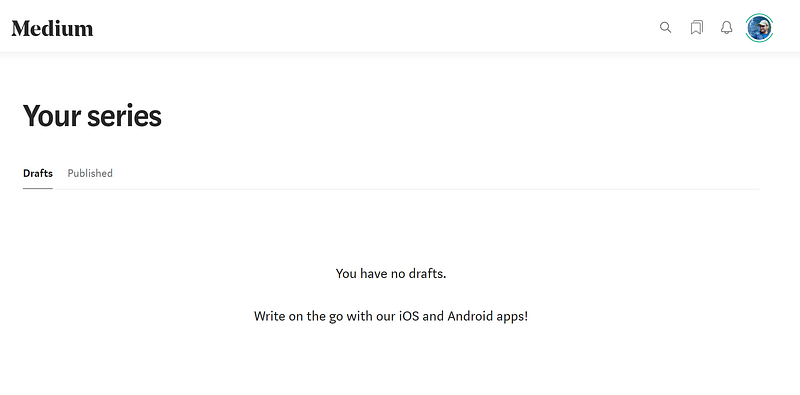
All my drafts vanished. As shown in the screenshot above, I was greeted with a blank page with a message, ‘You have no drafts.’.
I was utterly shocked. To verify further, I clicked on the ‘Published’ tab, and it was no better there.
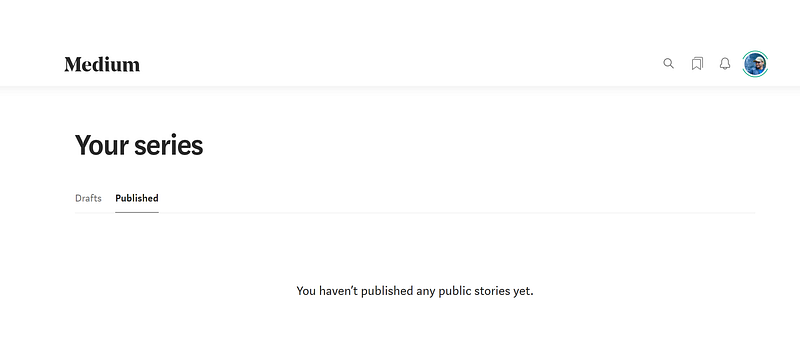
I was greeted with a similar message, ‘You have not published any public stories yet.’. It was a terrifying moment.
What Can You Do in Such Case?
You can do nothing if your data is completely wiped out and not recoverable.
But there are many ways to safeguard your account as well as the data before it happens. Companies spend a massive amount of money on protecting their data centers and storage from any security breach. Still, there is no 100% guarantee that someone would not find a way to break through them.
Hence, you should copy your data to someplace secure. Keeping an offline backup of your data is one of the safest ways to recover them if you lose all your online copies.
Medium provides options for every writer to download the complete set of data that is available on the platform. The download includes your published stories, drafts, profile details, your claps and comments, and much more information.
To download your entire data, follow the below steps, and you will be all set with your offline copy in no time.
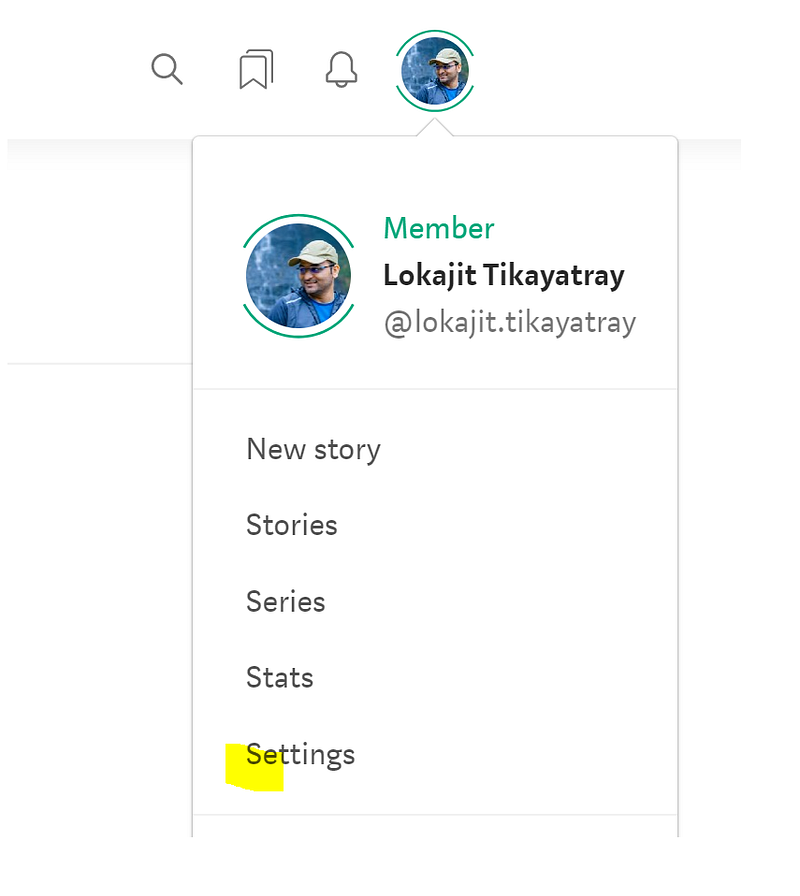
- Go to the Medium website in any browser and log in to your account. Click on your profile icon and go to the ‘Settings’ menu.
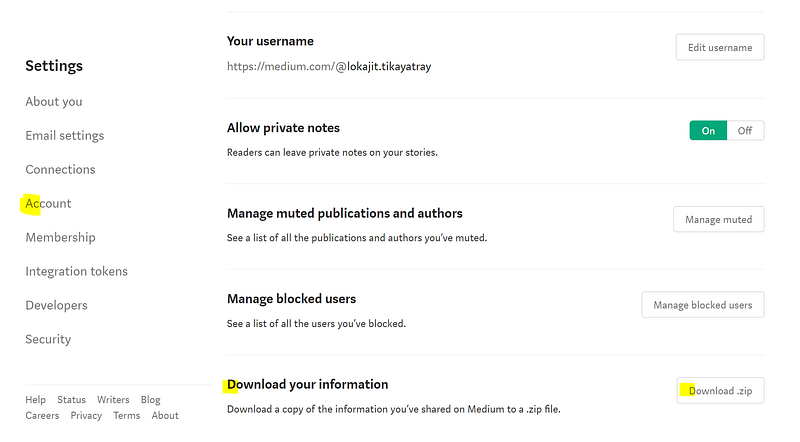
2. On the ‘Settings’ page, click on the ‘Account’ option on the left side of the page. You can now see the ‘Download your information’ option, and against it, there will be a button labeled ‘Download .zip’.
3. Click on the ‘Download .zip’ button. It will take you to the page shown below.
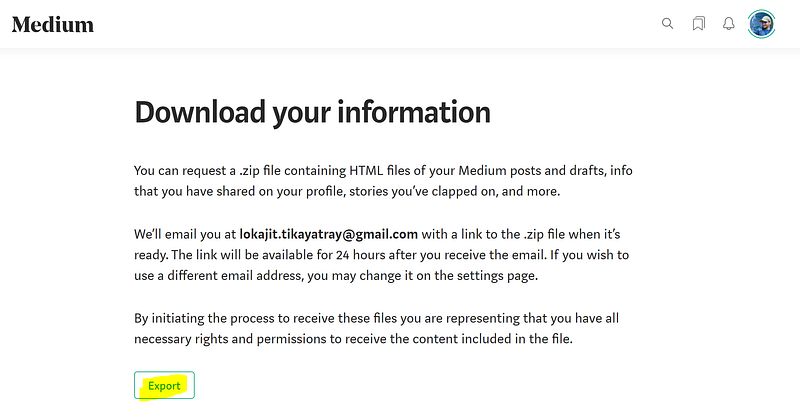
4. Click on the ‘Export’ button on the above-shown page. Once you complete these steps, it will take few minutes for Medium to archive your entire data into a .zip file.
5. When ready, Medium will send an email with the link to download your data. The archive will be available for 24 hours on the link for you to download to your local system.
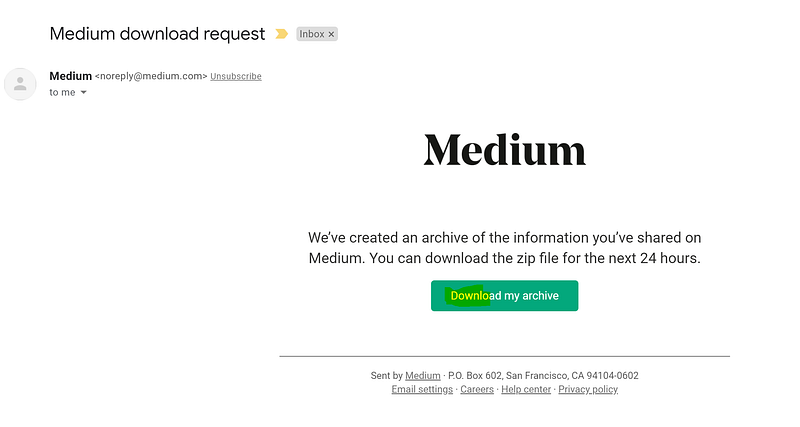
6. When you click on the ‘Download my archive’ button in the mail sent by Medium, your file will start downloading to your local system. The completed download file name will be something similar to ‘medium-export.zip’.
Now you can unzip the ‘medium-export.zip’ file and retrieve your data. You can see all your posts, including the published and unpublished stories, under the ‘medium-export.zip\posts’ folder.
Published stories, unpublished drafts, and all your comments will be in the same folder. Stories will be named starting with ‘Date of the publication_*’. Draft files will be named starting with ‘Draft_*’.
There is much more information about you in the download file. Now you can open all the folders to find out how much of your data is available with Medium.
That’s all you have to do to take your entire data and keep an offline copy. It takes two minutes to complete the whole process. Do it today and save yourself from heartburn later, in case you lose all your data from the Medium website.
It is highly advisable to take the back up at regular intervals. If you ever lose your data, then you can now restore them from the offline copy.
Thanks for reading the article. I hope the steps are helpful to you.
You might also like to read:


