
Writing HTML with accessibility in mind
An introduction to web accessibility. Tips on how to improve your markup and provide users with more and betters ways to navigate and interact with your site.
If you don’t want to read the preface, jump right to the tips.
This article is also available in Russian, thanks to Workafrolic, Korean, thanks to Yongui, in Portuguese, thanks to EmanuelG, and in Spanish, thanks to “Ibidem Group”.
Personal development and change in perspective
When I made my first website my highest priority was to get content online. I didn’t care much about usability, accessibility, performance, UX or browser compatibility. Why would I? I made a robust table based layout and I offered a 800×600 and a 1024×768 version of my site. On top of that, I informed users that the website was optimized for Internet Explorer 5.
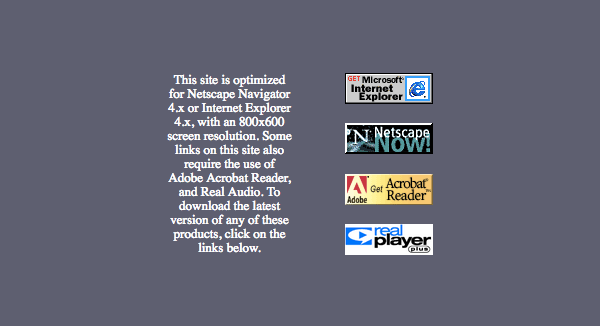
This was of course before I started to work professionally as a web designer and my perspective in what was important changed. Years later, instead of dictating the requirements for my websites, I started to optimize them for all major browsers. Beginning with Ethan Marcotte’s game changing article I started caring about devices as well. Making websites for all kinds or browsers and devices is great, but pretty much useless if the websites are too slow. So I learned everything about critical CSS, speed indices, font loading, CDNs and so on.
Getting started with accessibility (a11y)
Recently my perspective has changed again and I realized that making a fast, responsive website that works in older browsers isn’t enough if e.g. it isn’t navigable via keyboard. But accessibility isn’t just yet another item on our to-do list to cross off before we launch our website. Accessibility is the foundation of what we do as web designers and web developers and it’s our obligation to treat it as such.
I spent the last few months reading, listening and talking about web accessibility. It took me some time to get my head around a few things and I’m still at the beginning, but the more I learn the more I’m surprised how much I can do right now without having to learn anything completely new.
I’ve expanded my knowledge of HTML, CSS, and JavaScript, but the most important thing I’ve learned is that accessibility isn’t just a medical term that only applies to a certain percentage of people. Accessibility is something that concerns all of us, you and me, every day. What we create is useless if it isn’t accessible.
In this series of articles, I want to share some of my newly acquired knowledge with you. You shouldn’t treat the tips I’m going to give you as a check list but as a starting point. Incorporating these techniques into your workflow will get you started with accessibility and hopefully motivate you to learn and care more about your users.
Without further ado, here are my accessibility tips:
It’s important to define the natural language of your document
Telling the browser which language you are using in your document has many benefits. It’s good for SEO, it helps third-party translation tools and browsers to identify the right language and dictionary. Defining the correct language in an HTML page helps assistive technology to choose the correct voice profile or character set.(1) Adrian Roselli has gathered some more benefits of using the lang attribute on his website.
<html lang="en">
    …
</html>
Watch a demonstration of the lang attribute in use on YouTube.
If you switch language within a document you can use the lang attribute on specific tags.(2)
<p>There is a certain <i lang="fr" class="idiomatic">je ne sais quoi</i> in the air.</p>Make sure to always define the right language. Steve Faulkner made a video that illustrates what happens if you don’t use the lang attribute correctly. All language codes are listed in the IANA Language Subtag Registry.
You can hide content using the hidden attribute
If you want to hide content visually and from screen readers, use the hidden attribute.
Browser support for the hidden attribute is very good, except for IE 10 and lower. You can provide support for older browsers if you add this fallback to your CSS.
[hidden] {
   display: none;
}
Sometimes it’s better to add a blank alt attribute to an <img> element
If an image is used as content, apply the alt attribute to describe the images content and function succinctly. When you do that don't start with „Picture/Image/Graphic of…“, because the screen reader does that anyway.
If the image is purely decorative or doesn’t add valuable information, consider embedding it with CSS as a background image. If you have/want to add it in HTML, don’t remove the alt attribute, but leave it empty.(3)
<img src="decorative_image.jpg" alt="" />It’s important that you don’t omit the alt attribute.
Omitting this attribute altogether indicates that the image is a key part of the content, and no textual equivalent is available. Setting this attribute to an empty string (alt=””) indicates that this image is not a key part of the content and that non-visual browsers may omit it from rendering. https://developer.mozilla.org/en-US/docs/Web/HTML/Element/img
There are some more tips on using the alt attribute on the The A11y Project page „Quick Tip: Using alt Text Properly “.
If you need a button, use the <button> element
In general, you should always favor native HTML elements, if there is one, over faking your own. For example, if you need a button, use the <button> element and not a <div>.
Buttons have many benefits/crucial features, for example:
- Focusable
- Clickable (with mouse and keys)
- Screen readers identify them as buttons
Rob Dodson did a really great job explaining the benefits of an actual <button> over a <div>. Watch the A11ycasts episode „Just use button“ for more details and examples.
If you are not sure whether to use a button or a link, read Marcy Suttons post „Links vs. Buttons in Modern Web Applications“.
Structuring your markup correctly with headings is important
By creating a sound outline using headings <h1> - <h6> you are helping users to better understand the structure of your page and relationships between individual sections. On top of that, it will help users with assistive technology navigate. Screen readers provide different ways of moving from one piece of content to another. For example using the NVDA screen reader users can jump from heading to heading with shortcuts (H and Shift + H).
When you nest headings skipping levels should be avoided.(4) Also, don’t use multiple nested <h1> elements to create the outline. Adrian Roselli explains why in his articles There Is No Document Outline Algorithm and The Truth about “The Truth About Multiple H1 Tags”.
<!-- Don't skip levels: -->
<body>
    <h1>My website</h1>
    <h4>Heading</h4>
        <h2>Subheading</h2>
    <h3>Heading</h3>
</body>
<!-- Don't rely on inexistent outline algorithms: -->
<body>
<h1>My website</h1>
<section>
<h1>Heading</h1>
<section>
<h1>Subheading</h1>
</section>
</section>
<section>
<h1>Heading</h1>
</section>
</body><!-- Do this: -->
<body>
<h1>My website</h1>
<h2>Heading</h2>
<h3>Subheading</h3>
<h2>Heading</h2>
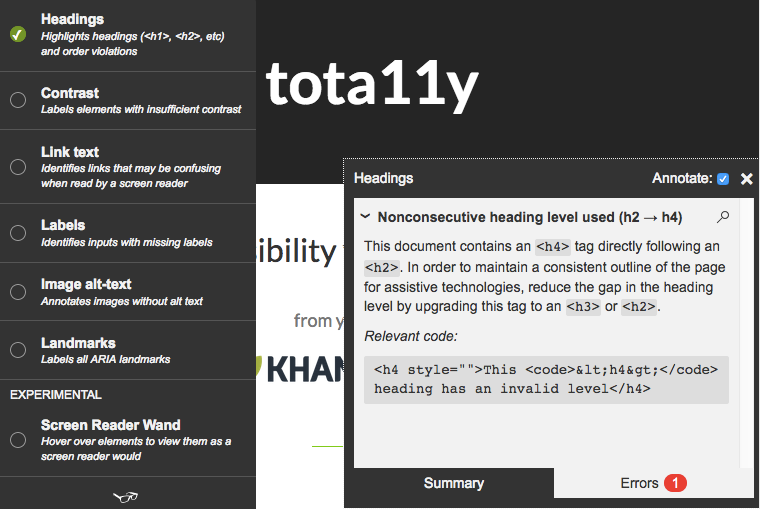
</body>tota11y provides a nice way of checking if your outline is persistent. Another way is to disable CSS and check if the page is readable and the structure makes sense.
Using landmarks helps people navigate your site
It is possible and advised to mark up thematic sections with HTML5 (<article>, <aside>, <nav>, <section>). You can also use WAI-ARIA role attributes for older browsers or sections that don't have an explicit tag like search.(5) Sectioning elements are not a replacement for the <div> element. Use them to mark up bigger chunks of related content which are distinct from other content. Don't overuse sectioning elements. Use <div> for CSS/JS only purposes and sections for semantics.
One of the main benefits is that screen reader users will be able to navigate pages by jumping from section to section. These navigable sections are called landmarks.(7) Watch a demonstration of landmark navigation on YouTube.
<body>
  <header> <!-- landmark -->
    <nav> <!-- landmark -->
      ...
    </nav>
</header> <aside> <!-- landmark -->
</aside>
</body>You can simulate the feature of jumping from landmark to landmark with a browser extension called Landmarks. Press Alt + Shift + N to move to the next and Alt + Shift + P to move to the previous landmark.
If you want to learn more about sections, check out the Web Accessibility Tutorials page about sections.
Please note that not all software will treat every potential landmark as such.
The main page content, header, and footer are also landmarks
By wrapping the main content of your site in a <main> element you give some screen users the ability to jump directly to your main content using a shortcut. „The main element represents the main content section of the body of a document or application“ and must not be used more than once per document (5).
As already stated splitting up your content into landmarks is a good thing. <header> and <footer> behave in all major browsers like landmarks if they are not nested in a <section> or <article> element. If you need support for older browsers, you can turn your main site header and footer into landmarks using the role attribute with the values banner for the header and contentinfo for the footer.(6)
<!-- The extra role attributes are only important for older browsers -->
<body>
<header role="banner">
<h1>My personal blog</h1>
</header>
<main>
<section>
<h2>Blog posts</h2>
....
</section>
</main>
<footer role="contentinfo">
© 2016 Me
</footer>
</body>Fieldsets are great for grouping form elements and giving them more context
You’ve probably been at the point where you had to add several radio buttons or checkboxes to a form. Adding the form elements and the corresponding labels usually isn’t a big deal. But which element do you choose, if you want to label the whole group of radio buttons or checkboxes?
<form>
  Shirt size
  <input type="radio" id="s" name="shirtsize" />
  <label for="s">S</label>
  <input type="radio" id="m" name="shirtsize" />
  <label for="m">M</label>
  <input type="radio" id="l" name="shirtsize" />
  <label for="l">L</label>
</form>
How do you mark up Shirt size? A <p> will probably work, but it isn't associated with the group of radio buttons.
A much better approach is to wrap everything in a fieldset and put T-Shirt size in a <legend> tag. Screen readers will know that <legend> is associated with the radio buttons and read out its value whenever a radio button is selected.
<form>
  <fieldset>
    <legend>T-Shirt size</legend>
    <input type="radio" id="s" name="shirtsize" />
    <label for="s">S</label>
    <input type="radio" id="m" name="shirtsize" />
    <label for="m">M</label>
    <input type="radio" id="l" name="shirtsize" />
    <label for="l">L</label>
  </fieldset>
</form>
Like with <section> be considerate when wrapping form elements in fieldsets. As a rule of thumb only use <fieldset> if you have multiple form elements that form a group and a corresponding label for that group, something that fits in a <legend>.
Going beyond
That’s it for now. I hope that these tips will help you write more accessible HTML. A big thanks to Heydon Pickering, because his book „Inclusive Front-End Design Patterns” built the foundation of most of the stuff that you’ve just read. If you want to learn more about accessibility and inclusive design I highly suggest you read his book.
More accessibility tips
This article is the first one in a series of four. The last two articles are in the works and soon to be released.
- Writing HTML with accessibility in mind
- Writing JavaScript with accessibility in mind
- Writing CSS with accessibility in mind
- Up next: Learn how to design and develop with accessibility in mind
Thank you for reading and please don’t forget to like and share this article if you enjoyed it.
While I work on the next post, you can check out some other stuff I wrote:
As always thanks to Eva for proofreading my writing.
(1) Pickering, Heydon; Inclusive Design Patterns, p.5 (2) w3.org Wiki — i element (3) WebAIM — Alternative Text (4) Web Accessibility Tutorials — Headings (5) WAI-ARIA — main (role) (6) Using navigation landmarks (7) Landmarks must identify content regions
A List Apart (ISSN: 1534–0295) explores the design, development, and meaning of web content, with a special focus on web standards and best practices.


