avatarMarie A. Rebelle

Free AI web copilot to create summaries, insights and extended knowledge, download it at here

2685

Abstract

ree sizes, and what I mostly choose. Back when I just started sharing my photography, most of my single images had this size. I actually went back to <a href="https://medium.com/@marierebelle/list/photography-94f5c193e97f">all my photography posts</a> and adjusted the sizes.</p><p id="597d">I find the third choice — see below — totally overwhelming, and barely ever use it.</p><figure id="fe37"><img src="https://cdn-images-1.readmedium.com/v2/resize:fit:800/1*LRFndpQlGi8jpB8OeMokFg.jpeg"><figcaption>This is just a bit too much of me, don’t you think? — © Marie A. Rebelle</figcaption></figure><p id="415d"><b>Did you know you can also add more than one image?</b></p><p id="3a2f">With your cursor on a new blank line, click the plus to see this context menu:</p><figure id="67e1"><img src="https://cdn-images-1.readmedium.com/v2/resize:fit:800/1*dStxjs0GGKAU-aSlko7-UA.png"><figcaption></figcaption></figure><p id="214e">Adding more than one image only works when you add an image from your computer, so the first icon in the above context menu.</p><p id="7c67">So, to add those images, click the first green icon, and on your computer go to the folder from where you want to add your images. Hold down CTRL, and one after the other, click the images you want to add.</p><p id="c171">Please note: this does not work when you click the second icon in the above context menu to add an image from Unsplash.</p><p id="c258">Adding more than one image, you cannot choose the image size, as Medium defaults them depending on the number of images you add.</p><p id="7ac8">When you add two or three images, Medium places them next to each other.</p><figure id="ea6c"><img src="https://cdn-images-1.readmedium.com/v2/resize:fit:800/1*yMJn_5DDMcq5q-kFxfyirA.jpeg"><figcaption></figcaption></figure><figure id="46ca"><img src="https://cdn-images-1.readmedium.com/v2/resize:fit:800/1*20nOM794AU3jwdYWfMrSjg.jpeg"><figcaption>Prairie dogs — © Marie A. Rebelle</figcaption></figure><p id="7446">When you add over three images, Medium puts them in a mosaic depending on how many images you add at the same time, and whether the layout of the image is portrait or landscape.</p><figure id="4934"><img src="https://cdn-images-1.readmedium.com/v2/resize:fit:800/1*rySa1S0TeK46U7f4htMOXg.jpeg"><figcaption></figcaption></figure><figure id="f22e"><img src="https://cdn-images-1.readmedium.com/v2/resize:fit:800/1*v8tKzgrfKDaEVABhimKX7g.jpeg"><figcaption></figcaption></figure><figure id="7bf1"><img src="https://cdn-images-1.readmedium.com/v2/resize:fit:800/1*LRFndpQlGi8jpB8OeMokFg.jpeg"><figcaption></figcaption></figure><figure id="4c22"><img src="https://cdn-images-1.readmedium.com/v2/resize:fit

Options

:800/1*yMJn_5DDMcq5q-kFxfyirA.jpeg"><figcaption></figcaption></figure><figure id="fbb4"><img src="https://cdn-images-1.readmedium.com/v2/resize:fit:800/1*20nOM794AU3jwdYWfMrSjg.jpeg"><figcaption>Prairie dogs — © Marie A. Rebelle</figcaption></figure><p id="789b">Now you might have seen that there is a fourth option in the context menu to choose an image size. That option says: <i>Alt text.</i></p><p id="6938">When you click that, you can add a description of the image, so when the image fails to load, the description appears on the screen. The alt text also helps screen-reading tools to describe the images to visually impaired readers.</p><p id="7222">This is one place where Medium can improve, as you can only add the alt text to single images.</p><h2 id="e52a">To recap:</h2><ol><li>When you add a single image, click on the image and decide on the size of the image (the longest side of your image must be at least 1200px.</li><li>If you want to add more than one image, hold down CTRL, click all the images and then add. Your images will appear in the same order of their names (alphabetically). If you want to have them added in a specific order, remember to change the names, or add numbers at the front of the names.</li><li>Always attribute your images — to get the copyright symbol at the bottom, use the key combination Ctrl+Alt+C (On Mac it’s Option + G).</li><li>Remember to add the alt text to your images (I need to be better with this).</li><li>Once an article is published, no matter the image size, all images are clickable and will display on the screen, considering the screen size.</li></ol><p id="525d">Since the image size option is back, I will start sharing my photography again!</p><div id="b131" class="link-block"> <a href="https://readmedium.com/take-the-footpath-not-the-highway-9d739d28df23"> <div> <div> <h2>Take The Footpath, Not The Highway</h2> <div><h3>Step out of the rush of life; seek moments of peace</h3></div> <div><p>medium.com</p></div> </div> <div> <div style="background-image: url(https://miro.readmedium.com/v2/resize:fit:320/1*eEUmv1IYVgpbdwkIcXnMIg.jpeg)"></div> </div> </div> </a> </div><p id="917e">🦋 <a href="https://medium.com/@marierebelle/about">About Me</a> | 📨 <a href="https://marierebelle.medium.com/subscribe">Subscribe</a> | 📚 <a href="https://marierebelle.medium.com/lists">Stories</a> | 🔄️ <a href="https://medium.com/membership/@marierebelle">Membership</a> | 🦜 <a href="https://twitter.com/RebelsNotes">Twitter</a></p></article></body>

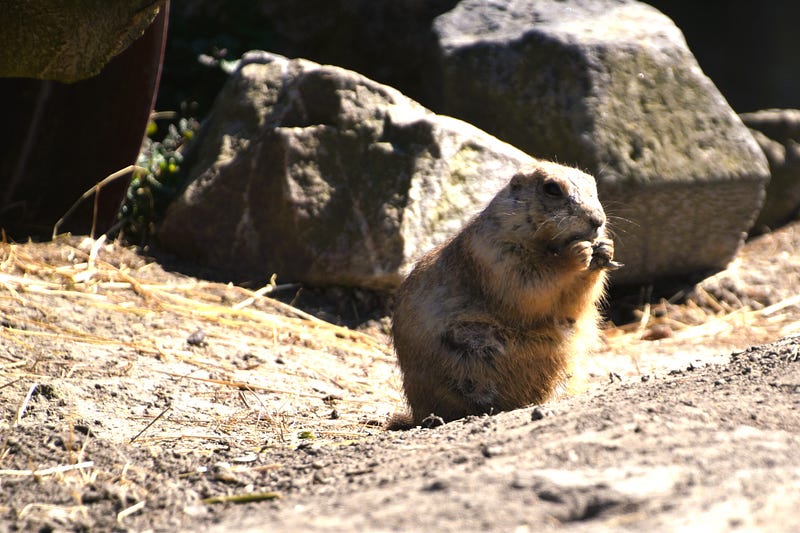
Prairie dogs — © Marie A. Rebelle

SHARING TIPS FROM PERSONAL EXPERIENCE

Why The Option To Choose The Size Of An Image Is Important

It might mean nothing to you, but I clapped my hands with glee when I noticed this option was back!

I recently had an update of the Medium app on my phone and tablet. Even though I never wanted to use it in the past, I was happy that you can now submit a story to a publication when using the app. This, in my humble opinion, is an improvement.

Since I do 90% of my Medium writing on my laptop, changes on the web-based version of this platform are more important to me. I think it was the day — maybe two — after the app update, that I noticed the right sidebar had disappeared. Either way — with or without a sidebar — is fine by me.

However, what made me clap my hands with glee was when I discovered the option to choose an image size has returned.

This option should never have disappeared.

You see, I like to share some of my photography, but to be confined to one image size, made sharing less fun.

Allow me to explain, using one of my favorite zoo animals — prairie dogs!
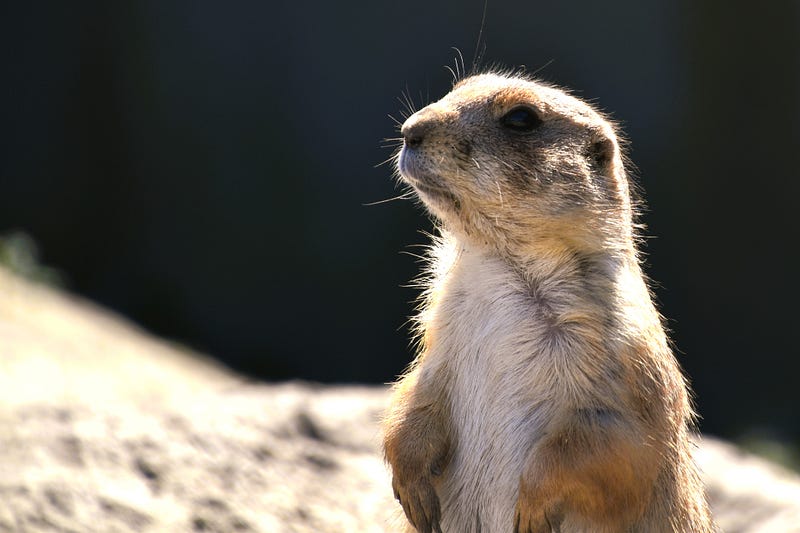
Do I have your attention? — © Marie A. Rebelle

Now before I show you the image sizes, let me tell you where to find the option.

Once you have added an image to your article, you click on the image and a context menu will appear above the image, like this:
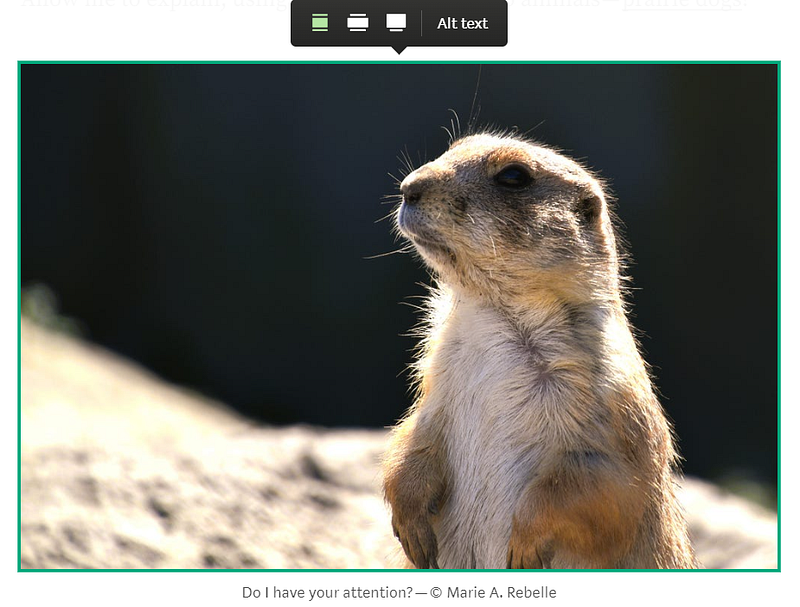
See what I have done there?

From the context menu, you can see the first option is highlighted. That means the image is the same size as the one above.

Now this prairie dog wants you to pay close attention to what happens next!
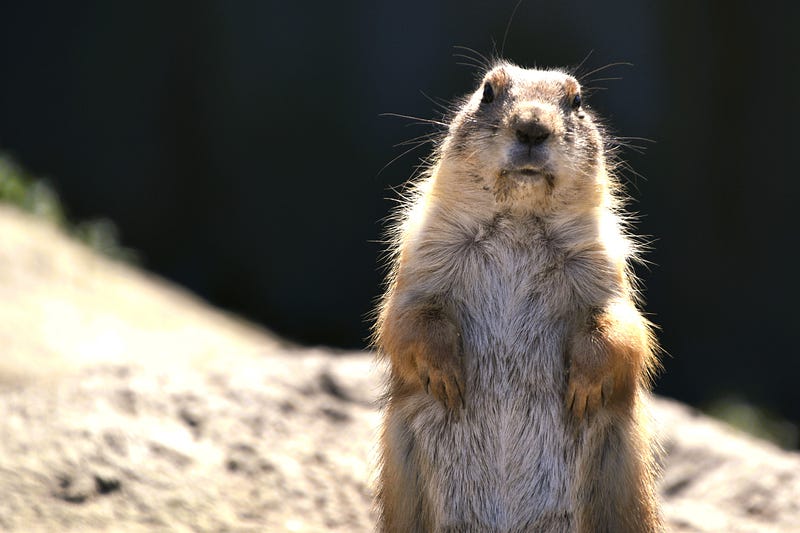
Ooooh! There you are! — © Marie A. Rebelle

The above is the middle option of the three sizes, and what I mostly choose. Back when I just started sharing my photography, most of my single images had this size. I actually went back to all my photography posts and adjusted the sizes.

I find the third choice — see below — totally overwhelming, and barely ever use it.

This is just a bit too much of me, don’t you think? — © Marie A. Rebelle

Did you know you can also add more than one image?

With your cursor on a new blank line, click the plus to see this context menu:

Adding more than one image only works when you add an image from your computer, so the first icon in the above context menu.

So, to add those images, click the first green icon, and on your computer go to the folder from where you want to add your images. Hold down CTRL, and one after the other, click the images you want to add.

Please note: this does not work when you click the second icon in the above context menu to add an image from Unsplash.

Adding more than one image, you cannot choose the image size, as Medium defaults them depending on the number of images you add.

When you add two or three images, Medium places them next to each other.
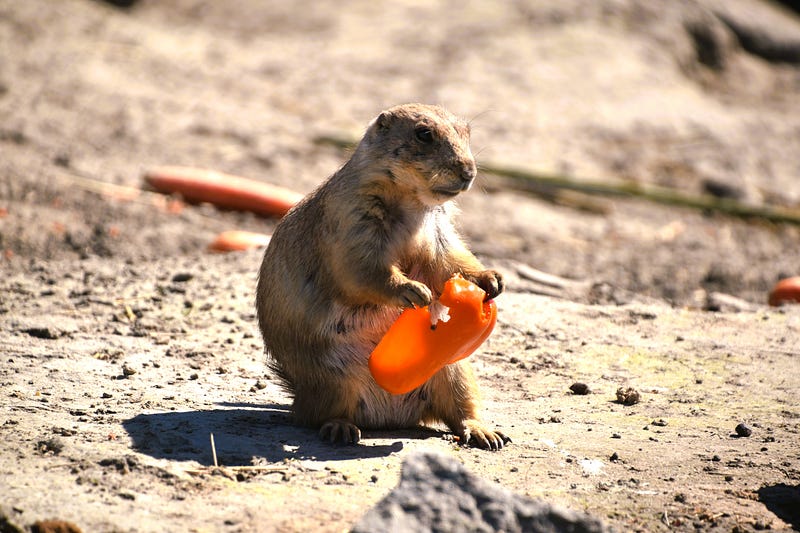
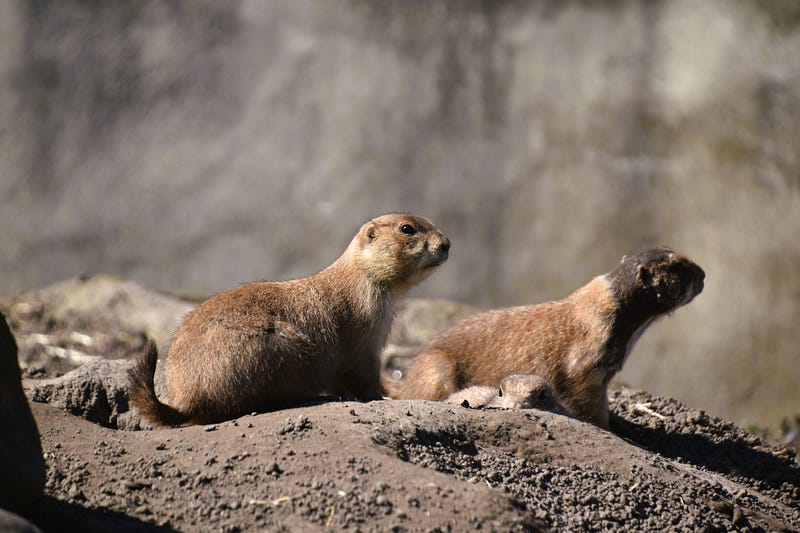
Prairie dogs — © Marie A. Rebelle

When you add over three images, Medium puts them in a mosaic depending on how many images you add at the same time, and whether the layout of the image is portrait or landscape.

Prairie dogs — © Marie A. Rebelle

Now you might have seen that there is a fourth option in the context menu to choose an image size. That option says: Alt text.

When you click that, you can add a description of the image, so when the image fails to load, the description appears on the screen. The alt text also helps screen-reading tools to describe the images to visually impaired readers.

This is one place where Medium can improve, as you can only add the alt text to single images.

To recap:

  1. When you add a single image, click on the image and decide on the size of the image (the longest side of your image must be at least 1200px.
  2. If you want to add more than one image, hold down CTRL, click all the images and then add. Your images will appear in the same order of their names (alphabetically). If you want to have them added in a specific order, remember to change the names, or add numbers at the front of the names.
  3. Always attribute your images — to get the copyright symbol at the bottom, use the key combination Ctrl+Alt+C (On Mac it’s Option + G).
  4. Remember to add the alt text to your images (I need to be better with this).
  5. Once an article is published, no matter the image size, all images are clickable and will display on the screen, considering the screen size.

Since the image size option is back, I will start sharing my photography again!

🦋 About Me | 📨 Subscribe | 📚 Stories | 🔄️ Membership | 🦜 Twitter

Image Optimization
Medium
Short Story
Photography
Tips
Recommended from ReadMedium