
What’s the Best iPad Notes App For Drawing and Handwriting?
Out of GoodNotes, Notability and Noteshelf — it’s not the one you think
No artist or designer that I know picks up a notes app like GoodNotes, Notability or Noteshelf when they need to do serious work. Paid work.
We use those apps for our beautiful interactive planners and for general note taking, but we still like to embellish and doodle without pulling out the big guns.
You’ve got your iPad and Apple Pencil ready to go, so which of the big three is the best app for you, if the writing and drawing experience is your main consideration?
If you’d asked me this question at the end of last year, I’d have said GoodNotes, no question. Especially now that they have that wonderful sticker saving feature built-in! That’s a stroke of genius. And there’s no denying that their Brush Pen is pretty good at creating beautiful modern calligraphy.
GoodNotes seems to be king of the heap for artistic-minded people at the moment, if the number of “made for GoodNotes” interactive planners available on Etsy is anything to go by. It’s a hard one to beat in many areas, but for reasons I’ll go into next, it’s not the one I’ve chosen to use this year.
You’ll be married to this app for a year, so choose wisely
I’m mostly paperless (except for my favorite notebook and pen), so I like to choose my interactive planner as well as the app I use it in, very carefully. I imagine you feel the same.
Starting in one app and transferring to another part way through the year is possible, but you’ll find it’s best to stick with one the whole way through if you can — if only to keep your notes in native format, and therefore editable, searchable and copy-pastable without having to resort to screenshots.
In the past I’ve used digital versions of the Passion Planner and GoodPlanr, both excellent products. Now I’m using the Teacher’s Weekly planner for my part time teaching, and a Hobonichi-inspired interactive planner for personal use. Disclosure: the last two planners were created by my team at E&R Publications, and are sold on our website.
Because I like to make quick sketches in both colour and black and white, the pen tools of a notes app are very important to me. I want a smooth writing experience that feels effortless and looks good.
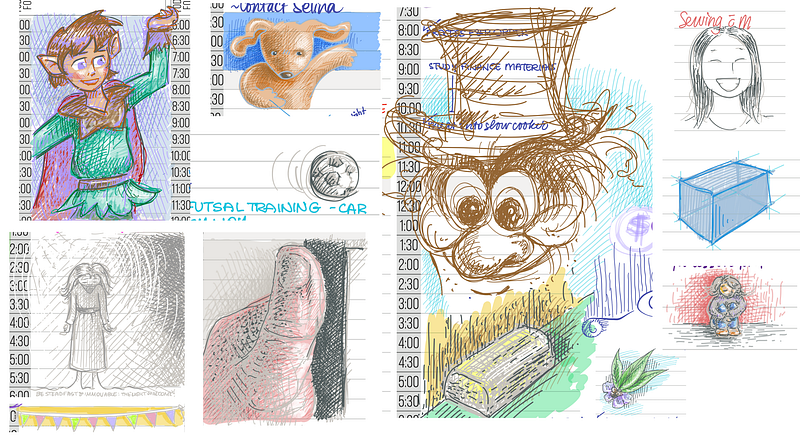
Adding colour with the highlighter pen feels about the same in both GoodNotes and Notability, but is significantly different in Noteshelf. See the next section for examples, and to learn why I think an artist might prefer one over the other.
Pen and highlighter tools compared
If you’re someone who like to sketch, create calligraphic headers and add colour to your notes, you’ll find there are some significant differences between the main contenders.
Let’s take a look at the writing and highlighter tools in each of the big three apps. Below is the same piece of text written with each of the tools available in these apps at the time of writing. I wrote each sample on my iPad with the Apple Pencil, as quickly and roughly as I usually write in my planner.
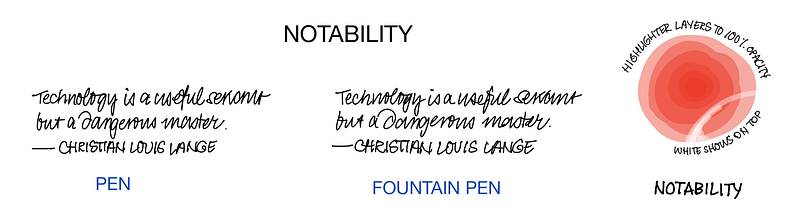
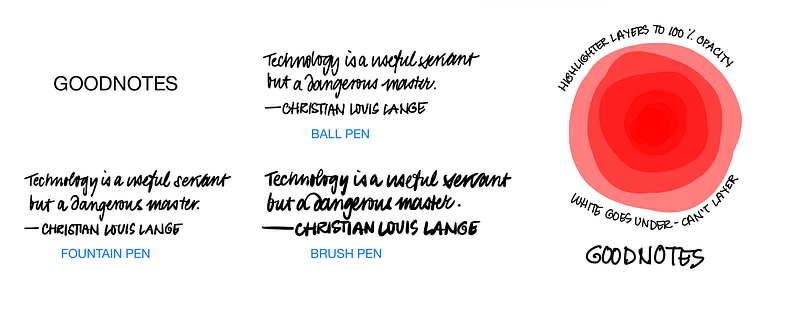
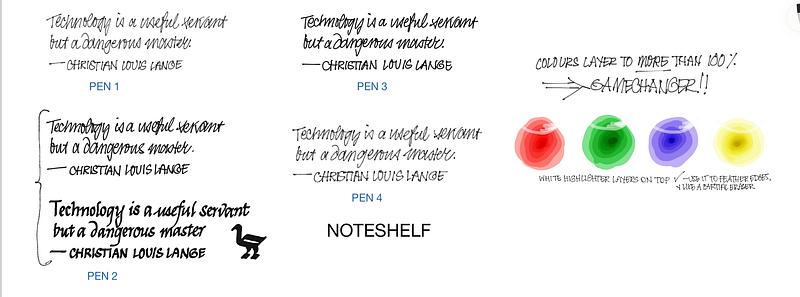
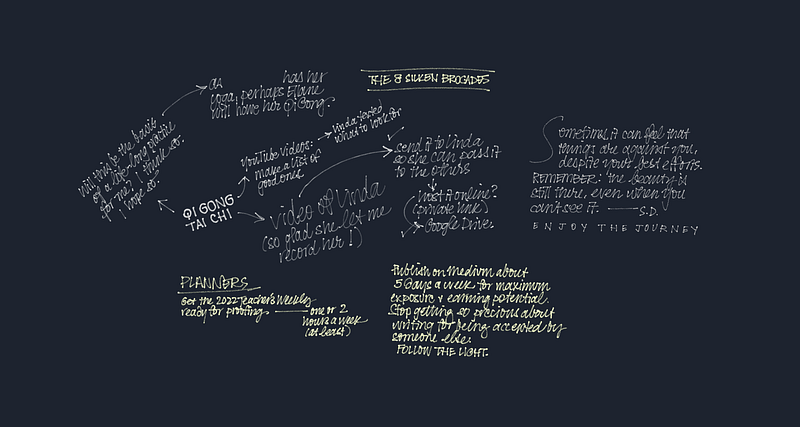
Noteshelf’s pencil tool deserves some individual attention. It’s a delight to write and draw with! I use it for my regular brain dump sessions.
Noteshelf wins this section on the number and quality of pens available. GoodNotes may not take the crown, but it is the only one of the three that offers per tool controls like tip sharpness and pressure sensitivity. Notability sits firmly in third place, though I’d like to acknowledge the responsive pressure sensitivity of their fountain pen tool.
Other art features to consider
Eraser
Each app allows you to erase full or partial strokes, but Notability has the best control in partial stroke mode. The other two are heavy-handed and blobby by comparison. Notability also has twelve eraser sizes to choose from, while both GoodNotes and Noteshelf only have three. Noteshelf is the only one with an Auto eraser option, meaning the size of the eraser stroke scales as you zoom in and out of the page. It also allows you to auto-select the previous tool after erasing.
I’ll give this one to Notability, with Noteshelf a close second.
Favorites bar
Both Noteshelf and Notability have a repositionable Favorites bar where you can save muliple pen type, width and colour choices. GoodNotes doesn’t currently have this option, and only allows three colours and pen widths to be saved in the fixed toolbar.
Noteshelf’s toolbar is the clear winner as it lets you save up to twenty-one different combinations to Notability’s twelve, and can be auto-minimised.
Selection Tool
While Noteshelf is the only one of the three that doesn’t have a freeform selection tool, none of them allow that tool to cut out custom shapes from a larger whole. Notability comes the closest, letting you define rectangular segments of any hand drawn element.
GoodNotes wins this section as its Lasso tool has the option to select any combination of handwriting, images or text boxes.
Resize / Reposition
Both GoodNotes and Noteshelf require an extra step after selecting hand-drawn elements: choosing Resize from the pop-up menu. Once in resizing mode, both apps let you change size and rotation. Noteshelf comes off second best in this category. It feels clunkier, especially if you only want to rotate a few degrees.
Neither GoodNotes nor Noteshelf allow resizing of line weights after a stroke is made, but Notability does and that’s a huge plus for them.
Notability is the clear winner in this category, allowing an intuitive two-finger rotate and spread-pinch gesture to resize and move, at the same time.
Undo
Notability and Noteshelf have a three finger swipe to undo and redo, which works well once you get used to it. GoodNotes still insists on keeping their double tap undo, despite the voices of thousands of users crying out for single tap undo to match other drawing apps like Concepts and Procreate.
Layers
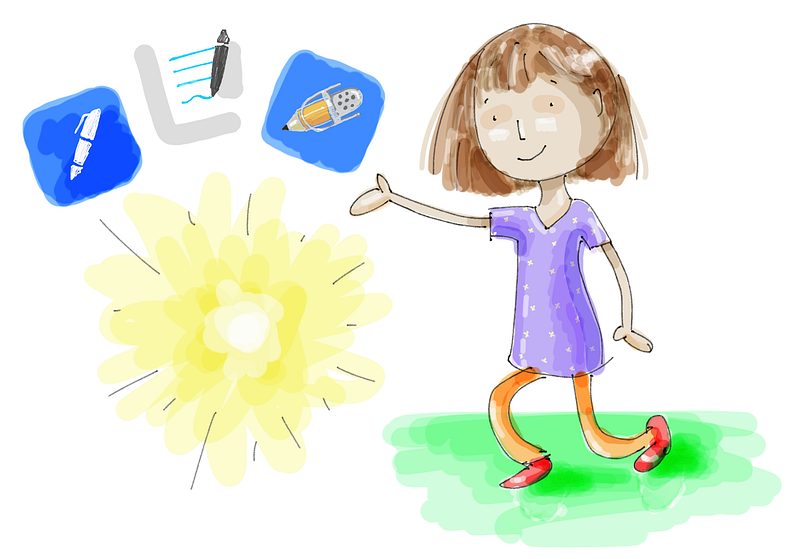
None of the apps have true layers, but Noteshelf comes the closest. When working with things you’ve drawn with the highlighter tool, you can choose to send to back or bring to front. That’s what allowed me to place the green background behind my cartoon girl in the cover picture, and have transparent lines on top without the green showing through.
And the winner is…
Now to reveal the best overall app for writing and drawing. You know what I’m going to say, right?
You guessed it!
It all depends on which feature set is the most important to you, for the work you’re planning to do. There’s more to consider than a few cool drawing tools.
- For modern calligraphy, simple drag and drop file import and ease of creating and using stickers, choose Goodnotes.
- For traditional calligraphy, drawings with coloured shading, writing or sketching with a pencil and clickable URLs, choose Noteshelf.
- If you’re artistically inclined and also do a lot of typing or need to record classes or meetings while taking notes, choose Notability.
My personal choice this year for my interactive planners is Noteshelf, mostly because I love the pencil and pen tools so much.
Goodnotes was my planner app of choice for several years but I left it for two main reasons. One, their drawing tools are somewhat lacklustre compared with Noteshelf, and two, the lack of live URLs. As a teacher I rely on being able insert links to websites I might need as part of a lesson, and neither GoodNotes nor Notability have made these directly clickable.
Go forth and write! and draw, sketch, note, …create
What I’d love to see one day is Notability’s file management system, rotation, typing and recording features, with Noteshelf’s writing tools and clickable URLs and GoodNotes’ sticker tool and easy drag-and-drop file import.
Hopeful, aren’t I!
A wise woman I once knew said, “Pick a set of faults you can live with.” She was talking about shopping for a spouse, but I think her advice also applies to choosing notes apps.
Pick the features you love the most, but make sure that what’s missing won’t make your life harder down the track.


