
When Python Automation Falls Short
Using Sikuli to automate your GUI
I’ll admit that using Python to automate my life is one of my favorite pastimes. But sometimes I run into situations where scripting in Python or a Bash/Shell file just doesn’t cut it. This has led me to discover my new favorite tool: Sikuli.
Sikuli allows you to write scripts that utilize computer vision to take control of and navigate your computer’s GUI. You do this by taking screenshots of the items you want your mouse to interact with and the program searches your desktop for a match to the image. Once it matches a location on your desktop, you can have it simulate all sorts of mouse interactions such as “double click” or “drag and drop”.
The Problem
The specific type of situation that led me to this need for Sikuli was trying to automate the act of posting images to Instagram (you can read the full story here: I Created An AI Influencer ). A combination of Python and the libraries “OS” and “Selenium” made navigating the Instagram website and my file system a breeze. The problem came when I needed to get an image from my file system onto Instagram. Instagram requires you to either open a File Explorer window or drag and drop an image into the website window. Both of these tasks are difficult at best to do with Python, but this kind of task is exactly where Sikuli really shines!
Preparation
In a previous article I detailed how I collected a bank of images and used an image classification machine learning model to make sure the images are post worthy. Once I have the bank of approved images is where Sikuli comes in.
First, Python uses the OS library to look into the bank of images and move a single image into a different folder called ‘Stage’. The image file is renamed to something generic like “post_image.jpg”. This folder should only ever have a single image in it.
The reason a specific folder with a single image and generic name is needed is that ultimately Sikuli will be used to navigate to this folder, select the file inside and drag and drop it into the web browser. Since Sikuli uses the computer’s GUI, it’s going to be using screenshots of folder / file icons to tell it where to click. You don’t want a bunch of files in the same folder that look alike/have similar names or the program may fail in unexpected ways.
Once the image is prepped and in the Stage location, Python can use Selenium to open up a web browser, log into Instagram, and navigate to the New Post page. I won’t share that code here as Instagram constantly changes their HTML structure and anything I post now is likely not to work when you read this, but there are many tutorials online for getting started with Selenium. This is an easy to follow one that is Instagram specific by Python Simplified on Youtube: Web Scraping With Selenium
Ultimately you want to be able to navigate to this page:

Sikuli
The Sikuli documentation is easy to follow and they have tutorials on how to install Sikuli onto all operating systems so I’ll assume moving forward that you have Sikuli installed and you can access the IDE. You can refer to the documentation here: Sikuli Documentation.
One of the drawbacks to using Sikuli is that a script I write on my computer almost certainly won’t work on your computer, but I can share my script just to give you an idea of what it might look like in the Sikuli IDE:
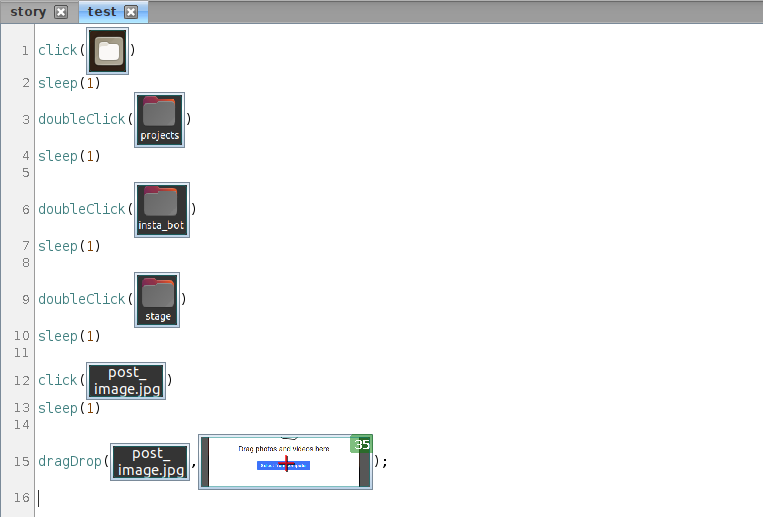
You can see in this Sikuli script it first clicks on the file explorer icon. Then it waits a second. Then it double clicks on the projects folder and so on and so forth. For each of these lines, Sikuli first searches the present desktop for the image within the parenthesis and if it finds an accurate enough match (you can change the required accuracy level) then it performs the action that is written i.e. “click’ “doubleClick” or “dragDrop” on that matched location.
Python + Sikuli
This is all great but if you’re trying to automate the drag and drop task at a certain point within your Python script you need a way to trigger Sikuli to run when the time is right.
You can accomplish this by putting the terminal commands to run the Sikuli script inside of a shell/bash file and have Python run the shell/bash file at the appropriate time.
The contents of my shell file (named dragfile.sh) looks like this:
You can then run this shell file in Python using the OS library at any point.
Drawbacks to Sikuli
Sikuli is not without its drawbacks though.
While it’s a powerful tool, it requires you to have a monitor and GUI running. If you’re trying to run headless, Sikuli can’t work.
Mentioned earlier, because Sikuli is matching your desktop pixels to the pixels in a screenshot, the scripts written are essentially unique to the machine they’re written on.
Sikuli is best run on an extra computer laying around and not your daily driver. Any changes in your file structure / icon names/ desktop layout/ etc. can break your script
Final Thoughts
Sikuli is a great tool to have in your arsenal and can open up a whole new world of automation not usually possible with just Python, but I do think its best used in specific, controlled cases and should only be used when traditional automation methods aren’t possible.
One project I have on my list is to automate the process of applying for jobs and using Sikuli to drag and drop my resume into different application portals could be a key part of getting that project to work.
What ideas or projects do you have in mind for Sikuli?


