
What should you know as a Web developer working with video content?
Top 7 Challenges and Solutions for Web Developers Working with Video Content

👉 1. The issue with a video’s preview thumbnail
This issue may be reproduced on the iOS Safari browser and it looks like that:
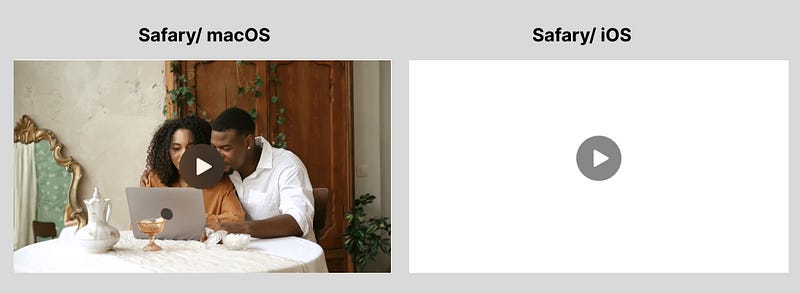
The fix is pretty simple — adding #t=0.001 at the end of the video file URL, it tells the browser to skip the first millisecond of the video.
So the code looks like this:
<video>
  <source src="path-to-video.mp4#t=0.001" type="video/mp4" />
</video>
👉 2. Video playback issue of the video recorded via MediaRecorder API
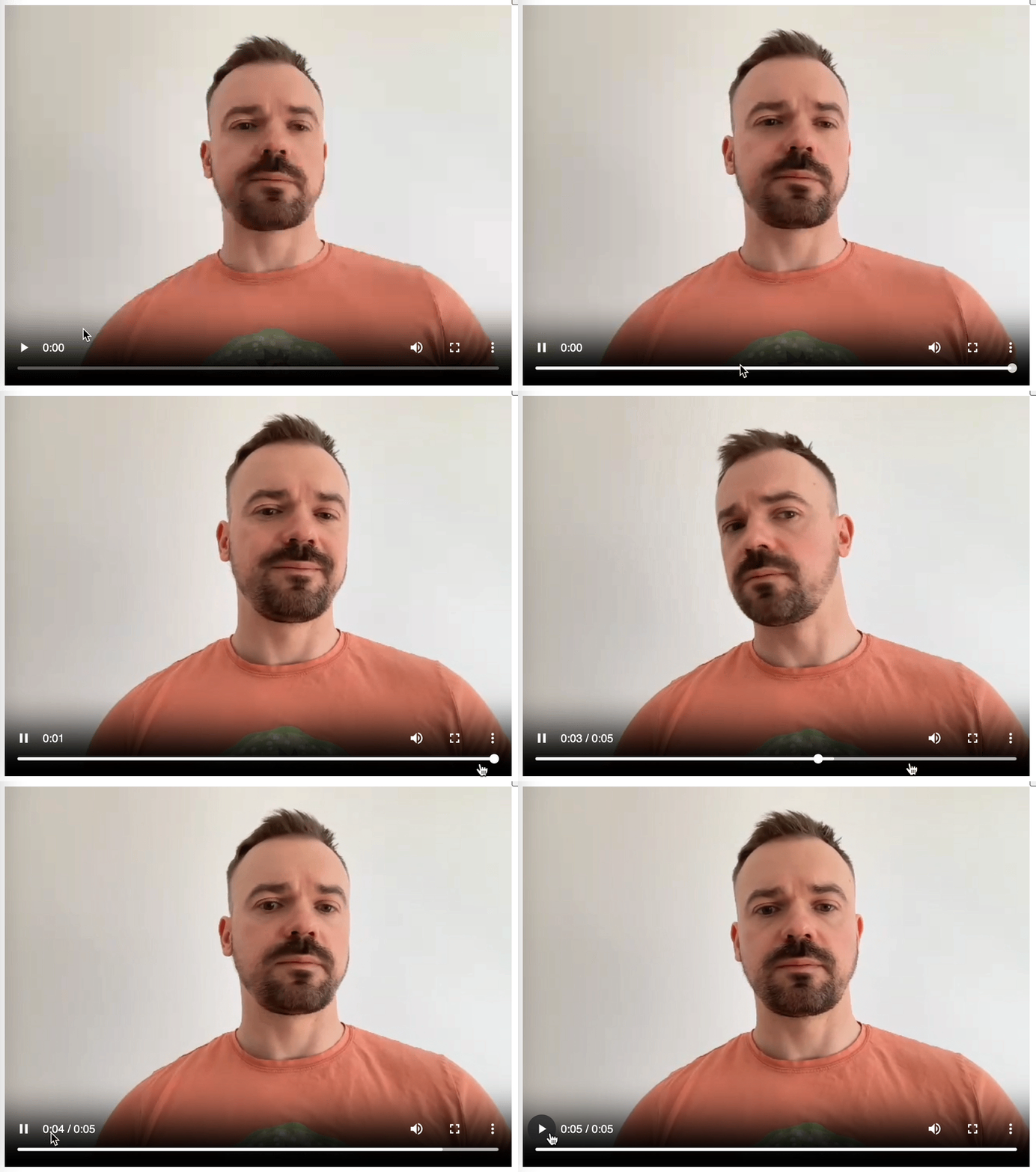
Let’s assume that you are using MediaRecorder API in Chrome to record video from the device camera. However, when you try to play the recorded video in the browser, you may notice that the forward and backward controls do not function correctly during the first playback:
Also, if we attach a handler to an event timeupdate and try to console the duration of the video, you may see that video’s duration is Infinity until the browser uploads all video and defines the actual video duration:
// most part of code is skipped because of brevity
const videoRef = useRef<HTMLVideoElement>(null);
const [blob, setBlob] = useState<Blob | null>(null);

useEffect(() => {
    if (videoRef.current) {
      videoRef.current.ontimeupdate = (e) => {
        console.log("time update", videoRef.current?.duration);
      };
    }
  }, [blob]);

return (
<>
   {blob &&  <video
                src={URL.createObjectURL(blob)}
                ref={videoRef}
                controls/>
   }
</>
)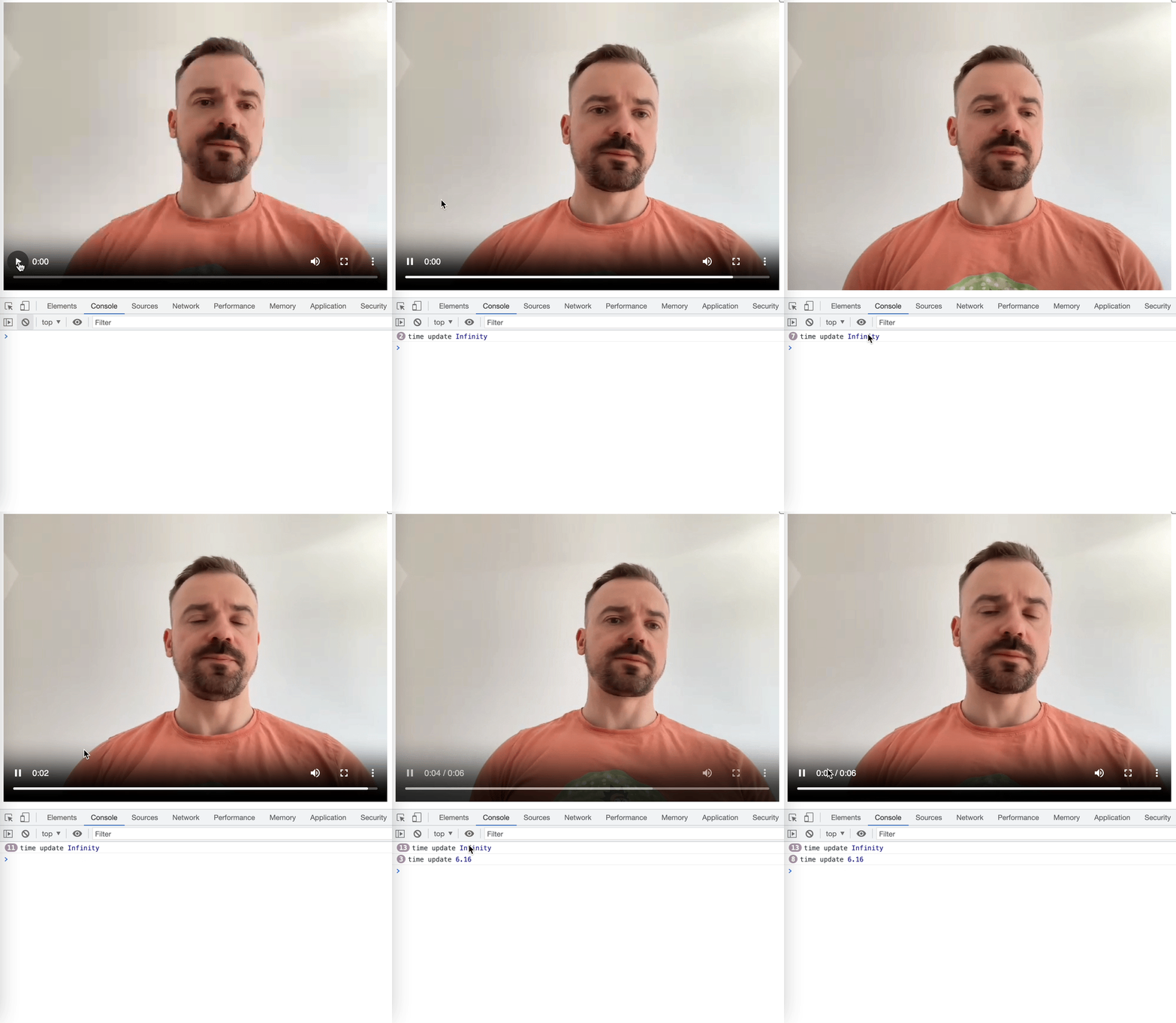
The main issue is that MediaRecorder produces WebM chunks that, when assembled, produce a WebM file without headers about video duration and therefore cannot be seeked. By the way, the Safari browser produces MP4 chunks and you won’t see the same issue.
The easiest way to put absent headers in the blob is the usage of webm-fix-duration library and it may look like that:
class MediaRecorderManager {
  private mediaRecorder: MediaRecorder;
  private duration = 0;
  private recordingStartedAt = 0;

  constructor(
    private stream: MediaStream,
    private onNewChunkAdded: (chunk: Blob) => void
  ) {
    this.mediaRecorder = new MediaRecorder(stream);
    this.mediaRecorder.ondataavailable = async (e) => {
      if (e.data.size > 0) {
        let processedBlob = e.data;
        if (MediaRecorder.isTypeSupported("video/webm")) {
          processedBlob = await webmFixDuration(processedBlob, this.duration);
        }
        this.onNewChunkAdded(processedBlob);
      }
    };
  }

  startRecord() {
    this.mediaRecorder.start();
    this.recordingStartedAt = Date.now();
  }

  stopRecord() {
    this.duration = Date.now() - this.recordingStartedAt;
    this.mediaRecorder.stop();
  }
}
Here is the final result in Sandbox — open it outside of the Medium platform since it requires access to Camera:
👉 3. Mirror camera stream
Usually, when we are developing UX for recording video from a device camera, we catch a camera stream via an interface MediaDevices and direct it to the HTML element <video/>. It looks like that:
const cameraRef = useRef<HTMLVideoElement>(null);

useEffect(() => {
  navigator.mediaDevices
    .getUserMedia({ video: true, audio: true })
    .then((stream) => {
       if (cameraRef.current) {
          cameraRef.current.srcObject = stream;
       }
     });
});

return <video ref={cameraRef}/>
When you start to use this interface, you may feel some sort of disorientation. When you move your head from right to left, while on the screen it will seem to you that you are moving in the opposite direction. In this case, reflecting the camera stream will be more natural:
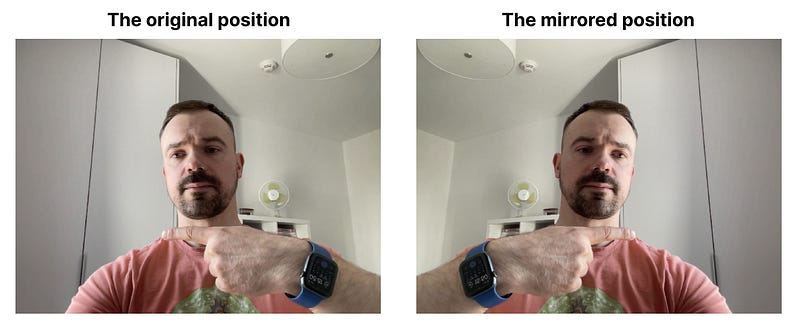
This is very simple to achieve with CSS:
return <video
    ref={cameraRef}
    style={{
        transform: scaleX(-1),  // mirror input stream
    }}
/>
👉 4. What should you know about video formats recording via MediaRecorder API (MP4 vs WebM)
Let’s assume that you are developing an application that is supposed to record video chunks from a camera. All those chunks are sent in the S3 bucket to play it again later. In this case, you are going to use MediaRecorder API.
There’s one issue. MediaRecorder creates chunks in WebM format for Chrome browser and in MP4 format for Safari browser. On the other hand, when you try to play chunks in Chrome, it does not matter whether it’s MP4 or WebM format, on the other hand, it may be an issue for Safari playing video in WebM format.
Here I conducted an experiment and record chunks in both browsers and save them and create an HTML page where put two videos in one place:
<video src="./video/video-Chrome.webm" controls />
<video src="./video/video-Safari.mp4" controls />
Here is the result:
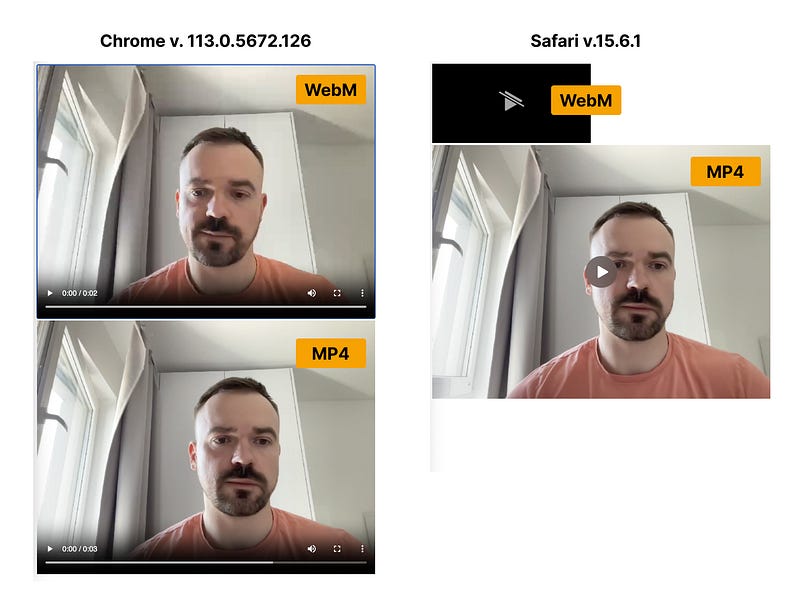
Summary: if you would like to play those chunks in Safari/Chrome independently where those chunks have been recorded — you should convert all WebM files into MP4.
The next question then is how we may convert files from one format into another.
👉 5. How to convert video files from one format to another
You may use already available Image/Video APIs like Cloudinary. You just need to upload a video file in any format and after that, you have access to transformation where it’s possible to change one format into another:
https://res.cloudinary.com/<cloud_name>/<asset_type>
  ---> /<delivery_type>/<transformations>/<version>
  ---> /<public_id>.<extension>

// here you may change desired extension, for example, MP4
// despite that original fil is uploaded in WebM format
// Cloudinary on the fly convert video from one format to another
Another way is the development of your own converter. For this purpose, FFmpeg is the best option, it’s a CLI and easily may be run with NodeJS on the server. Here is the command:
ffmpeg -i video.webm output.mp4If you are interested in this method, it makes sense to have a look at these articles also:
👉 6. Inline video as a background
A lot of landing pages put some interesting videos as a background and actually, the first layout which I’ve implemented looks like this:
export default function App() {
  return (
    <div
      style={{
        display: "flex",
        flexDirection: "column",
        alignItems: "center",
        minHeight: "100vh",
        width: "100%",
        backgroundColor: "fPrimary.main",
        position: "relative"
      }}
    >
      <video
        src="https://res.cloudinary.com/evernester/video/upload/v1681226648/bg_agljvo.mp4"
        loop
        autoPlay
        muted
        style={{
          width: "100%",
          height: "100%",
          position: "absolute",
          objectFit: "cover"
        }}
      />
      // other DOM elements are skipped for brevity
    </div>
  );
}
Nothing special here. Here you should pay attention to the first takeaway — if you would like to use the video feature autoplay — it’s mandatory to mute video with property muted otherwise, you will see only the static video thumbnail and autoplay would be useless.
Another takeaway is that it works fine when you open this page on laptop devices, but you encounter an issue when opening the same page on iOS. Despite the fact that we defined autoPlay and muted we again see the static video thumbnail. It’s easy to resolve by adding a new property to the video element — playsInline
Summary: if we would like a video plays as a background — we should define 3 properties for the video element: autoPlay, muted, playsInline.
👉7. One playing video on the page
Let’s assume that there’re a lot of videos on one HTML page. Could you imagine what chaos could ensue if a user played one video and didn’t stop it before starting another? It’s better to have a mechanism that automatically stops any previously playing media when a new one is started. You may find out more following this article on how to implement this:


