avatarFabiano Becatini

Free AI web copilot to create summaries, insights and extended knowledge, download it at here

4315

Abstract

  </div><p id="3b1a">One common way to use <b>S3 </b>is to store data in it from an EC2 instance or a container running in ECS.</p><p id="8ae7">This allows you to access your data from anywhere in the world, and it can be used to store a variety of data types, such as images, videos, and documents.</p><p id="5600">Now, it will be demonstrated how to access a file on a S3 bucket from an EC2 instance without having any internet access.</p><p id="939b">When you create a Gateway endpoint, you need to specify route tables and when you do that, a <b>prefix list </b>is added to the <b>route table </b>for these subnets which allow the VPC router to direct traffic towards the gateway endpoint.</p><p id="5666">The routes are added to the prefix list <b>automatically by AWS</b> when you create the Gateway Endpoint and associate it to particular subnets.</p><p id="f235">This is how the <b>VPC router </b>knows to route any traffic from instances inside this <b>private-only</b> VPC to the Gateway Endpoint object and then out to the <b>S3 service</b>.</p><figure id="681f"><img src="https://cdn-images-1.readmedium.com/v2/resize:fit:800/1*Ep7glvgy5tP1iTQPe51owg.png"><figcaption></figcaption></figure><h1 id="98c8">Pre Requisites</h1><p id="16bf">To run this demo, I will use the setup below:</p><ul><li>A VPC with NO <b>Internet Gateway </b>attached.</li><li>An <b>S3 bucket</b> already created.</li><li>An <b>EC2 instance</b> connected to a <b>private subnet</b> with no public access.</li><li>An <a href="https://readmedium.com/vpc-interface-endpoint-vs-vpc-gateway-endpoint-understanding-the-key-differences-part2-5044b8bb0355"><b>Interface Endpoint</b> </a>setup complete to connect to a private EC2 instance.</li></ul><h1 id="c868">Let’s See How It Works</h1><p id="c2e0">Open the <b>S3 </b>console, and click the <b>Bucket </b>you’re going to use for this demo.</p><p id="865f">I created a random bucket and it is called <b>test-bucket-lne9jwfrk2zt</b>.</p><p id="0b15">You’re going to attach a <b>file </b>to your <b>bucket</b>. It can be any file.</p><p id="030b">Click <b>Upload</b>.</p><figure id="ec6d"><img src="https://cdn-images-1.readmedium.com/v2/resize:fit:800/1*oplmBj7iLfNfIwP6fINK2w.png"><figcaption></figcaption></figure><p id="2d81">Click <b>Add files</b>, to attach your file. Then click <b>Upload</b>.</p><figure id="82bd"><img src="https://cdn-images-1.readmedium.com/v2/resize:fit:800/1*BtZkg55_s7HoadGJqCjldw.png"><figcaption></figcaption></figure><p id="528c">When the upload’s finished, click <b>Close</b>.</p><figure id="59a8"><img src="https://cdn-images-1.readmedium.com/v2/resize:fit:800/1*DDxrVqEMAMyHWI1OFJfc6A.png"><figcaption></figcaption></figure><p id="05af">Now, open the <b>EC2 console</b>.</p><p id="2cec">You can see the EC2 instance I’m using for this demo has <b>no public IP</b> address.</p><figure id="9c31"><img src="https://cdn-images-1.readmedium.com/v2/resize:fit:800/1*hWNbpHnErHbyQvE1pCnPZw.png"><figcaption></figcaption></figure><p id="3e3f"><b>Right-click</b> the private <b>EC2 instance</b> you will use for this demo, and click <b>Connect</b>.</p><p id="3e25">Select <b>Connect using EC2 Instance Connect Endpoint</b>, click the <b>EC2 Instance Connect Endpoint</b> search box, and select the <b>endpoint </b>you created.</p><p id="f248">Then click <b>Connect</b>.</p><blockquote id="14c6"><p>As I mentioned previously, in <a href="https://readmedium.com/vpc-interface-endpoint-vs-vpc-gateway-endpoint-understanding-the-key-differences-part2-5044b8bb0355">part2</a> of this VPC Endpoint series, I show how to set up <b>Interface Endpoint</b> to connect to a private EC2 instance.</p></blockquote><figure id="8565"><img src="https://cdn-images-1.readmedium.com/v2/resize:fit:800/1*SYwOm63RUA6IA5u2Y-uAcQ.png"><figcaption></figcaption></figure><p id="4935">You can verify that this EC2 instance has <b>no internet connectivity</b> by trying to <b>ping the IP address 1.1.1.1</b>, and you will see it times out.</p><figure id="fe4b"><img src="https://cdn-images-1.readmedium.com/v2/resize:fit:800/1*jHVVz56wxDWdO1AXAqa71w.png"><figcaption></figcaption></figure><p id="8c61">You can also verify connectivity to <b>AWS services</b> by running the command below to <b>list the S3 buckets</b>.</p><p id="3ac4">Note when you run that, it <b>just hangs</b>.</p>

Options

<p id="d37a">There is no connectivity with <b>AWS public services</b> because you have no access to any of the <b>public space endpoints</b>.</p><figure id="c280"><img src="https://cdn-images-1.readmedium.com/v2/resize:fit:800/1*n5DGZAHYj1jiXqFhyklDKg.png"><figcaption></figcaption></figure><p id="ac0f">Press <b>Ctrl + C </b>to cancel out of that.</p><p id="9ad0">You’re going to <b>create </b>a <b>Gateway endpoint </b>that will allow you to access the S3 buckets.</p><p id="7b94">Go back to the <b>VPC </b>console. On the left menu, click <b>Endpoints</b>.</p><p id="928d">Click <b>Create endpoint</b>.</p><figure id="2ce2"><img src="https://cdn-images-1.readmedium.com/v2/resize:fit:800/1*h9SEE32EJWPiqpsc71oFtA.png"><figcaption></figcaption></figure><p id="102f">Give it a name. I chose the name tag <b>PrivateVPCS3</b>.</p><p id="7db4">In the <b>Service category</b>, keep <b>AWS services</b>.</p><p id="fcac">In the filter <b>Services </b>box, type <b>S3, </b>then click<b> com.amazonaws.us-west-1.s3.</b></p><p id="6b40">I set up my environment on <b>us-west-1</b> region. Depending on the region you’re working with, it can show you a different one for you.</p><figure id="8dc6"><img src="https://cdn-images-1.readmedium.com/v2/resize:fit:800/1*dGm82kpBPjLtNspi2fMpOQ.png"><figcaption></figcaption></figure><p id="131b">Check the box next to <b>Gateway</b>. Then select your <b>VPC</b>.</p><figure id="d6ac"><img src="https://cdn-images-1.readmedium.com/v2/resize:fit:800/1*nccmxw2mwW4eXhjTEMFuPg.png"><figcaption></figcaption></figure><p id="ccab">Select the <b>route table </b>which is associated with the <b>subnet </b>you’re working on this demo.</p><p id="0235">Scroll down and click <b>Create endpoint</b>.</p><figure id="1c10"><img src="https://cdn-images-1.readmedium.com/v2/resize:fit:800/1*7X90ZQl_nkwR_0JCd0uW3A.png"><figcaption></figcaption></figure><p id="1aa8">When the endpoint gateway shows created, refresh it and make sure the state is showing <b>available</b>.</p><figure id="c8aa"><img src="https://cdn-images-1.readmedium.com/v2/resize:fit:800/1*T-FrkF37HjuoABainJhniw.png"><figcaption></figcaption></figure><p id="33e3">Now click <b>Route tables</b> on the left menu.</p><p id="f12e">Select the route table associated with the <b>gateway endpoint you just created</b>, then click <b>Routes</b>.</p><p id="047f">You will see the prefix list created for the S3 service in the current region.</p><figure id="cf0d"><img src="https://cdn-images-1.readmedium.com/v2/resize:fit:800/1*oxXsODP1YeWKhBTy77QN2A.png"><figcaption></figcaption></figure><p id="6e1f">Open E<b>C2</b> console, and go back to the open terminal running your EC2 instance.</p><p id="89b1">You will try now to access the <b>S3</b> services after the gateway endpoint is created.</p><p id="511c">If you run the command below, it should list all <b>buckets</b> in your AWS account. I’m going to add <b>“|grep test-bucket” </b>at the end, I want to show only the bucket used for this demo.</p><div id="a36c"><pre>aws s3 <span class="hljs-built_in">ls</span></pre></div><figure id="bc16"><img src="https://cdn-images-1.readmedium.com/v2/resize:fit:800/1*QafFQjZmM2n8UQ6sPWMkMQ.png"><figcaption></figcaption></figure><p id="417e">Now you can try to <b>save </b>to this <b>EC2 instance </b>the file previously uploaded to the bucket, using the command below.</p><p id="d290">Make sure you replace the <b>bucket </b>and <b>file name</b>.</p><div id="b60a"><pre>aws s3 cp s3://<span class="hljs-tag">&lt;<span class="hljs-name">your_bucket_name</span>&gt;</span>/<span class="hljs-tag">&lt;<span class="hljs-name">file_attached_to_your_bucket</span>&gt;</span> .</pre></div><figure id="257d"><img src="https://cdn-images-1.readmedium.com/v2/resize:fit:800/1*ikcyBp-nCztqzL2EKD3zow.png"><figcaption></figcaption></figure><p id="d887">Then you see the file using the command <b>ls -l</b>.</p><p id="459f"><i>You just have implemented a Gateway Endpoint and, by doing that you’ve allowed this private VPC to be able to access a public space endpoint, the S3 service, and specifically this S3 bucket.</i></p><p id="e8c8">Hope it helped you!</p><p id="756a"><a href="https://medium.com/@becatini"><i>F<b>ollow me</b></i></a><i><b> | <a href="https://medium.com/@becatini/subscribe">Signup for more tips</a></b></i></p></article></body>

VPC Interface Endpoint vs VPC Gateway Endpoint: Understanding the Key Differences — Part3

Photo by Alina Grubnyak on Unsplash

What is the real benefit of using Amazon VPC endpoint?

Can you save money and improve security with VPC endpoint?

In part 1 of this series, it has been mentioned the differences between Interface endpoint and Gateway endpoint, and how to access public AWS services through a private connection securely.

VPC Gateway Endpoint Use-Case

AWS Gateway endpoints provide reliable connectivity to S3 and DynamoDB without requiring an internet gateway or a NAT device for your VPC.

Unlike Interface endpoints, Gateway endpoints do not use AWS PrivateLink.

Instead, it adds entries to the route tables, directing traffic to S3 or DynamoDb through the VPC Endpoint.

Then we can keep the instances in private subnets and still communicate to the s3 API.

When routing traffic to S3 via NAT Gateway, for instance, you have to pay for all the bytes that transfer through the NAT Gateway.

You are also leaving Amazon’s network and re-entering, which adds latency.

You will see how to access a S3 bucket from a private EC2 instance. In other words, there will be no Internet Gateway or NAT device for your VPC.

How You Will Do It

In this demo, you will use a private EC2 instance that you’re going to connect to, and this VPC has no public internet connectivity.

You will connect to this EC2 instance through EC2 Instance Connect Endpoint.

If you don’t know how to connect on an EC2 using Instance Connect Endpoint, you can look at PARTE2 of this VPC Endpoint series, and learn how to setup an interface endpoint to connect to a private EC2 instance.

One common way to use S3 is to store data in it from an EC2 instance or a container running in ECS.

This allows you to access your data from anywhere in the world, and it can be used to store a variety of data types, such as images, videos, and documents.

Now, it will be demonstrated how to access a file on a S3 bucket from an EC2 instance without having any internet access.

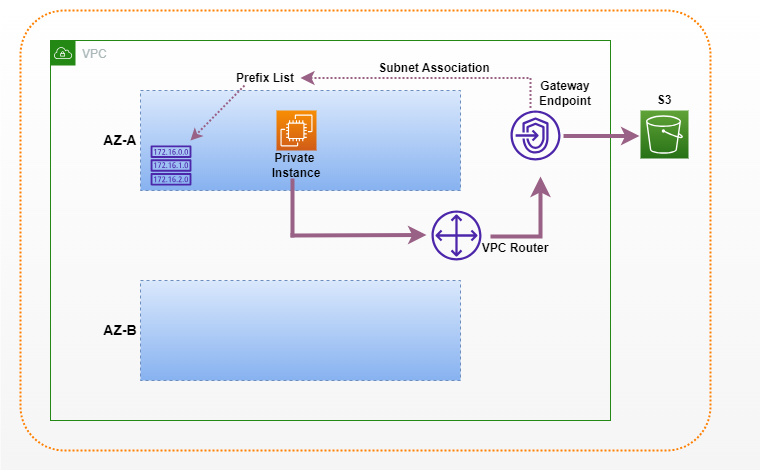
When you create a Gateway endpoint, you need to specify route tables and when you do that, a prefix list is added to the route table for these subnets which allow the VPC router to direct traffic towards the gateway endpoint.

The routes are added to the prefix list automatically by AWS when you create the Gateway Endpoint and associate it to particular subnets.

This is how the VPC router knows to route any traffic from instances inside this private-only VPC to the Gateway Endpoint object and then out to the S3 service.
Pre Requisites

To run this demo, I will use the setup below:

  • A VPC with NO Internet Gateway attached.
  • An S3 bucket already created.
  • An EC2 instance connected to a private subnet with no public access.
  • An Interface Endpoint setup complete to connect to a private EC2 instance.

Let’s See How It Works

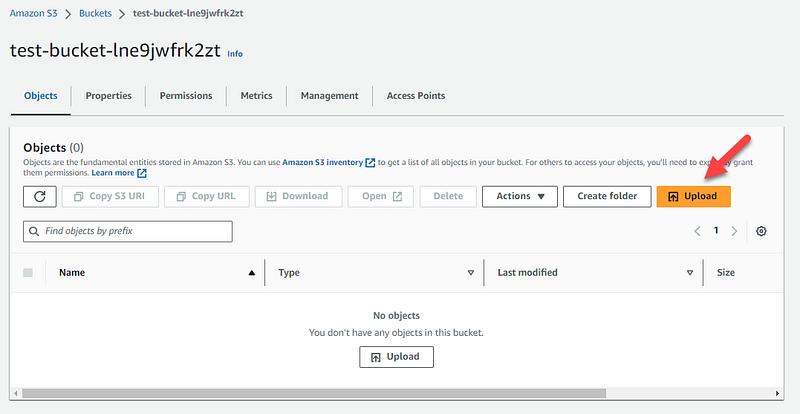
Open the S3 console, and click the Bucket you’re going to use for this demo.

I created a random bucket and it is called test-bucket-lne9jwfrk2zt.

You’re going to attach a file to your bucket. It can be any file.

Click Upload.
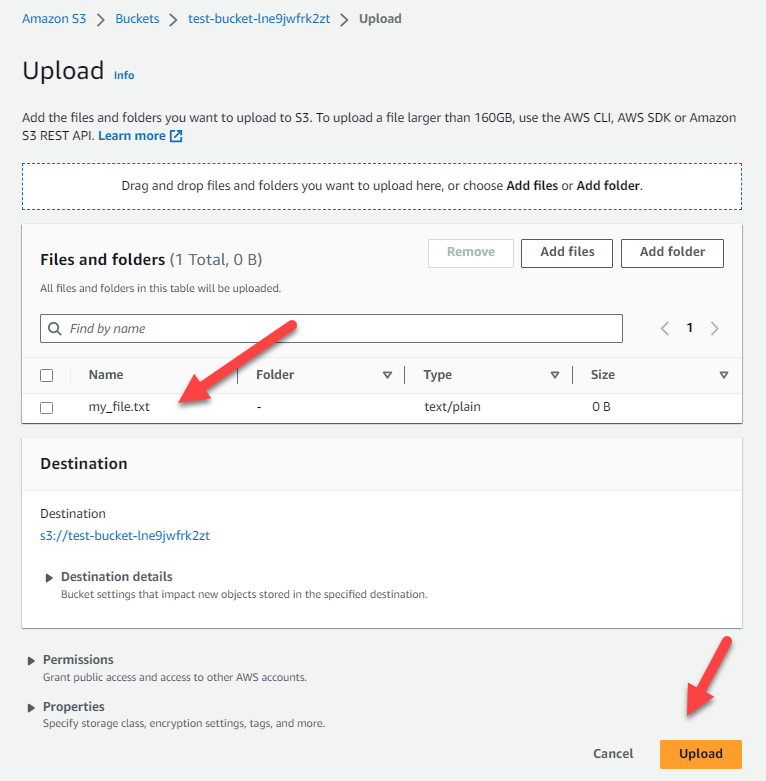
Click Add files, to attach your file. Then click Upload.
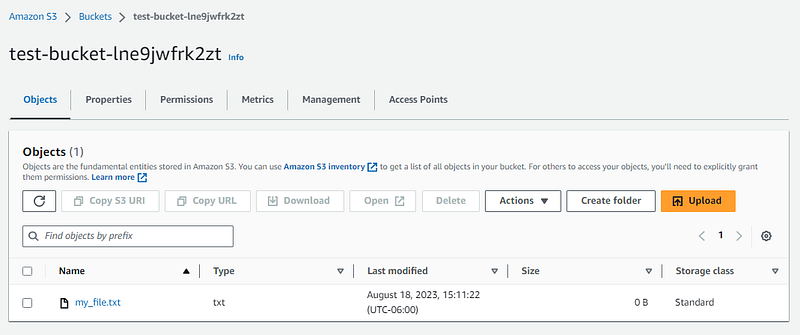
When the upload’s finished, click Close.
Now, open the EC2 console.

You can see the EC2 instance I’m using for this demo has no public IP address.
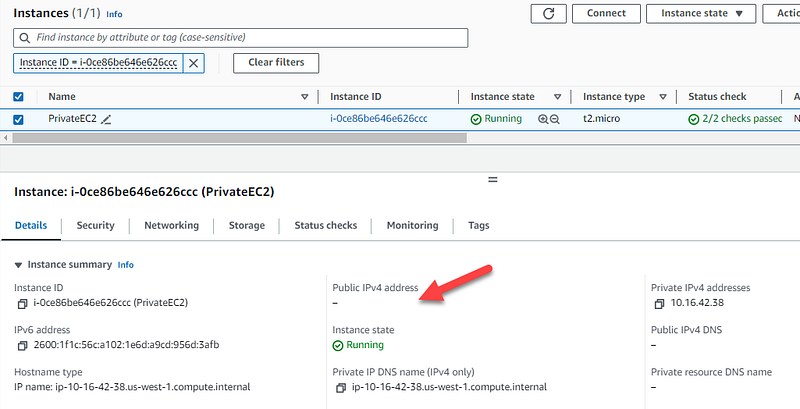
Right-click the private EC2 instance you will use for this demo, and click Connect.

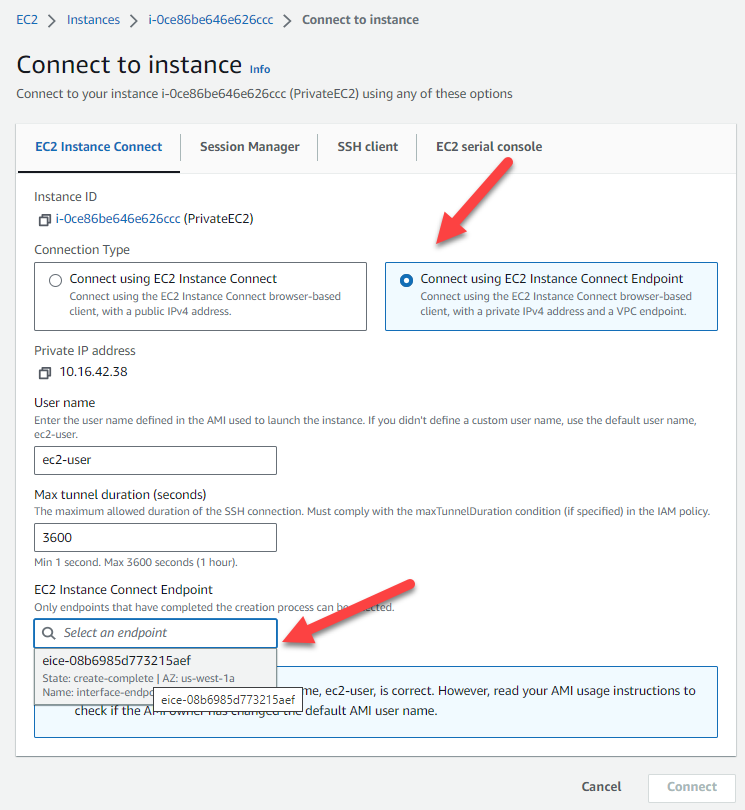
Select Connect using EC2 Instance Connect Endpoint, click the EC2 Instance Connect Endpoint search box, and select the endpoint you created.

Then click Connect.

As I mentioned previously, in part2 of this VPC Endpoint series, I show how to set up Interface Endpoint to connect to a private EC2 instance.
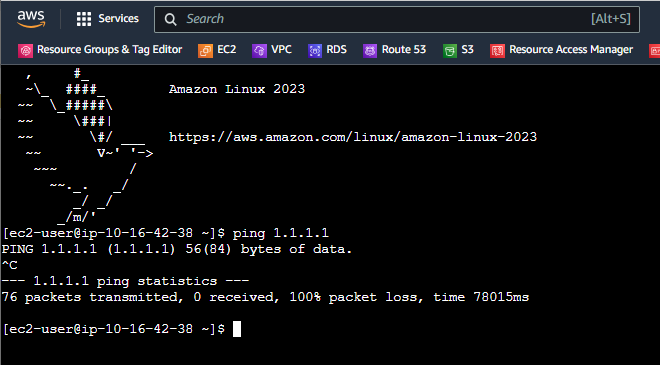
You can verify that this EC2 instance has no internet connectivity by trying to ping the IP address 1.1.1.1, and you will see it times out.
You can also verify connectivity to AWS services by running the command below to list the S3 buckets.

Note when you run that, it just hangs.

There is no connectivity with AWS public services because you have no access to any of the public space endpoints.
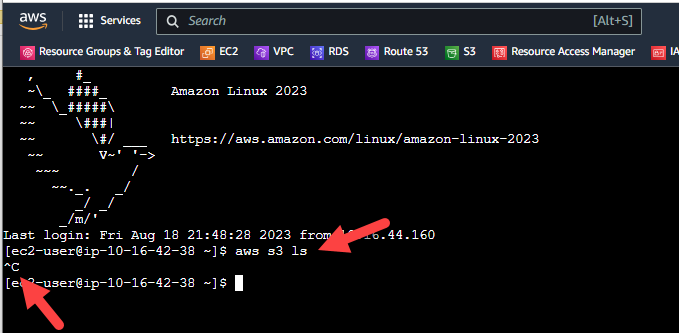
Press Ctrl + C to cancel out of that.

You’re going to create a Gateway endpoint that will allow you to access the S3 buckets.

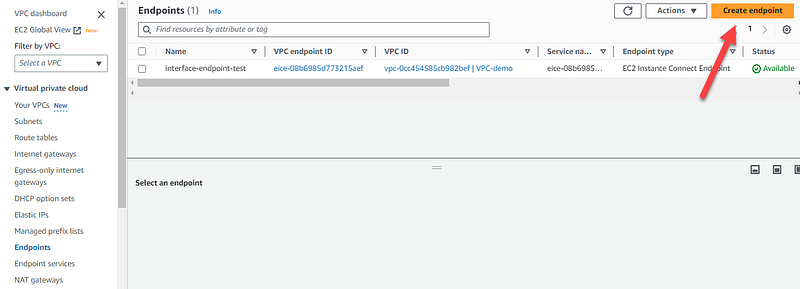
Go back to the VPC console. On the left menu, click Endpoints.

Click Create endpoint.
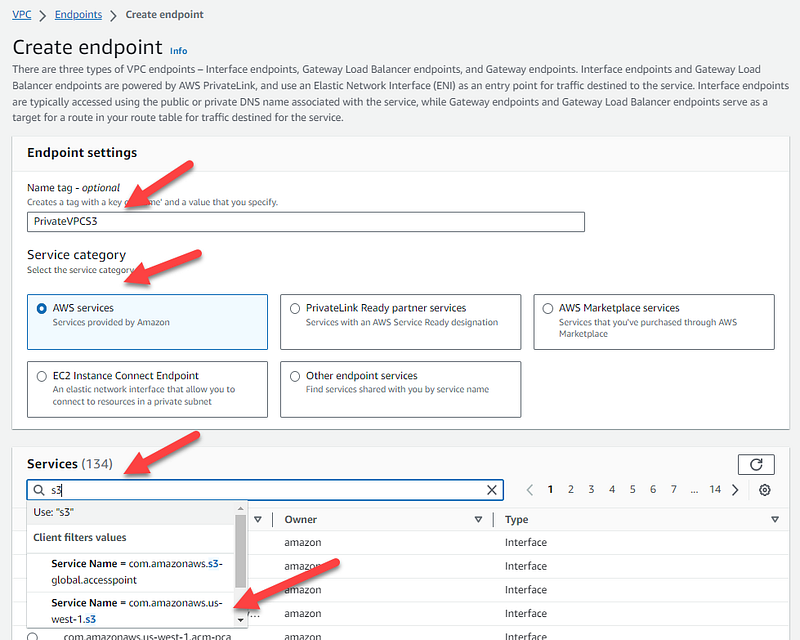
Give it a name. I chose the name tag PrivateVPCS3.

In the Service category, keep AWS services.

In the filter Services box, type S3, then click com.amazonaws.us-west-1.s3.

I set up my environment on us-west-1 region. Depending on the region you’re working with, it can show you a different one for you.
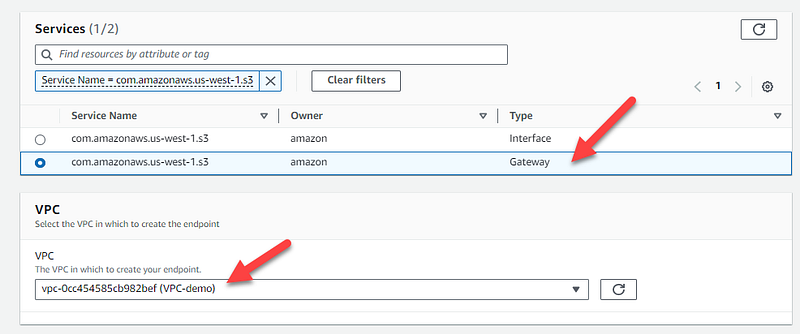
Check the box next to Gateway. Then select your VPC.
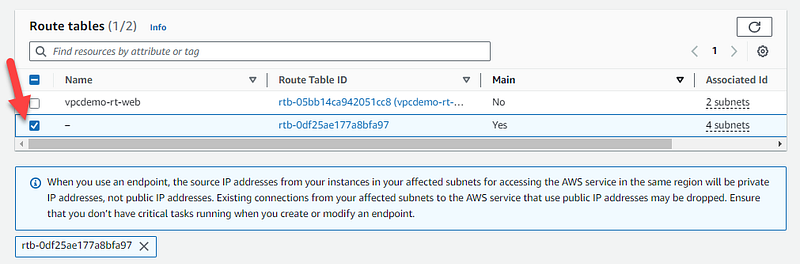
Select the route table which is associated with the subnet you’re working on this demo.

Scroll down and click Create endpoint.
When the endpoint gateway shows created, refresh it and make sure the state is showing available.

Now click Route tables on the left menu.

Select the route table associated with the gateway endpoint you just created, then click Routes.

You will see the prefix list created for the S3 service in the current region.
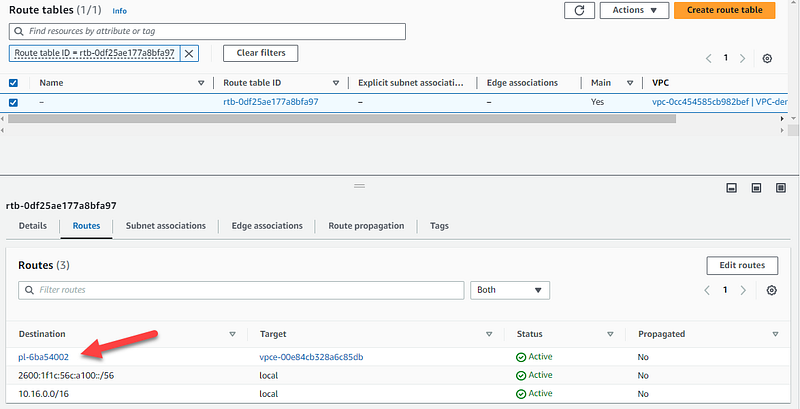
Open EC2 console, and go back to the open terminal running your EC2 instance.

You will try now to access the S3 services after the gateway endpoint is created.

If you run the command below, it should list all buckets in your AWS account. I’m going to add “|grep test-bucket” at the end, I want to show only the bucket used for this demo.

aws s3 ls
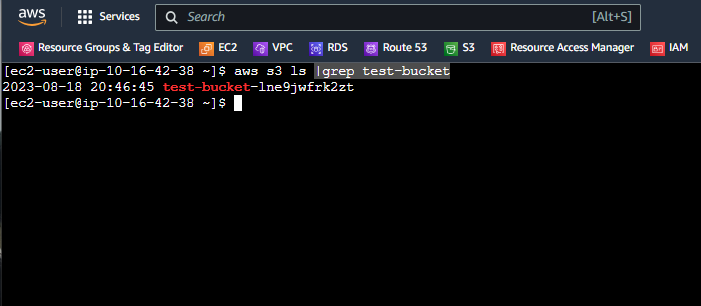
Now you can try to save to this EC2 instance the file previously uploaded to the bucket, using the command below.

Make sure you replace the bucket and file name.

aws s3 cp s3://<your_bucket_name>/<file_attached_to_your_bucket> .
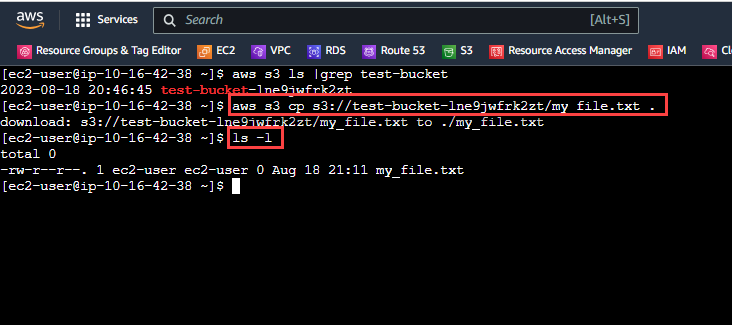
Then you see the file using the command ls -l.

You just have implemented a Gateway Endpoint and, by doing that you’ve allowed this private VPC to be able to access a public space endpoint, the S3 service, and specifically this S3 bucket.

Hope it helped you!

Follow me | Signup for more tips

AWS
Cloud Computing
Vpc
Vpc Endpoint
Aws Certification
Recommended from ReadMedium