avatarShashanka Shekhar

Free AI web copilot to create summaries, insights and extended knowledge, download it at here

3714

Abstract

allows you to specify a list of holidays to be excluded from the calculation.</li></ul><h2 id="f59a">2.Grasping the Table Structure:</h2><p id="c9cb" type="7">The table is named Working_Days.</p><figure id="e655"><img src="https://cdn-images-1.readmedium.com/v2/resize:fit:800/1*_OSsZj6iFAi8vXXlxtds3A.png"><figcaption>The table we will be using to understand NETWORKDAYS function</figcaption></figure><p id="3b1a">The table displays data related to order numbers, order dates, and delivery dates. Here’s a breakdown of its contents:</p><ul><li><b>Order Number</b>: This column lists the unique identifier for each order. The numbers seem to be structured to include the date and a unique suffix, indicating different orders placed on the same day.</li><li><b>Order Date</b>: This column shows the date on which the order was placed. In this table, all orders were placed on December 23, 2008.</li><li><b>Delivery Date</b>: This column indicates the date on which each order was delivered. The delivery dates range from December 29, 2008, to January 3, 2009.</li></ul><p id="5615">This table provides a clear view of the sequence and timing of orders placed and their respective delivery dates.</p><h2 id="c386">3. Calculating the Business Days using NETWORK Function:</h2><p id="3b44">We will be using the below DAX function to calculate business days.</p><blockquote id="86c4"><p><b>Business Days =</b></p></blockquote><blockquote id="1b1c"><p><b>VAR Order_Date = SELECTEDVALUE(Working_Days[Order Date])</b></p></blockquote><blockquote id="3cb0"><p><b>VAR Delivery_Date = SELECTEDVALUE(Working_Days[Delivery Date])</b></p></blockquote><blockquote id="88a8"><p><b>RETURN</b></p></blockquote><blockquote id="d19d"><p><b>NETWORKDAYS(Order_Date, Delivery_Date)</b></p></blockquote><figure id="fa10"><img src="https://cdn-images-1.readmedium.com/v2/resize:fit:800/1*U12gm89YucUYOW23w3vVDw.png"><figcaption>DAX for Business Days calculation</figcaption></figure><p id="de32">This DAX formula calculates the number of business days (working days) between an order date and a delivery date, excluding weekends and optionally holidays, using the <code><b>NETWORKDAYS</b></code> function. Here's a breakdown of the formula:</p><h2 id="ab36">Variable Declarations:</h2><ul><li><code><b>Order_Date</b></code> stores the <code>Order Date</code> column in the <code>Working_Days</code> table.</li><li><code><b>Delivery_Date</b></code> stores the <code>Delivery Date</code> column in the <code>Working_Days</code> table.</li></ul><h2 id="9be3">Calculation:</h2><ul><li>The <code><b>RETURN</b></code> statement calculates the number of business days between the <code>Order_Date</code> and <code>Delivery_Date</code> using the <code><b>NETWORKDAYS</b></code> function.</li></ul><h1 id="a074">Explanation of Each Component:</h1><ul><li><code><b>VAR Order_Date = SELECTEDVALUE(Working_Days[Order Date])</b></code>: This line creates a variable called <code>Order_Date</code> that holds the value of the order date from the <code>Working_Days</code> table for the current row or context.</li><li><code><b>VAR Delivery_Date = SELECTEDVALUE(Working_Days[Delivery Date])</b></code>: This line creates a variable called <code>Delivery_Date</code> that holds the value of the delivery date from the <code>Working_Days</code> table for the current row or context.</li><li><code><b>RETURN NETWORKDAYS(Order_Date, Delivery_Date)</b></code>: This line returns the number of business days between the <code>Order_Date</code> and <code>Delivery_Date</code>.</li></ul><h1 id="80c2">How It Works?:</h1><p id="3227">When you use <code><b>NETWORKDAYS(Order_Date, Delivery_Date)</b></code>, the function will:</p><ol><li>Count the number of days b

Options

etween <code><b>Order_Date</b></code> and <code><b>Delivery_Date</b></code>.</li><li>Exclude <b>Saturdays</b> and <b>Sundays</b> from this count to give you the <b>number of business days.</b></li></ol><p id="0837">This is particularly useful for business applications where you need to measure the actual working days taken to complete a task or deliver a product, excluding weekends.</p><h2 id="52ee">4. Obtaining the Final Output:</h2><p id="f850">After the above calculation we will get this table as the output:</p><figure id="d581"><img src="https://cdn-images-1.readmedium.com/v2/resize:fit:800/1*Du6Yhkshy5Gk7K9yoYW-3w.png"><figcaption>The Final output table with Business days column</figcaption></figure><p id="9a49">The <b>Business Days</b> column in the above table represents the number of business days between the <b>Order Date</b> and the <b>Delivery Date</b> for each <b>order which we calculated and discussed in the previous step.</b></p><p id="7e85">Business days typically exclude weekends (Saturdays and Sundays) and can also exclude public holidays if specified.</p><p id="debd" type="7">Download the data for the above from this link.</p><p id="a6b5" type="7">Download the PBIX file for the above from this link.</p><div id="388e" class="link-block"> <a href="https://readmedium.com/creating-a-sales-by-product-segment-kpi-with-a-donut-chart-in-power-bi-e169256c8c24"> <div> <div> <h2>Creating a Sales by Product Segment KPI with a Donut chart in Power BI</h2> <div><h3>Creating a Sales by Product Segment KPI with a Donut Chart in Power BI is a powerful way to visualize and track the…</h3></div> <div><p>medium.com</p></div> </div> <div> <div style="background-image: url(https://miro.readmedium.com/v2/resize:fit:320/1*YjHLJZfiYOoc2bGGfyDPpg.jpeg)"></div> </div> </div> </a> </div><p id="8cd0">Thank you for your attention!</p><p id="e73e"><a href="https://medium.com/@shashanka.shekhar02">Follow</a> me or <a href="https://medium.com/@shashanka.shekhar02/subscribe">subscribe </a>to get all my Power BI articles!</p><div id="49ac" class="link-block"> <a href="https://medium.com/@shashanka.shekhar02"> <div> <div> <h2>Shashanka Shekhar - Medium</h2> <div><h3>Read writing from Shashanka Shekhar on Medium. Contributor for Microsoft Power BI. I like Data Analysis and Data…</h3></div> <div><p>medium.com</p></div> </div> <div> <div style="background-image: url(https://miro.readmedium.com/v2/resize:fit:320/0*eTI3lYnzkC6Z4xxK)"></div> </div> </div> </a> </div><p id="8b1b" type="7">Don’t forget to subscribe to</p><p id="ced9" type="7">👉 Power BI Publication</p><p id="9d46" type="7">👉 Power BI Newsletter</p><p id="3fca" type="7">and join our Power BI community:</p><div id="1982" class="link-block"> <a href="https://linktr.ee/powerbi.masterclass?source=post_page-----e169256c8c24--------------------------------"> <div> <div> <h2>Microsoft Power BI Masterclass | Linktree</h2> <div><h3>Let's share our Microsoft Power BI experience. Learn together. Grow together.</h3></div> <div><p>linktr.ee</p></div> </div> <div> <div style="background-image: url(https://miro.readmedium.com/v2/resize:fit:320/0*9Z-sfdJUnDfzylsP)"></div> </div> </div> </a> </div></article></body>

Using NETWORKDAYS Function in Power BI to Calculate Business Days

Calculating business days is a crucial aspect of project management, finance, and various business operations. The NETWORKDAYS function in Power BI provides an efficient way to compute the number of business days between two dates, excluding weekends and holidays. This powerful function can help streamline your workflow and improve accuracy in your data analysis.

In this article, we’ll explore how to use the NETWORKDAYS function in Power BI effectively. Here's a quick overview of what we'll cover:

Introduction to NETWORKDAYS:

  • What is the NETWORKDAYS function?
  • Key benefits of using NETWORKDAYS in Power BI.

Setting Up Your Data:

  • Preparing your data for calculation.
  • Creating a holiday table for accurate business day calculations.

Implementing NETWORKDAYS in Power BI:

  • Step-by-step guide to using the NETWORKDAYS function.
  • Example scenarios and practical applications.

Tips and Best Practices:

  • Handling common challenges and errors.
  • Optimizing your DAX formulas for better performance.

By the end of this article, you’ll have a solid understanding of how to leverage the NETWORKDAYS function in Power BI to calculate business days efficiently and accurately, helping you make more informed decisions and streamline your processes.

Implementation in Power BI:

Here are all the steps we will be following in the step-by-step guide to help you set it up:

Happy learning!

1.About NETWORKDAYS Function:

The NETWORKDAYS function in Power BI is used to calculate the number of working days (or business days) between two dates, excluding weekends and optionally, holidays. This function is particularly useful in project management, finance, and other business operations where tracking the duration of work across specific periods is crucial.

The syntax of the NETWORKDAYS function is:

NETWORKDAYS(<start_date>, <end_date>[, <weekend>, <holidays>])

. start_date: The start date for the calculation.

  • end_date: The end date for the calculation.
  • [weekend]: An optional parameter that allows you to specify which days of the week are considered as weekends and are not included in the calculation for working days. If this is not included, then the default value of 1 is used for Saturday and Sunday being the weekend. When using holidays then this parameter must be included.
  • [holidays]: An optional parameter that allows you to specify a list of holidays to be excluded from the calculation.

2.Grasping the Table Structure:

The table is named Working_Days.
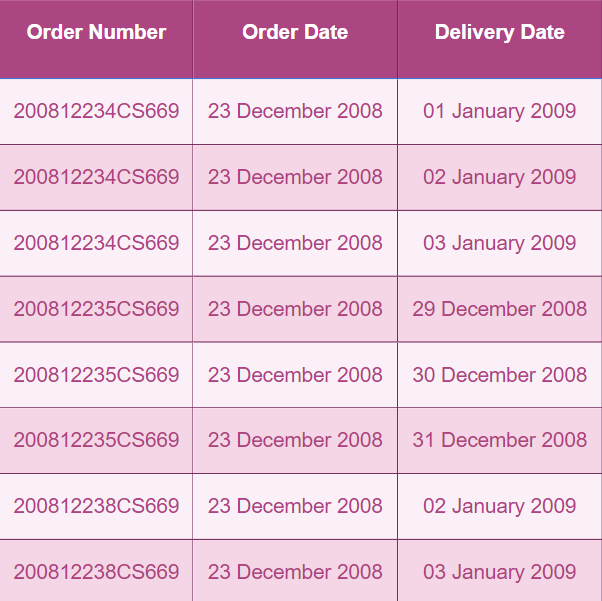
The table we will be using to understand NETWORKDAYS function

The table displays data related to order numbers, order dates, and delivery dates. Here’s a breakdown of its contents:

  • Order Number: This column lists the unique identifier for each order. The numbers seem to be structured to include the date and a unique suffix, indicating different orders placed on the same day.
  • Order Date: This column shows the date on which the order was placed. In this table, all orders were placed on December 23, 2008.
  • Delivery Date: This column indicates the date on which each order was delivered. The delivery dates range from December 29, 2008, to January 3, 2009.

This table provides a clear view of the sequence and timing of orders placed and their respective delivery dates.

3. Calculating the Business Days using NETWORK Function:

We will be using the below DAX function to calculate business days.

Business Days =

VAR Order_Date = SELECTEDVALUE(Working_Days[Order Date])

VAR Delivery_Date = SELECTEDVALUE(Working_Days[Delivery Date])

RETURN

NETWORKDAYS(Order_Date, Delivery_Date)
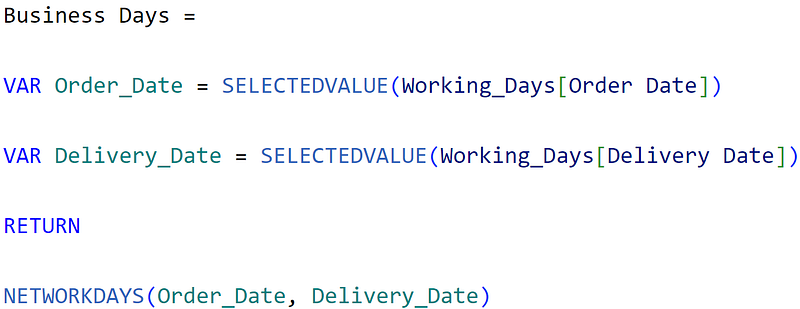
DAX for Business Days calculation

This DAX formula calculates the number of business days (working days) between an order date and a delivery date, excluding weekends and optionally holidays, using the NETWORKDAYS function. Here's a breakdown of the formula:

Variable Declarations:

  • Order_Date stores the Order Date column in the Working_Days table.
  • Delivery_Date stores the Delivery Date column in the Working_Days table.

Calculation:

  • The RETURN statement calculates the number of business days between the Order_Date and Delivery_Date using the NETWORKDAYS function.

Explanation of Each Component:

  • VAR Order_Date = SELECTEDVALUE(Working_Days[Order Date]): This line creates a variable called Order_Date that holds the value of the order date from the Working_Days table for the current row or context.
  • VAR Delivery_Date = SELECTEDVALUE(Working_Days[Delivery Date]): This line creates a variable called Delivery_Date that holds the value of the delivery date from the Working_Days table for the current row or context.
  • RETURN NETWORKDAYS(Order_Date, Delivery_Date): This line returns the number of business days between the Order_Date and Delivery_Date.

How It Works?:

When you use NETWORKDAYS(Order_Date, Delivery_Date), the function will:

  1. Count the number of days between Order_Date and Delivery_Date.
  2. Exclude Saturdays and Sundays from this count to give you the number of business days.

This is particularly useful for business applications where you need to measure the actual working days taken to complete a task or deliver a product, excluding weekends.

4. Obtaining the Final Output:

After the above calculation we will get this table as the output:
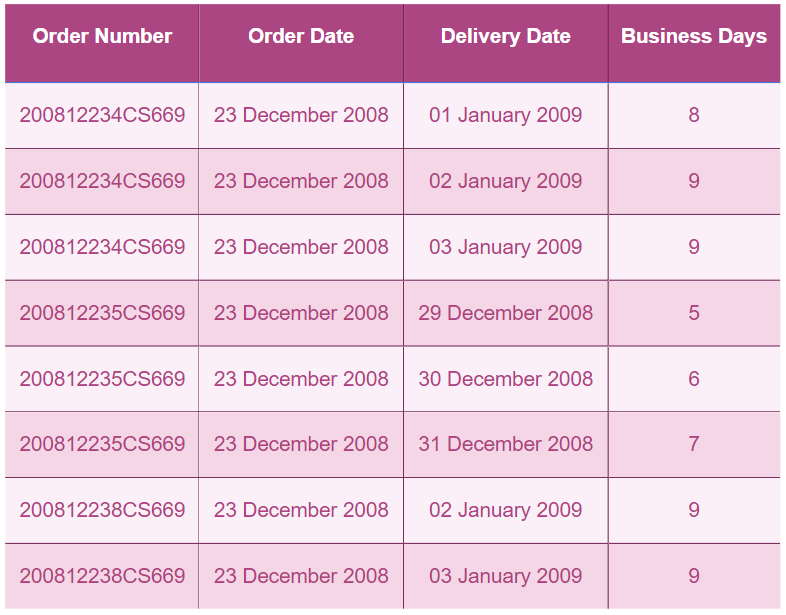
The Final output table with Business days column

The Business Days column in the above table represents the number of business days between the Order Date and the Delivery Date for each order which we calculated and discussed in the previous step.

Business days typically exclude weekends (Saturdays and Sundays) and can also exclude public holidays if specified.

Download the data for the above from this link.

Download the PBIX file for the above from this link.

Thank you for your attention!

Follow me or subscribe to get all my Power BI articles!

Don’t forget to subscribe to

👉 Power BI Publication

👉 Power BI Newsletter

and join our Power BI community:

Power Bi
Data Visualization
Business
Data Science
Finance
Recommended from ReadMedium